
Profiles
Every rounding and blend uses one of five profiles: the shape of the curve across the edge. During a rounding or blend drag, the keys 1 to 5 switch between them. Changing the profile does not change the radius.
Round
Key 1. A circular arc. This is the default.
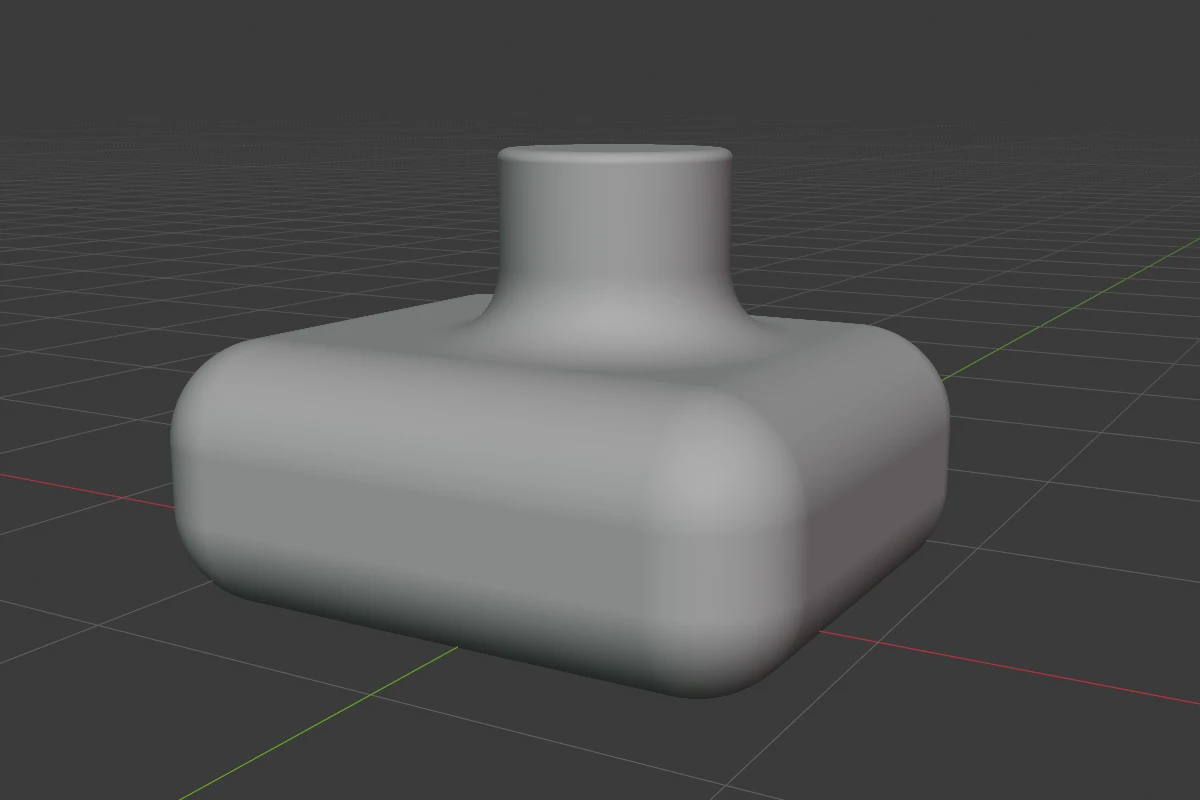
Sharp
Key 2. A squarer curve than Round: it follows the faces further and turns more tightly near the corner, so the edge looks crisper.
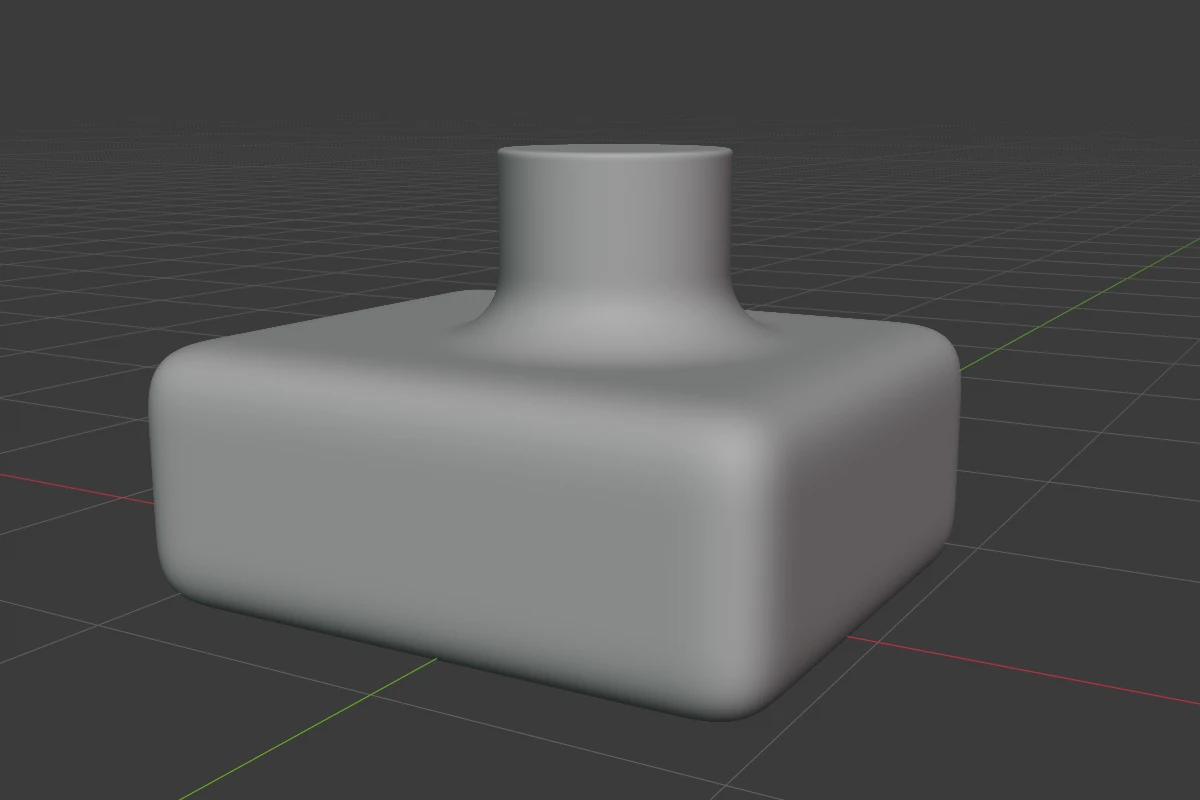
Soft
Key 3. Between Round and Sharp in shape. It meets the faces without a visible line, so reflections run smoothly across it.
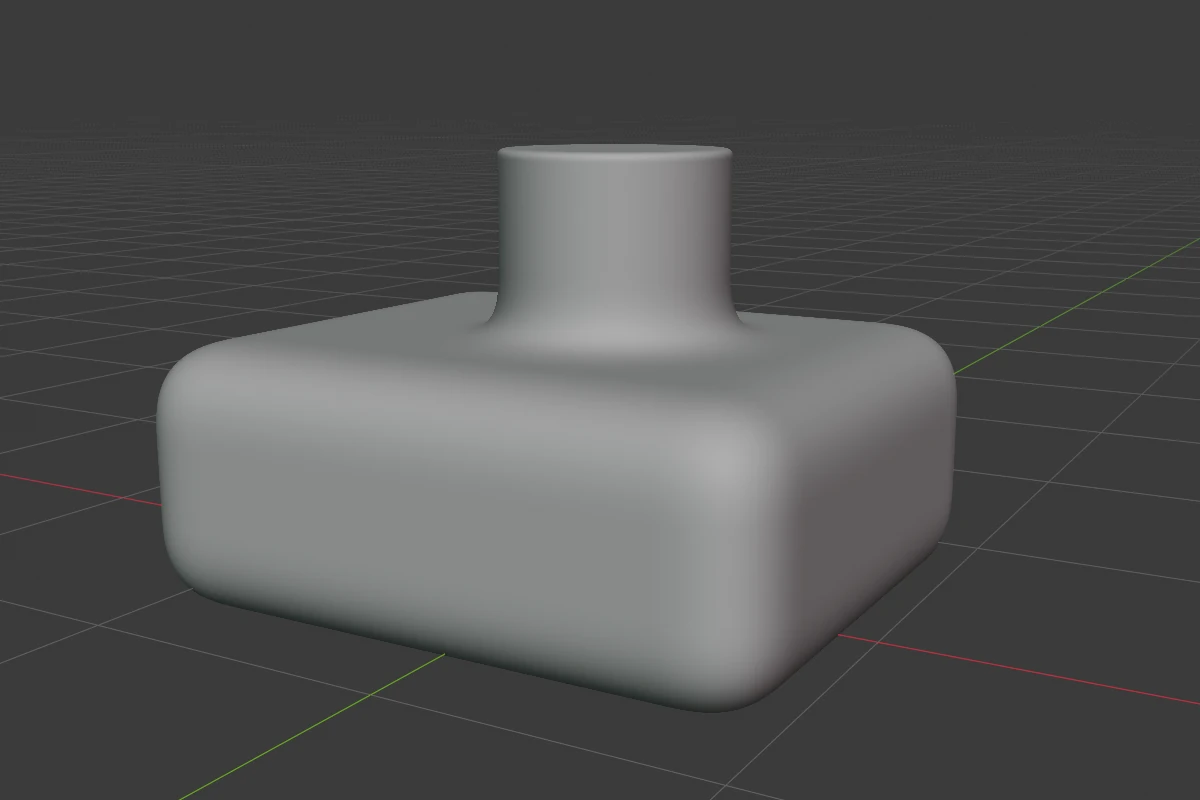
Tight
Key 4. The squarest curve: the corner stays nearly square, with a small round at its tip.
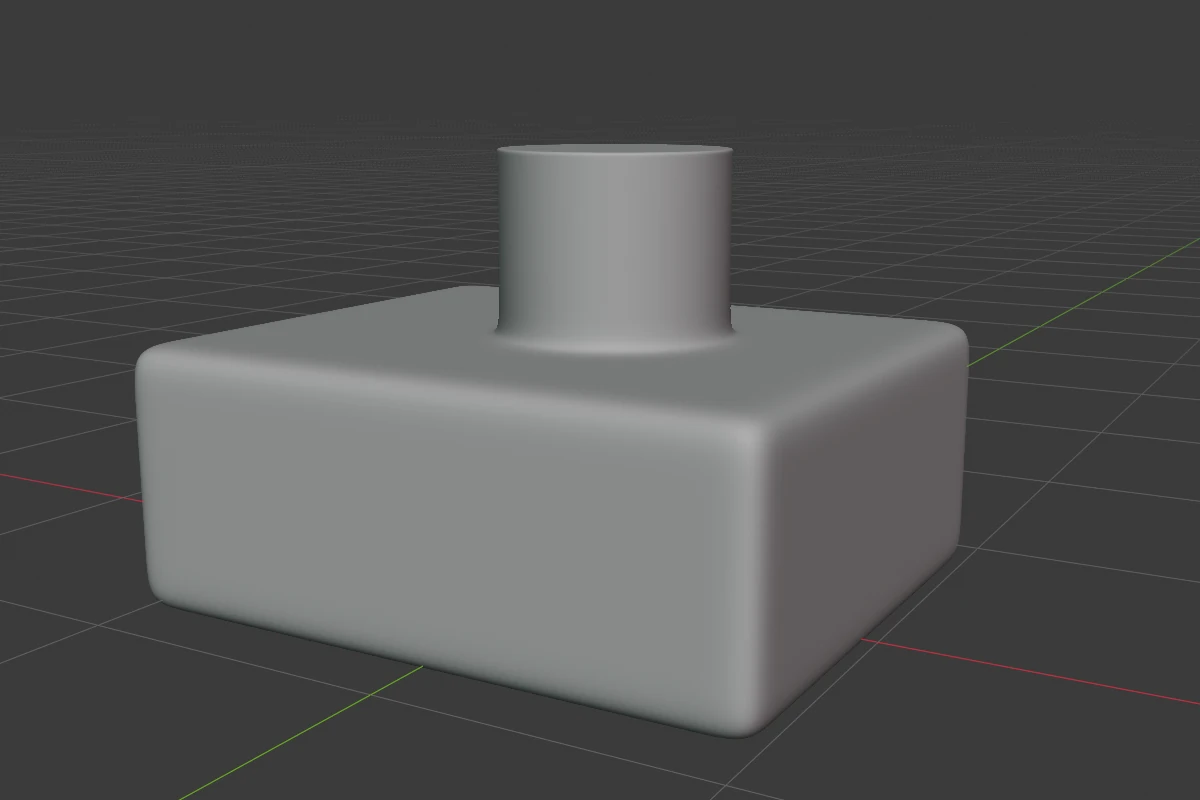
Chamfer
Key 5. A flat cut at 45°. Its two edges can be rounded with Smooth (below).
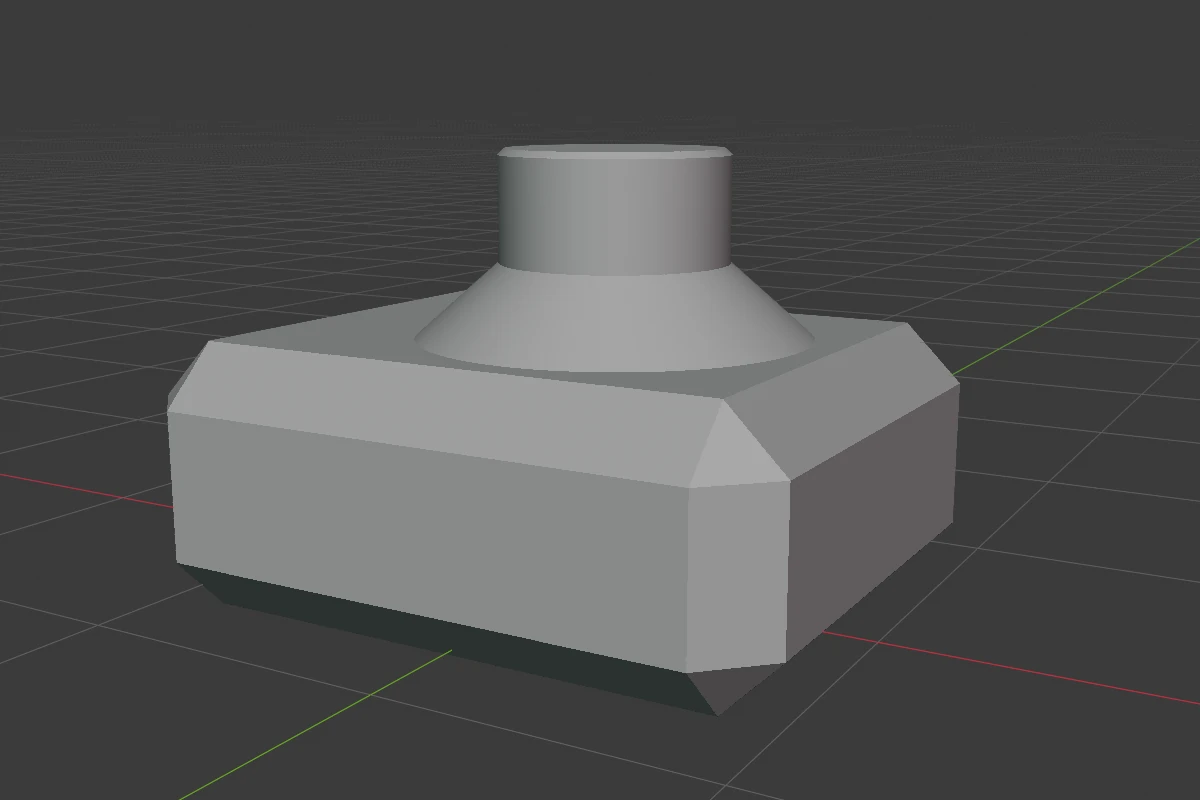
Chamfer Smooth
Smooth rounds the two edges where a Chamfer meets the faces. It starts at 0 and has a soft maximum of 0.5. In the panel it appears under the radius only when the profile is Chamfer, labelled Smooth, Bevel Smooth, Inner Smooth or Corner Smooth. During a rounding or blend drag, S switches the drag to the Smooth and back. The Smooth modifier’s radius drag has no S.
Where 1–5 work
B,Ctrl + Band the Rounding, Bevel, Blend, Inner and Outer arcs;- the pie’s and right-click menu’s Rounding, Bevel, Blend, Outer, Inner and Smooth drags, and the values in the pie’s East wedge;
BandCtrl + Bwhile drawing in Block mode;- the rounding handles of Ngon and path corners in Edit mode;
- the Bisect blend and corner dots, and the Smooth radius drag.
Always round, with no profile: a Mirror’s Blend, an Array’s Smooth, a Lathe’s Side Rounding, a Sweep’s corners.