
Edit Mode
Edit is the Chisel tool’s second state: the tool works on the points of every selected shape (a path shape’s points, an Ngon’s corners, a Sweep’s path, a Bisect fence’s corners, a Lattice cage’s controls) instead of on objects. It is a state of the tool, not Blender’s Edit Mode: Blender stays in Object Mode.
Edit button and Tab
- Edit in the tool settings row (after Chisel Disable) switches the state; it stays pressed in while the tool is in Edit. The
Dpopup has the same button across its top. Tabswitches it with a Chisel shape (or nothing) active. On any other objectTabis Blender’s Edit Mode. The switch is an undo step.

In Edit the row shows All, None and Invert for the points instead of the Mode list. The state stays when you switch to another tool and back.
What shows
- A shape’s own handles (an Ngon’s dots, the handles of a Tube, Outline, Rail or Lathe) show only in Edit.
- Modifier handles (Sweep, Bisect, Lattice and the others) show in both states; in Edit their points can be selected too.
- The active shape shows all its handles. Every other selected path shape shows its point dots, and every other selected Ngon its corners. Press a dot on one of them and that shape becomes the active one, with all its handles.
- A point’s dot is black, blue when selected. A point’s own ring and rounding handle respond only while it is selected.
Selecting points
| Input | Action |
|---|---|
| Click a dot | Select that point alone (the other shapes’ points too are deselected) |
Shift + click a dot | Add the point, or remove it if it was selected |
| Drag on empty space | Box select: the points inside replace the selection |
Shift + drag | Box select, adding to the selection |
Ctrl + drag | Box select, taking from the selection |
| Click away from the dots | Deselect every point |
A / Alt + A / Ctrl + I | Select all points / none / invert |
A click away from the dots only clears the points while some are selected; with none selected it selects the object under the mouse. To pick another shape while points are selected, click it twice, or Shift-click it. A drag where no points show box-selects objects. The point selection is not saved and is not an undo step.
Dragging a selection
- A drag on an unselected dot selects that point and moves it alone.
- A drag on a selected dot moves every selected point, on every shape.
- A drag on a selected ring or rounding handle changes every selected point the same way;
1–5set the profile of every selected corner. EscorRMBputs the points and the selection back.
The keys of each drag are on Points.
Move Selected Points (G)
G moves every selected point, of every shape and modifier, with the mouse. The move follows the view plane through the points’ middle.
X,YorZkeeps the move to a world axis (a coloured line shows it); the same key again frees itShiftis precisionLMB,EnterorSpaceconfirms;RMBorEscputs every point back
Each point stays where its shape allows: an Outline’s on its plane, the ends of a solid Lathe on its axis, a Lattice control at its fold limit. The whole move is one undo step.
Scale Points Radius (S)
S scales the radius of the selected Tube and Rail points, by how far the cursor moves from their middle (like Alt + S on Blender curve points). Shift is precision; LMB confirms, RMB cancels. It does not move the points.
Warning
With no selected point that
GorScan act on, the key is Blender’s own and moves or scales the objects. For example, with only Ngon corners selected,Sscales the Ngon object.
Remove Selected Points (X, Delete)
X or Delete removes every selected point (path points, Ngon corners, Sweep and Bisect fence points; a Lattice cage keeps its points) as one undo step.
Each shape keeps its fewest points. If the selection would leave a shape with too few, none of that shape’s points go and a warning says why (“A Tube needs at least 2 points”, “An Ngon needs at least 3 vertices”). With no point selected, X over a dot removes that one point, and anywhere else it is Blender’s Delete.
The right-click menu in Edit
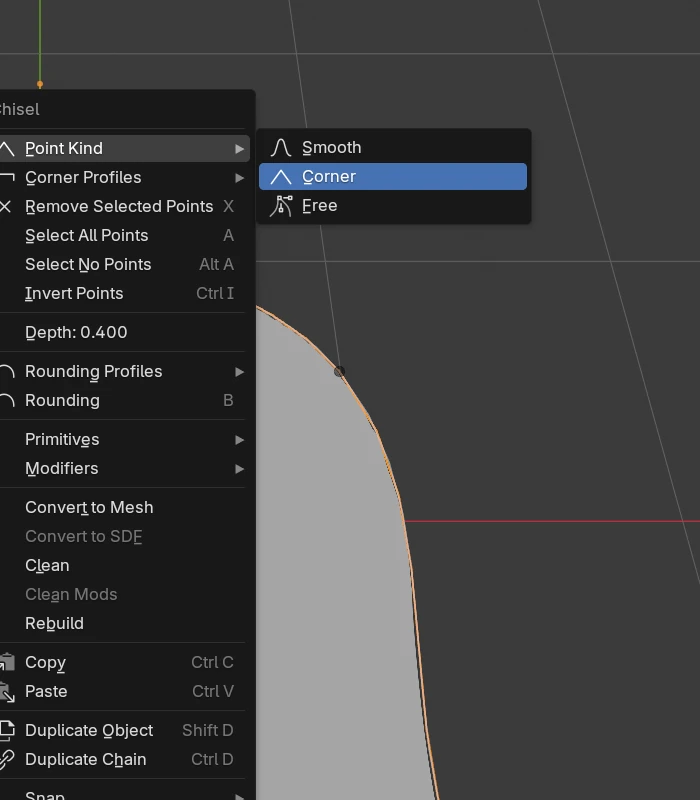
The right-click menu leads with the selected points’ entries, then a line and the usual menu:
- Point Kind: Smooth, Corner or Free for every selected path point
- Corner Profiles: Round, Sharp, Soft, Tight or Chamfer for every selected corner (a path’s Corner points and an Ngon’s corners)
- Remove Selected Points (
X) - Select All Points, Select No Points, Invert Points
Many shapes (100 handles)
A view shows at most 100 point handles of the selected shapes. The active shape always shows all of its own. The other selected shapes follow in selection order, a whole shape at a time: one that does not fit shows only its outline. Make a shape active to bring its points (Shift-click it to keep the selection). Only the points that show can be selected, boxed or dragged.
Turning handles off
The tool settings row has a Shapes icon that hides every shape’s own handles at once. The gizmo drop-down next to it has a switch per family: Ngon (with Rounding Handles and Edge Add Dots) and Tube, Lathe, Outline, Rail (Points, Radius Rings, Shape Handles). See Gizmos.
See also
- Points: point kinds, handles and drag keys
- Path Shapes, Ngon
- Sweep, Bisect, Lattice: modifier points in Edit
- Chisel Tool, Keymap