Chisel Tool
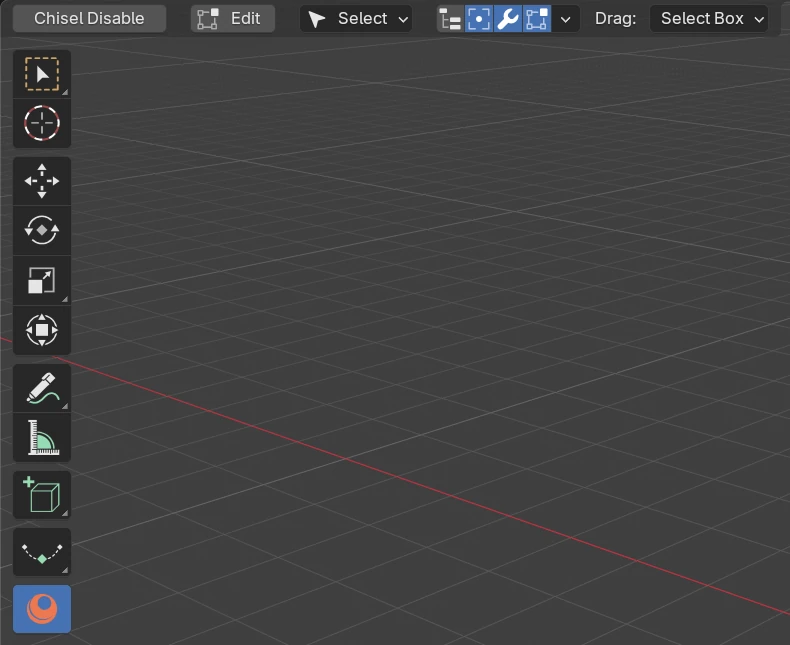
The Chisel tool is Chisel’s tool in the 3D View: its icon is last in the tool bar, and Alt + Q picks it from any tool. Most of Chisel’s keys (the pie, the right-click menu, D, Tab) work only while it is active. Its keys are listed in Keymap.
Object and Edit
The tool has two states:
| State | The left mouse button | Shows |
|---|---|---|
| Object | Does what the Mode says | Shapes and modifier handles |
| Edit | Selects and moves points | The points of the selected shapes: an Ngon’s, a path’s, a Sweep’s, a Bisect fence’s, a Lattice cage’s. See Edit Mode |
Edit in the tool settings row, Edit in the D popup, and Tab switch between them. Tab does so on a Chisel shape or with nothing active; on any other object it stays Blender’s Edit Mode. Each switch is an undo step. Blender itself stays in Object Mode.
Text shapes and
TabWith the Chisel tool active,
Tabon a Text shape switches the tool to Edit instead of opening Blender’s text editing. To type into the text, switch to another tool first (for exampleW), then pressTab.
The tool settings row

| Control | What it does |
|---|---|
| Chisel Disable | Sets the scene’s render engine to EEVEE and every 3D View to Solid. When Chisel is not the engine, a red Chisel Enable takes its place: it sets the engine to Chisel and every 3D View to Material Preview |
| Edit | Switches the tool to Edit; pressed in while in Edit |
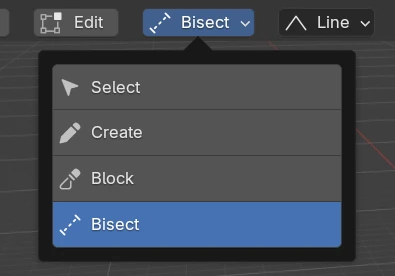
| Mode | What a left drag does: Select, Create, Block or Bisect, see Modes |
| the mode’s settings | Create, Block and Bisect add their settings here, see below |
| Gizmo icons | Show or hide the Tape tree and the gizmo families, see Gizmo icons |
| Gizmo drop-down | Every gizmo switch, one by one, see Gizmos |
| Drag | Blender’s select tool for a left drag in Select mode: Tweak, Select Box, Select Circle or Select Lasso. In the other modes it reads Active Tool, so a drag draws |
Modes
| Mode | A left drag |
|---|---|
| Select (default) | Selects, with the Blender select tool picked in Drag |
| Create | Draws a new shape where you drag, sized by the drag |
| Block | Draws a base on a surface and pulls it to a height, see Block Mode |
| Bisect | Draws a cutting line across the selected Chisel shapes |
A left click without a drag selects in every mode.
Create mode

Release, Space or Enter keeps the shape; RMB or Esc cancels. A drag under 4 pixels makes a near-zero shape, so a stray click does not drop a full-size one.
Shape
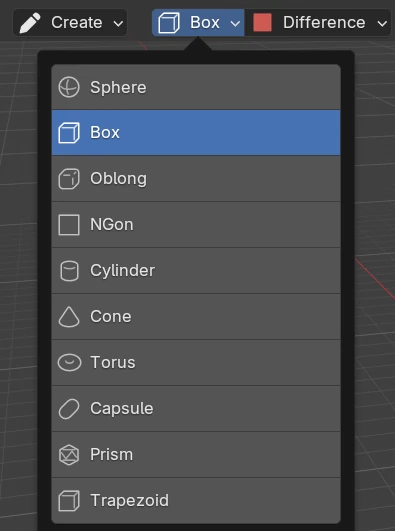
Sphere, Box (default), Oblong, NGon, Cylinder, Cone, Torus, Capsule, Prism, Trapezoid: the shape a drag draws. Each is described under Standard Shapes.
Operation
The same setting serves Create and Block mode.
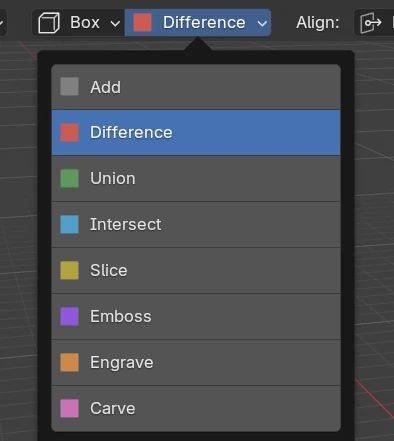
| Operation | What the new shape does to the selected Chisel shapes |
|---|---|
| Add | Nothing: it stands on its own |
| Difference (default) | Cuts them, see Boolean |
| Union | Joins them |
| Intersect | Keeps only the overlap |
| Slice | Cuts them and keeps the cut-off part as a separate copy |
| Emboss | Raises their surface where it overlaps, see Emboss & Engrave |
| Engrave | Recesses their surface where it overlaps |
| Carve | Cuts them with its solid grown by an offset, and keeps rendering, see Carve |
Every operation except Add needs at least one selected Chisel shape.
Align
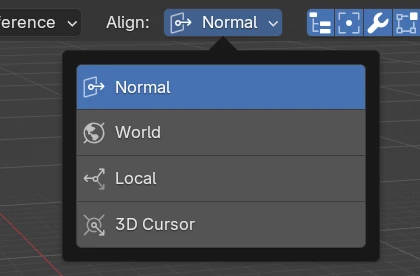
| Align | The new shape’s Z axis |
|---|---|
| Normal (default) | Along the surface normal under the cursor |
| World | The world axes |
| Local | The axes of the object under the cursor |
| 3D Cursor | The 3D cursor’s rotation |
Block mode

Shape, Operation and Align are described in Block Mode.
Bisect mode

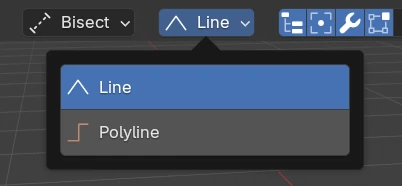
| Bisect Shape | The cut |
|---|---|
| Line (default) | One drag: one cutting plane |
| Polyline | A drag for the first segment, then a click for each corner; Space or Enter keeps it, Backspace removes the last corner. The cut is a fence of joined planes |
While drawing, F flips which side is kept and Ctrl toggles angle snap. Each selected shape gets its own Bisect modifier.
Edit

| Control | What it does |
|---|---|
| All | Selects every point of the selected shapes (A) |
| None | Deselects every point (Alt + A) |
| Invert | Inverts the point selection (Ctrl + I) |
They are greyed out while no selected shape has points. The Mode list is hidden in Edit.
Gizmo icons
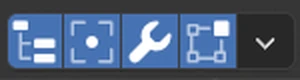
| Icon | Shows or hides |
|---|---|
| Tape Tree | The Tape tree |
| Outlines and Origins | The cutter outlines and the dots on modifier targets |
| Modifier Gizmos | The modifier handles: Bisect, Array, Bend, Twist, Solidify, Sweep, Lattice |
| Shape Gizmos | The shapes’ own handles: an Ngon’s dots, the path handles of a Tube, Lathe, Outline or Rail |
| Drop-down | Chisel Gizmos: every family and the adjust arcs, one by one |
All four are on by default.
The D popup
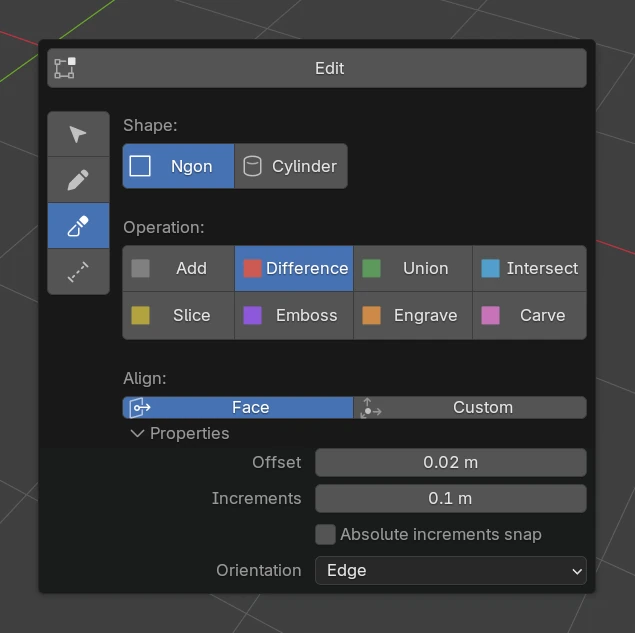
D opens the tool’s settings at the cursor. Edit runs across the top; in Object, a rail of the four modes runs down the left, and the body holds the picked mode’s settings, the same as in the tool settings row.
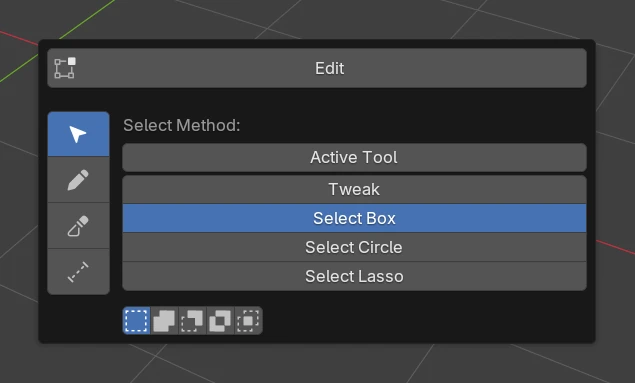
What the popup adds to the row:
| Body | Adds |
|---|---|
| Select | Select Method (Active Tool, Tweak, Select Box, Select Circle, Select Lasso) and the buttons for how a box, circle or lasso changes the selection: set, extend, subtract, invert, intersect |
| Block | Properties, a fold (closed by default) with the plane options of Block Mode |
| Bisect | A reminder of the drawing keys |
| Edit | All, None, Invert and a reminder of the point keys |