
Rail
A section swept along a path of points anywhere in 3D. The section is a star, a polygon, a gear, a flower, a ratchet or a line you draw. Each point scales the section, and the Rail can twist from its first point to its last. Open ends are flat.
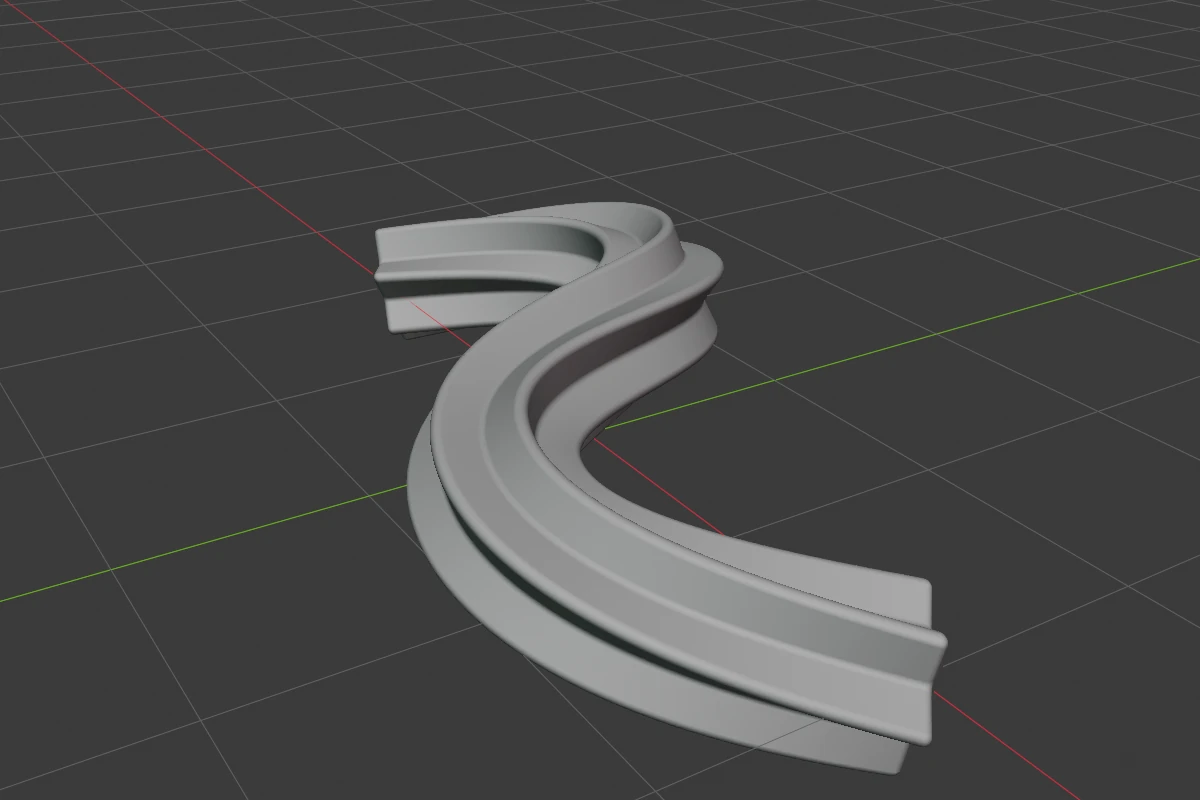
Settings
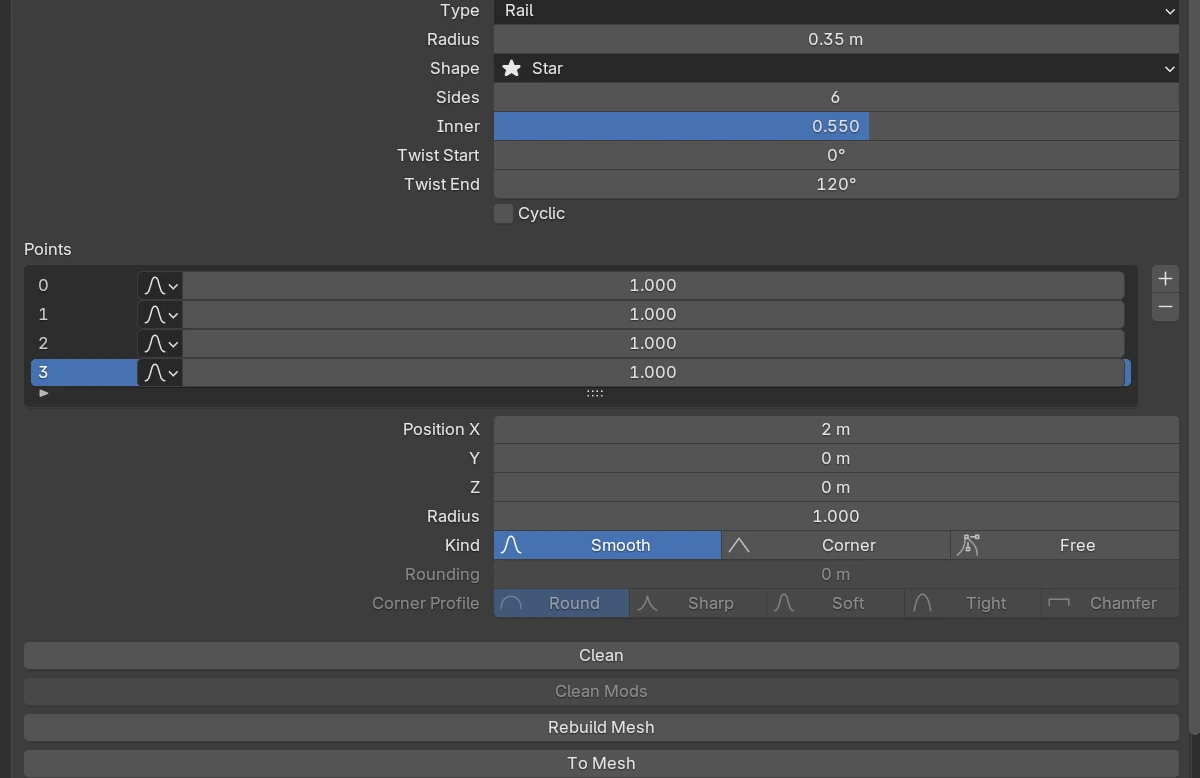
| Setting | Default | Range | What it does |
|---|---|---|---|
| Radius | 0.2 | > 0 (soft 5) | The section’s outer radius. Each point’s Radius multiplies it |
| Shape | Polygon | see below | The section |
| Sides | 7 | 1 – 64 (soft 24) | How many lobes go round the path |
| Inner | 0.5 | 0 – 1 | Where the valleys between the lobes sit, as a share of Radius. Not shown for Polygon |
| Twist Start | 0° | soft −360° – 360° | The section’s turn at the first point |
| Twist End | 0° | soft −360° – 360° | The section’s turn at the last point. The Rail turns evenly between the two, by length |
| Mirror (Custom) | on | The drawn line is half a lobe, mirrored into a whole one. Off, it is the whole lobe and steps back along a radius, like a ratchet tooth | |
| Section (Custom) | The Curve data-block that holds the drawn line, with New and X to clear it, then Blender’s curve profile widget | ||
| Cyclic | off | Closes the path into a loop | |
| Points | 2 points or more | The point list and the active point’s rows, see Points. A Rail’s rows show each point’s Radius |
The rows every shape has are in Properties Panels. A new Rail is a polygon of seven sides.
Shape
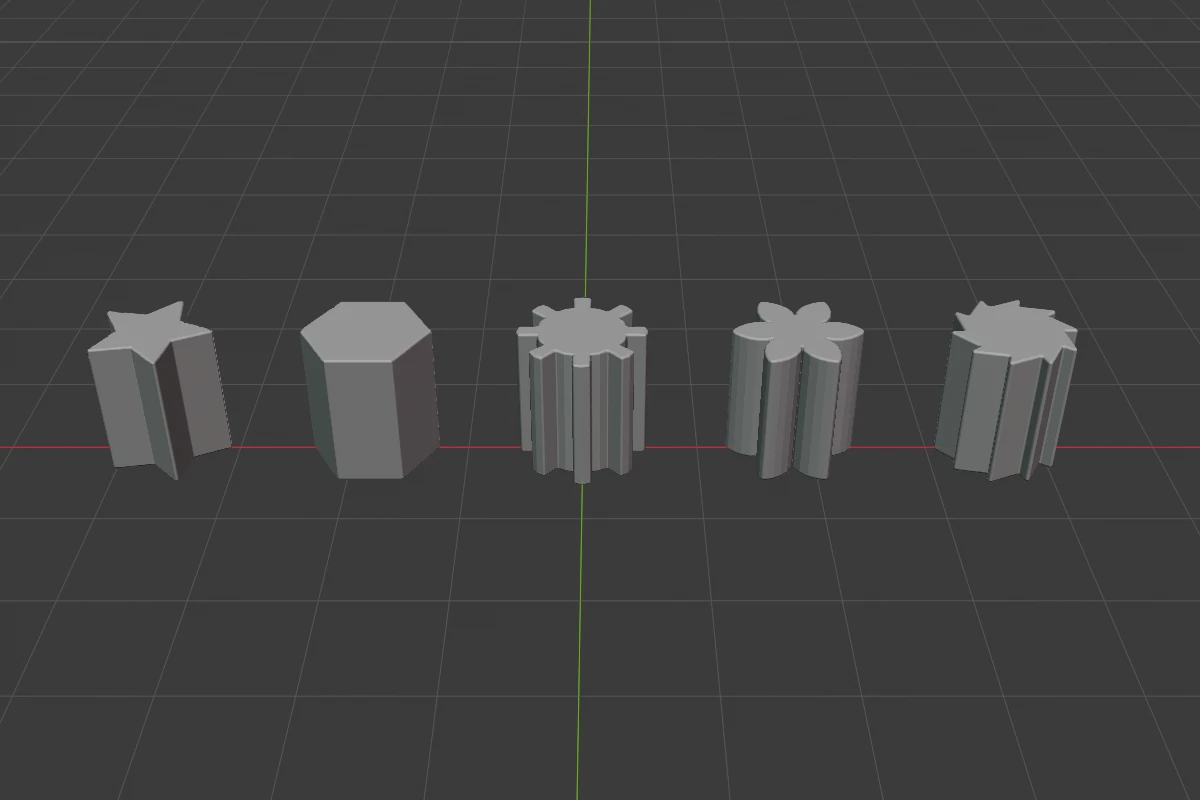
| Shape | Section |
|---|---|
| Star | Sides points, its valleys at Inner |
| Polygon | A regular polygon of Sides sides (three at least) |
| Gear | Square teeth, cut down to Inner |
| Flower | Round petals, meeting at Inner |
| Ratchet | Saw teeth that lean one way, back to Inner (two at least) |
| Custom | The line drawn in the Section widget: left to right is across one lobe, bottom to top from Inner to Radius. Clearing the Section makes it a star again |
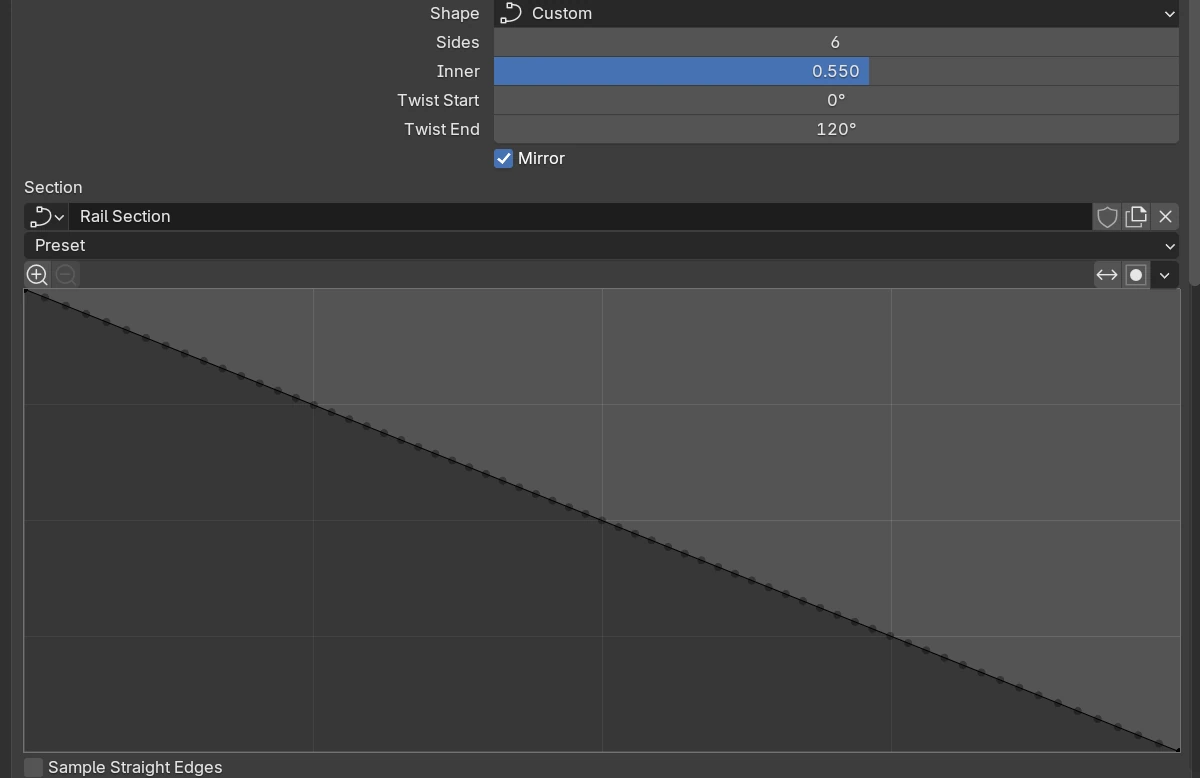
A drawn line too detailed for the shape is simplified, and the panel says “Section simplified: a lobe keeps 24 points of its line”. The Section is saved with the file and can be shared between Rails.
Rounding
Rounding rounds the corners of the section all along the Rail, and the rims of its flat ends. B, the Rounding arc and the right-click menu’s Rounding Profiles and Rounding set it.
Twist dot
In Edit mode, with the first or last point selected, a white dot just outside its ring sets that end’s twist: drag it round the path. Ctrl snaps to 15° (Ctrl + Shift: 1°), Shift is precision.
A selected point’s ring sets its Radius, as on a Tube. The dots, rounding handles, point handles and add dots are on Points.
Right-click menu
The right-click menu (and the Q pie’s West wedge) drags Radius, Sides and Inner. Drag Sides away from the shape for more (one per 24 pixels), or step it with the mouse wheel or Up / Down. Rail Shapes picks the section by name, Path sets Open or Cyclic.
Redo panel
After adding, the redo panel (F9) has Radius (default 0.2) and Align (World, View, 3D Cursor).
Limits and known issues
Warning
The SDF panel has no Rounding row for a Rail. Set it with
B, the Rounding arc or the right-click menu.
A Rail holds about 85 Smooth or Corner points. Past that, adding a point reports “No room for another point”.