
Pie Menu
Q, with the Chisel tool active, opens the pie menu: Chisel’s shapes, modifiers, profile drags and engine actions around the cursor. Its wedges fill from the selection; what doesn’t apply stays empty. With any other tool, Q stays Blender’s Quick Favorites.
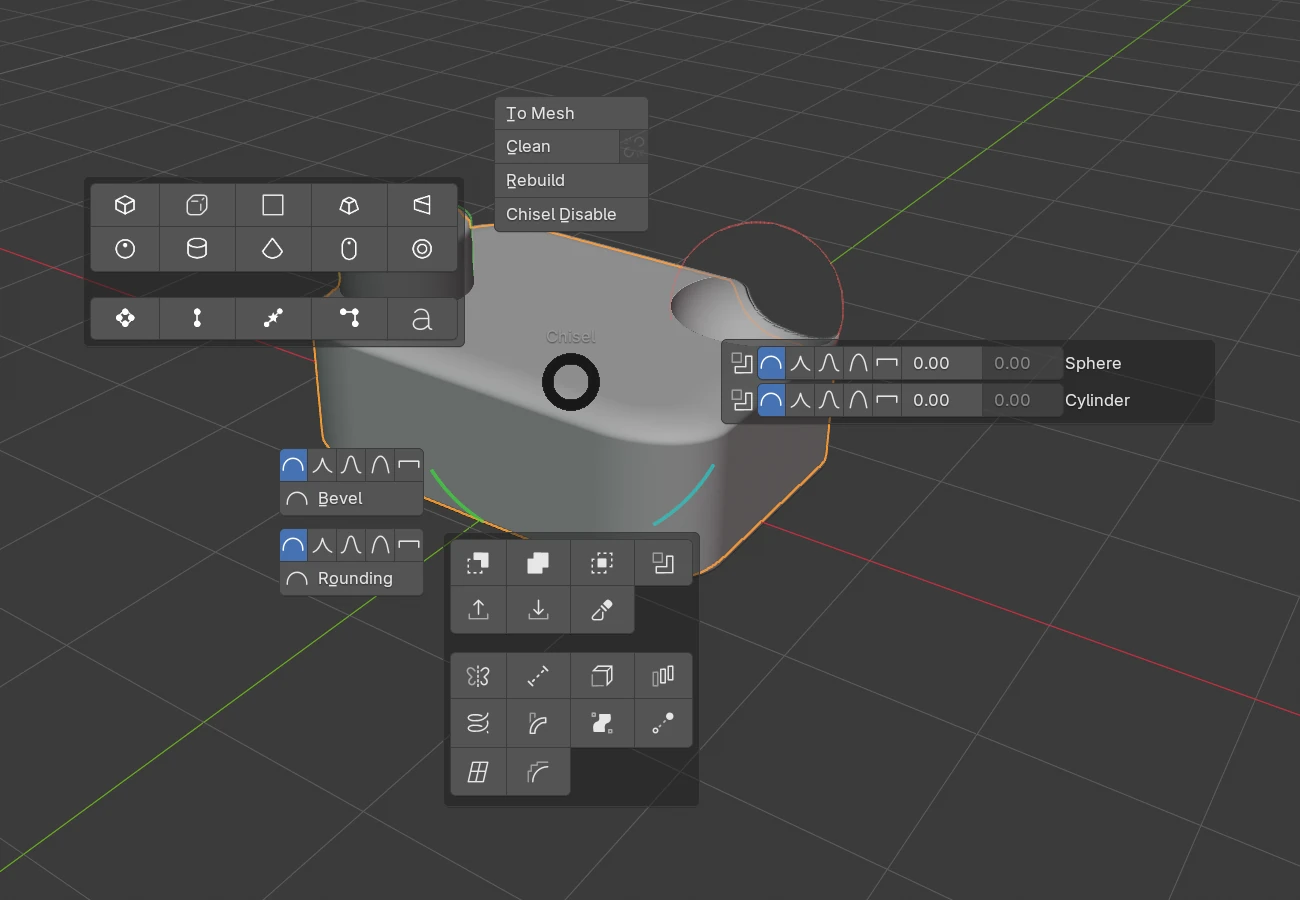
North: engine actions
| Button | What it does |
|---|---|
| To Mesh | Opens Convert to Mesh for the selected shapes |
| Clean | Removes the modifiers that use other shapes and makes the shape solid, see Clean |
| Unlink icon | Removes every modifier whose target is gone, see Clean Mods |
| Rebuild | Rebuilds the shape’s mesh, see Rebuild Mesh |
| Chisel Disable | Switches the scene’s render engine away from Chisel; a red Chisel Enable switches it back |
East: the active shape’s modifiers
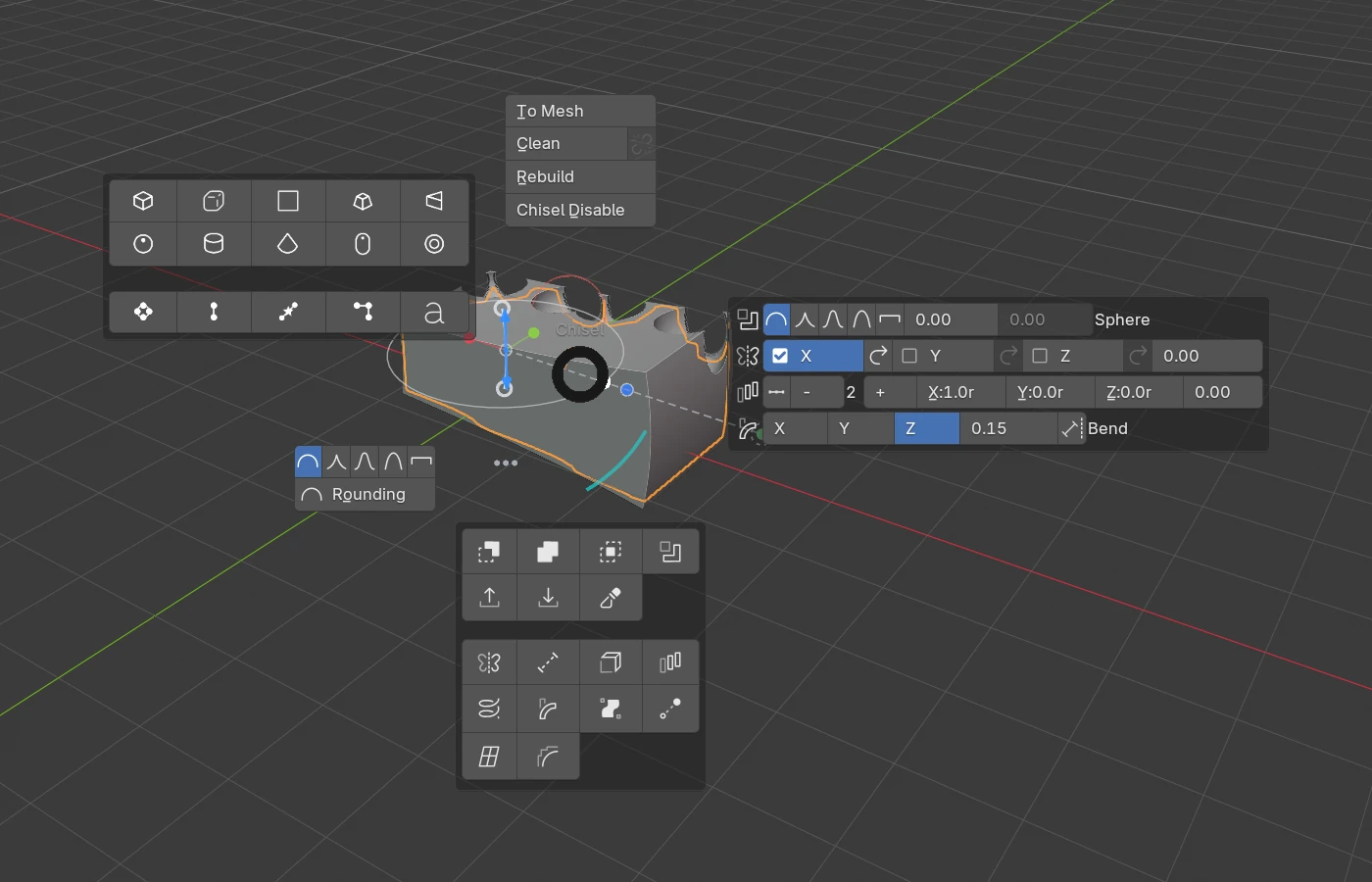
One row per modifier of the active shape, in stack order. Every number is a drag; every row of icons sets a profile.
| Modifier | Row, left to right |
|---|---|
| Boolean | Boolean icon, profile icons, blend radius, chamfer smooth (greyed out unless Chamfer), the target’s name (red ? when it is gone) |
| Carve | Carve icon, profile icons, blend, smooth (greyed out unless Chamfer), offset, the target’s name |
| Mirror | X, Y, Z toggles, each with its flip arrow, then the seam blend |
| Solidify | Thickness |
| Array | Line / Circle switch, − count +, then the X, Y, Z offsets or, for a circle, the axis and R (radius), then the smoothing |
| Twist | X, Y, Z axis, strength |
| Bend | X, Y, Z axis, strength, Limits toggle |
| Revolve | X, Y, Z axis, offset |
| Sweep | The number of path points |
| Lattice | The three point counts, the interpolation, a red warning icon when the cage folds |
| Smooth | Profile icons, radius, All (Override All) |
| Bisect | Flip, profile icons, blend, smooth, the plane’s name |
| Emboss / Engrave | Two rows: inner profile icons, inner radius, inner smooth, strength; then outer profile icons, outer radius, outer smooth, the target’s name |
South-East: warnings
Until the shaders are compiled, a red box says “Shaders not compiled, first run may take longer”, and on OpenGL also “OpenGL backend, Vulkan is much faster”. Otherwise the wedge is empty.
South: modifiers
The first grid holds the joins. The other selected shapes become targets of the active shape:
| Icon | Adds |
|---|---|
| Difference, Union, Intersect | A Boolean, the other selected shapes as cutters |
| Slice | A Difference on the active shape and a cut-off copy with an Intersect |
| Emboss, Engrave | An Emboss or Engrave |
| Carve | A Carve |
A click adds; Shift + click changes every join that already uses the selected shape to that operation. When exactly one selected shape is used by a join, its operation is lit and the two swap: a click changes, Shift + click adds.
The second grid adds to every selected shape: Mirror, Bisect, Solidify, Array, Twist, Bend, Revolve, Sweep, Lattice, Smooth.
South-West: profiles and drags
The rows that apply to the selection, top to bottom:
| Row | Shows for | Sets |
|---|---|---|
| Bevel profile icons, Bevel (+ Smooth) | Oblong, Prism, Trapezoid | The upright edges |
| Rounding profile icons, Rounding (+ Smooth) | Shapes that round | The edges. A Lathe shows Side Rounding alone, and only while its turn is under 360° |
| Blend profile icons, Blend (+ Smooth) | A shape used by a Boolean or Carve | The blend of every modifier that uses the selection |
| Offset | A shape used by a Carve | The carve offset |
| Outer and inner profile icons, Outer, Inner (+ Smooth), Emboss / Engrave | A shape used by an Emboss or Engrave | The outer and inner edges and the strength |
The profile icons are Round, Sharp, Soft, Tight, Chamfer, the current one lit; Smooth shows only on Chamfer. See Profiles.
West: the shape’s own value
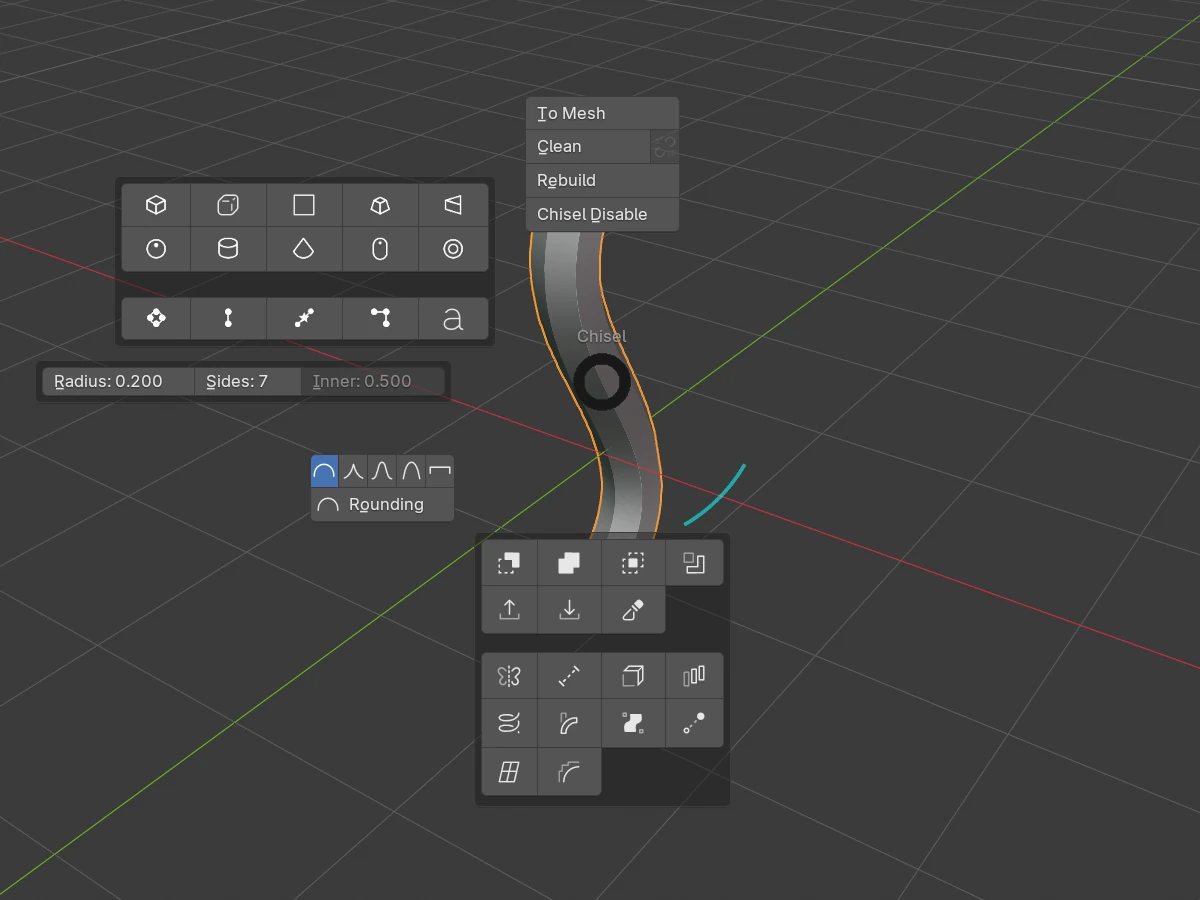
A button with the active shape’s defining value; a click starts its drag. Shapes not listed have none.
| Shape | Button |
|---|---|
| Cone, Trapezoid | Cap: 0.50 |
| Prism | 3, 5, 6, 8: the number of sides. With three sides also the apex angle and an arrow that opens Set Prism Shape |
| Torus | Minor R: 0.300 |
| Outline, Text | Depth: 1.000 |
| Tube | Radius: 0.200 |
| Rail | Radius, Sides, Inner (greyed out on a Polygon section) |
| Lathe | Angle: 360.0° |
Set Prism Shape sets a three-sided Prism’s triangle:
| Setting | Default | What it does |
|---|---|---|
| Mode | Angle + Height | Angle + Height: the base follows. Height + Base: the angle follows |
| Angle | the current angle (5° – 175°) | The apex angle |
| Height | the current height | From the apex to the base |
| Base | the current base | The base width (Height + Base only) |
North-West: shapes
Box, Oblong, Ngon, Trapezoid, Prism / Sphere, Cylinder, Cone, Capsule, Torus / Outline, Tube, Rail, Lathe, Text.
| Click | What it does |
|---|---|
| Click | Adds that shape at the 3D cursor |
Shift + click | Changes every selected Chisel shape to that type. Only the first two rows swap; path shapes, Text and Mesh shapes keep their type |
Drags
A drag runs until a click, Enter or Space keeps the value, or RMB or Esc cancels. Its keys are in Keymap ▸ During a drag.