
Bisect
Bisect cuts a shape with a plane and throws one side away. No cutter shape is needed, and the cut edge takes the same blend profiles the booleans use. A Polyline Bisect cuts with a fence of connected planes instead.
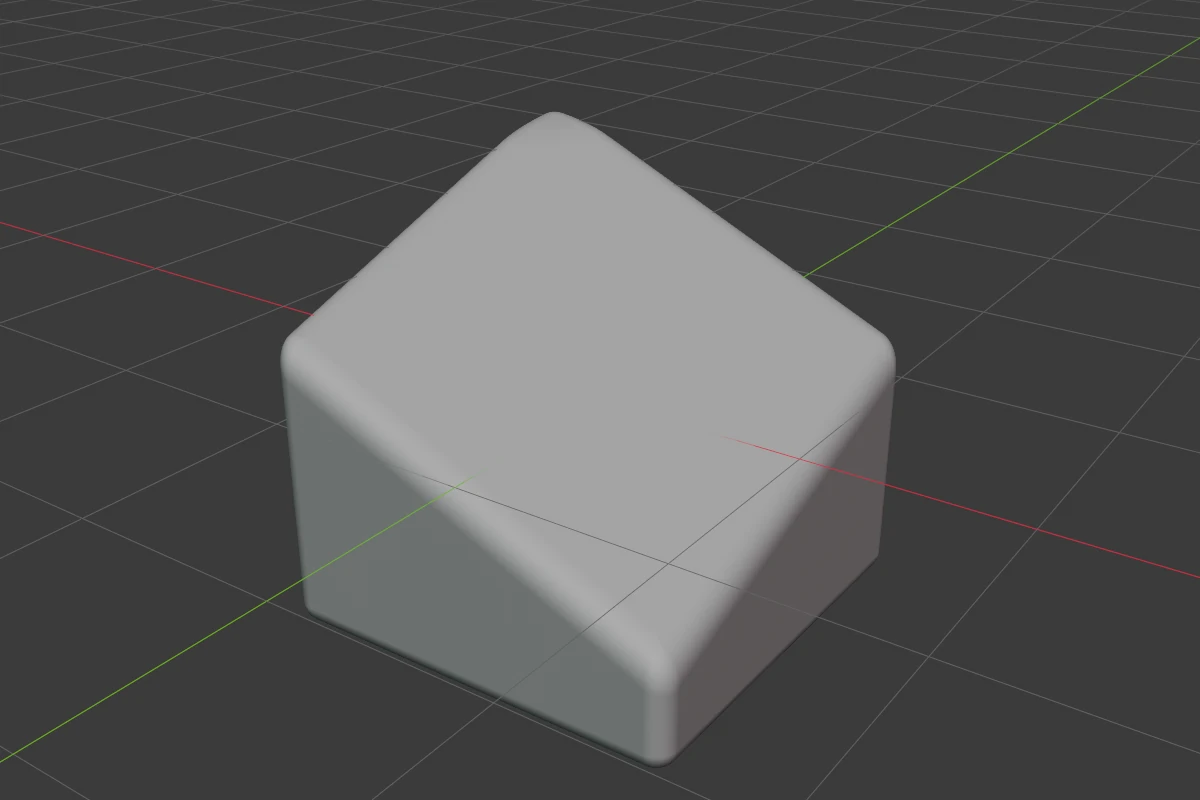
Settings
The panel header says which kind a Bisect is: a single Plane, or a Polyline fence. Bisects added from the menus are planes; the Chisel tool’s Polyline drawing makes fences.
Plane
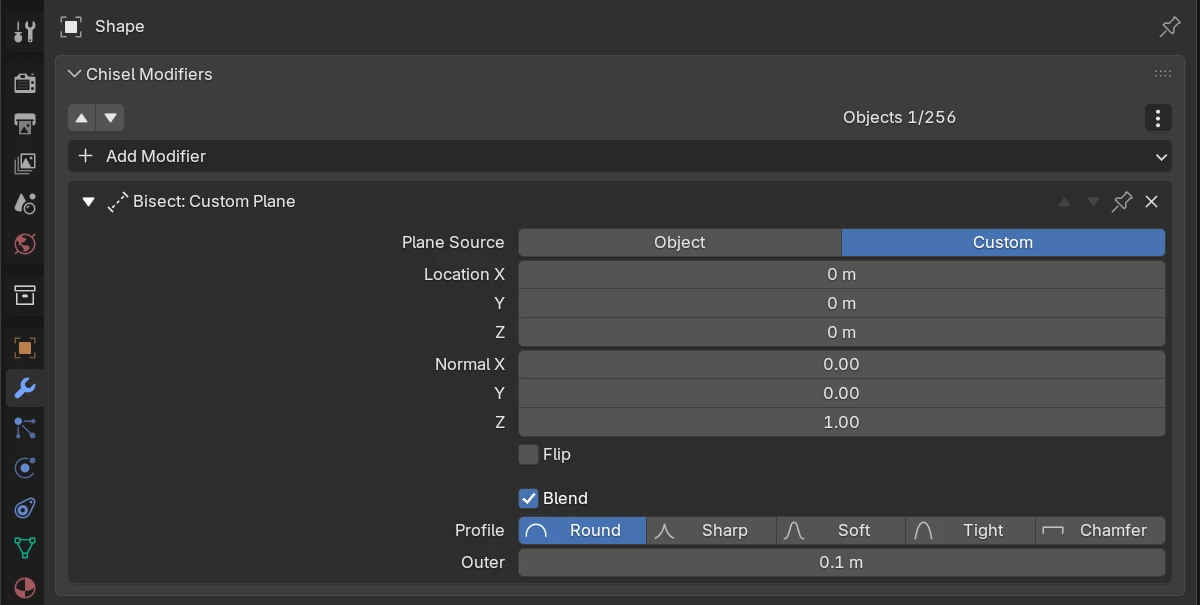
| Setting | Default | Range | What it does |
|---|---|---|---|
| Plane Source | Object (Custom when added to one shape) | Object / Custom | Where the plane comes from |
| Plane Object | any object (Object) | Its origin is a point on the plane and its local +Z the normal; moving it moves the cut. Empty: the shape’s own origin and Z, with no handles | |
| Location | 0, 0, 0 | (Custom) | A point on the plane, in the shape’s own space, so the plane travels with the shape |
| Normal | 0, 0, 1 | (Custom) | The plane’s normal, in the shape’s own space. The side it points to is cut away |
| Flip | off | Keep the other side of the plane | |
| Blend | off | Round the cut edge with the settings below. A Smooth on the stack rounds the cut edge too | |
| Profile | Round | Round / Sharp / Soft / Tight / Chamfer | The shape of the blend; see Profiles. Chamfer adds a Smooth row (0 and up, soft 0.5) that rounds the chamfer’s edges |
| Outer | 0 m | 0 and up (soft 2) | The blend radius. 0 is a hard, exact cut |
Polyline
A fence is a row of planes, one per drawn segment. The planes at the two ends carry on past the ends of the drawn line.
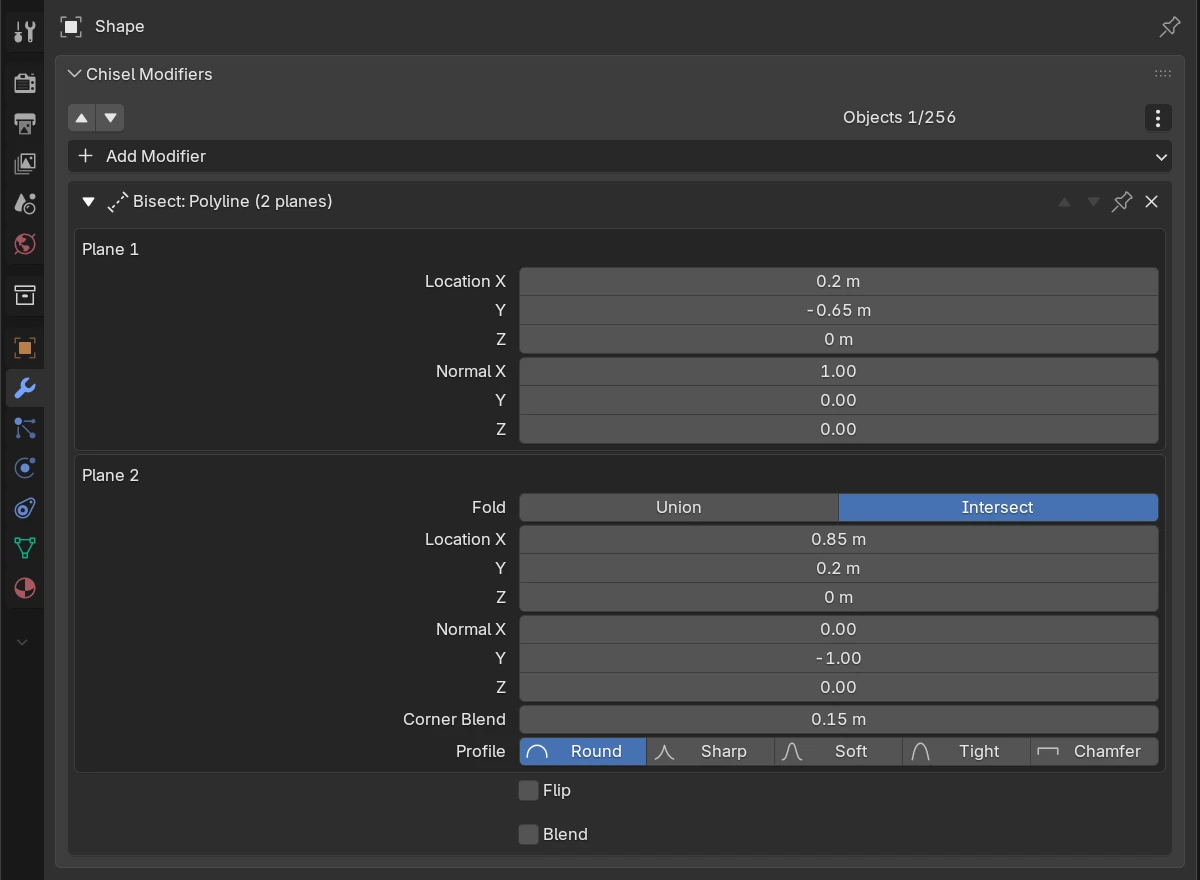
| Setting | Default | Range | What it does |
|---|---|---|---|
| Plane 1 | The first plane. It starts the fence, so it has no fold or corner | ||
| Location | The plane’s point (its segment’s middle), in the shape’s own space | ||
| Normal | The plane’s normal; it points at the side that gets cut away | ||
| Plane 2, 3, … | Every later plane, in drawing order | ||
| Fold | from the drawn turn | Union / Intersect | Union cuts where this plane or the planes before it cut; Intersect only where both do |
| Corner Blend | 0 m | 0 and up (soft 2) | Rounds the crease where this plane meets the one before it. 0 is a hard corner. A Smooth modifier leaves it alone |
| Profile | Round | five profiles | The corner’s profile, shown while Corner Blend is above 0. Chamfer adds a Smooth row |
| Flip | off | Keep the other side of the whole fence | |
| Blend | off | Round the fence’s cut edges, with Profile and Outer as on a plane |
Add Bisect
With one shape selected, the Bisect gets a Custom plane at the shape’s origin, along its local Z. With several, every shape except the active one is cut by a plane through the active shape’s origin, facing along its local Z (an Object plane). Each Its Own in the redo panel (F9) gives every selected shape its own Custom plane at its own origin instead; the Tape tree’s + Mod always adds a Bisect that way.
Ctrl + D on a cut shape copies its plane object only if the plane object is selected too, or parented to the shape. Otherwise the copy cuts against the same plane object.
Bisect mode
With the Chisel tool in Bisect mode, a left drag draws the cut across the selected shapes. Each gets its own Bisect through its own origin. The shaded side of the preview is cut away. By default the side holding most of the selected shapes is kept.
Polyline in the tool header draws a fence: drag the first segment, click to add corners. Each segment becomes one plane.
| Key | Line | Polyline |
|---|---|---|
| LMB-drag | Draw the cutting line | Draw the first segment |
| LMB-click | Add a corner | |
Space / Enter | Confirm | Accept the fence |
Backspace | Remove the last corner | |
F | Flip the kept side | Flip the kept side |
Ctrl | Toggle angle snap | Toggle angle snap |
Shift | Precision | Precision |
RMB / Esc | Cancel | Cancel |
Gizmo
Every Bisect on the active, selected shape draws its handles while the Chisel tool is active. Click a Bisect’s row in the Tape tree to show only its handles.
| Handle | Looks like | Drag or click | Keys while dragging |
|---|---|---|---|
| Arrow | Blue arrow on every plane, pointing at the side that gets cut away | Drag to slide the plane along its normal (an Object plane moves its object). Click to flip the kept side; on a fence the whole fence flips | |
| Blend dot | Small orange dot beside the plane, toward the right of the screen | Drag away from the plane to raise the cut-edge blend. Raising it from 0 ticks Blend; back to 0 leaves it ticked | 1–5 profile, S chamfer smooth (Chamfer only) |
| Tilt rings | Two white rings on a dashed square around a single plane | Drag one to tilt the plane about its anchor | Ctrl snap 15° (Ctrl + Shift: 5°), Shift precision |
| Fence points | Blue dot on every point of a fence | Drag to move the point; the planes on both sides follow. Hover and press X or Delete to remove it; a fence keeps at least two | Ctrl slide along a segment, Shift precision |
| Add dot | Green dot at a fence segment’s middle, when you hover near it | Click to add a point there | |
| Corner dots | Small orange dot off every corner of a fence | Drag to set that corner’s Corner Blend | 1–5 profile, S chamfer smooth |
The blend and tilt drags show their value beside the cursor. Space, Enter or releasing the mouse confirms; RMB or Esc cancels and restores everything, the plane object’s position included.
In the Chisel tool’s Edit state, fence points select like the points of a shape: click, Shift-click or drag a box, then drag one of them or press G to move them all, X to remove them.
Switch the handles in the tool header’s gizmo drop-down or in Render Properties ▸ Gizmos ▸ Modifiers ▸ Bisect: Bisect Gizmo (all of it), Blend Handles, Fence Points and Tilt Handles.
Pie menu
The pie’s East wedge has a row per Bisect: the flip button, the five profile icons, the blend radius, the chamfer smooth and the plane’s name.
Limits and known issues
Warning
In 5.0.0 the arrow and fence point drags show no value beside the cursor, and the status bar of a blend drag always lists
[S], thoughSworks only with the Chamfer profile.