
Primitives
A primitive is the shape a Chisel object starts from: a box, a tube, a text and so on. Chisel draws it from a distance function instead of from polygons, so its surface has no facets and its rounding is a radius. Every primitive takes the same modifiers, joins and materials.
All primitives
| Shape | What it is | |
|---|---|---|
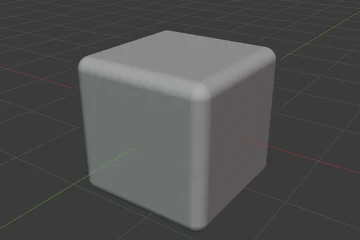 | Box | A box with one rounding for every edge |
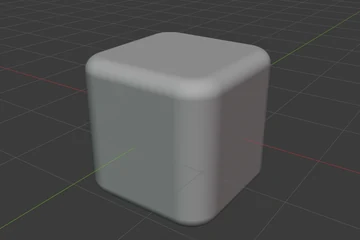 | Oblong | A box with separate rounding for the side edges and the rims |
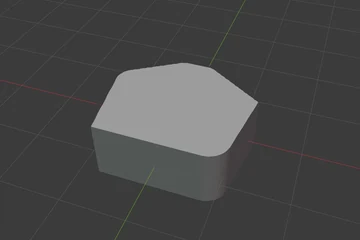 | Ngon | A polygon of any shape, extruded, with rounding per corner |
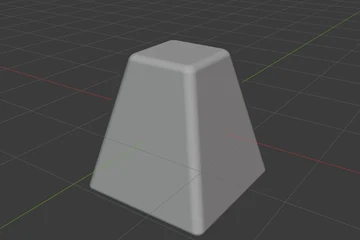 | Trapezoid | A box with a smaller top, from a pyramid to a box |
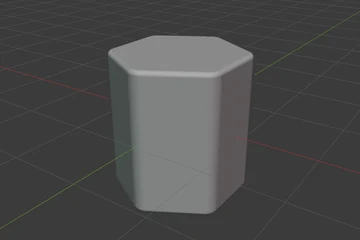 | Prism | A regular prism of 3, 5, 6 or 8 sides |
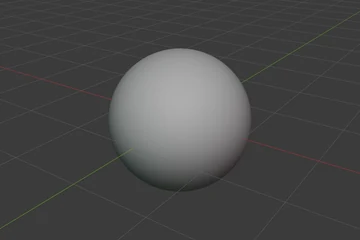 | Sphere | A sphere, or an ellipsoid when scaled unevenly |
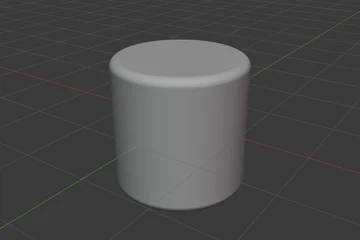 | Cylinder | A cylinder with rounded rims |
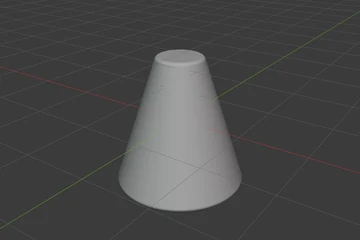 | Cone | A round taper, from a point to a cylinder |
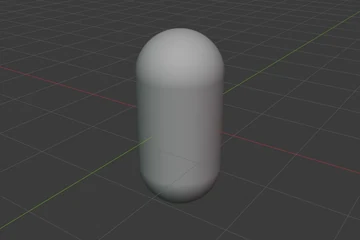 | Capsule | A cylinder with round ends |
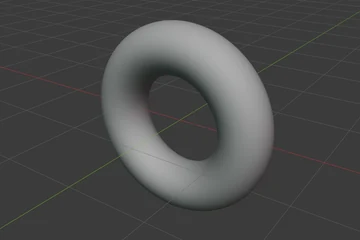 | Torus | A ring |
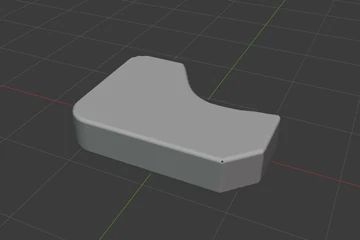 | Outline | A closed outline of points, curved or straight, extruded |
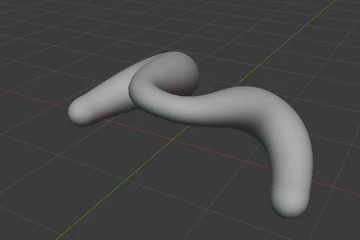 | Tube | A round tube through points, thicker or thinner at each one |
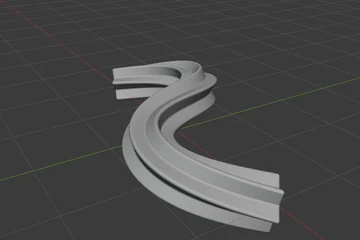 | Rail | A star, gear or drawn section swept along points |
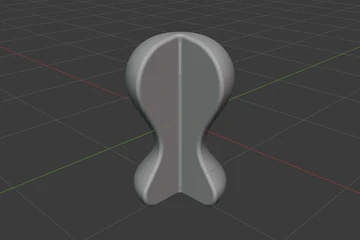 | Lathe | A profile of points turned round an axis |
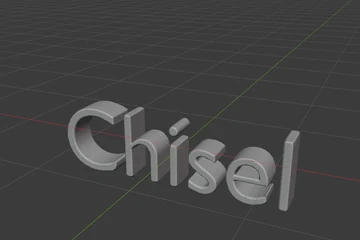 | Text | A Blender text object, extruded and rounded |
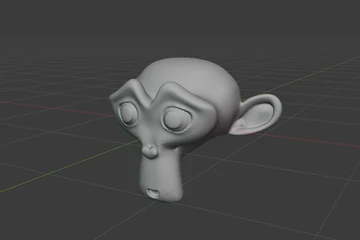 | Mesh | Any mesh object, baked into a Chisel shape |
The first ten are the standard shapes: their size comes from the object, and they switch into one another. The next four are the path shapes: their form comes from points you edit in the viewport.
Adding a shape
| Where | What it adds |
|---|---|
Shift + A with the Chisel tool | The Add Chisel Primitive menu: the ten standard shapes (the Box is listed as Cube), then Outline, Tube, Rail, Lathe, From Curve and Text |
| Add ▸ Chisel (Blender’s Add menu, any tool) | The same list |
Q pie ▸ North-West | The shape grid: the ten standard shapes on two rows, the path shapes and Text on the third. A click adds; Shift-click switches the selected shapes to that type |
| Right-click ▸ Primitives | Every shape by name. A click adds; Shift-click switches the selected shapes |
| Chisel tool, Create mode | A drag in the viewport draws one of the ten standard shapes on the surface under the mouse, see Chisel Tool |
| Chisel tool, Block mode | Draws an Ngon or a Cylinder outline, then pulls its height |
| From Curve | A Tube, Outline or Lathe made from a selected Blender curve |
| Object Properties ▸ SDF ▸ Convert Mesh to SDF | A Mesh shape made from a mesh object |
A shape added from a menu sits at the 3D cursor; its redo panel (F9) has its size and Align (World, View, 3D Cursor). A shape drawn in Create mode follows the tool’s Align, see Chisel Tool.
Changing the type after creation
The ten standard shapes switch into one another and keep their size:
[/](Chisel tool): step every selected shape to the previous or next type, in the order Sphere, Box, Oblong, Ngon, Cylinder, Cone, Torus, Capsule, Prism, TrapezoidShift-click a shape in theQpie’s grid or in right-click ▸ Primitives: switch every selected shape to that type- Type in Object Properties ▸ SDF
[ / ] skip the path shapes, Text and Mesh, and Shift-clicking a path shape or Text only shows a warning. The Type menu in the panel does switch between the four path shapes and keeps their points, see Path Shapes. A Mesh shape comes only from Convert Mesh to SDF.
Settings
Each shape’s page lists its own rows of Object Properties ▸ SDF. The rows every shape has are in Properties Panels.
See also
- Standard Shapes
- Path Shapes
- Edit Mode: editing the points of an Ngon or a path shape
- Sweep and Revolve: sweep or turn any shape
4 items under this folder.