
Properties Panels
Chisel’s settings in Blender’s Properties editor: the SDF panel in Object Properties, the Chisel Modifiers panel in Modifier Properties, and Chisel’s panels in Material Properties and Render Properties.
Object Properties ▸ SDF
The SDF panel holds the active object’s Chisel settings. It shows on mesh objects and on Blender text objects, and starts closed.
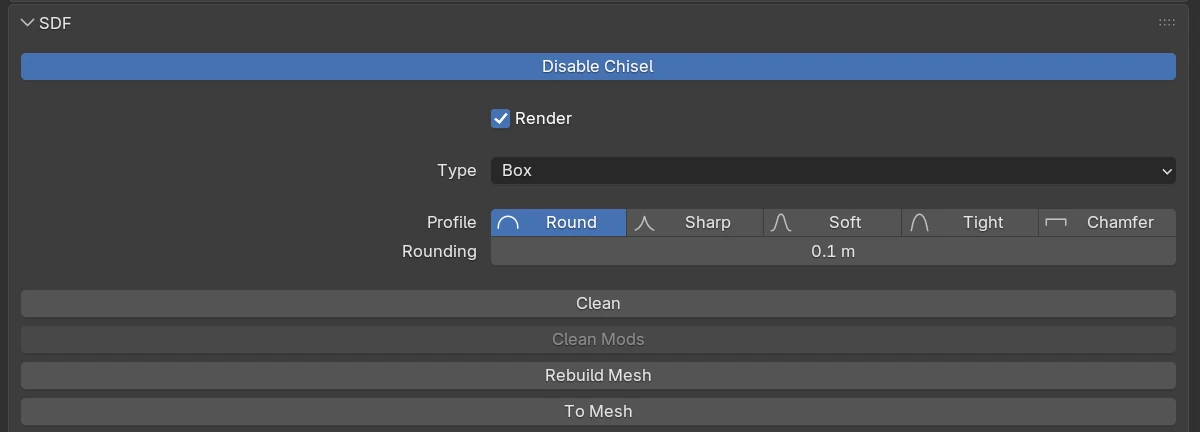
Rows every shape has
| Control | Default | What it does |
|---|---|---|
| Disable Chisel / Enable Chisel | Turns the object into a plain mesh, or back into a Chisel shape. Enabling an object that has Blender modifiers asks first, since they are removed | |
| Render | on | Draws the shape on its own. Off, the shape draws only where another shape uses it as a target (a cutter, for example), and shows as an outline in the view |
| Type | The shape’s type. Changing it keeps the size where it can | |
| Clean | Removes the modifiers that use other shapes and makes the shape solid, see Clean | |
| Clean Mods | Removes every modifier whose target is gone, see Clean Mods. Greyed out when there is none | |
| Rebuild Mesh | Rebuilds the shape’s mesh, see Rebuild Mesh | |
| To Mesh | Turns the shape into a polygon mesh, see Convert to Mesh |
Between Type and Clean come the shape’s own settings, described on its page under Primitives, and its rounding rows.
Rounding rows
Box, Cylinder, Cone, Ngon, Outline and Text have one group:
| Control | Default | What it does |
|---|---|---|
| Profile | Round | The edge profile: Round, Sharp, Soft, Tight, Chamfer, see Profiles |
| Rounding | 0 m (0 – soft 2) | Rounds the edges, see Rounding |
| Smooth (Chamfer only) | 0 m (0 – soft 0.5) | Softens the edges where the chamfer meets the faces |
Oblong, Prism and Trapezoid have two:
| Group | Controls | What they round |
|---|---|---|
| Bevel | profile, Bevel, Bevel Smooth (Chamfer only) | The upright edges |
| Cap Rounding | profile, Rounding, Smooth (Chamfer only) | The top and bottom edges |
A Lathe has Side Rounding instead. Sphere, Capsule, Torus, Tube and Rail have no rounding rows.
A plain mesh

| Control | What it does |
|---|---|
| Enable Chisel | Turns the object into a Chisel shape, a Sphere to start. The mesh’s own form is not kept |
| Convert Mesh to SDF | Turns the mesh’s own form into a Chisel Mesh shape, see Convert to SDF |
Old curve shapes
A Curve, Curve Tube or Curve Revolve shape from a Chisel 4.x file that could not be converted is not shown. Its panel says so in red (“Old Curve Tube: not shown”, for example), gives the reason, and has Update Old Curve Shapes to try again. See From Curve.
Modifier Properties ▸ Chisel Modifiers
The Chisel Modifiers panel lists the active shape’s modifiers in the order they apply, top to bottom. A plain mesh keeps Blender’s own modifier stack.
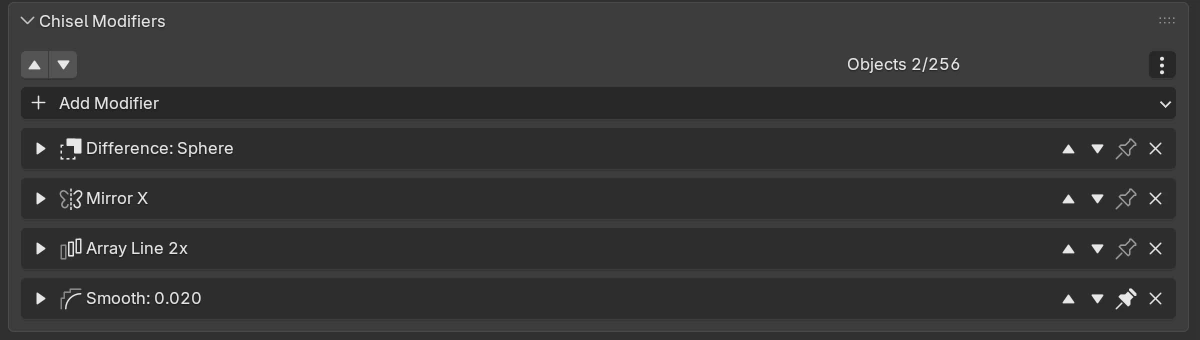
| Control | What it does |
|---|---|
| ▲ | Folds every modifier |
| ▼ | Unfolds every modifier |
| Objects N/256 | How many shapes the active shape’s whole tree holds, out of the most one tree can hold; red from 80 %. A Modifiers M/… count appears beside it once more than half of the modifier limit is used (a Smooth does not count), red from 80 % |
| ⋮ | The options menu, below |
| Add Modifier | The list of modifiers, below |
| Row arrow | Folds or unfolds that modifier’s settings |
| Row icon and name | The modifier and a summary: Difference: Sphere (the target), Mirror X, Array Line 2x, Smooth: 0.020. A join whose target is gone reads (no target) in red |
| ▲ / ▼ (row) | Moves the modifier up or down the stack |
| Pin | Keeps the modifier at the bottom of the stack: new modifiers go above it. A Smooth is pinned when added |
| × | Removes the modifier |
⋮ (options)
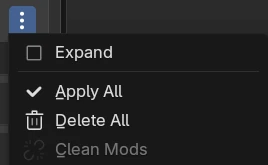
| Entry | What it does |
|---|---|
| Expand | New modifiers arrive unfolded |
| Apply All | Bakes the stack into the shape, see Apply Modifiers |
| Delete All | Removes every modifier |
| Clean Mods | Removes every modifier whose target is gone |
Add Modifier
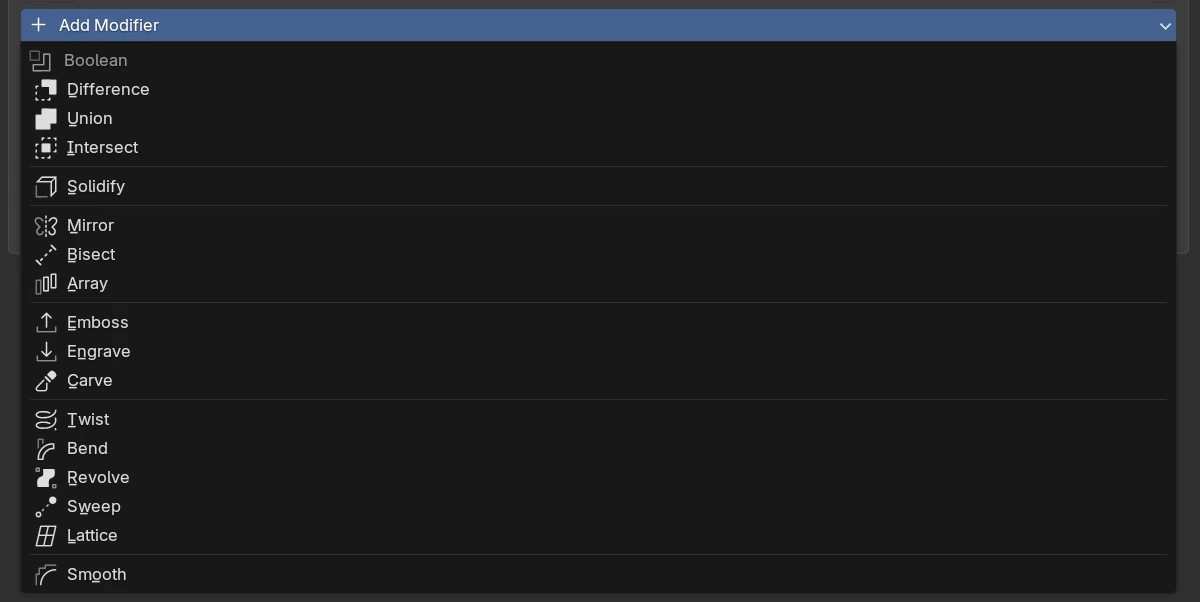
| Entry | Adds |
|---|---|
| Boolean: Difference, Union, Intersect | A Boolean; pick its target in the row |
| Solidify | A Solidify |
| Mirror, Bisect, Array | A Mirror, Bisect or Array |
| Emboss, Engrave, Carve | An Emboss or Engrave or a Carve; pick its target in the row |
| Twist, Bend, Revolve, Sweep, Lattice | A Twist or Bend, Revolve, Sweep or Lattice |
| Smooth | A Smooth, pinned at the bottom |
Material Properties
A Chisel shape takes its colour from the object’s material, see Materials.
Render Properties
With Render Engine set to Chisel, Render Properties holds the panels Quality, Performance, Matcap, Display, Gizmos and Bake, see Render Engine.