
View Markdown
F12 Render
With the Chisel engine active, F12 renders the exact Chisel surface through the scene camera into Blender’s Render Result, like any other render engine. Ctrl + F12 renders the animation.
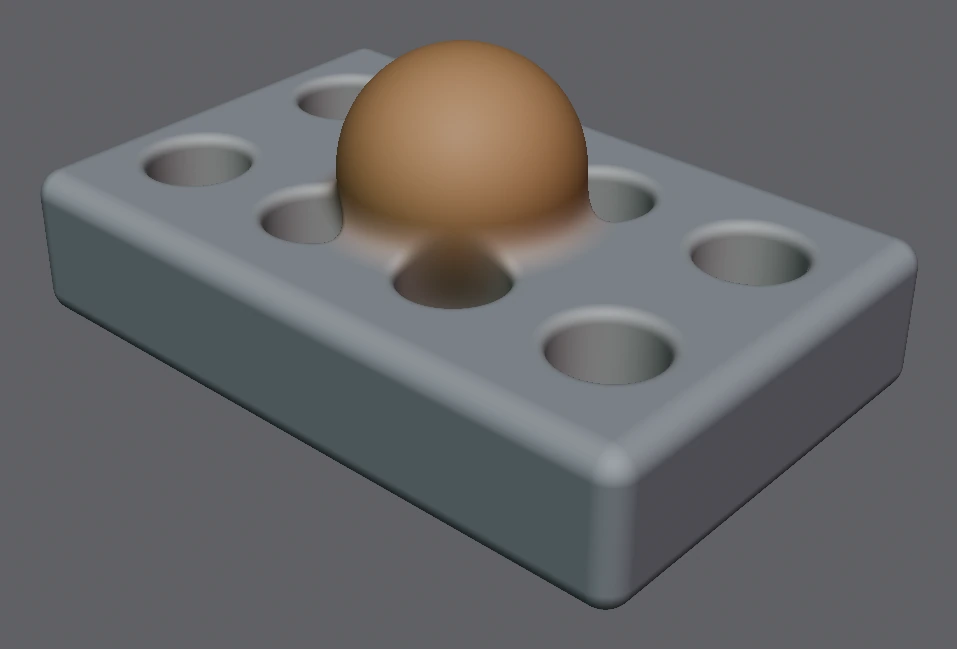
What it renders
- Camera: the scene camera’s projection (sensor fit, shift, clip planes, pixel aspect), perspective or orthographic, into the Combined pass. A scaled camera renders the framing you see in camera view.
- Surface: every shape exactly, at full quality in one pass. Rendering the same frame twice gives the same image. Max Steps, Hit Threshold and Max Distance from Quality apply; World Cell Size and Subdivision Level do not.
- Shading: Rendered shading (per-object colours and the Matcap panel’s choice and tint), whatever the viewport shows. The image is scene-linear, as a Cycles render is, so colour management treats both the same way.
- Size: Resolution X, Resolution Y and % from Output Properties ▸ Format. Render Region and Crop to Render Region work as in Cycles.
- Visibility: objects and collections disabled in renders, and collections excluded from the view layer, are left out. The viewport eye does not matter. Shapes with Chisel’s Render switch off are left out too.
- Background: the World’s Viewport Display colour at full alpha, as in the Rendered viewport; without a World, Blender’s viewport grey.
Limits
Only Chisel shapes render
Regular meshes are not part of the frame, and a scene without Chisel objects renders fully transparent. To render meshes and Chisel shapes together, use EEVEE or Cycles with the proxy mesh, or Convert to Mesh.
- Without a scene camera the render stops with “Chisel F12 render needs an active scene camera.”
- The first render of a session waits while its shaders compile;
Esccancels. - On a very heavy single object, renders after the first can take several times longer than in 4.1, because every frame draws the exact surface.
- An output size beyond the graphics card’s texture limit stops the render with an error that names the limit.