
Boolean
A Boolean joins one shape, the cutter, to another, the host. The cutter is the Boolean’s target. The result stays live: move, scale or round either shape and the join follows.
Operations
Difference
Cuts the cutter’s volume out of the host. Key: Alt + - or NumPad -. The cutter’s outline is red.
Union
Merges the cutter and the host into one solid. Key: Alt + = or NumPad +. The cutter’s outline is green.
Intersect
Keeps only the volume the cutter and the host share. Key: Alt + \ or NumPad /. The cutter’s outline is blue.
Slice
Splits the host in two along the cutter. Chisel copies the host and names the copy
Slice has no key, and the panel’s Operation list has no Slice entry: the panel shows the two Booleans it made. The cutter’s outline is red.
Join keys and buttons
The keys above and the join buttons of the pie (South) and the right-click Modifiers menu join every selected Chisel shape into the active one, the host. Each selected shape becomes the cutter of a new Boolean at the end of the host’s stack (before any pinned modifier), and:
- stops rendering on its own and shows its outline instead, faint until selected;
- becomes a child of the host, if it had no parent;
- stays selected, the first one active.
The keys need the Chisel tool, a Chisel shape active and another one selected. Add Modifier in the panel adds an empty Boolean: its Target is picked in the panel.
Duplicate as Boolean
Alt + D copies the active shape, with the shapes its own joins use, and joins the copy into the original’s stack: a new Boolean at the end of the stack (before any pinned modifier), Union with a Blend of 0.5. The copy becomes that Boolean’s cutter and a child of the original, and moves with the mouse until you click. Change its operation or blend like any other Boolean’s.
It needs the Chisel tool and a Chisel shape active. On anything else, Alt + D stays Blender’s Duplicate Linked.
Changing the operation
Select the cutter, then:
- press
'for the next operation or;for the previous one. The order is Difference, Union, Intersect, Emboss, Engrave, Carve, then back to Difference; - or click another join button in the pie or the right-click Modifiers menu. When only that one cutter is selected, its current operation is highlighted, and a click changes it instead of adding a new Boolean.
Shift+ click adds a new one; - or click the symbol in front of the cutter’s name in the Tape tree and pick a join from the list.
The keys and buttons change every modifier that uses the selected cutter, on every host. Slice is not in the ' / ; order. Changing a sliced cutter to another operation deletes the _slice copy. The panel’s Operation list changes only that one Boolean.
Settings
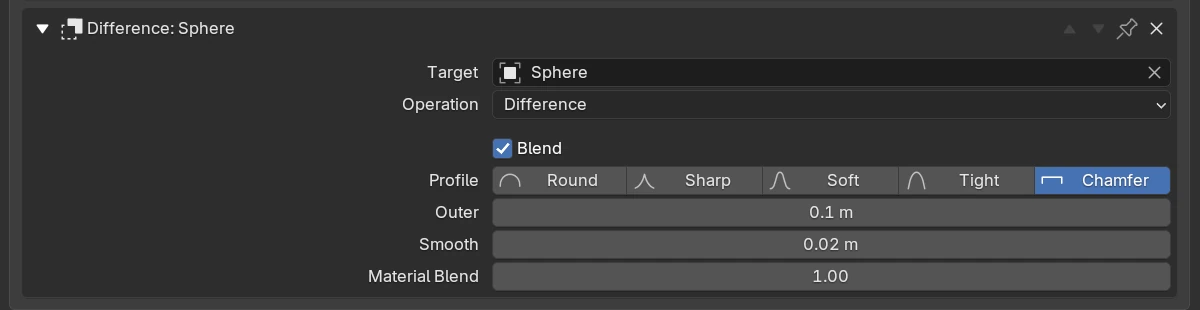
| Setting | Default | Range | What it does |
|---|---|---|---|
| Expand arrow | closed | Shows or hides the settings. | |
| Header | The operation and the cutter, e.g. Difference: Sphere; (no target) in red when the cutter was deleted. | ||
| Move up, Move down | Move the Boolean in the stack. | ||
| Pin | off | Keep the Boolean at the end of the stack. | |
Remove (X) | Delete the Boolean. | ||
| Target | none | any Chisel shape but the host | The cutter. A cutter picked here stops rendering too, but is not made a child of the host. |
| Operation | Difference | Difference, Union, Intersect | What the cutter does. |
| Blend | off | Fillets the seam. It is ticked automatically when you drag the blend radius above 0 with Ctrl + B, the Blend arc or the pie. | |
| Profile | Round | Round, Sharp, Soft, Tight, Chamfer | The fillet’s profile. Shown with Blend on. |
| Outer | 0 m | 0 and up (soft max 2) | The fillet radius. Shown with Blend on. |
| Smooth | 0 m | 0 and up (soft max 0.5) | Rounds the two edges of a Chamfer fillet. Shown on Chamfer. |
| Material Blend | 1.00 | 0 and up (soft max 3) | Width of the colour change across the seam, as a multiple of the fillet: 0 is a crisp colour line, above 1 the colours bleed wider. Works with Blend off too. |
Viewport handles
| Handle | Looks like | Drag or click | Keys while dragging |
|---|---|---|---|
| Blend arc | a blue arc, bottom right of a selected cutter | Drag outward: a wider blend on every modifier that uses the selection | Shift precision, Ctrl snap, 1–5 profile, S Smooth |
| Cutter outline | the cutter’s silhouette in its join’s colour | Display only: click the shape there to select it | none |
| Target dot | a dot at the cutter’s origin. Off by default | Click: select the cutter, and show it if hidden | none |
Keys
| Key | What it does |
|---|---|
Alt + -, Alt + =, Alt + \ | Difference, Union, Intersect |
' / ; | Next / previous operation |
Ctrl + B | Drag the blend of every modifier that uses the selected shapes: away from the active shape is wider. Keys: see Blending |
In the menus
- Pie
Q, South: Boolean Difference, Boolean Union, Boolean Intersect, Slice, then Emboss, Engrave, Carve. - Pie, East, with the host active: per Boolean, the profile icons, the blend radius (a drag), the Chamfer’s Smooth and the cutter’s name.
- Pie, South-West, with a cutter selected: the five blend profile icons, Blend (a drag) and, on Chamfer, Smooth.
- Right-click, with a cutter selected: Blend Profiles ▸, Blend and, on Chamfer, Smooth.
- Right-click ▸ Modifiers: the same seven join buttons as the pie.
- Tape tree: right-click a cutter for its Blend, profile, radius, Smooth and Material Blend.
Tips
Select the cutter, not the host
',;,Ctrl + Band the Blend arc act on the modifiers that use the selected shapes.
Limits and known issues
A removed Boolean leaves its cutter hidden
Removing a Boolean, or picking another Target, does not show the old cutter again. It is listed under Unused in the Tape tree; tick its Render box in Object Properties ▸ SDF.
See also
- Carve, Emboss & Engrave: the other joins
- Blending, Profiles
- Smooth: one blend radius for every seam of a shape
- Clean, Apply Modifiers