
Mirror
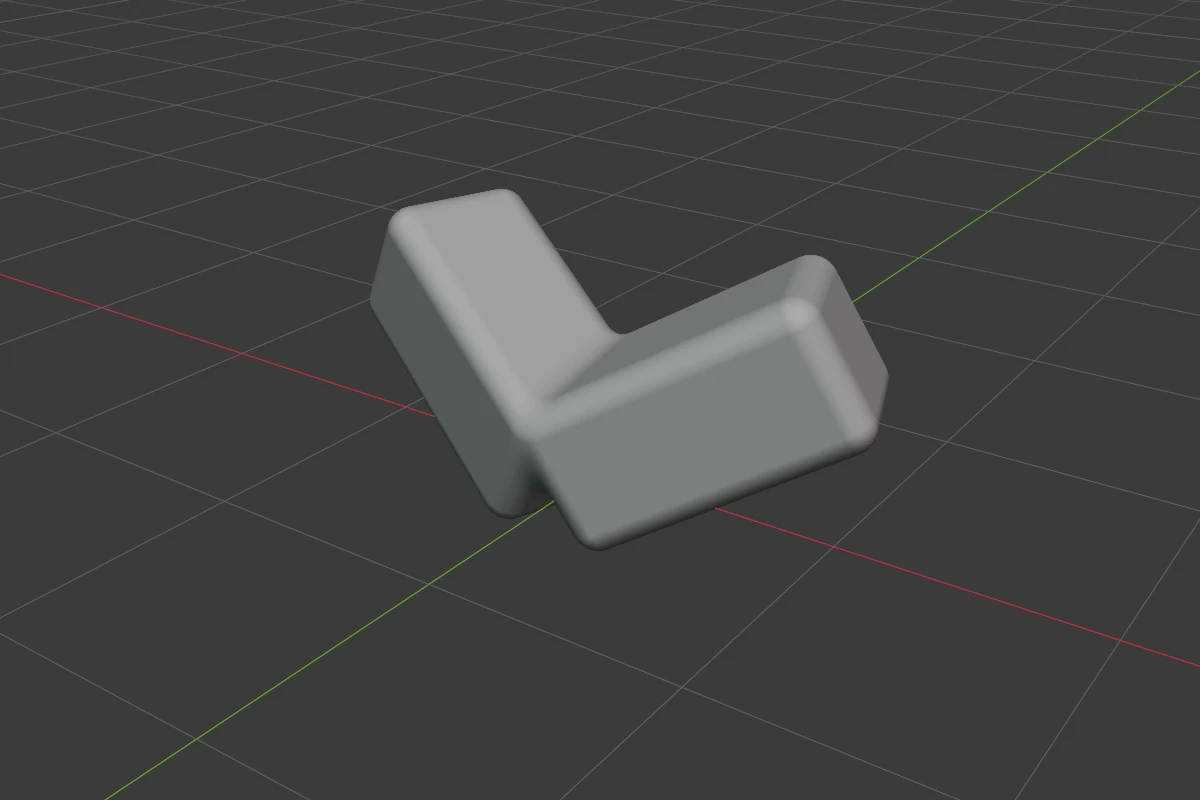
Mirror reflects a shape across one, two or three planes through its origin. On each plane it keeps the half of the shape on the positive side and replaces the other half with its reflection. Blend rounds the seam where the halves meet.
Settings
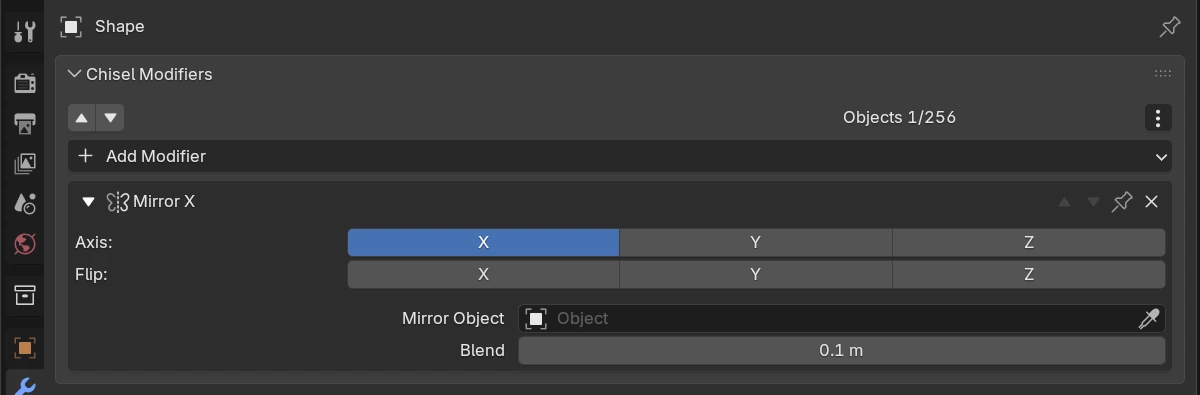
| Setting | Default | Range | What it does |
|---|---|---|---|
| Axis X / Y / Z | X on | toggles | Mirror across that plane. Any combination at once |
| Flip X / Y / Z | off | toggles | Keep the negative half on that axis instead |
| Mirror Object | empty | any object | The planes pass through this object’s origin, along its axes. Empty: through the shape’s own origin, so moving the origin moves the planes. Moving the object updates the mirror, even when it is hidden |
| Blend | 0 m | 0 and up (soft 0.5) | Rounds the seam where the halves meet. 0 leaves a sharp seam. A Smooth on the stack also rounds the seam, with its own radius |
A shape on the far side disappears
A shape that lies wholly on the discarded side of a plane vanishes. This happens when a shape sits on the negative side of its Mirror Object. Turn on Flip for that axis, or move the shape across.
Add Mirror
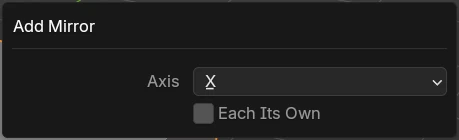
With several shapes selected, every shape except the active one gets a Mirror whose Mirror Object is the active shape. With one shape selected, the Mirror reflects across the shape’s own origin. The redo panel (F9) changes this right after the add:
| Option | Default | What it does |
|---|---|---|
| Axis | X | The plane the new Mirror starts with: X, Y or Z |
| Each Its Own | off | Mirror every selected shape across its own origin instead. It is off again for the next add. The Tape tree’s + Mod always adds a Mirror this way |
Pie menu
The pie’s East wedge has a Mirror row: X, Y and Z toggles, a flip button beside each, and the blend. Click the blend and move the mouse to drag it.
Mirroring with Rotor
Rotor is a separate, free Ezelar add-on. Its Mirror tool adds Chisel Mirrors from the viewport.
Alt + X with a shape selected starts the tool. On each side of the shape (±X, ±Y, ±Z) it draws two handles in the axis colour:
| Handle | Click |
|---|---|
| Box on a stem, near the shape | Turns that axis on in the shape’s pinned Mirror, adding a pinned Mirror if there is none. A box on the negative side turns the axis on with Flip. Clicking the same box again turns the axis off; the Mirror is removed when no axis is left. Clicking the opposite box switches the kept side |
| Smaller box farther out | Adds a new Mirror on that axis, not pinned |
The tool’s Pivot (Active Element, Individual Elements, World Center, Cursor, Custom) and Orientation decide where the planes sit. Active Element or Individual Elements with Local uses the shape’s own origin and axes. Any other choice adds an Empty at the pivot and sets it as the Mirror Object. Real makes a mirrored duplicate object instead of a Mirror.
| Key | Action |
|---|---|
Alt + X | Start Rotor’s Mirror tool |
Space | Pick a custom plane |
Q | Cycle the orientation (Global, Local, Cursor, Custom) |
E | Cycle the pivot |
Esc / RMB | Back to the previous tool |
See also
- Bisect: cut along a plane instead of reflecting across it
- Modifiers: the origin is the pivot