
Installation
Chisel is a Blender extension: one .zip that you install from inside Blender.
Requirements
| Supported | Notes | |
|---|---|---|
| Blender | 4.5.7 or newer, and every 5.x | Older versions refuse the extension |
| Windows | x64 | |
| Linux | x64, glibc 2.35 or newer | Ubuntu 22.04 and later, or any distribution of the same age |
| macOS | Apple silicon | There is no build for Intel Macs |
| Graphics | A card with a current Vulkan driver; Metal on macOS | See The GPU backend |
Getting it
- Blender: blender.org
- Chisel: the Superhive marketplace. Don’t unpack the
.zip.
Installing
| Way | What to do |
|---|---|
| Drag and drop | Drag the Chisel .zip into the Blender window and confirm |
| From disk | Edit ▸ Preferences ▸ Get Extensions, the drop-down arrow at the top right ▸ Install from Disk…, then pick the .zip |
Blender installs Chisel and enables it straight away. If Auto-Save Preferences is off, click Save Preferences at the bottom left of the Preferences window so it stays enabled.
Checking the install
Once Chisel is enabled, the orange Chisel tool icon is the last one in the 3D View’s tool bar.
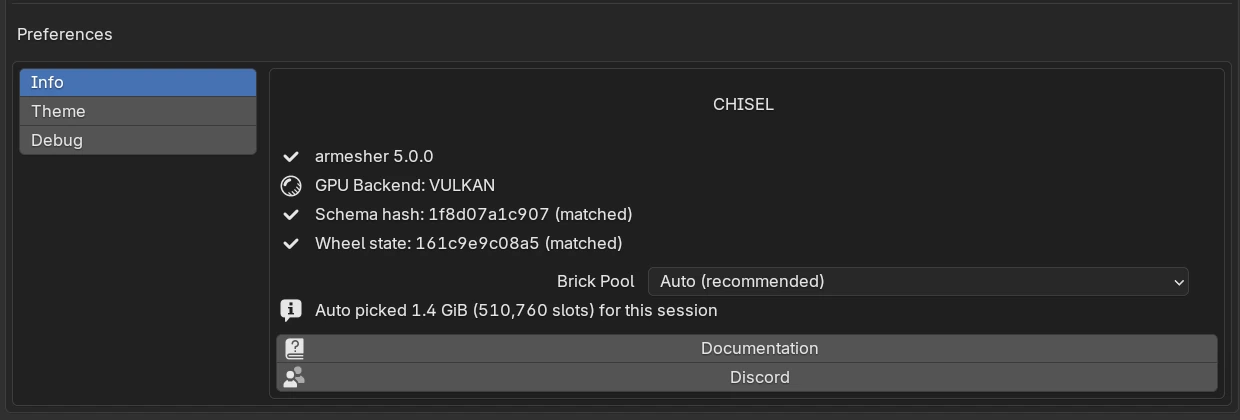
Edit ▸ Preferences ▸ Add-ons ▸ Chisel ▸ Info shows the add-on’s status (see Preferences ▸ Info):
| Line | What a working install shows |
|---|---|
| armesher 5.0.0 | A check mark: Chisel’s native library is loaded and matches this version |
| GPU Backend: VULKAN | The backend Blender runs on: VULKAN, METAL on a Mac, or OPENGL, see below |
| Two lines ending in (matched) | The add-on and its native library belong together |
| Brick Pool and the Auto picked… line | The graphics memory Chisel keeps for fine detail, see Preferences ▸ Brick Pool |
| Documentation, Discord | Open this manual and the Chisel community server |
The GPU backend
Chisel runs much faster when Blender uses Vulkan than when it uses OpenGL.
- Blender 4.5 on Windows and Linux starts on OpenGL. Set
Edit ▸ Preferences ▸ System ▸ Backendto Vulkan and restart Blender. - Blender 5.x starts on Vulkan. On OpenGL, the Info tab shows the red line “Blender is on the OpenGL backend — Chisel requires Vulkan” instead of the backend line: Blender’s Vulkan start failed or was switched off. Open System Preferences goes to the setting; choose Vulkan and restart. If Blender falls back to OpenGL again, update the graphics driver.
- macOS: Blender runs on Metal.
The render engine
Chisel draws its shapes with its own render engine, set per scene; a new scene starts on Blender’s default engine. Pick Chisel in Render Properties ▸ Render Engine, or click Chisel Enable at the left of the Chisel tool’s settings row, which also switches every 3D View to Material Preview. Chisel shapes show in Material Preview and Rendered shading, see Render Engine.
Shader compilation
The first time Chisel draws after an install, an update or a graphics driver update, the graphics card compiles its shaders.
| What you see | What it means |
|---|---|
| An empty viewport for a few seconds | The shaders are compiling. They are saved, so later sessions start without this wait |
| Chisel: compiling shaders… at the top left of the view | The same, in the view’s status line (with the view’s text overlay on) |
| Shaders not compiled, first run may take longer in the pie menu’s South-East wedge | The same. On OpenGL the wedge also reads OpenGL backend, Vulkan is much faster |
| A short pause the first time a kind of shape or modifier appears in a session | Chisel compiles shaders only for what the scene uses. The first Ngon, Text or path shape, Prism-type shape, Twist or Bend, Bisect or Carve of a session adds its own |
| A first F12 render that waits | The render’s own shaders compiling. Esc cancels |
Updating
Install the new .zip the same way, then restart Blender. Until you restart, the old native library stays loaded and the Info tab can read armesher update pending — restart Blender.
See also
- Core Concepts: the terms this manual uses
- Interface: every part of Chisel in the Blender window