
Twist & Bend
Twist turns a shape round one of its own axes, through its origin: the farther a part is from the origin along that axis, the more it turns. Bend curls a shape that lies along one of its axes into an arc.
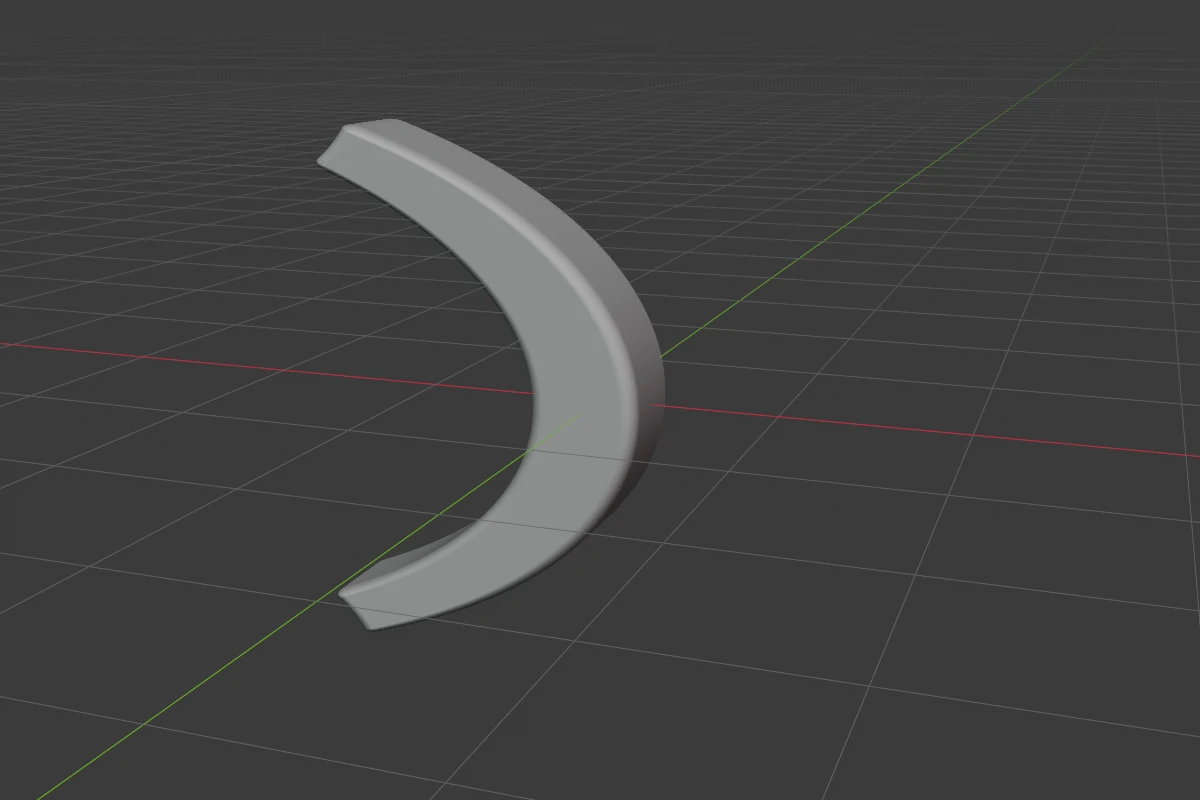
Twist
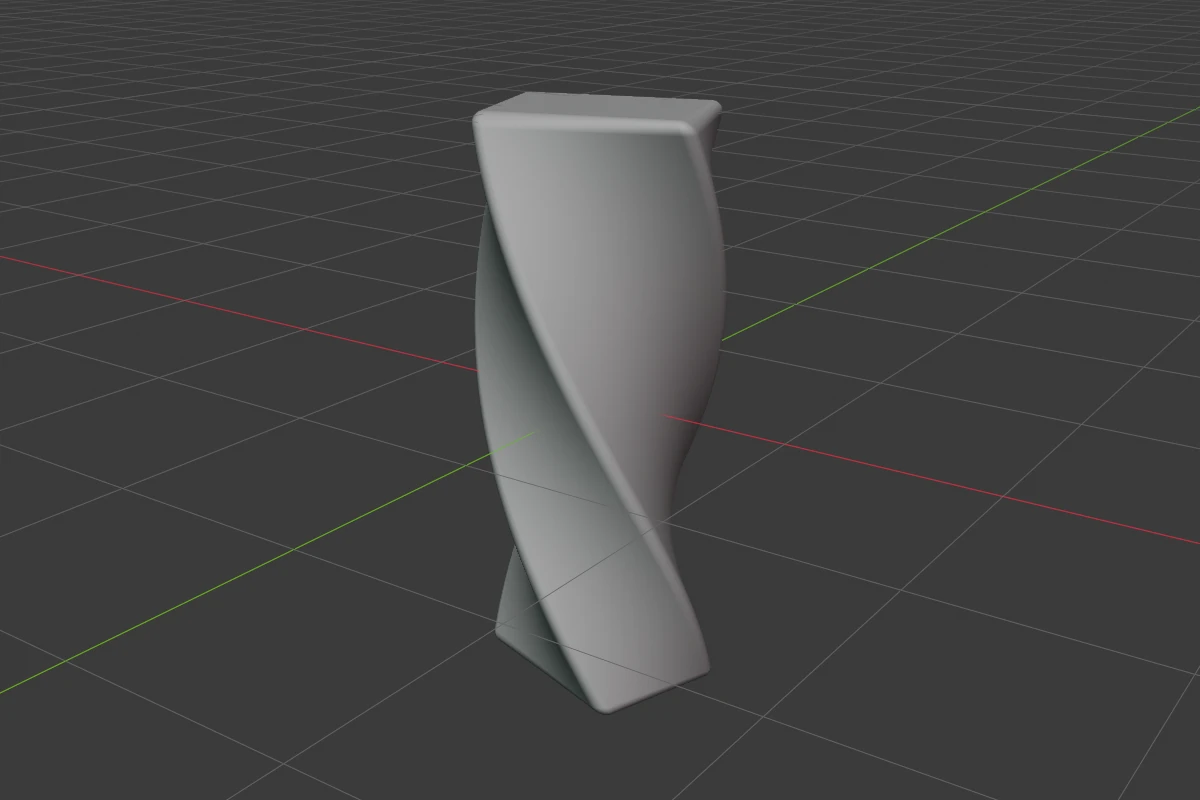
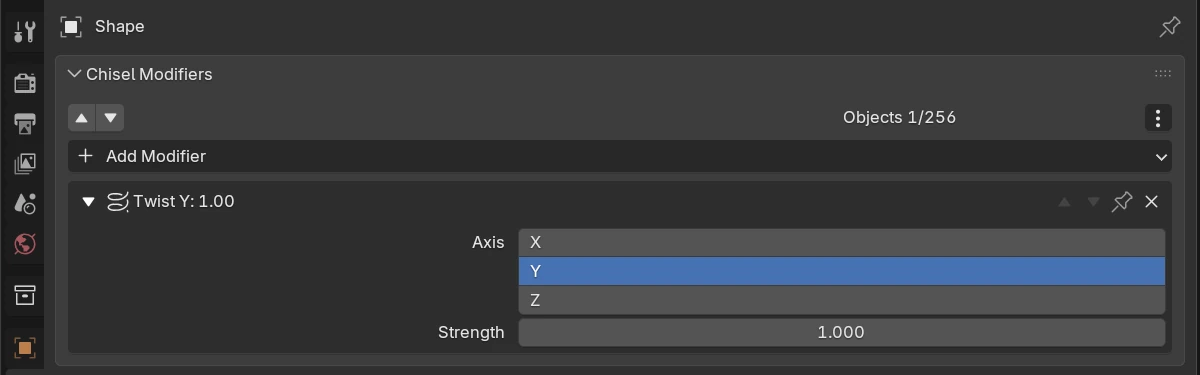
Twist settings
| Setting | Default | Range | What it does |
|---|---|---|---|
| Axis | Y | X / Y / Z | The shape’s own axis to twist round |
| Strength | 1.0 | soft -10 – 10 | Radians of turn per unit along the axis. Negative twists the other way |
Twist gizmo
| Handle | Looks like | Drag or click | Keys while dragging |
|---|---|---|---|
| End rings | White rings at both ends of the ribbon | Drag round the axis to twist. Both ends drive the one Strength: the other end turns the same amount the other way. No limit on the number of turns | Ctrl snaps that end to 15°, Shift precision |
| Dials | Faint circle at each end, with an arc from rest to how far that end turns. Past a full turn the arc spirals inward, one loop per turn | Display only | |
| Ribbon | White helix just outside the shape, where its outer edge lands after the twist | Display only | |
| Axis line | Dashed line along the twist axis | Display only | |
| Axis button | Ring in the axis colour, below the origin | Click to step the axis X → Y → Z |
The label beside the cursor shows the total turn over the shape (Twist · 90.0° · over the shape) and the Strength it makes.
Bend
Bend settings
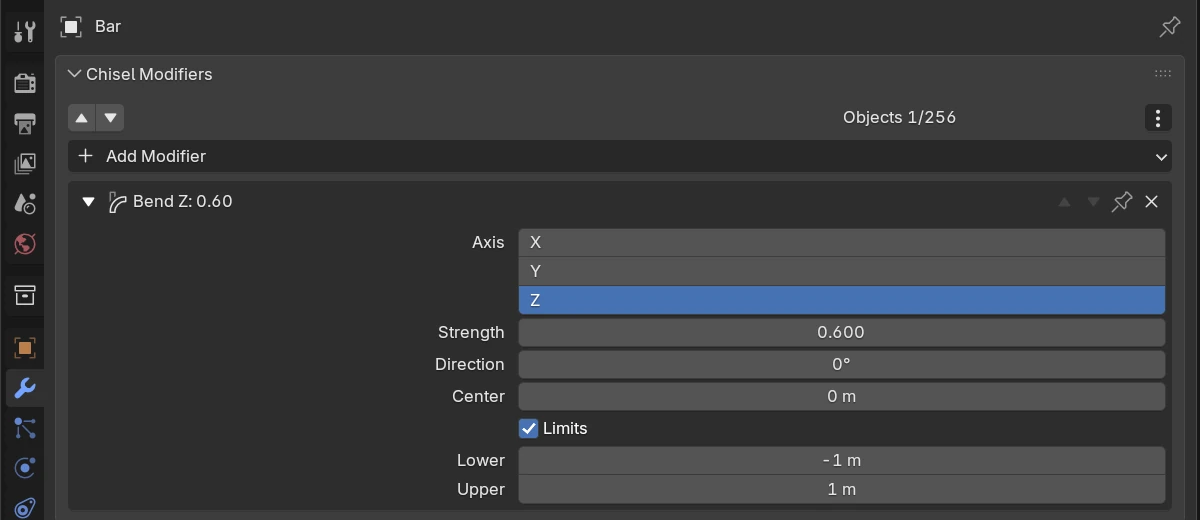
| Setting | Default | Range | What it does |
|---|---|---|---|
| Axis | Z | X / Y / Z | The axis the shape lies along: a bar standing on Z bends with Axis Z |
| Strength | 1.0 | soft -10 – 10 | How tightly it bends (curvature). Negative bends the other way |
| Direction | 0° | soft -180° – 180° | Turns the plane the shape bends in, round the axis |
| Center | 0 m | soft -10 – 10 | Slides the bend along the axis, away from the origin, in world units. The slice at the centre stays put |
| Limits | off | Bend only between Lower and Upper; past a limit the shape carries on straight | |
| Lower | half the shape’s length below the centre | soft -10 – 10 | Where the bend starts, from the centre along the axis |
| Upper | half the shape’s length above the centre | soft -10 – 10 | Where the bend stops |
Bend gizmo
| Handle | Looks like | Drag or click | Keys while dragging |
|---|---|---|---|
| End rings | White rings at both ends of the centre line | Drag to set the angle: the end follows the cursor round the bend’s centre; drag through straight to bend the other way. The drag stops before the shape would wrap into itself. The label shows that end’s angle; the whole bend is about twice it | Ctrl snap 15°, Shift precision |
| Arrow | Double arrow in the axis colour through the bend’s centre | Drag to slide the bend along the shape (Center) | Ctrl snap 0.1 (Ctrl + Shift: 0.01), Shift precision |
| Direction dial | Faint circle round the axis, with a small white ring | Drag the ring round to turn Direction | Ctrl snap 15°, Shift precision |
| Axis dots | Two dots on stems, in the other axes’ colours | Click to bend along that axis | |
| Limit dots | Two small blue dots on the centre line (Limits on) | Drag along the axis to set Lower and Upper. Dragging one past the other swaps them | Ctrl snap 0.1, Shift precision |
| Centre line | White line where the bent shape’s centre runs; a dashed line marks the straight axis | Display only |
Switch the handles with Bend and Twist in the tool header’s gizmo drop-down, or Render Properties ▸ Gizmos ▸ Modifiers.
Pie menu
The pie’s East wedge has a Twist row (axis buttons and the strength) and a Bend row (axis buttons, the strength and a Limits toggle). Click the strength and move the mouse to drag it; Shift is precision, Ctrl snaps to 0.1.
Limits and known issues
Warning
The pie’s strength drag changes every Twist (or every Bend) on the shape at once. To set one of several, use its panel row or its handles.
- Only the gizmo stops a bend before it wraps round into itself. A large Strength typed in the panel can wind the shape into overlapping copies.
- With Limits on, a small crease can show where the bend meets the straight part.
- In 5.0.0 the Direction tooltip says
0curls the axis toward the next one (Z toward X); a positive Strength actually curls it toward the opposite side.