
Modifiers
Modifiers cut, repeat and deform Chisel shapes. A shape’s modifiers are listed in its Chisel Modifiers panel, in the Modifier tab of the Properties editor. The joins (Boolean, Emboss & Engrave and Carve) are modifiers too and share the same panel and menus; they have their own section, Joins.
All modifiers
In the order of the Add Modifier menu:
| Modifier | What it does | |
|---|---|---|
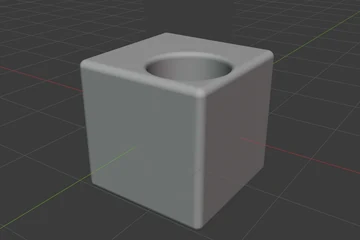 | Boolean | Join two shapes: Difference, Union, Intersect, or Slice into two parts |
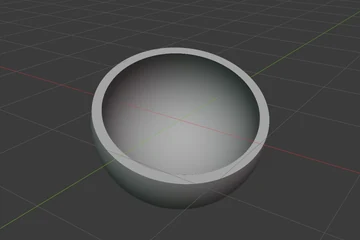 | Solidify | Hollow a shape into a shell of a given thickness |
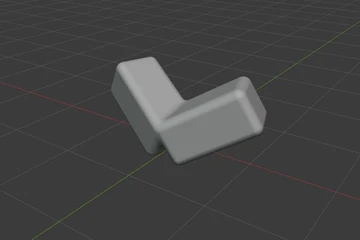 | Mirror | Reflect a shape across one, two or three planes |
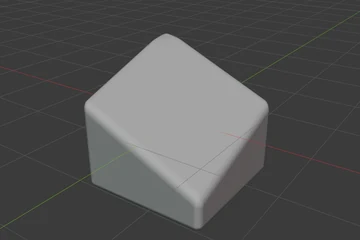 | Bisect | Cut a shape with a plane or a fence of planes |
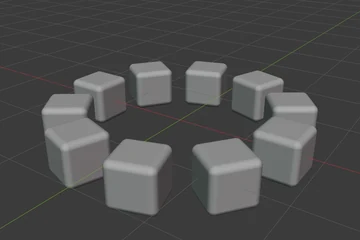 | Array | Repeat a shape along a line or around a circle |
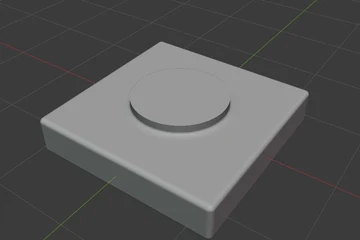 | Emboss & Engrave | Raise a shape out of a surface, or sink it in |
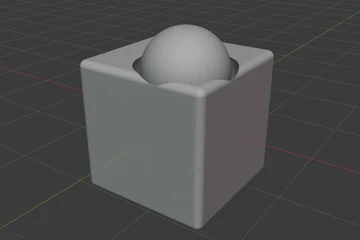 | Carve | Cut a pocket in the shape of another shape, which keeps rendering |
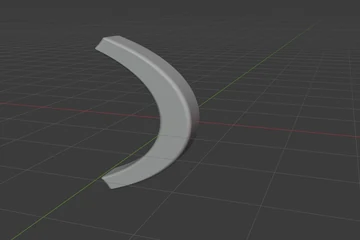 | Twist & Bend | Twist a shape around an axis, or bend it into an arc |
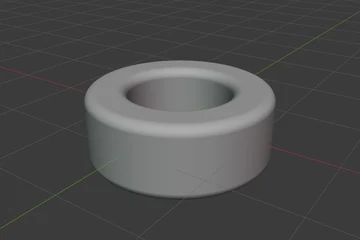 | Revolve | Spin the shape’s cross-section a full turn round an axis |
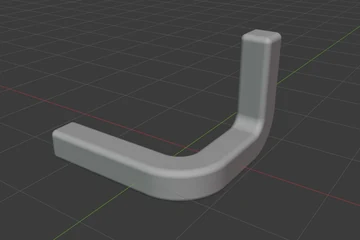 | Sweep | Run the shape along a path of points |
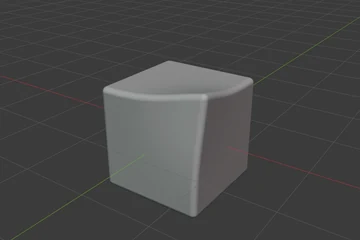 | Lattice | Deform the shape with a cage of points |
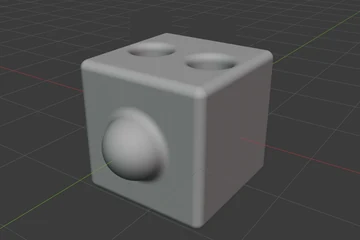 | Smooth | One rounding radius for every join and edge of a model |
Adding a modifier
| Where | What gets the modifier |
|---|---|
| Add Modifier in the Chisel Modifiers panel | Boolean, Emboss, Engrave and Carve: the active shape, with an empty Target to pick in its row. Every other modifier: every selected shape |
Pie menu Q, South wedge | Joins (Difference, Union, Intersect, Slice, Emboss, Engrave, Carve): the selected shapes become targets of the active one. Every other modifier: every selected shape |
| Right-click ▸ Modifiers | As the pie menu |
| Tape tree ▸ + Mod | Every shape whose row is selected. A join opens a list: Selected joins the selected shapes into the active one; a shape name makes one new shape of that kind and joins it into each selected row’s shape |
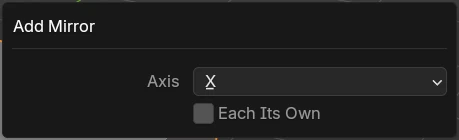
Each Its Own
A Mirror or a Bisect added to several shapes reflects or cuts every other shape across the active one. Each Its Own in the redo panel (F9) gives every selected shape its own mirror or cut at its own origin instead. The Tape tree’s + Mod always adds them that way.
The modifier stack
Modifiers apply from the top of the stack down: each one works on the result of the ones above it, so changing the order can change the result. The row arrows in the panel move a modifier up or down; so does dragging its row in the Tape tree.
Pin
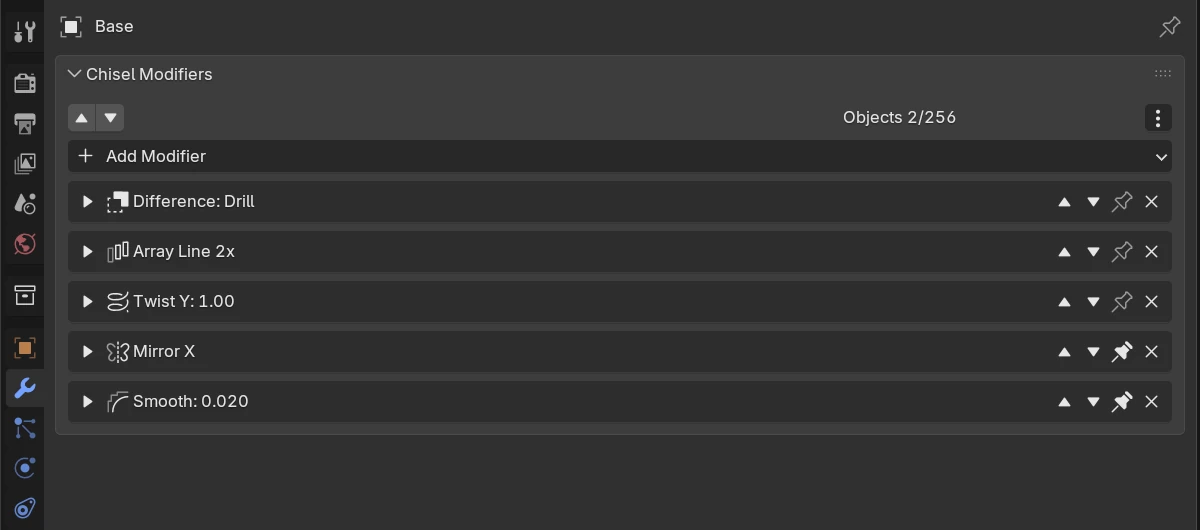
A pinned modifier stays at the bottom of the stack: every modifier added later goes in above the pins. The row arrows never move a modifier across that line. Unpinning puts the modifier at the bottom of the unpinned ones. A Smooth and a mirror added with Rotor are pinned when added.
Swap Modifier
Swap Modifier changes the operation of every modifier that uses the selected shapes, keeping their targets. It is the Shift + click on a join button in the pie and the right-click menu. With exactly one shape selected and a modifier already using it, the plain click swaps and Shift + click adds a new join. A join button lights up when the selected shape is already used that way.
With the Chisel tool, ' steps the same swap forward through Difference, Union, Intersect, Emboss, Engrave and Carve, and ; steps back.
The origin is the pivot
Mirror, Twist, Bend, Revolve and a Circle array work from the shape’s origin: the mirror plane, the axis a circle array turns round, and the twist, bend and revolve axes all pass through it. To move the origin without moving the shape, use Blender’s Set Origin, or Affect Only Origins in the transform options. A Bend’s Center slides the bend along its axis, away from the origin.
See also
- Gizmos: every viewport handle
- Properties Panels: the Chisel Modifiers panel
- Tape tree: the stacks of the whole scene
- Rounding & Blending: the profiles of joins and edges