
Status Bar & Messages
The status bar during a drag, the value labels by the cursor, the status line in the corner of the view, and the messages Chisel reports.
Status bar
During a Chisel drag, the status bar at the bottom of the window lists the keys the drag answers to, left to right:

| Entry | Key | Meaning |
|---|---|---|
| Confirm (or the phase’s own word) | Left mouse | Keep the value. Block mode says Extrude while drawing the base and Apply in the rounding phase |
| Cancel | Right mouse (and Esc) | Put the value back (a profile picked during a rounding or blend drag stays) |
| Precision | Shift | Ten times finer while held |
| Snap | Ctrl | Snap to round steps while held (not on whole-number drags) |
| Extras | The drag’s own keys, below |
The extras by drag:
| Drag | Extras |
|---|---|
Rounding, blend, bevel, a corner’s rounding (B, Ctrl + B, pie and menu values, arcs) | 1 Round, 2 Sharp, 3 Soft, 4 Tight, 5 Chamfer, S Smooth (chamfer) (on Chamfer; S Radius to go back) |
| Block mode, base and height | B Bevel / Rounding, Ctrl+B Blend, X / Y Symmetry, Z Symmetry, Q Reveal |
| Block mode, rounding phase | The five profiles, S Smooth (chamfer), B Bevel / Rounding, Ctrl+B Blend |
| Bisect, Line | F Flip |
| Bisect, Polyline | Space Accept, Bksp Undo Point, F Flip (the left mouse reads Add Point) |
| A Rail’s Sides | One Side (wheel), More (Up), Fewer (Down); no Snap |

Some drags write their keys as one line of text instead:
| Drag | Status bar |
|---|---|
| Edit: a box over points | Box Select Points: Select, Add To Selection (Shift) or Take From Selection (Ctrl), Release: Confirm, RMB/Esc: Cancel |
Edit: G | Move Points, X / Y / Z: Lock Global Axis (while locked: Global X Locked, X: Unlock), Shift: Precision, LMB/Enter: Confirm, RMB/Esc: Cancel |
Edit: S | Scale Points Radius, Shift: Precision, LMB/Enter: Confirm, RMB/Esc: Cancel |
| A Bisect plane | Bisect Plane Move, RMB/Esc: Cancel |
| A Lattice point | Lattice Point, RMB/Esc: Cancel |
Values next to the cursor
Every Chisel drag shows the value it changes in two small dark labels by the cursor, its name and its number, with a guide line from the shape to the cursor (colours: Preferences ▸ Theme).
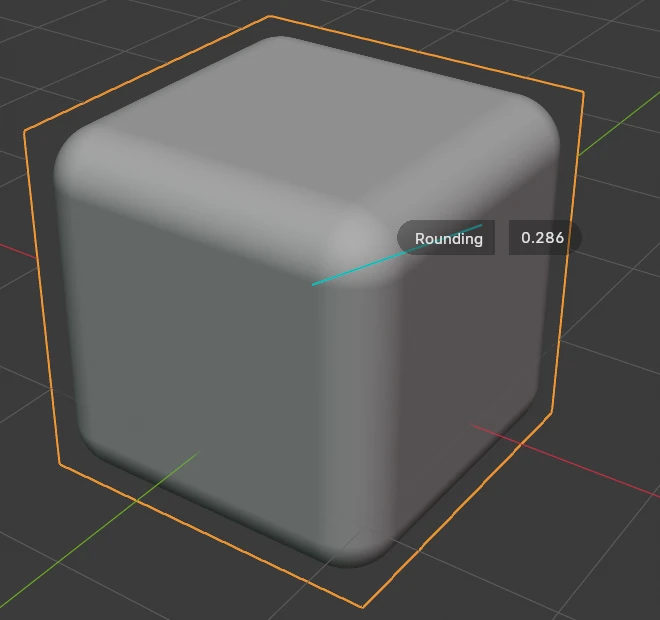
The 3D View’s header (when it shows) carries the same value as one line:
- the value’s name, its profile in brackets where it has one, and the number: Rounding [Round]: 0.286, Blend [Soft]: 0.080, Carve Offset: 0.150;
- Block mode: Size: 2.000 × 1.000, Radius: 0.500, Height: 1.000, and in the view, labels with their values: X: 2.198, Y: 1.700, R, Z;
- (Snap 0.1), (Snap 0.01) or (Precision) added while
Ctrl,Ctrl + ShiftorShiftis held.
The view’s status line
With the view’s text overlay on, the 3D View’s top left corner carries Chisel’s status under the view name:
| Line | Meaning |
|---|---|
| Chisel: compiling shaders… | The graphics card is compiling Chisel’s shaders: on the first frames after an install, an update or a driver change, and briefly when a scene needs one that is not compiled yet. Compiled shaders are saved for the next session |
| Chisel: 2/4 | The view is still refining after you stopped moving the view or a shape; when both numbers match (4/4), it is at full quality |
| Chisel: cached mesh navigation | While you orbit, the view shows a quick mesh of the scene, see Performance |
| Chisel: 1 object shown as placeholder (GPU memory) — see object panel | A Mesh shape could not fit in GPU memory and is drawn as a box |
The Tape tree sits below these lines.
Messages
Chisel reports in the status bar when something cannot be done. The most common:
| Message | When |
|---|---|
| Chisel Difference needs at least one selected Chisel SDF object — select a target, or switch the tool’s operation to Add. | A Create or Block drag with a cutting operation and no Chisel shape selected |
| Chisel Bisect needs at least one selected Chisel SDF object — select the objects to cut first. | A Bisect drag with no Chisel shape selected |
| No object found under cursor, using default plane at (0,0,0) | Space in Block mode over nothing at all |
| Custom plane disabled | Space in Block mode while Align was Custom |
| Select target shape(s) with an active Chisel host | A pie join with nothing to join |
| No Chisel shapes selected to swap | Shift + click in the pie with no Chisel shape selected |
| Tube is added, not swapped: use Add > Chisel > Tube (or another path shape, Text) | Shift + click on a path shape or Text in the pie or the right-click Primitives: these cannot replace a standard shape |
| No matching modifiers to cycle | ' or ; with the host selected instead of its cutter or target |
| … is inside …: that would make a loop | A Tape tree drop that would put a shape inside itself |
| … already has a Smooth | A Tape tree drop of a second Smooth into one stack |
Notices
Opening a file from Chisel 4.x with Curve, Curve Tube or Curve Revolve shapes converts them to Outline, Tube and Lathe and shows a notice listing what happened: the shapes to “Have a look at:” and those “Not updated, so not shown:“. See From Curve: Curve shapes from 4.x files.
Warnings elsewhere
| Where | Warning |
|---|---|
| The pie’s South-East wedge | ”Shaders not compiled, first run may take longer”; on OpenGL also “OpenGL backend, Vulkan is much faster” |
| Render Properties ▸ Quality | ”Brick memory full — N cells stay coarse”, see Quality |
| The SDF panel of a Mesh shape | ”SDF is stale — mesh edited” and “Shown as placeholder”, see Mesh |
| The SDF panel of an old curve shape | ”Old Curve Tube: not shown” (or Curve, Curve Revolve), see Properties Panels |
| A Lattice modifier | ”This cage folds…”, see Lattice |
| Add-on preferences, Blender 5.x on OpenGL | ”Blender is on the OpenGL backend — Chisel requires Vulkan”, see Preferences |