
Right-Click Menu
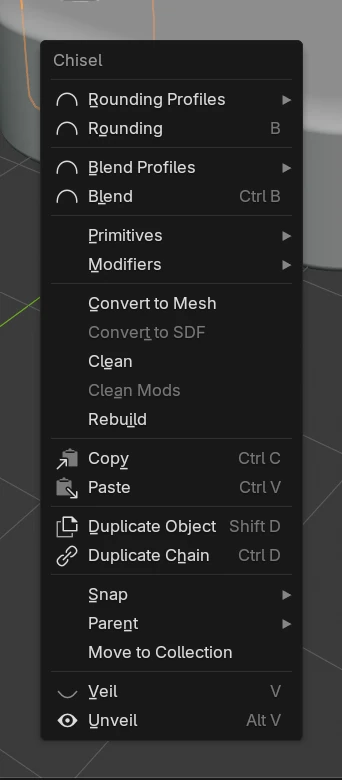
With the Chisel tool active and a Chisel shape active, the right mouse button opens Chisel’s menu in place of Blender’s; on any other object it does nothing. Over a Tape tree name it opens that row’s blend and rounding instead. The menu’s top rows change with the selection.
In Edit
In the tool’s Edit state the menu starts with the selected points:
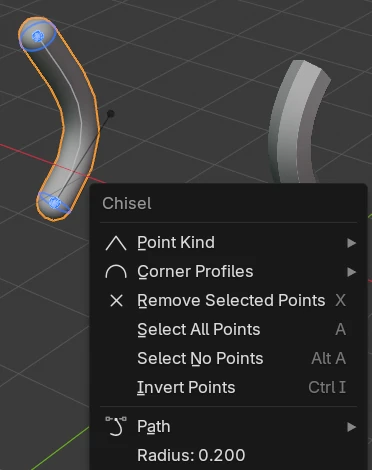
| Entry | What it does |
|---|---|
| Point Kind ▸ | Smooth, Corner or Free for the selected path points; the entry shows the kind they have now |
| Corner Profiles ▸ | Round, Sharp, Soft, Tight, Chamfer for the selected Corner points of a path and corners of an Ngon |
| Remove Selected Points | Removes the selected points (X). Greyed out while no selected point can go |
| Select All Points | Selects every point (A) |
| Select No Points | Clears the point selection (Alt + A) |
| Invert Points | Inverts it (Ctrl + I) |
Shape choices
Submenus for the active shape’s own choices, each showing the current choice’s icon. A pick changes every selected shape that has that choice.
| Entry | Shows for | Choices |
|---|---|---|
| Rail Shapes ▸ | Rail | The section: Star, Polygon, Gear, Flower, Ratchet, Custom, see Rail |
| Path ▸ | Tube, Rail | Open or Cyclic |
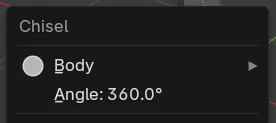
| Body ▸ | Lathe | Solid or Hollow |
Shape row
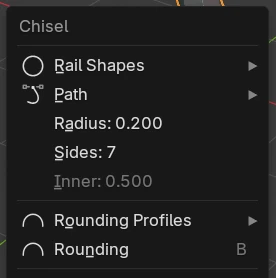
The active shape’s defining value, with its current value; a click starts its drag. Shapes not listed have none.
| Shape | Entries |
|---|---|
| Cone, Trapezoid | Cap: 0.50 |
| Prism | 3, 5, 6, 8: the number of sides. With three sides also the apex angle and an arrow that opens Set Prism Shape |
| Torus | Minor R: 0.300 |
| Outline, Text | Depth: 1.000 |
| Tube | Radius: 0.200 |
| Rail | Radius, Sides, Inner (greyed out on a Polygon section) |
| Lathe | Angle: 360.0° |
Profile rows
A profile submenu and a drag for each value the selection has. Each drag edits every matching selected shape; Smooth follows it on a Chamfer profile.
| Rows | Shows for | Sets |
|---|---|---|
| Bevel Profiles ▸, Bevel, Smooth | Oblong, Prism, Trapezoid | The upright edges |
| Rounding Profiles ▸, Rounding, Smooth | Shapes that round | The edges. A Lathe shows Side Rounding alone, and only while its turn is under 360° |
| Blend Profiles ▸, Blend, Smooth | A shape used by a Boolean or a Carve | The blend of every modifier that uses the selection |
| Offset | A shape used by a Carve | The carve offset |
| Outer Profiles ▸, Outer, Smooth; Inner Profiles ▸, Inner, Smooth | A shape used by an Emboss or Engrave | The outer and inner edges |
| Emboss or Engrave | The same | The strength |
The profile submenus list Round, Sharp, Soft, Tight and Chamfer, the current one pressed in. The drags’ keys are in Keymap ▸ During a drag.
Fixed rows
| Entry | What it does |
|---|---|
| Primitives ▸ | Adds or swaps shapes, see Primitives |
| Modifiers ▸ | Adds or changes modifiers, see Modifiers |
| Convert to Mesh | Opens Convert to Mesh |
| Convert to SDF | Turns the selected plain meshes into Chisel Mesh shapes, see Convert to SDF. Greyed out unless a plain mesh is selected |
| Clean | Removes the modifiers that use other shapes and makes the shape solid, see Clean |
| Clean Mods | Removes every modifier whose target is gone, see Clean Mods |
| Rebuild | Rebuilds the shape’s mesh, see Rebuild Mesh |
| Copy, Paste | Blender’s copy and paste of objects |
| Duplicate Object | Blender’s duplicate: the selected objects alone |
| Duplicate Chain | Chisel’s duplicate (Ctrl + D): the shape with its children and its targets, as one group. The copy joins every other stack that used the original. Mirror and Bisect planes are copied only when selected too |
| Snap ▸, Parent ▸, Move to Collection | Blender’s own |
| Veil | Hides every shape with Render off, except the selection, see Veil & Unveil |
| Unveil | Shows the hidden shapes with Render off that the selection uses or parents |
Primitives
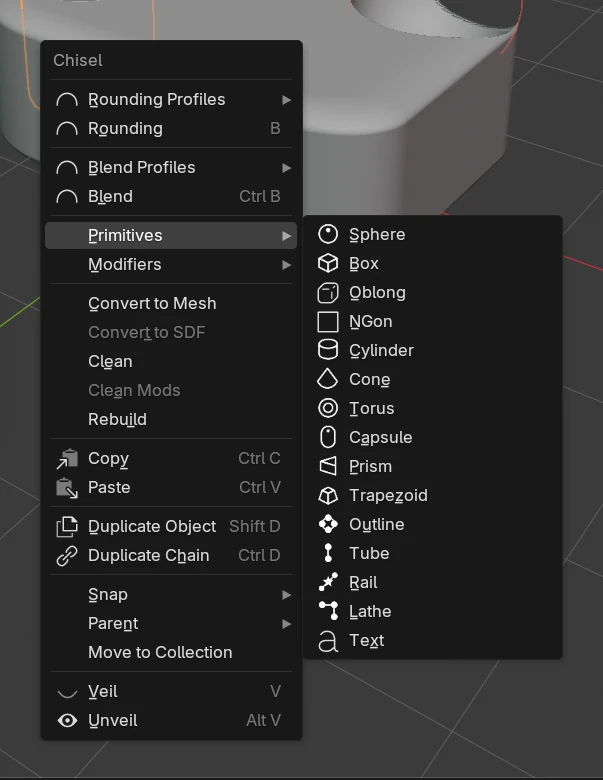
| Click | What it does |
|---|---|
| Click | Adds the shape at the 3D cursor |
Shift + click | Changes every selected Chisel shape to that type. Path shapes, Text and Mesh shapes keep their type |
Modifiers
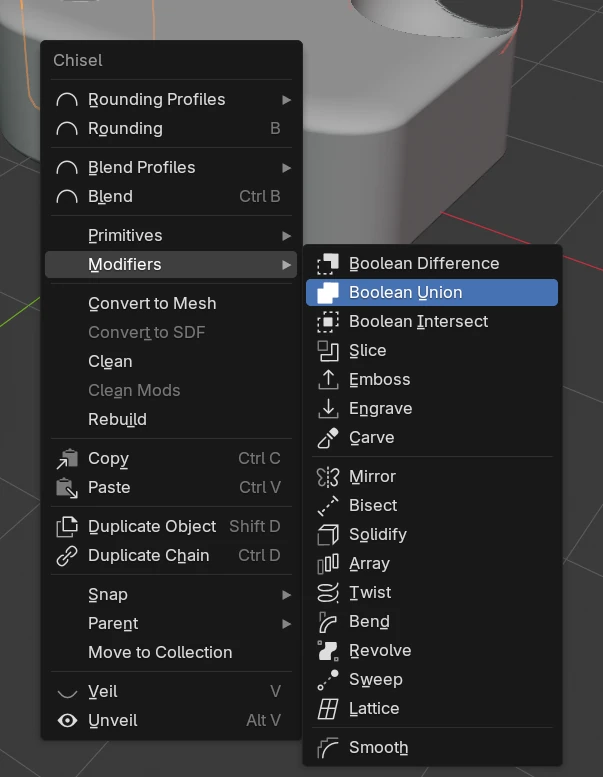
| Entry | What it does |
|---|---|
| Boolean Difference, Boolean Union, Boolean Intersect | Joins the other selected shapes into the active one as a Boolean |
| Slice | A Difference on the active shape and a cut-off copy with an Intersect |
| Emboss, Engrave | An Emboss or Engrave with the other selected shapes as targets |
| Carve | A Carve with the other selected shapes as targets |
| Mirror, Bisect, Solidify, Array, Twist, Bend, Revolve, Sweep, Lattice | Added to every selected shape |
| Smooth | Added to every selected shape, pinned at the bottom of each stack |
A click adds; Shift + click changes every join that uses the selection. With exactly one selected shape that a join already uses, that join’s entry is pressed in and the two swap: a click changes, Shift + click adds.