
Gizmos
Chisel draws handles in the viewport for modifiers, shapes, rounding and blends, and an outline on every shape that cuts or joins another. By default they show only while the Chisel tool is active.
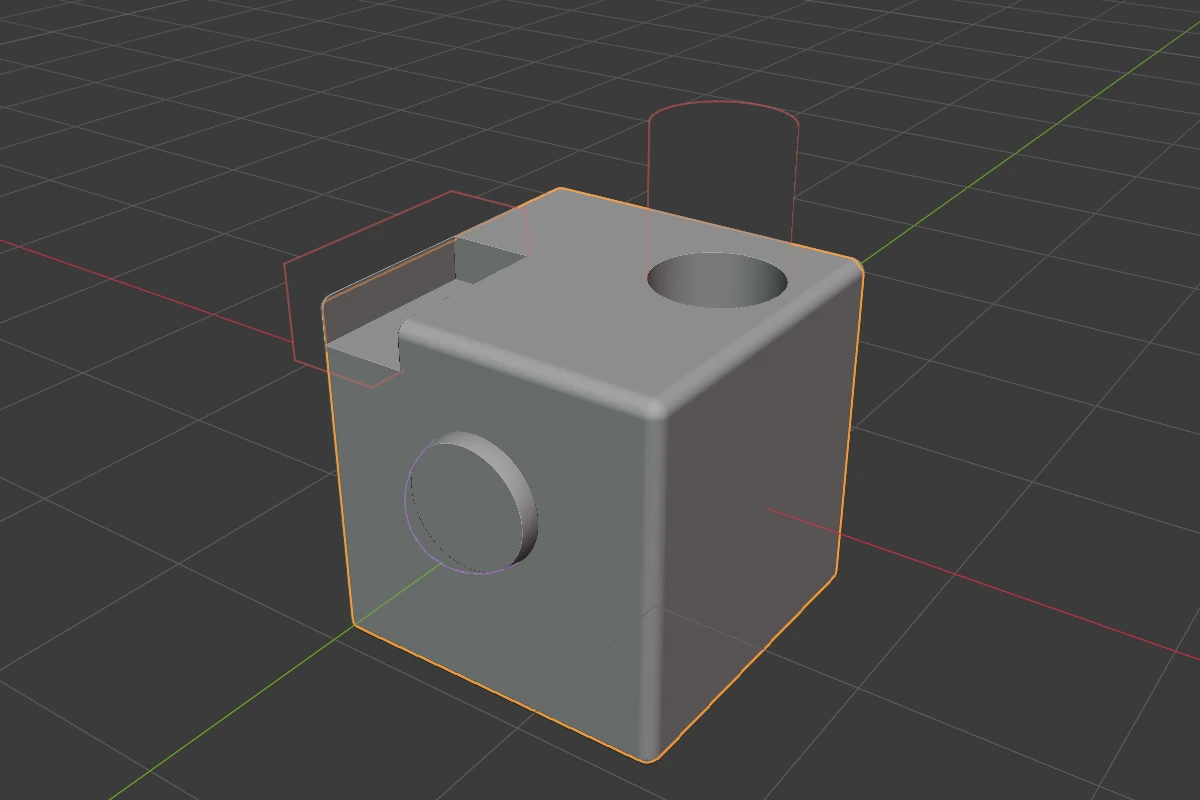
What shows where
| Gizmo | What you see | When it shows |
|---|---|---|
| Adjust arcs | Coloured arcs around the selection | A selected shape has rounding or a bevel, or a modifier uses it |
| Cutter outlines | An outline on every shape that does not render | Always, on every visible one, selected or not |
| Target dots | A dot on each modifier target’s origin | Off by default |
| Bisect | Arrows, a blend dot, tilt rings, fence points | The active shape has a Bisect |
| Array | Offset, count, smooth, radius and axis dots | The active shape has an Array |
| Bend | The bent centre line, angle rings, a centre arrow, a direction dial | The active shape has a Bend |
| Twist | A dial at each end and a ribbon along the shape | The active shape has a Twist |
| Solidify | A dot off the surface | The active shape has a Solidify |
| Sweep | Path dots, rounding handles, add dots | The active shape has a Sweep |
| Lattice | Violet cage dots and the cage | The active shape has a Lattice |
| Ngon | Corner dots, rounding handles, add dots | Edit only |
| Tube, Lathe, Outline, Rail | Point dots, radius rings, shape handles | Edit only |
| Block axes | The custom plane’s axes | Block mode, on a custom plane |
| Tape tree | The scene’s stacks as text | With the Chisel tool |
Tool bar switches
The end of the Chisel tool’s header carries four icons and a drop-down arrow, joined like Blender’s own Show Gizmo button.
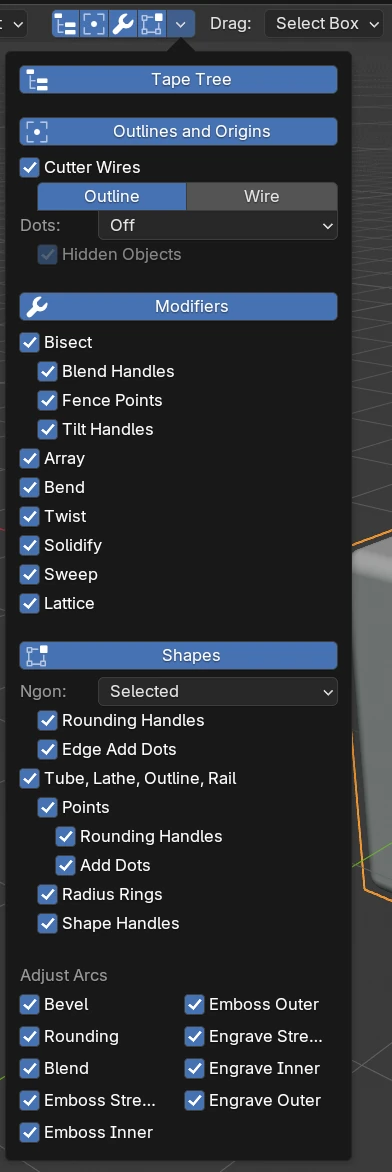
Top to bottom, as on screen:
| Control | What it does |
|---|---|
| The four icons | Left to right: Tape Tree, Outlines and Origins, Modifier Gizmos, Shape Gizmos. Each shows or hides a whole group (the rows below with the same name) |
| Drop-down arrow | Opens the Chisel Gizmos drop-down, which switches every gizmo on its own |
| Tape Tree | Shows the Tape tree, the scene’s stacks as text in the top left of the view |
| Outlines and Origins | The group switch for the two rows below (the second icon) |
| Cutter Wires | Draws an outline on every visible shape that does not render |
| Outline / Wire | The outline’s style: the silhouette, or every edge of a simple wire |
| Dots | Which shapes’ targets get a dot: Active, Selected or Off (the default) |
| Hidden Objects | Keeps a dot on targets that are hidden. Greyed out while Dots is Off |
| Modifiers | The group switch for the modifier handles (the third icon) |
| Bisect | The Bisect arrows, with the three parts below |
| Blend Handles | The orange blend dot beside each plane and the dot at every fence corner |
| Fence Points | The dots on a fence’s points and the green add dots |
| Tilt Handles | The white rings that tilt a single plane |
| Array | The Array handles |
| Bend | The Bend handles |
| Twist | The Twist handles |
| Solidify | The Solidify thickness dot |
| Sweep | The Sweep path handles |
| Lattice | The Lattice cage |
| Shapes | The group switch for the shapes’ own handles (the fourth icon) |
| Ngon | Which Ngons show their handles in Edit: Active, Selected (the default) or Off |
| Rounding Handles | The orange corner handle beside each Ngon corner |
| Edge Add Dots | The green dot at an Ngon edge’s middle |
| Tube, Lathe, Outline, Rail | The path shapes’ handles, with the parts below |
| Points | A dot on every point, the selected point’s handles and the path’s line |
| Rounding Handles | The orange handle beside each Corner point |
| Add Dots | The green dots that add a point |
| Radius Rings | The ring round each point of a Tube or a Rail |
| Shape Handles | An Outline’s Depth dot, a Lathe’s angle dial and its Solid / Hollow button |
| Adjust Arcs: Bevel, Rounding, Blend | The adjust arcs for the bevel, the edge rounding and the modifier blends |
| Emboss Strength, Emboss Inner, Emboss Outer | The three Emboss arcs |
| Engrave Strength, Engrave Inner, Engrave Outer | The three Engrave arcs |
Every row is on by default except Dots. A row is greyed out while its group switch is off. The adjust arcs belong to no group, so no Chisel switch hides every gizmo at once; Blender’s Show Gizmo toggle in the viewport header does. Render Properties ▸ Gizmos has the same switches, plus each family’s Active Object and Chisel Tool gates.
Which shapes show handles
- Modifier handles show on the active shape while it is also selected. Every modifier has its own set: a shape with two Arrays (or Bends, Twists, Solidifies, Sweeps, Lattices, Bisects) shows a set for each. Select modifier rows in the Tape tree to show only those modifiers’ handles; select the shape’s own row, or select in the view or the Outliner, to show them all again. Grabbing a handle makes its modifier the active one.
- Shape handles show only in the Chisel tool’s Edit state (
Tab), on every selected shape. A view shows at most 100 of them: the active shape’s always, the others’ a whole shape at a time; see Many shapes.
Modifier handles, outlines and arcs show in both the tool’s Object and Edit states.
Using handles
- Picking: the cursor picks a handle from a short distance away, the same distance at any zoom, and only near where the handle is drawn. The adjust arcs and the target dots pick the way Blender’s own gizmos do.
- Size: handles keep their size on screen at every zoom. They follow the Theme’s Dot Radius and Blender’s Gizmo Size preference.
- Floated handles: a handle that sets a distance (a blend, a rounding, a thickness, an array smooth) sits a few dot widths off the part, even at zero. Moving it farther out raises the value by the distance moved.
- Click or drag: a press that hardly moves is a click. The Bisect arrow, the Array’s axis and type buttons, and the Bend and Twist axis buttons use the click.
- The value: while you drag, the value shows in the viewport header and in a small label halfway between the handle’s anchor and the cursor: the name, the number, then notes such as Snap 0.1. The Bisect arrow and fence points and the Lattice cage show no value.
- Keys:
Shiftslows the drag for precision,Ctrlsnaps (0.1, or15°for an angle),Ctrl + Shiftsnaps finer. Each handle’s own keys are on its page and in the status bar. - Confirm and cancel: release the mouse, or press
SpaceorEnter.RMBorEscputs the value back. Each drag is one undo step. - During a drag the other modifier handles and the arcs hide. Shape handles, cutter outlines, the Block axes and the Tape tree stay up.
Colours
| Colour | Means |
|---|---|
| Blue | Move: a point, a plane, an offset, a radius |
| Orange | Round or blend: drag away from the part to raise it |
| Green | Add: insert a point, or add copies to an Array |
| White | Turn: Bisect tilt rings, Bend angle and direction, Twist ends |
| Grey | A choice you can click (the Array’s axis and type, the Bend’s axis), or a guide line |
| Red, green, blue | An axis: the Bend arrow, an Array circle’s axis, the Twist axis button |
| Black | An unselected point in Edit; it turns blue when selected |
| Violet | The Lattice cage; red when it folds |
The cutter outlines and target dots take the Modifier Dots colours of the Theme.
Cutter outlines
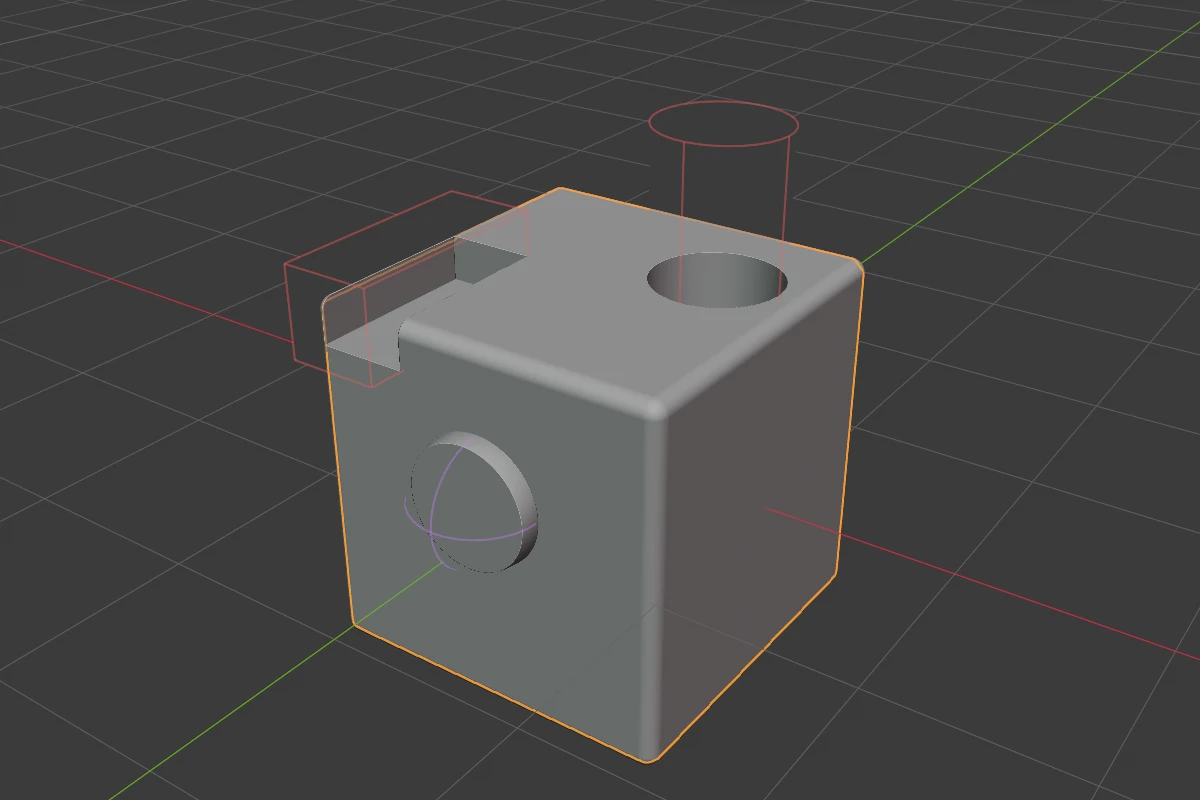
A shape that cuts, joins or embosses another one stops rendering on its own. Chisel draws its outline instead, in the colour of the modifier that uses it:
| Colour | Shape |
|---|---|
| Red | A Difference or Slice cutter |
| Green | A Union cutter |
| Blue | An Intersect cutter |
| Violet | An Emboss or Engrave target |
| Grey | A shape with Render off that nothing uses |
A cutter used by several modifiers takes the colour of the first one. A Carve target keeps rendering, so it has no outline. A hidden cutter (H, Veil, a hidden collection) has none either.
The outline is faint while the cutter is not selected, and bold once it is. Whatever is in front of it hides it, the body it cuts included: a cutter buried in a shape shows only where it comes out. A Union cutter’s outline lies on the joined surface, so it can look broken or dotted. Outlines stay up while you drag, and follow a cutter you move.
Click the shape where its outline is to select the cutter; Shift-click adds it to the selection. The outline itself does not react to the cursor.
Cutter Wires sets the style:
- Outline (default): only the silhouette as seen from the view, like Blender’s selection outline
- Wire: every edge of a simple wire of the shape, the far side included. The wire is the plain primitive, without its rounding or its own modifiers
Target dots
Target dots mark the origin of every Boolean, Emboss, Engrave and Carve target, coloured like the outlines (a Carve target’s dot is azure). Dots sets which:
- Active: the active shape’s targets, while it is also selected
- Selected: every selected shape’s targets
- Off (default)
Hidden Objects (on by default) keeps a dot on targets that are hidden. Click a dot to select its target alone; a hidden target is shown again.
Adjust arcs
The adjust arcs are one cluster of coloured arcs around the selection, at Blender’s transform pivot. Each arc drags one value of everything selected:
| Arc | Where | Colour | Drags | Shows when |
|---|---|---|---|---|
| Rounding | bottom right, inner | teal | the edge rounding of every selected shape (Side Rounding on a Lathe) | a selected shape can be rounded. Spheres, Capsules, Tori and Tubes cannot |
| Blend | bottom right, middle | blue | the blend of every modifier that uses a selected shape | a selected shape is a modifier’s target |
| Carve offset | bottom right, outer | azure | the Carve Offset | a selected shape is a Carve target |
| Bevel | bottom left | green | the bevel of Prisms, Trapezoids and Oblongs; on an Ngon, every corner at once | one of them is selected |
| Emboss Strength, Inner, Outer | upper right | yellow | the emboss depth and its two blends | a selected shape is an Emboss target |
| Engrave Strength, Inner, Outer | upper right, higher | violet | the same for Engrave | a selected shape is an Engrave target |
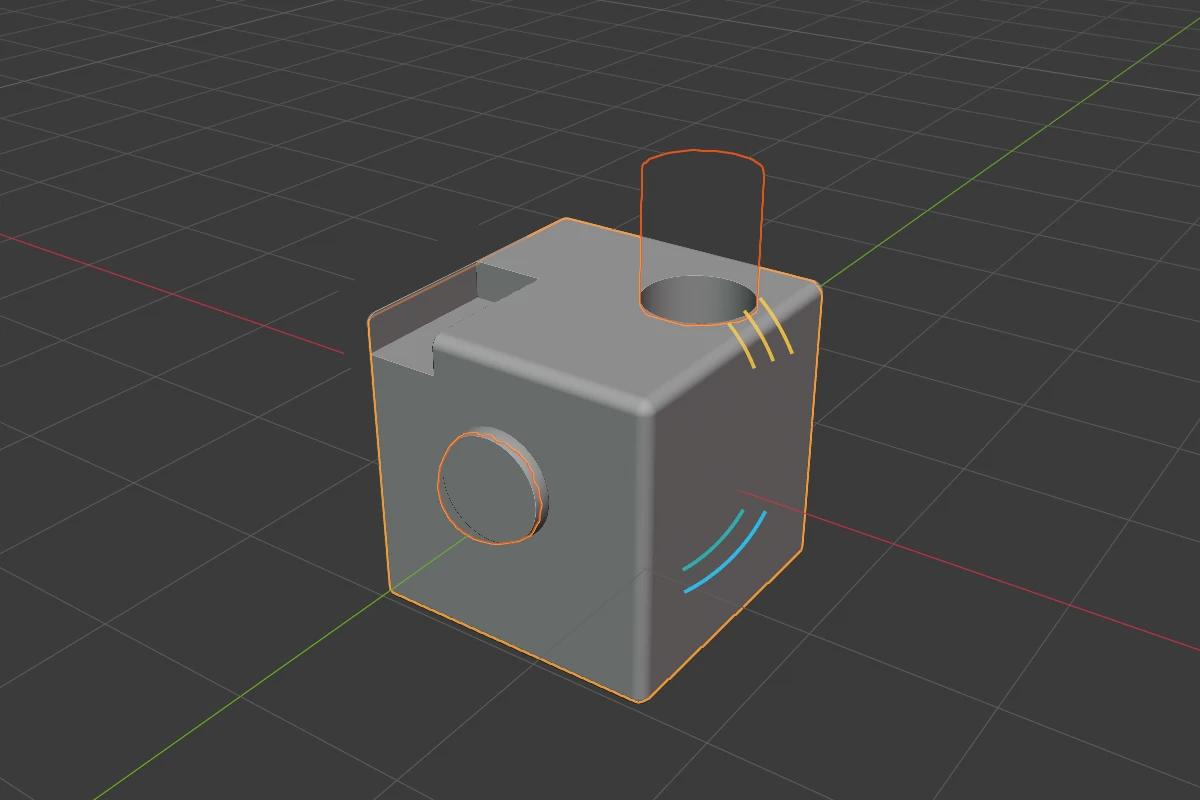
Drag an arc outward to raise its value. Each arc has its own checkbox under Adjust Arcs in the drop-down; the Carve offset arc has none.
| Key | Action |
|---|---|
Shift | Precision |
Ctrl | Snap to 0.1 (Ctrl + Shift: 0.01) |
1–5 | Round / Sharp / Soft / Tight / Chamfer |
S | Switch to the Chamfer Smooth, when a profile is Chamfer |
Release / Space / Enter | Confirm |
RMB / Esc | Cancel the radius change. A profile picked with 1–5 during the drag stays |
See also
- Render Engine: Gizmos: every switch and gate
- Rounding and Blending: the same drag keys
- Edit: selecting and moving points
- Preferences: the colours and the dot size