
Rounding
Rounding rounds the edges of a single shape. Prisms, Trapezoids and Oblongs also have a Bevel, which rounds their upright corners separately. Both use one of the five profiles.
What rounds on each shape
| Shape | Rounding rounds | Bevel rounds |
|---|---|---|
| Box | every edge | |
| Oblong | the top and bottom rims (Cap Rounding) | the four upright edges |
| Ngon | the top and bottom rims | no Bevel setting; the green Bevel arc rounds every corner at once |
| Trapezoid | the top and bottom rims (Cap Rounding) | the corners between its walls |
| Prism | the top and bottom rims (Cap Rounding) | the upright edges |
| Cylinder, Cone | the rims of the caps | |
| Text | the letters’ front and back edges | |
| Outline | the top and bottom rims | |
| Rail | the corners of its section and the rims of its ends | |
| Lathe | Side Rounding: the edges of the cut faces of a turn under 360°, always round | |
| Tube, Sphere, Capsule, Torus, Mesh | nothing |
The corners of Ngons and path shapes also round one by one, with their own handles in Edit mode; see Ngon and Points.
Settings
Object Properties ▸ SDF. A Box, Cylinder, Cone, Ngon, Outline or Text:
| Setting | Default | Range | What it does |
|---|---|---|---|
| Profile | Round | Round, Sharp, Soft, Tight, Chamfer | The rounding’s profile. |
| Rounding | 0 m | 0 and up (soft max 2) | The edge radius. |
| Smooth | 0 m | 0 and up (soft max 0.5) | Rounds a Chamfer’s two edges. Shown on Chamfer. |
A Prism, Trapezoid or Oblong:
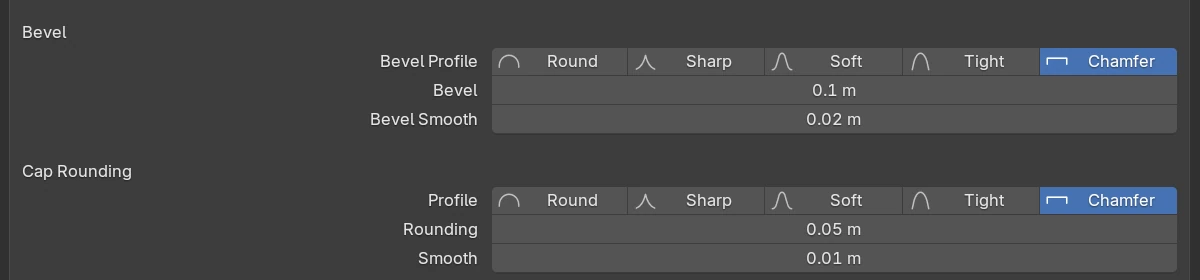
| Setting | Default | Range | What it does |
|---|---|---|---|
| Bevel Profile | Round | Round, Sharp, Soft, Tight, Chamfer | The bevel’s profile. |
| Bevel | 0 m | 0 and up (soft max 2) | The radius of the upright edges or wall corners. |
| Bevel Smooth | 0 m | 0 and up (soft max 0.5) | Rounds a Chamfer bevel’s two edges. Shown on Chamfer. |
| Profile (Cap Rounding) | Round | Round, Sharp, Soft, Tight, Chamfer | The rims’ profile. |
| Rounding | 0 m | 0 and up (soft max 2) | The radius of the top and bottom rims. |
| Smooth | 0 m | 0 and up (soft max 0.5) | Rounds a Chamfer rim’s two edges. Shown on Chamfer. |
A Lathe has Side Rounding (0 m, soft max 2) with its path settings, greyed at a full turn.
Adjust modal (B)
With the Chisel tool active, press B and move the mouse to change the Rounding of every selected shape that has one. Moving away from the active shape raises it and moving toward it lowers it; all selected shapes change by the same amount. The current value is shown next to the cursor.
| Key | What it does |
|---|---|
Shift (held) | Precision: a tenth of the speed |
Ctrl (held) | Snap to 0.1; with Shift, to 0.01 |
1 – 5 | Profile: Round, Sharp, Soft, Tight, Chamfer (numpad too) |
S | On a Chamfer: drag its Smooth instead; S again goes back |
Click, Enter, Space | Confirm |
Esc, right-click | Cancel |
A Lathe’s Side Rounding has no profile: 1–5 and S do nothing on it.
Rounding and Bevel arcs
Two of the adjust arcs around the selection start the same drag. Drag an arc outward to raise its value; the keys above work while dragging.
- Rounding (teal, bottom right, innermost): the Rounding of every selected shape (a Lathe’s Side Rounding).
- Bevel (green, bottom left): the Bevel of every selected Prism, Trapezoid and Oblong, and every corner of every selected Ngon.
In the menus
- Pie
Q, South-West: on a Prism, Trapezoid or Oblong, the bevel profile icons, Bevel and (on Chamfer) Smooth; then the rounding profile icons, Rounding and (on Chamfer) Smooth. A Lathe shows only Side Rounding. - Right-click: Bevel Profiles ▸, Bevel, Smooth; Rounding Profiles ▸, Rounding, Smooth, in the same order.
- Tape tree: right-click a shape for its Bevel and Rounding.
The Rounding, Bevel and Smooth entries start the drag described above. The profile icons and submenus set the profile on every selected shape.
Limits and known issues
Cancelling keeps the profile
Escrestores the radius, but a profile picked with1–5during the drag stays. Confirm and pressCtrl + Zto undo all of it.
Rail: no Rounding row in the panel
In 5.0.0 a Rail’s SDF panel has no Rounding row. Use
B, the Rounding arc or the right-click menu.