
Text
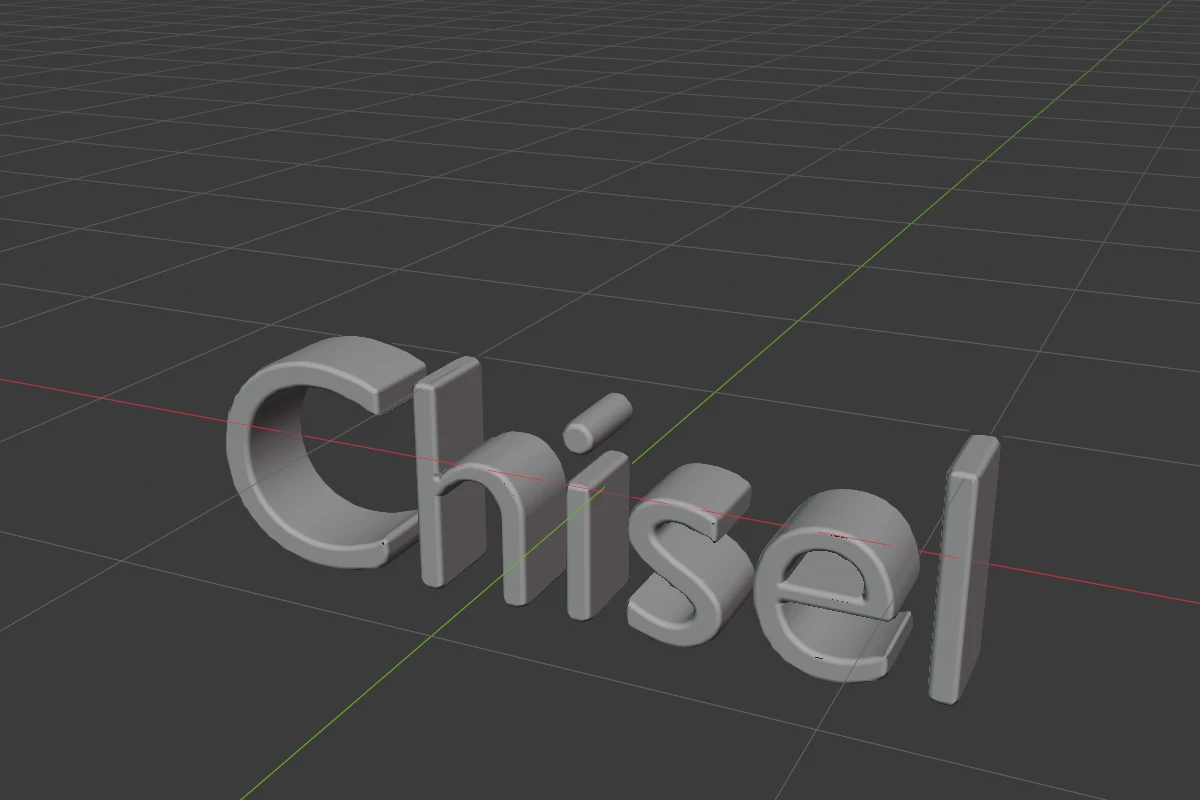
A Blender text object drawn as a Chisel shape: its letters extruded by Depth and rounded like any other shape. The words, the font and the size stay the text object’s own. With a plain text object selected, adding a Text turns that object into a Chisel Text; otherwise it makes a new one at the 3D cursor.
Settings
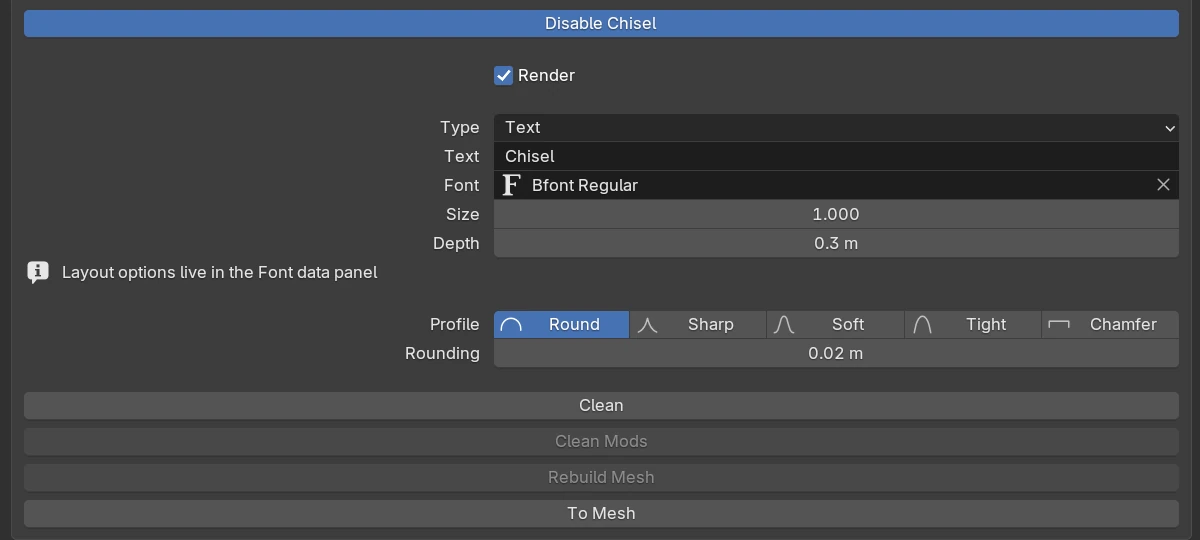
| Setting | Default | Range | What it does |
|---|---|---|---|
| Text | The text object’s words | ||
| Font | Bfont Regular | The text object’s font | |
| Size | 1 | The text object’s size | |
| Depth | 0.2 | > 0 (soft 100) | How far the letters are extruded, from the text’s plane along local +Z |
| Profile | Round | Round · Sharp · Soft · Tight · Chamfer | The shape of the letters’ edge rounding |
| Rounding | 0 | ≥ 0 (soft 2) | Rounds the letters’ front and back edges. B drags it |
| Smooth (Chamfer) | 0 | ≥ 0 (soft 0.5) | Rounds the seams where the chamfer meets the faces |
The rows every shape has are in Properties Panels; Rebuild Mesh is greyed for a Text. The line “Layout options live in the Font data panel” points to Blender’s Font data properties, which hold spacing, alignment, text boxes and text on a curve. Blender’s own Extrude and Bevel are not used.
The right-click menu and the Q pie’s West wedge drag Depth.
Tab on a Text
With the Chisel tool active, Tab on a Text switches the tool to its Edit mode, where a Text has no points. To type in the viewport, switch to another tool first (for example W), then press Tab.
Redo panel
| Setting | Default | What it does |
|---|---|---|
| Text | Text | The words of a new text object |
| Depth | 0.2 | How far the letters are extruded |
| Align | World | World, View or 3D Cursor: the rotation of the new text |
Limits and known issues
Warning
Enable Chisel on a text object makes a Sphere-type shape. Use Add ▸ Chisel ▸ Text with the text object selected instead, or switch its Type to Text.
A very long text can carry more outline than one shape holds: the panel says “Text too long: trailing glyphs are not rendered”. A Text is not in the [ / ] cycle.
See also
- Outline: an extruded outline of your own points