
Core Concepts
Short definitions of the terms this manual uses, each linked to the page that covers it.
Shapes and stacks
Shape
A Blender object that Chisel draws from a distance field instead of from its mesh. Its Type (Box, Tube, Text and so on) and its own settings are in Object Properties ▸ SDF. See Primitives.
Modifier
One step that changes a shape: a join, a cut, a mirror, an array, a bend and so on. Chisel’s modifiers live in the Chisel Modifiers panel, not in Blender’s modifier stack. See Modifiers.
Stack (the tape)
A shape’s modifiers in the order they apply, from the top down. The Tape tree shows every stack of the scene. Order matters: a cut placed before a join leaves the joined shape whole, a cut placed after it cuts it too.
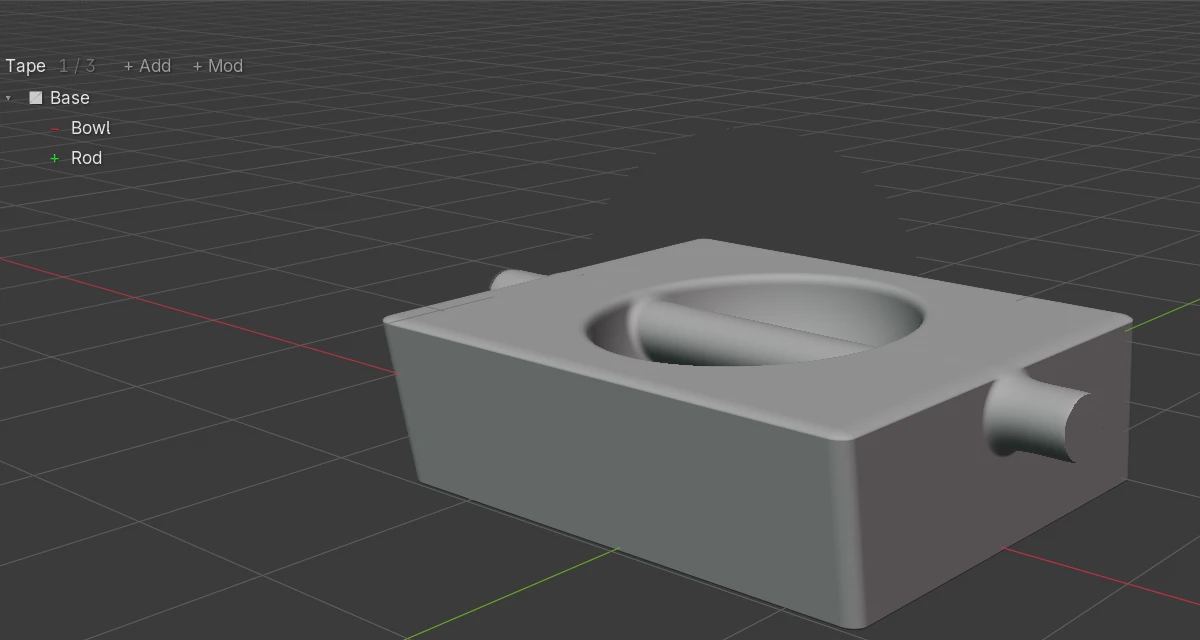
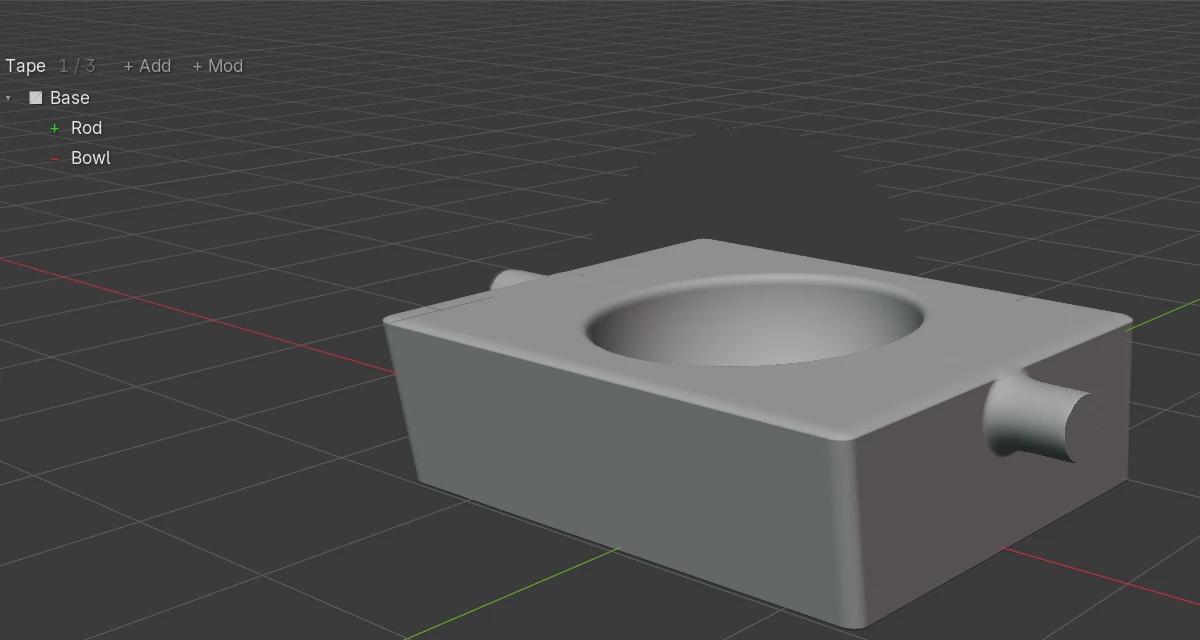
Host
The shape whose stack holds a modifier. In the Tape tree, the host is the row the modifier sits under.
Target
The shape a modifier’s Target field names. A Boolean’s target is the cutter, an Emboss or Engrave target the stamp, a Carve’s target the carve target. The host is never called the target.
Cutter
A Boolean’s target. A new cutter stops rendering on its own (Render off) and shows a coloured outline instead: red for Difference and Slice, green for Union, blue for Intersect. Click the shape where its outline is to select it.
Join
A modifier that combines the host with a target. There are seven kinds: Union, Difference, Intersect, Slice, Emboss, Engrave and Carve. See Joins.
Point
A spot that defines part of a shape or a modifier: an Ngon’s corner, a path shape’s point, a Sweep’s path, a Bisect fence’s corner, a Lattice cage’s control. You edit points in Edit mode.
Rounding and blending
Rounding
The radius that rounds a shape’s own edges, set on the shape. See Rounding.
Blend
The radius of the fillet where a join meets the host. Each join has its own. See Blending.
Profile
The cross-section of a rounding or a blend: Round, Sharp, Soft, Tight or Chamfer. See Profiles.
Drawing
Render (on or off)
A switch at the top of every shape’s SDF panel. On (the default), Chisel draws the shape. Off, the shape is not drawn on its own but still works as a target, for example as a cutter. A shape with Render off that no stack uses is listed under Unused in the Tape tree. See Display.
Ray-marched view and proxy mesh
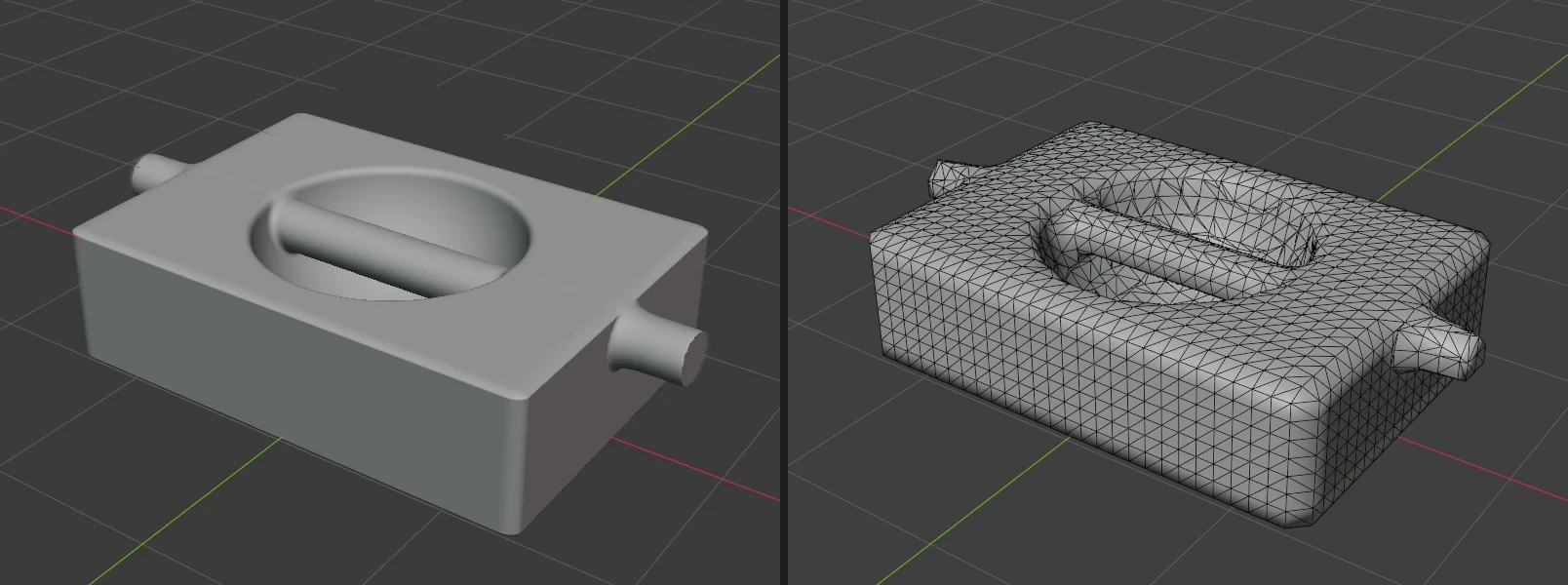
In Material Preview and Rendered shading, the Chisel engine draws the shapes from their distance fields by ray marching. Blender also needs a mesh, for Solid shading, EEVEE, Cycles, snapping and selection. For a shape with modifiers, Chisel keeps a low-resolution proxy mesh of the result and updates it after each edit. See Proxy mesh.
The Chisel tool
Chisel tool
Chisel’s workspace tool in the 3D View: the orange icon at the bottom of the tool bar, or Alt + Q from any tool. Most Chisel keys work only while it is active. See Chisel Tool.
Mode
What a left drag does in Object mode: Select, Create (draw a new shape), Block (draw a base, then pull its height) or Bisect (draw a cutting line). See Modes.
Object mode and Edit mode
The Chisel tool’s two states. In Object mode it works on whole shapes: selecting, adding, drawing, cutting, and the modifier handles. In Edit mode it works on the points of the selected shapes. Tab or the Edit button switches between them. Both are states of the tool: Blender itself stays in its Object Mode. See Edit Mode.
Handle
A dot, ring, arrow or arc drawn in the view on a selected shape or modifier. Drag it to change a value: a size, a rounding, a blend, a modifier’s offset or angle. Also called a gizmo. See Gizmos.
Where settings live
| What | Where |
|---|---|
| A shape’s type and its own settings | Object Properties ▸ SDF, see Properties Panels |
| A shape’s stack | Modifier Properties ▸ Chisel Modifiers, see Modifiers |
| A shape’s colour | Material Properties, see Materials |
| The engine: quality, performance, matcap, display, gizmo switches, baking | Render Properties, with the render engine set to Chisel, see Render Engine |
| The tool’s mode and its settings | The tool settings row above the view and the D popup, see Chisel Tool |
| Which handles and overlays show | The gizmo icons and drop-down in the tool settings row, see Gizmos |
| Status, theme colours, GPU memory, debug tools | Edit ▸ Preferences ▸ Add-ons ▸ Chisel, see Preferences |
Units and detail
Every length in Chisel (sizes, rounding, blend, offsets) is a real distance in the scene, shown in the scene’s units, so a model built in millimetres works the same as one built in metres. The viewport keeps detail down to World Cell Size, scaled to each object’s size by Auto Cell Size, while an F12 render always draws the exact surface; see Quality.
See also
- Implicit Modeling: the math behind these terms
- Interface: where each part of Chisel sits in the Blender window