
View Markdown
Right-Click Menu
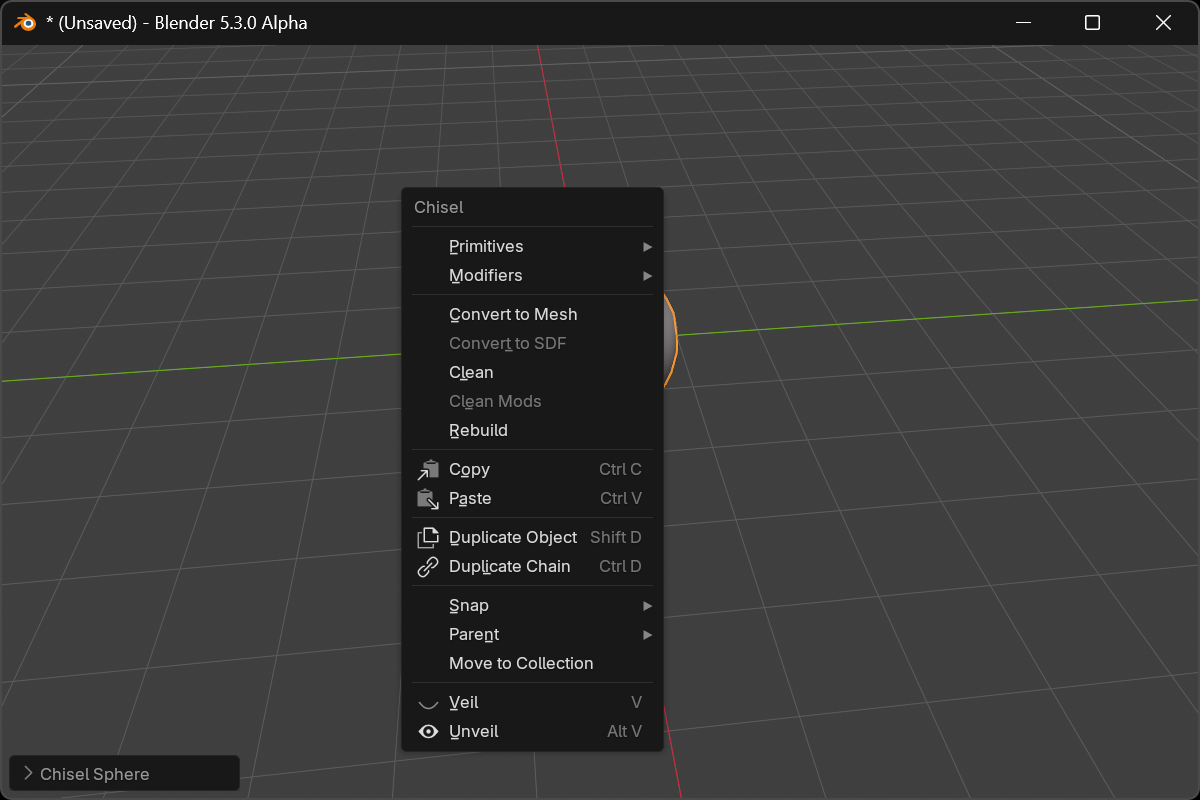
While the Chisel tool is active, right-clicking a Chisel SDF object opens a dedicated context menu instead of Blender’s default. It collects modal-adjust shortcuts, type and modifier swaps, conversion, and the usual object actions in one place. The menu only appears when the active object is a Chisel SDF. Right-clicking a plain mesh or empty falls back to nothing.
Modal-adjust shortcuts
The top of the menu is dynamic: it shows only the rows that apply to the current selection, and each row launches a drag modal that edits every matching object in the selection at once.
- Shape row: one control for the active primitive’s defining parameter: Cap (Cone, Trapezoid), prism side-count toggles
3/5/6/8plus an apex angle readout for triangular prisms, Minor R (Torus), Depth (Curve), Radius (Curve Tube), or Angle (Curve Revolve). - Bevel (Oblong, Prism, and Trapezoid): a Bevel Profiles submenu plus a Bevel drag. When the bevel profile is Chamfer, a Smooth entry appears.
- Rounding: a Rounding Profiles submenu plus a Rounding drag, for any selected shape that supports rounding. On Chamfer, a Smooth entry appears.
- Blend: a Blend Profiles submenu plus a Blend drag, when the selection is a boolean or carve target. On Chamfer, Smooth.
- Offset: the carve offset drag, when the selection is a Carve target.
- Outer / Inner: Outer Profiles and Inner Profiles submenus plus Outer and Inner drags, when the selection is an emboss / engrave target. Each gets a Smooth entry on Chamfer.
- Emboss / Engrave: a strength drag for whichever displace operation the selection uses.
Primitives and Modifiers
- Primitives: every Chisel shape. Click adds one at the 3D cursor;
Shift+ click swaps every selected Chisel shape to that type. Mesh and curve families never cross; incompatible objects are skipped with a report. - Modifiers: the full set, in the same order as the Add Modifier menu:
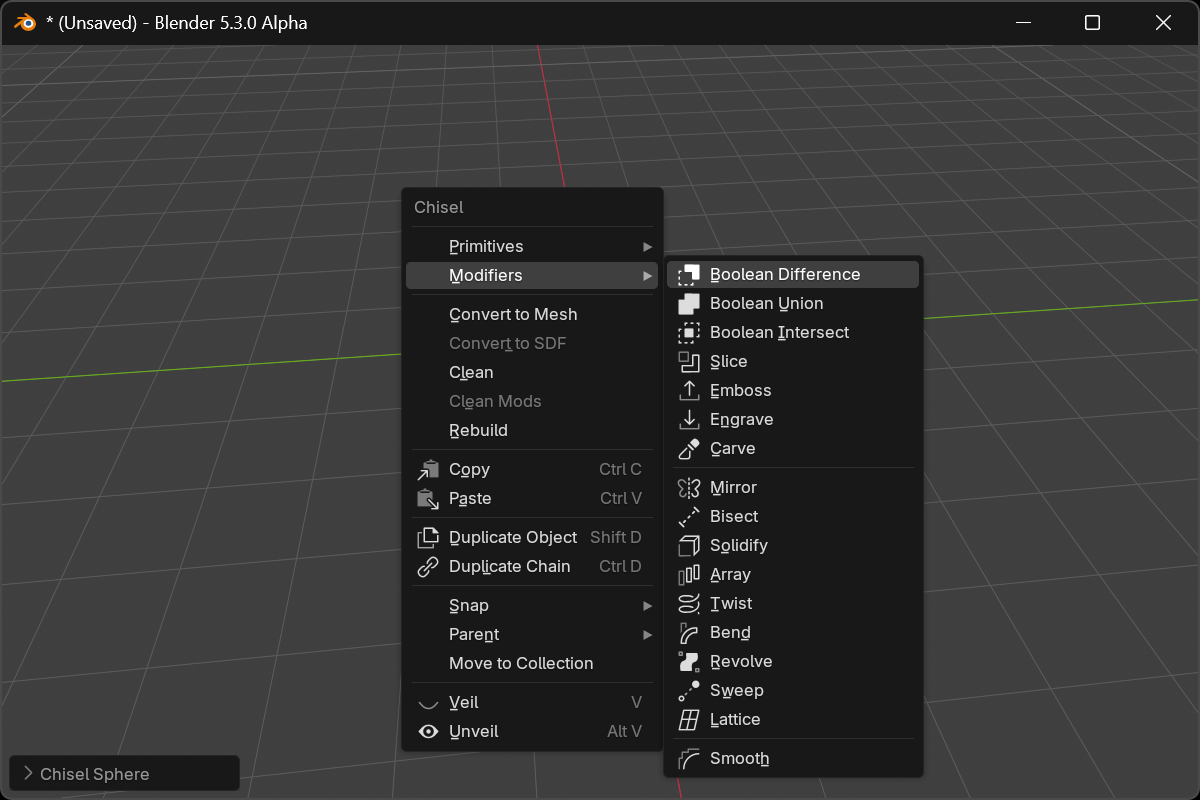
- Boolean Difference, Boolean Union, Boolean Intersect, Slice, Emboss, Engrave, Carve: click wires the operation from the selected shapes onto the active one;
Shift+ click swaps every modifier that targets the selection to it; a lit button means the selection is already used that way - Mirror, Bisect, Solidify, Array, Twist, Bend, Revolve, Sweep, Lattice: added to every selected shape
- Smooth: added to every selected shape, pinned at the bottom of each stack
Convert, Clean, Rebuild
- Convert to Mesh: opens its full options dialog (algorithm, cell size, normals, see Convert to Mesh).
- Convert to SDF: the opposite direction: bake the selected mesh objects into Chisel shapes (see Convert to SDF). Greyed out unless a plain mesh is selected.
- Clean: strip targeting modifiers and make the shape solid (see Clean).
- Clean Mods: remove every red (no target) modifier from the selection (see Clean Mods).
- Rebuild: regenerate the proxy mesh (see Rebuild Mesh).
Copy / Paste and duplicate
- Copy / Paste: Blender’s standard copy buffer.
- Duplicate Object: Blender’s stock
object.duplicate_move; copies just the active object. - Duplicate Chain: Chisel’s smart duplicate (
Ctrl + D). It pulls children, boolean / displace / carve targets, bisect plane objects and curve sources along as a group, rewires any external owners’ modifier stacks so group cuts stay group cuts, and gives every copy its own mesh data.
Snap, Parent, Move to Collection
These are Blender’s stock Snap and Parent submenus plus Move to Collection, surfaced here so you don’t have to leave the Chisel tool.
Veil / Unveil
- Veil: hide every non-rendered helper except your current selection.
- Unveil: reveal hidden non-rendered objects parented to (or targeted by) the selection.
See Veil & Unveil for the hotkeys and full behavior.
See also
- Pie Menu: radial equivalents for the same add / swap operations
- Active Tool: the active tool that enables this menu
- Keymap: full hotkey list