
Pie Menu
The pie menu is the fastest way to model in Chisel. Press Q for radial access to primitives, modifiers, profile toggles, and the renderer. Q is tool-local. It only opens while the Chisel tool is active, so it never shadows Blender’s default Q (Quick Favourites) elsewhere. Alt + Q works from any tool: it activates (or re-enters) the Chisel tool, after which Q opens the pie.
Wedges
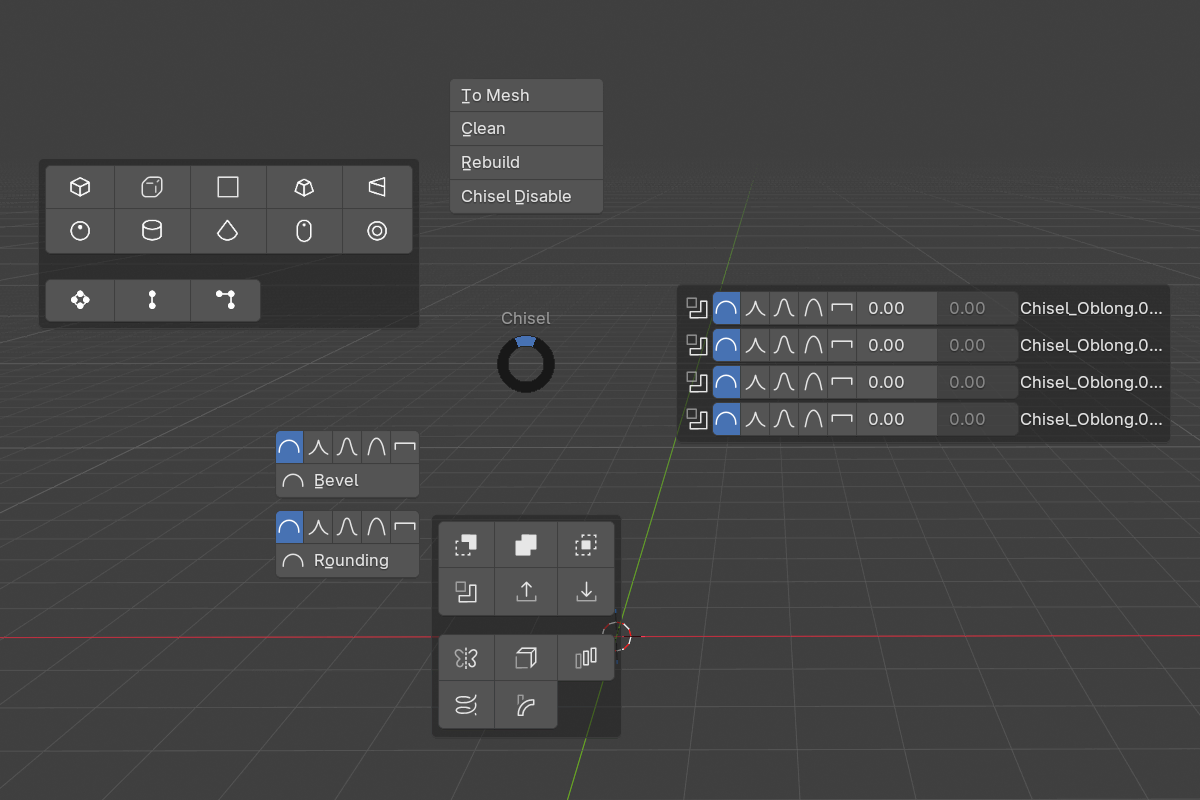
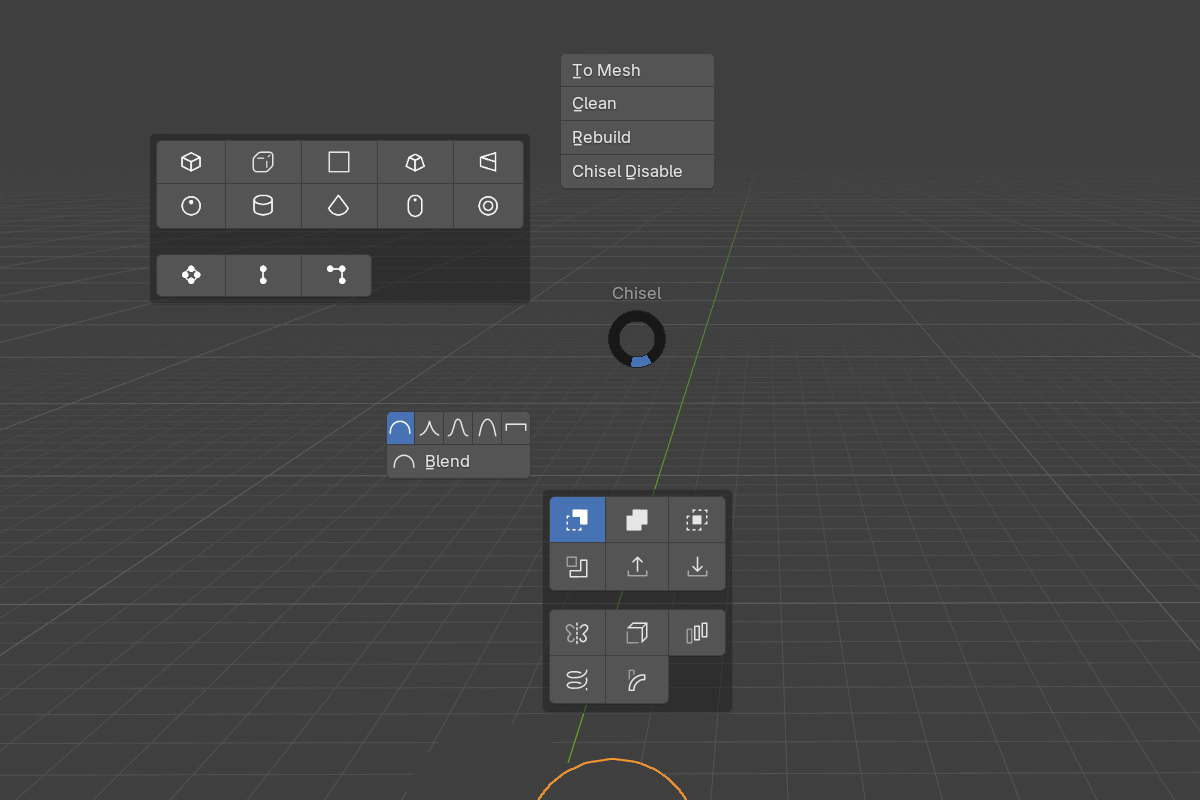
- NW: Add / Swap Primitive: grid of primitive types with custom icons: ten mesh shapes laid out five per row (Box, Oblong, Ngon, Trapezoid, Prism / Sphere, Cylinder, Cone, Capsule, Torus), then the three curve types on their own row (see below)
- N: Engine actions: To Mesh, Clean with the Clean Mods unlink icon beside it, Rebuild, and the engine toggle (Chisel Disable / Chisel Enable)
- W: Shape control: the active primitive’s defining parameter (cap, prism sides, minor radius, depth, tube radius, revolve angle)
- E: Modifier controls: one row per modifier on the active object, in stack order (see below)
- S: Add / Swap Modifier: two grids of four. The first holds the target-taking operations: Difference, Union, Intersect, Slice / Emboss, Engrave, Carve. The second holds everything that goes onto every selected shape: Mirror, Bisect, Solidify, Array / Twist, Bend, Revolve, Sweep / Lattice, Smooth
- SW: Profile and modal stack: Bevel, Rounding, Blend, the carve Offset, and the Outer / Inner / Emboss / Engrave drags for the active selection
The exact contents adapt to the current selection. Wedges that don’t apply collapse to an empty slot.
East wedge: one row per modifier
Select a shape with modifiers and the East wedge fills with one compact row per modifier, so the common adjustments never need the panel:
| Modifier | Row shows |
|---|---|
| Boolean | Profile icons, blend radius, chamfer smooth, the target’s name |
| Carve | Profile icons, blend, smooth, the offset, the target’s name |
| Mirror | X / Y / Z toggles, each with its flip, and the seam blend |
| Solidify | Thickness |
| Array | Line / Circle, count − +, offsets or axis + radius, smooth |
| Twist / Bend / Revolve | Axis buttons and the strength or offset |
| Sweep | Point count (the path is edited in the viewport) |
| Lattice | The three point counts, the interpolation, and a red warning icon when the cage folds |
| Smooth | Profile icons, radius, and the All toggle (Override All) |
| Bisect | Flip, profile icons, blend, smooth, and the plane’s name |
| Emboss / Engrave | Two rows: inner profile + radius + strength, then outer profile + radius + the target’s name |
Every numeric button starts a drag modal: Shift for precision, Ctrl to snap, 1–5 for the profile where one applies, Space / Enter / LMB to confirm, RMB / Esc to cancel.
Dual buttons: click adds, Shift+click swaps
The primitive grid (NW) and the first modifier grid (S) are dual-function:
- Click: add. A primitive button drops that shape at the 3D cursor; a modifier button wires the operation onto the selection (select the operands, make the host active, click).
- Shift + click: swap. Swaps the type on every selected Chisel shape, or rewrites every modifier in the scene that targets the selection to the new operation, in one step.
When exactly one selected shape is already used by a modifier, the button for that operation lights up, and a plain click swaps instead of adding (Shift then adds). Hover any button for a tooltip that says which it will do.
Swapping a primitive type stays inside its family: mesh shapes and curve shapes never cross. The Slice button and the whole second grid (Mirror through Smooth) are single-function add buttons.
Status warnings
The SE wedge shows status warnings while they apply:
- “Shaders not compiled, first run may take longer”: appears while shaders are still compiling on first run.
- “OpenGL backend, Vulkan is much faster”: appears when Blender is running on OpenGL. Switch to Vulkan in
Edit → Preferences → System → Backend.
Profile shortcuts
The SW wedge sets the edge profile on whatever the selection supports: Rounding and Bevel on the primitive, Blend on a boolean or carve target, and Outer / Inner on an emboss / engrave target. Each row offers Round / Sharp / Soft / Tight / Chamfer as icons, with the current one highlighted, next to a button that drags the value.
See also
- Active Tool: drag-to-place primitive placement
- Right-Click Menu: the same add / swap operations from a context menu
- Keymap: full hotkey list
- Rounding & Blending: Profiles: profile descriptions