
Rounding Shapes
Every rounding and blend has a Shape: the form of the curve across the edge. There are six, and each one runs Out or In. During a rounding or blend drag, the keys 1 to 6 switch the Shape. Changing the Shape does not change the radius.
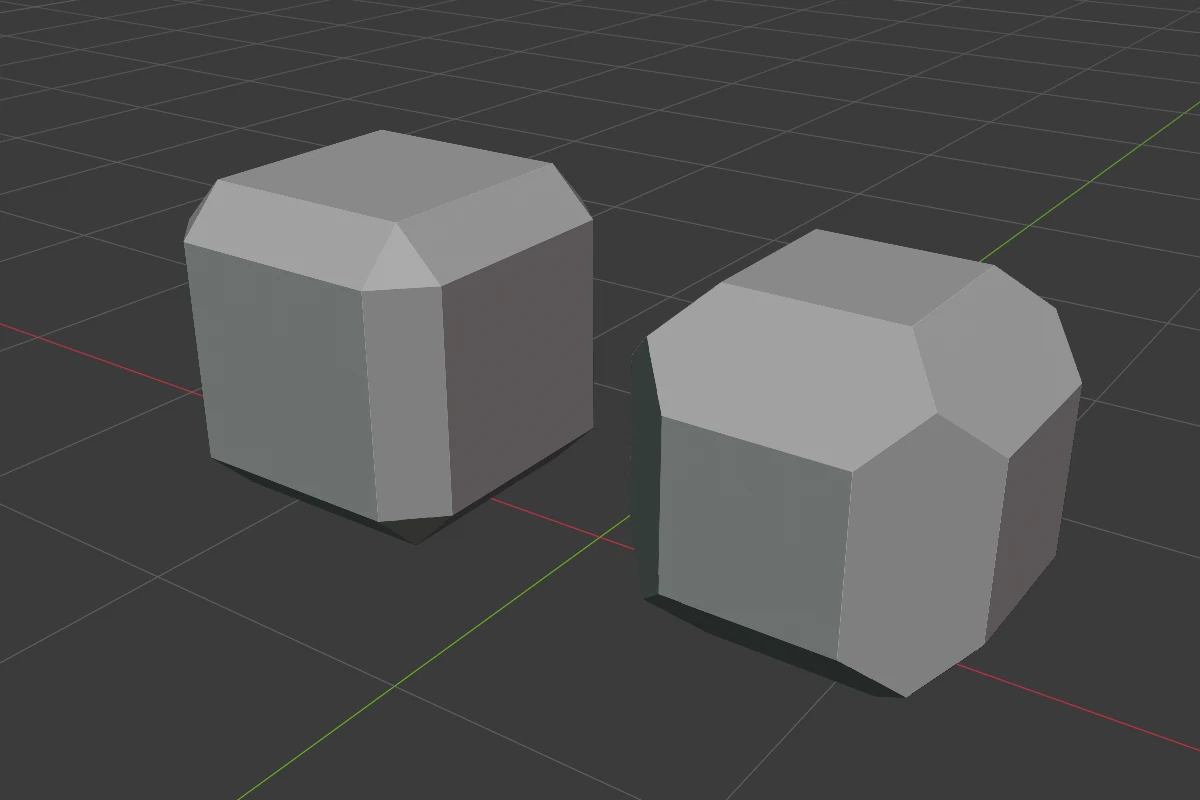
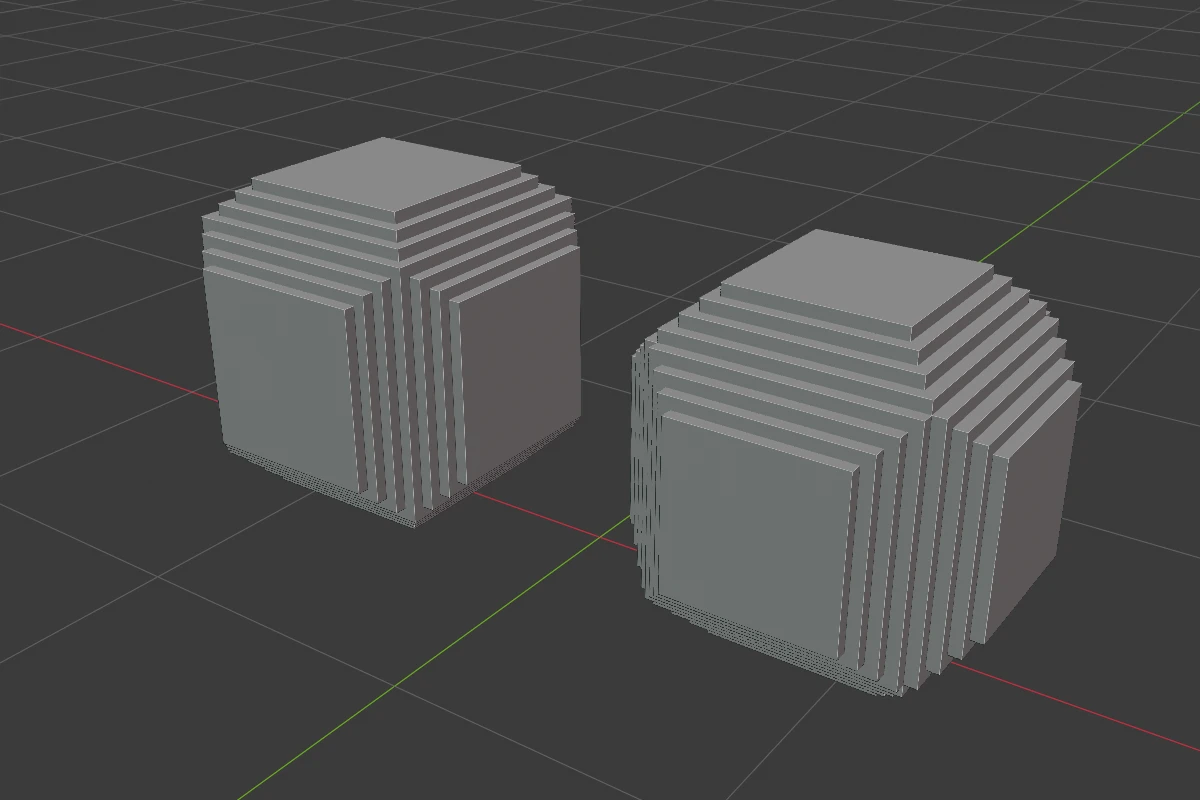
Out rounds the edge off, so the shape stays solid. In cuts the curve into the edge instead, leaving a concave groove. In every picture below, the box on the left is Out and the box on the right is In.
Round
Key 1. A circular arc. This is the default.
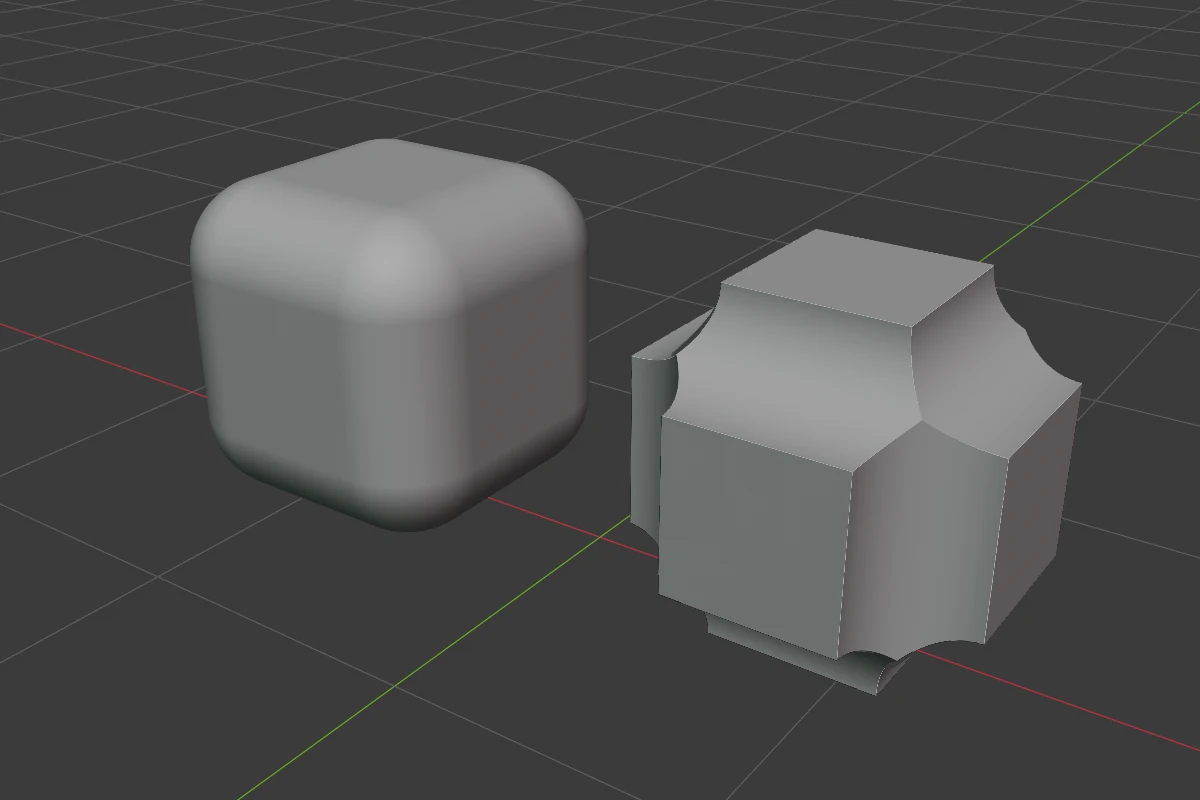
Sharp
Key 2. A squarer curve than Round: it follows the faces further and turns more tightly near the corner, so the edge looks crisper.
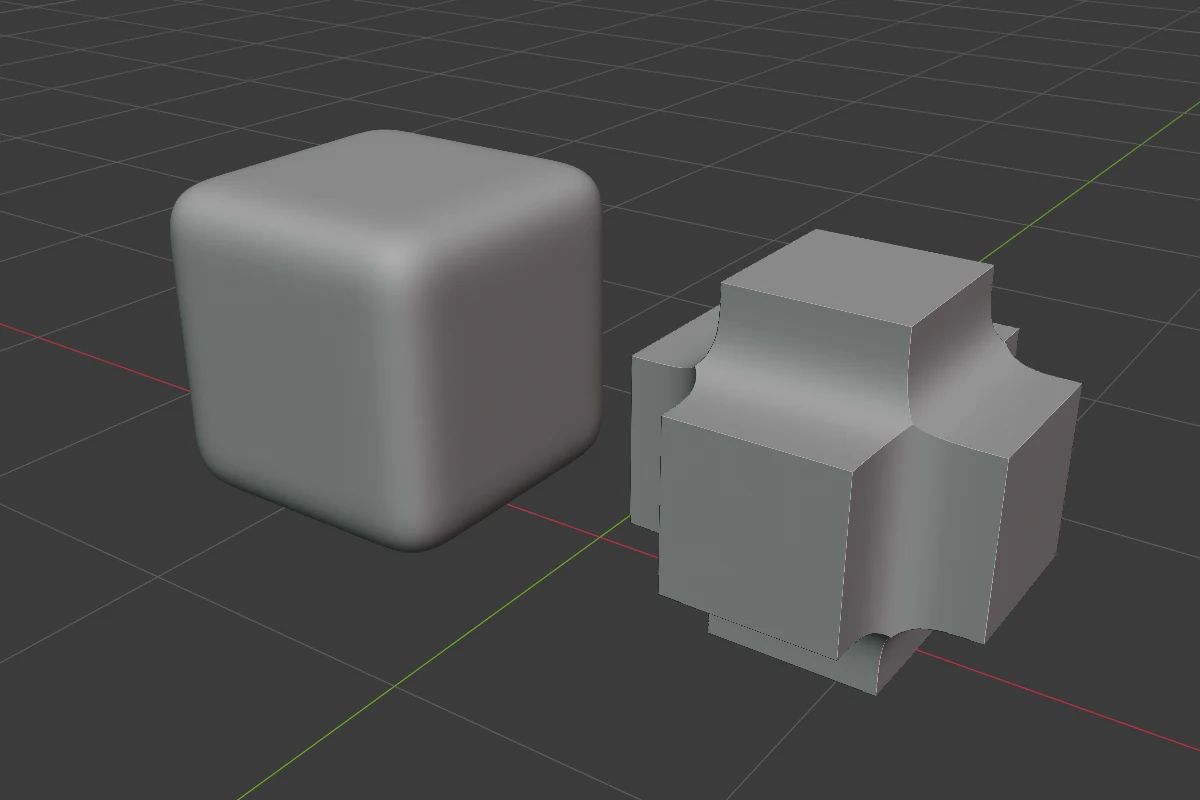
Soft
Key 3. Between Round and Sharp in shape. It meets the faces without a visible line, so reflections run smoothly across it.
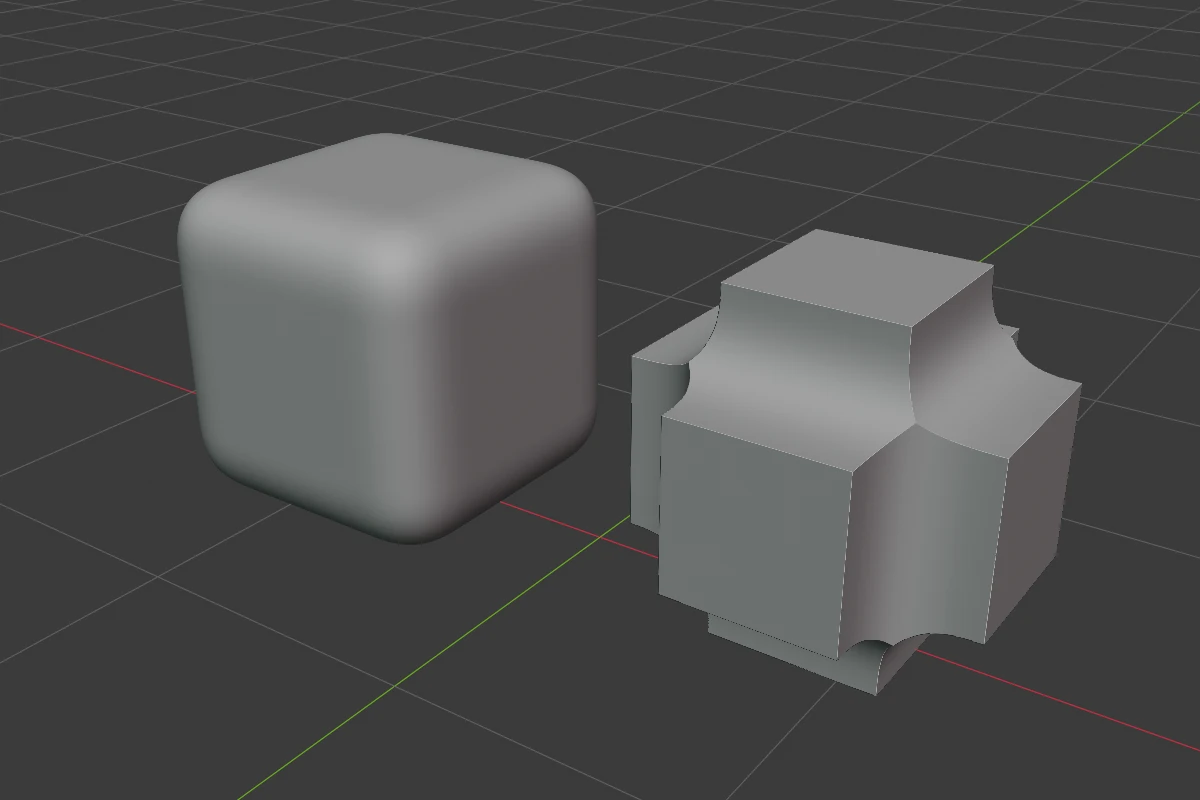
Tight
Key 4. The squarest curve: the corner stays nearly square, with a small round at its tip.
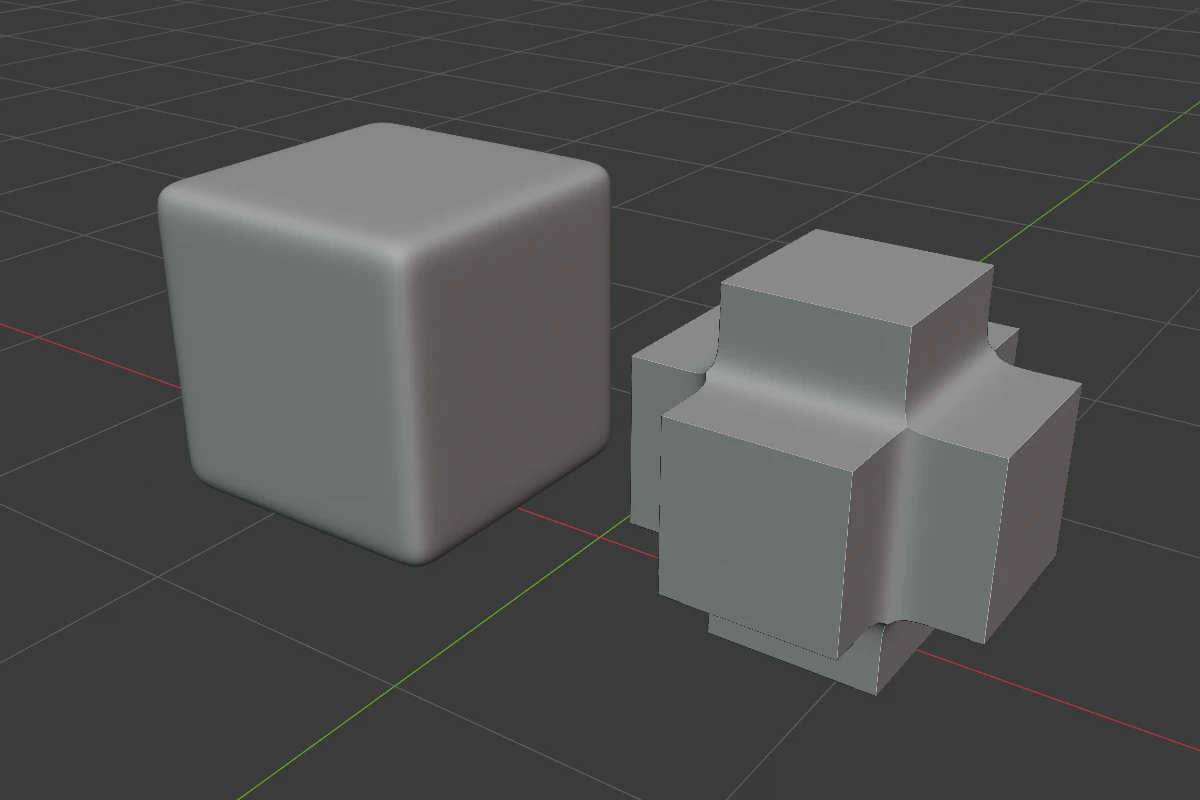
Chamfer
Key 5. A flat cut at 45°. Its two edges can be rounded with Smooth (below).
Steps
Key 6. A staircase instead of a curve. The Steps field sets how many steps lie on either side of the corner, from 1 to 16. It shows only while the Shape is Steps. No key sets the count: use the field in the panel, the Steps field in the pie or the right-click menu, or the Tape tree’s right-click options.
Out and In
Out and In are a pair of buttons under the Shape. While a drag runs, O picks Out and I picks In. A Shape key keeps the direction you had, and I or O keeps the Shape and its Steps count.
Smooth
Smooth rounds the two edges where the curve meets the faces. It starts at 0 and has a soft maximum of 0.5. It is offered for Chamfer, for every In Shape and for Steps with In; Round, Sharp, Soft, Tight and Steps with Out have none. A rounding or blend shows it as Smooth under the radius, a path point as Corner Smooth, an Emboss or Engrave’s inner edge as Inner Smooth, and a Sketch solid’s Cap Rounding as Smooth (mm).
During a rounding or blend drag, S switches the drag to the Smooth and back. It does nothing when the Shape has no Smooth. The Smooth modifier’s radius drag has no S.
Keys while dragging
| Key | What it does |
|---|---|
1 to 6 | Round, Sharp, Soft, Tight, Chamfer, Steps (numpad too) |
I, O | In, Out |
S | Drag the Smooth instead; again goes back |
Esc, right-click | Cancel: the radius, the Smooth and the Shape, direction and Steps all go back |
These keys work in:
B,Ctrl + Band every adjust arc, every Edit-mode rounding dot and every Blend Curve;- the Rounding, Side Rounding, Cap Rounding, Blend, Outer, Inner and Smooth drags in the pie and the right-click menu, and the values in the pie’s East wedge;
BandCtrl + Bwhile drawing in Block mode, where the mouse wheel also steps through the six Shapes;- the rounding handles of Ngon and path corners in Edit mode;
- the Bisect blend and corner dots, and the Smooth modifier’s radius drag (
1to6andI,Oonly).
Always round, with no Shape: a Mirror’s Blend, an Array’s Smooth, a Lathe’s Cap Rounding, a Sweep’s corners, and a Sketch solid’s Side Rounding.