
Boolean
A Boolean joins one shape, the cutter, to another, the host. The cutter is the Boolean’s target. The result stays live: move, scale or round either shape and the join follows.
Operations
Difference
Cuts the cutter’s volume out of the host. Key: Alt + - or NumPad -. The cutter’s outline is red.
Union
Merges the cutter and the host into one solid. Key: Alt + = or NumPad +. The cutter’s outline is green.
Intersect
Keeps only the volume the cutter and the host share. Key: Alt + \ or NumPad /. The cutter’s outline is blue.
Slice
Splits the host in two along the cutter. Chisel copies the host and names the copy
Slice has no key, and neither the panel’s Operation list nor its Add Modifier menu has a Slice entry: the panel shows the two Booleans it made.
Join keys and buttons
The keys above, the join buttons of the pie (South, icons only: hover one for its name), the right-click Modifiers menu, the Tape tree’s join menu and the Block tool’s Operation setting when you draw a shape all create a Boolean. The keys, the pie and the menu join every selected Chisel shape into the active one, the host. Each selected shape becomes the cutter of a new Boolean at the end of the host’s stack (before any pinned modifier), and:
- stops rendering on its own and shows its outline instead, faint until selected;
- becomes a child of the host, if it had no parent;
- is the only shape left selected, and active: the first cutter stays selected and the other selected shapes are deselected.
The keys need the Block tool, a Chisel shape active and another one selected. Add Modifier in the panel adds an empty Boolean: its Target is picked in the panel.
A shape can be used once in a chain of joins. The host, any shape that already contains the host and any shape already used inside the host’s chain are not offered as a Target and are skipped by the keys and buttons; the Tape tree refuses such a move with a message in the status bar. Separate chains can still share a cutter.
Duplicate as Boolean
Alt + D copies the active shape, with the shapes its own joins use, and joins the copy into the original’s stack: a new Boolean at the end of the stack (before any pinned modifier), Union with a Blend of 0.5. The copy becomes that Boolean’s cutter and a child of the original, and moves with the mouse until you click. Change its operation or blend like any other Boolean’s.
It needs the Block tool and a Chisel shape active. On anything else, Alt + D stays Blender’s Duplicate Linked.
Changing the operation
Select the cutter, then:
- press
'for the next operation or;for the previous one. The order is Difference, Union, Intersect, Emboss, Engrave, Carve, then back to Difference; - or click another join button in the pie or the right-click Modifiers menu. When only that one cutter is selected, its current operation is highlighted, and a click changes it instead of adding a new Boolean.
Shift+ click adds a new one; - or click the symbol in front of the cutter’s name in the Tape tree and pick a join from the list.
The keys and buttons change every modifier that uses the selected cutter, on every host. Slice is not in the ' / ; order. Changing a sliced cutter to another operation deletes the _slice copy. The panel’s Operation list changes only that one Boolean.
Changing a cutter to Carve makes it render again and removes its outline; changing it back hides it and shows the outline again.
Settings
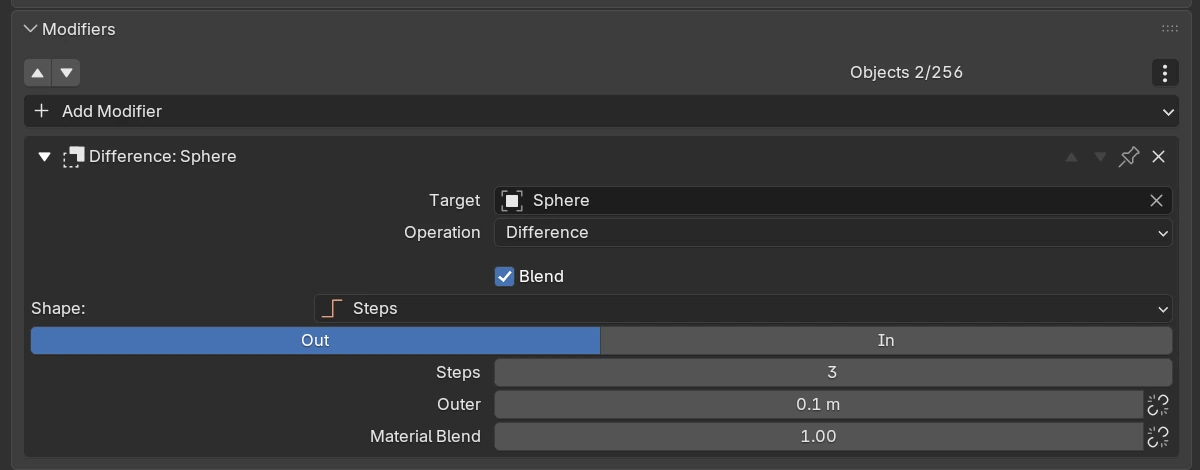
| Setting | Default | Range | What it does |
|---|---|---|---|
| Expand arrow | closed | Shows or hides the settings. | |
| Header | The operation and the cutter, e.g. Difference: Sphere; (no target) in red when the cutter was deleted. | ||
| Move up, Move down | Move the Boolean in the stack. | ||
| Pin | off | Keep the Boolean at the end of the stack. | |
Remove (X) | Delete the Boolean. | ||
| Target | none | any Chisel shape the chain rule allows | The cutter. A cutter picked here stops rendering too, but is not made a child of the host. |
| Operation | Difference | Difference, Union, Intersect | What the cutter does. |
| Blend | off | Fillets the seam. It is ticked automatically when the blend radius goes above 0, whether you drag it (Ctrl + B, the Blend arc, a seam curve, the pie) or type it. | |
| Shape | Round | Round, Sharp, Soft, Tight, Chamfer, Steps | The fillet’s Shape. Shown with Blend on. |
| Out / In | Out | Rounds the seam off, or cuts the curve into it. Shown with Blend on. | |
| Steps | 1 to 16 | The number of steps. Shown while the Shape is Steps. | |
| Outer | 0 m | 0 and up (soft max 2) | The fillet radius. Shown with Blend on. |
| Smooth | 0 m | 0 and up (soft max 0.5) | Rounds the two edges of the fillet. Shown when the Shape has a Smooth: Chamfer, any In Shape, Steps with In. |
| Material Blend | 1.00 | 0 and up (soft max 3) | Width of the colour change across the seam, as a multiple of the fillet: 0 is a crisp colour line, above 1 the colours bleed wider. Works with Blend off too. |
Viewport handles
| Handle | Looks like | Drag or click | Keys while dragging |
|---|---|---|---|
| Blend arc | a blue arc, bottom right of a selected cutter. Block tool’s Select only | Drag outward: a wider blend on every modifier that uses the selection. Release confirms | Shift precision, Ctrl snap, 1–6 Shape, I In, O Out, S Smooth |
| Seam curve | a blue line where the two shapes meet. Block tool’s Edit only, with Blend Curves on | Drag outward: a wider blend on this Boolean only. See Blend Curves | the same |
| Cutter outline | the cutter’s silhouette in its join’s colour, repeated at each Array copy | Display only: a click selects the shape behind it | none |
| Target dot | a dot at the cutter’s origin. Off by default | Click: select the cutter, and show it if hidden | none |
Keys
| Key | What it does |
|---|---|
Alt + -, Alt + =, Alt + \ | Difference, Union, Intersect |
' / ; | Next / previous operation |
Ctrl + B | Drag the blend of every Boolean, Carve, Emboss and Engrave that uses the selected shapes: away from the active shape is wider. Keys: see Blending |
In the menus
- Pie
Q, South: Boolean Difference, Boolean Union, Boolean Intersect, Slice, then Emboss, Engrave, Carve. The buttons are icons; their names show as tooltips. - Pie, East, with the host active: per Boolean, the six Shape icons, Out and In, Steps (for the Steps Shape), the blend radius (a drag), Smooth (a drag, when the Shape has one) and the cutter’s name.
- Pie, South-West, with a cutter selected: the six Shape icons, Out and In, Steps, Blend (a drag) and Smooth.
- Right-click, with a cutter selected: Blend Profiles ▸ (Round, Sharp, Soft, Tight, Chamfer, Steps, then Out and In), Blend and Smooth.
- Right-click ▸ Modifiers: the same seven join buttons as the pie, with names.
- Tape tree: right-click a cutter for its Blend, Shape, radius, Smooth and Material Blend. One open and close is one undo step.
Tips
Select the cutter, not the host
',;,Ctrl + Band the Blend arc act on the modifiers that use the selected shapes.
Limits and known issues
A removed Boolean leaves its cutter hidden
Removing a Boolean, or picking another Target, does not show the old cutter again. It is listed under Unused in the Tape tree; tick its Render box in Object Properties ▸ SDF.
See also
- Carve, Emboss & Engrave: the other joins
- Blending, Rounding Shapes
- Smooth: one blend radius for every seam of a shape
- Clean, Apply Modifiers