
Snapping & Guides
Snapping puts the pointer exactly on a point, an edge, a guide or the grid while you draw and while you move, turn or scale in Edit. A hollow orange ring marks what the pointer has caught. Guides are dashed lines that run through every point of the sketch.
Snapping does nothing until Snap is on or you hold Ctrl. With Snap off, holding Ctrl snaps for as long as you hold it; with Snap on, Ctrl changes nothing while you draw. Snap is off by default and every target is on.
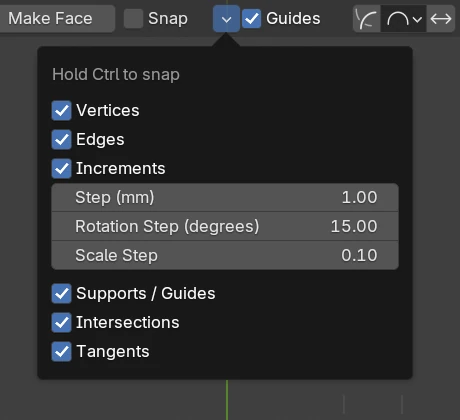
Where the options are
| Place | What it holds |
|---|---|
| Tool bar | The Snap check box, the arrow beside it (it opens the Sketch Snapping options) and Guides |
D panel | Snap and Guides as buttons, and a folded Snap Targets with the same options as the arrow |
| Sidebar | Snap and Guides, Lock Numeric Length/Radius in Draw, and the options in a box under them |
| Right-click menu | Snapping ▸ (its first row is Enable Snapping, then the targets) and Show Guides |
Targets
The first line of the options reads Hold Ctrl to snap.
| Target | Snaps to |
|---|---|
| Vertices | The sketch’s points, the centres of circles and arcs, and the midpoints of lines |
| Edges | Anywhere along lines, arcs and circles, along the gray context edges, and along dashed extensions and tangent rays, even with Supports / Guides off |
| Increments | A grid that starts at the sketch’s origin and follows the drawing axes |
| Supports / Guides | Supports, extensions and the dashed X and Y guides through each point. While drawing, also the line level with or plumb above the last point you placed |
| Intersections | Where curves, guides and edges cross |
| Tangents | Tangent points |
Under Increments are three fields. They are greyed out unless Increments is on.
| Field | Default | Range | Shown | What it does |
|---|---|---|---|---|
| Step (mm) | 1 | More than 0 | Every mode | The grid’s spacing |
| Rotation Step (degrees) | 15 | More than 0 to 180 | Edit | The step of a turn |
| Scale Step | 0.1 | More than 0 | Edit | The step of a scale |
What wins
A point within reach beats any edge or guide, however close an edge passes. Edges and guides beat the grid, which is the last choice. Within one kind, the target nearest the pointer on screen wins. A point is caught from 18 pixels away and held to 24; the other targets from 12 and held to 18.
Snapping to an existing point shares it. Snapping to the inside of a curve adds no relation.
The ring and the readout
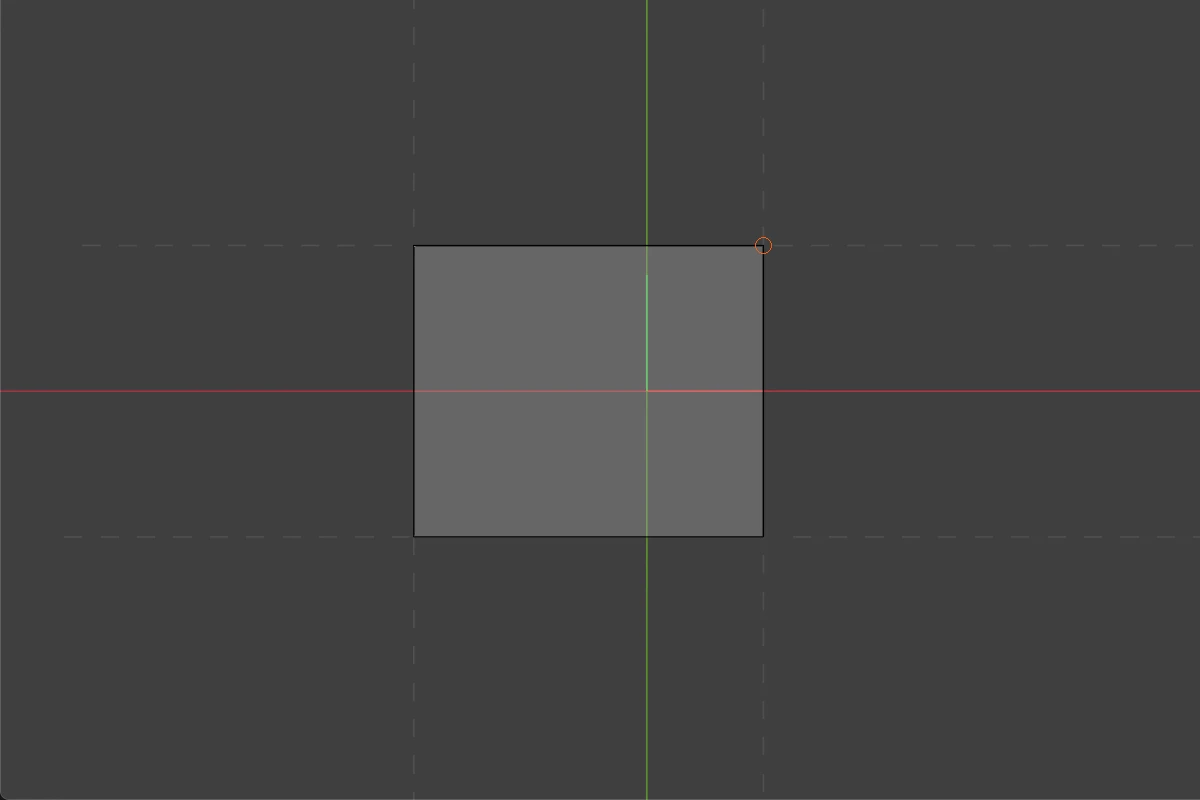
The ring shows while the tool’s gizmos are shown, and in Draw it shows before the first click, which starts exactly there. While you draw, the bottom-left of the viewport names what is caught, as kind · source: for example Grid · Grid, Guide · Drawing X/Y, Point · Point 3, Midpoint · Line 1, Extension · Line 2.
Guides
Guides draws faint dashed lines along the drawing X and Y axes through every point, clipped to the plane. Points on one line share a guide, and no guide is drawn where a dashed extension already runs or for the shape you are still drawing. Guides show in Draw and in Edit, for the active sketch only; Blend hides them.
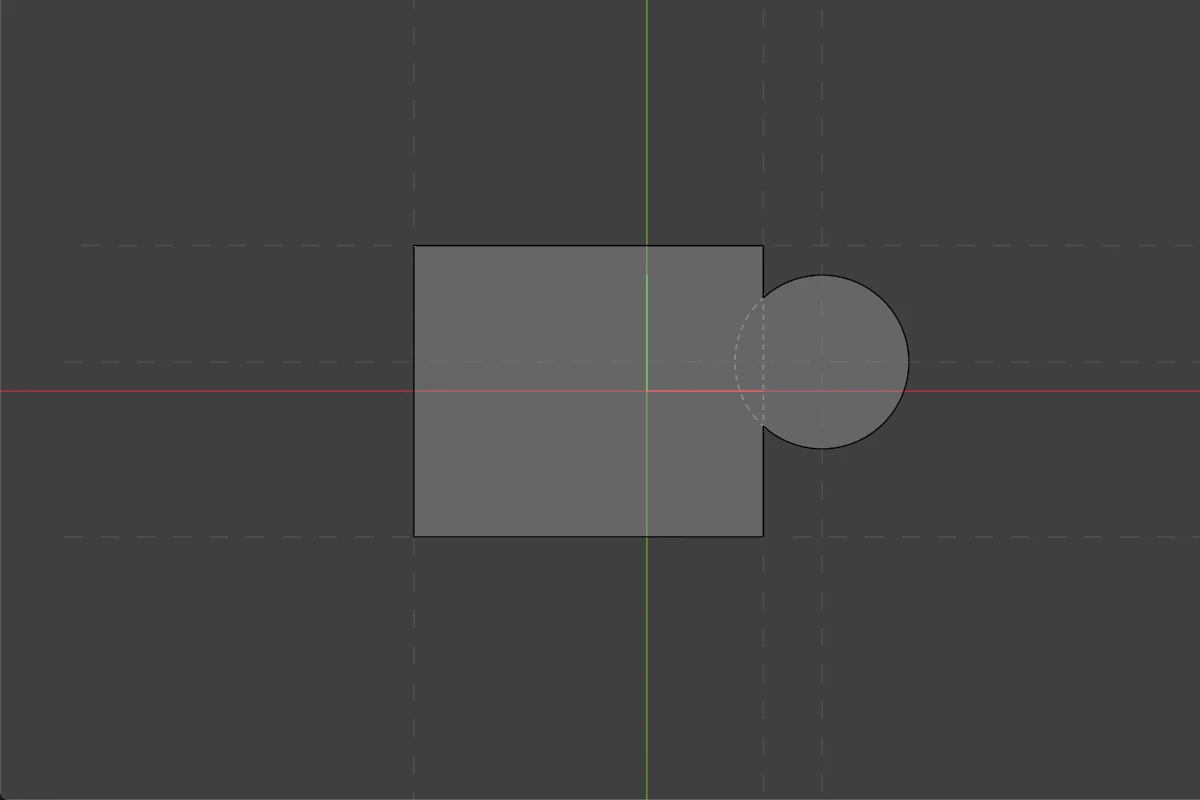
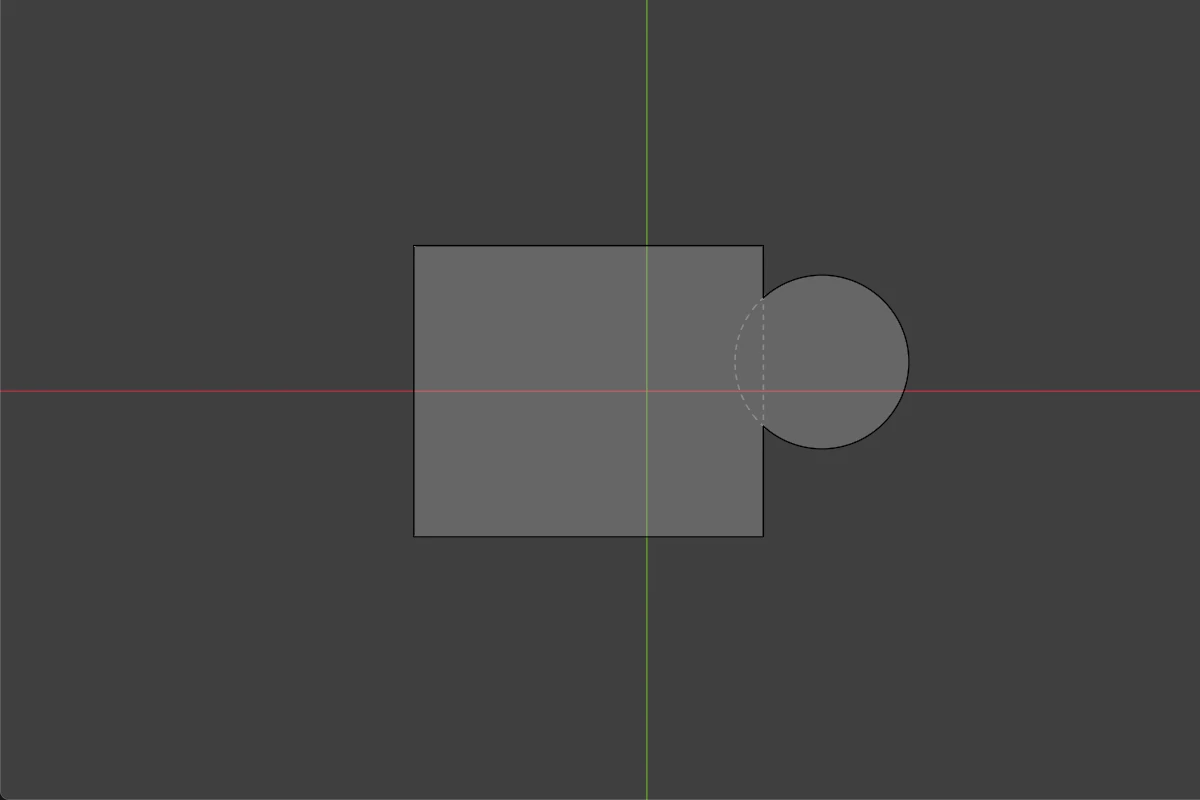
At the origin a short red line marks the X axis and a short green line the Y axis.
See also
- Drawing:
CtrlandShiftwhile drawing - Selecting & Moving:
Ctrlin a move, a turn and a scale - Constraints