
Pie Menu
Q, with the Block tool active, opens the pie menu: Chisel’s shapes, modifiers, rounding drags and engine actions around the cursor. Its wedges fill from the selection; what doesn’t apply stays empty. With any other tool, Q stays Blender’s Quick Favorites; Alt + Q no longer opens the pie, it swaps the Block and Sketch tools.
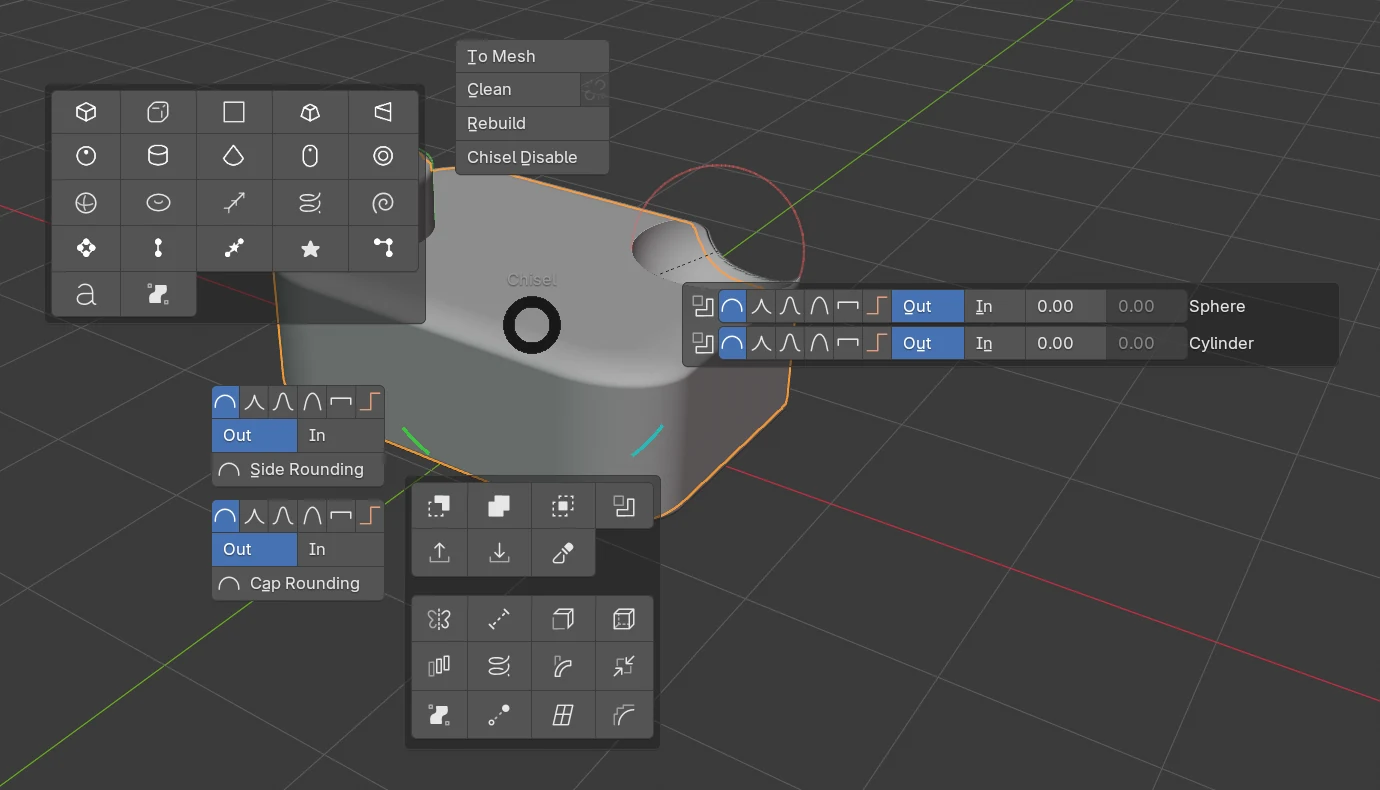
North: engine actions
| Button | What it does |
|---|---|
| To Mesh | Opens Convert to Mesh for the selected shapes |
| Clean | Removes the modifiers that use other shapes and makes the shape solid, see Clean |
| Unlink icon | Removes every modifier whose target is gone, see Clean Mods |
| Rebuild | Rebuilds the shape’s mesh, see Rebuild Mesh |
| Chisel Disable | Switches the scene’s render engine away from Chisel; a red Chisel Enable switches it back |
East: the active shape’s modifiers
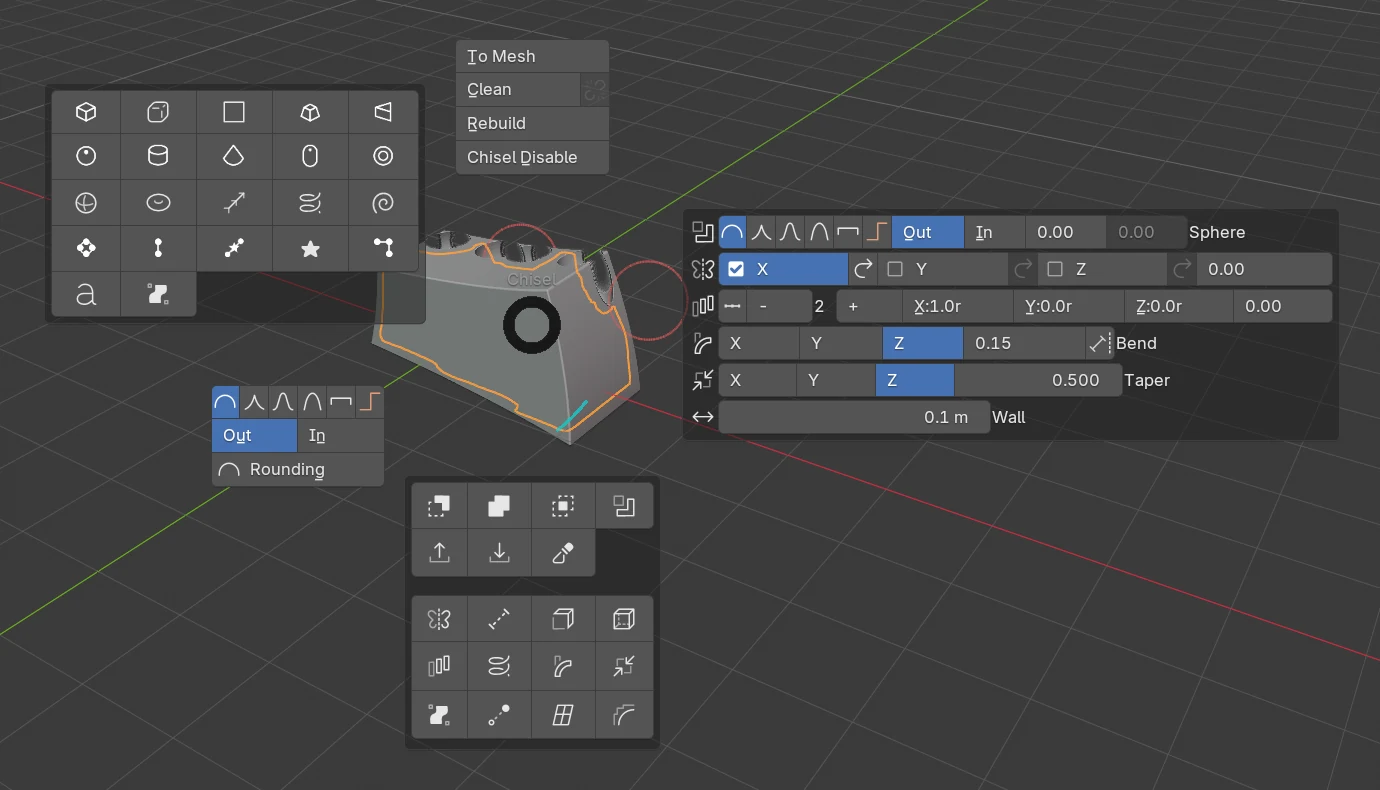
One row per modifier of the active shape, in stack order, then one row per Value of the scene. Every number is a drag; every row of icons sets a Shape (Round, Sharp, Soft, Tight, Chamfer, Steps), followed by Out and In buttons and, on Steps, a count.
| Modifier | Row, left to right |
|---|---|
| Boolean | Boolean icon, Shape icons, blend radius, Smooth (greyed out unless the Shape has one), the target’s name (red ? when it is gone) |
| Carve | Carve icon, Shape icons, blend, smooth, offset, the target’s name |
| Mirror | X, Y, Z toggles, each with its flip arrow, then the seam blend |
| Solidify | Thickness |
| Infill | Infill icon, the pattern, the label Infill |
| Array | Line / Circle switch, − count +, then the X, Y, Z offsets or, for a circle, the axis and R (radius), then the smoothing |
| Twist | X, Y, Z axis, strength |
| Bend | X, Y, Z axis, strength, Limits toggle |
| Taper | X, Y, Z axis, the taper amount, the label Taper |
| Revolve | X, Y, Z axis, offset |
| Sweep | The number of path points |
| Lattice | The three point counts, the interpolation, a red warning icon when the cage folds |
| Smooth | Shape icons, radius, All (Override All) |
| Bisect | Flip, Shape icons, blend, smooth, the plane’s name |
| Emboss / Engrave | Two rows: inner Shape icons, inner radius, inner smooth, strength; then outer Shape icons, outer radius, outer smooth, the target’s name |
| A Value | Its kind’s icon, its number, its name. Shown when the shape has modifiers or the scene has Values, see Values |
South-East: warnings
Until the shaders are compiled, a red box says “Shaders not compiled, first run may take longer”, and on OpenGL also “OpenGL backend, Vulkan is much faster”. Otherwise the wedge is empty.
South: modifiers
The first grid holds the joins. The other selected shapes become targets of the active shape:
| Icon | Adds |
|---|---|
| Difference, Union, Intersect | A Boolean, the other selected shapes as cutters |
| Slice | A Difference on the active shape and a cut-off copy with an Intersect |
| Emboss, Engrave | An Emboss or Engrave |
| Carve | A Carve |
A click adds; Shift + click changes every join that already uses the selected shape to that operation. When exactly one selected shape is used by a join, its operation is lit and the two swap: a click changes, Shift + click adds.
The second grid adds to every selected shape: Mirror, Bisect, Solidify, Infill, Array, Twist, Bend, Taper, Revolve, Sweep, Lattice, Smooth.
South-West: rounding and blend drags
The rows that apply to the selection, top to bottom:
| Row | Shows for | Sets |
|---|---|---|
| Shape icons, Out / In, Steps, Side Rounding (+ Smooth) | Oblong, Prism, Trapezoid, Polygon, and a Lathe that turns a section | The upright edges |
| Shape icons, Out / In, Steps where the shape takes a Shape, then Rounding or Cap Rounding (+ Smooth) | Shapes that round their ends | The edges of the caps. A Lathe shows Cap Rounding alone, and only while its turn is under 360° |
| Shape icons, Blend (+ Smooth) | A shape used by a Boolean or Carve | The blend of every modifier that uses the selection |
| Offset | A shape used by a Carve | The carve offset |
| Outer and inner Shape icons, Outer, Inner (+ Smooth), Emboss / Engrave | A shape used by an Emboss or Engrave | The outer and inner edges and the strength |
The Shape icons are Round, Sharp, Soft, Tight, Chamfer and Steps, the current one lit; Out and In set the direction, and a Steps field sets the count. Smooth shows only where the Shape has one. See Rounding Shapes.
West: the shape’s own value
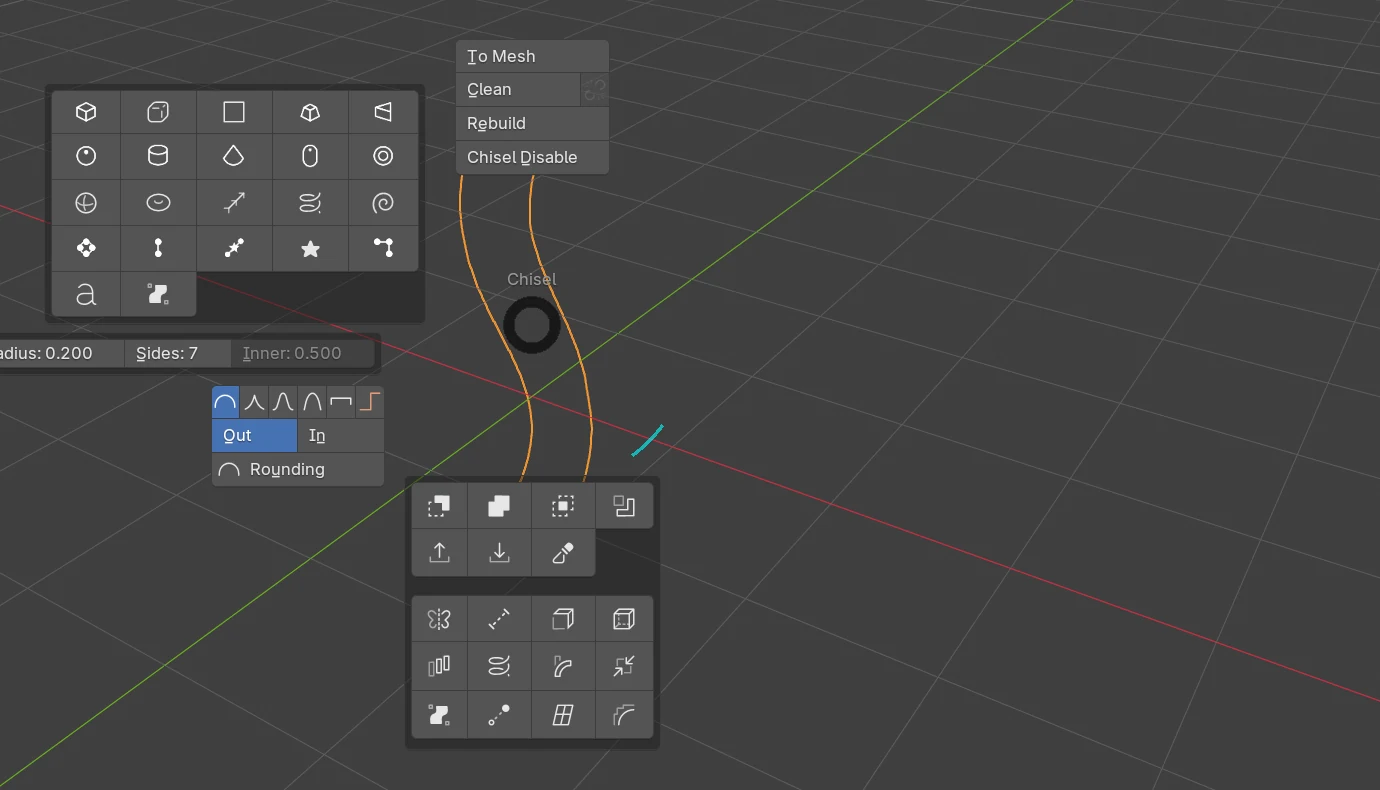
A button with the active shape’s defining value; a click starts its drag. Shapes not listed have none.
| Shape | Button |
|---|---|
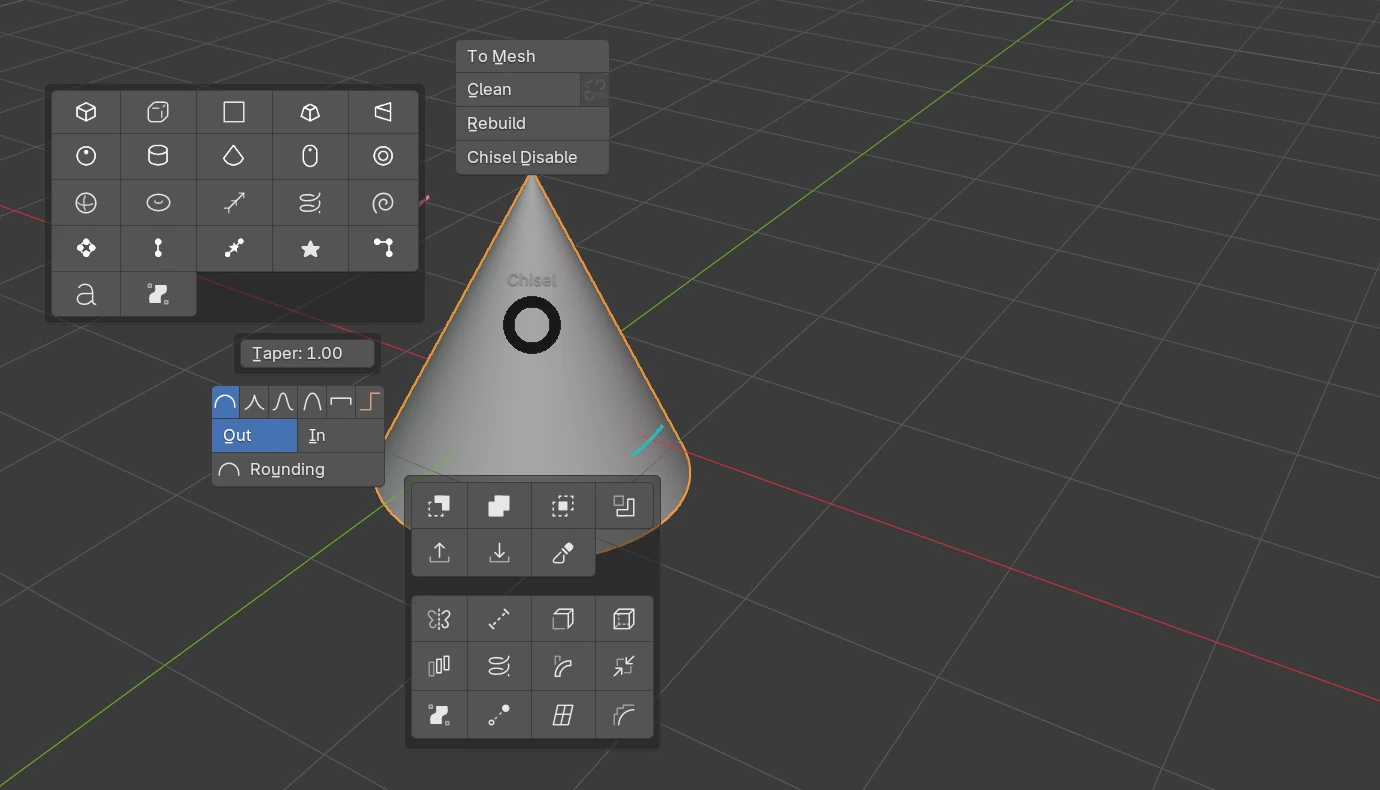
| Cone, Trapezoid | Taper with its value (a new Cone reads Taper: 1.00) |
| Prism | 3, 5, 6, 8: the number of sides. With three sides also the apex angle and an arrow that opens Set Prism Shape |
| Torus | Radius: 0.300 |
| Outline, Text | Depth: 1.000 |
| Tube | Radius: 0.200 |
| Rail | Radius, Sides, Inner (greyed out on a Polygon section); a Rectangle section shows Width and Height in place of Radius |
| Polygon | Radius, Depth, then the section’s Sides and Inner |
| Lathe | Angle: 360.0°; a turned Rectangle also shows Width and Height; none for a Lathe of a ring-type section |
Ellipsoid, Ring, Line, Spring, Screw and every other shape have no button.
Set Prism Shape sets a three-sided Prism’s triangle:
| Setting | Default | What it does |
|---|---|---|
| Mode | Angle + Height | Angle + Height: the base follows. Height + Base: the angle follows |
| Angle | the current angle (5° – 175°) | The apex angle |
| Height | the current height | From the apex to the base |
| Base | the current base | The base width (Height + Base only) |
North-West: shapes
One grid of 22 icon buttons, five to a row: Box, Oblong, Ngon, Trapezoid, Prism / Sphere, Cylinder, Cone, Capsule, Torus / Ellipsoid, Ring, Line, Spring, Screw / Outline, Tube, Rail, Polygon, Lathe / Text, Infill.
| Click | What it does |
|---|---|
| Click | Adds that shape at the 3D cursor |
Shift + click | Changes every selected Chisel shape to that type. Path shapes and Text keep their type: Text is added, not swapped |
Drags
A drag runs until a click, Enter or Space keeps the value, or RMB or Esc cancels. Its keys are in Keymap ▸ During a drag.