
Array
Array repeats everything above it in the stack along a line, or round a circle about the shape’s origin: the shape as it stands at that point, with its Booleans, Mirrors, Solidify, Infill and deformers. Smooth blends neighbouring copies into each other. Two Arrays nest: the lower one repeats the result of the upper one.
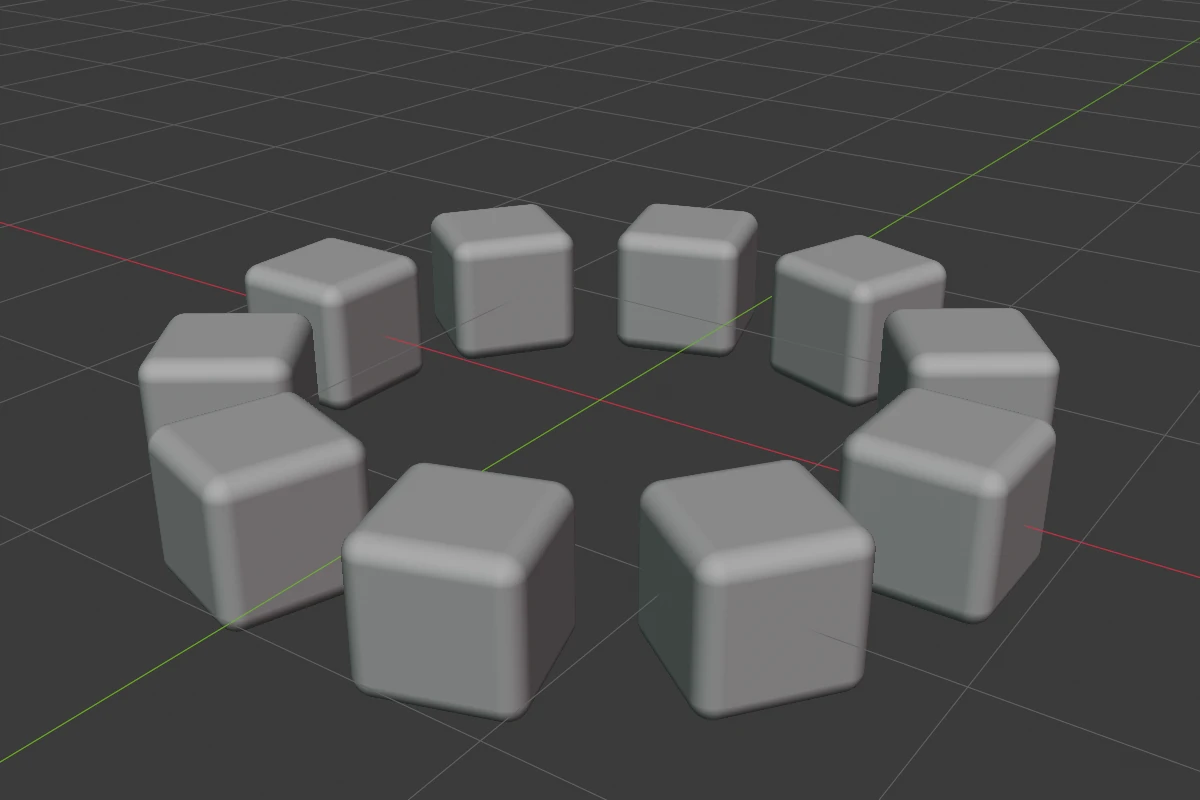
Settings
Line
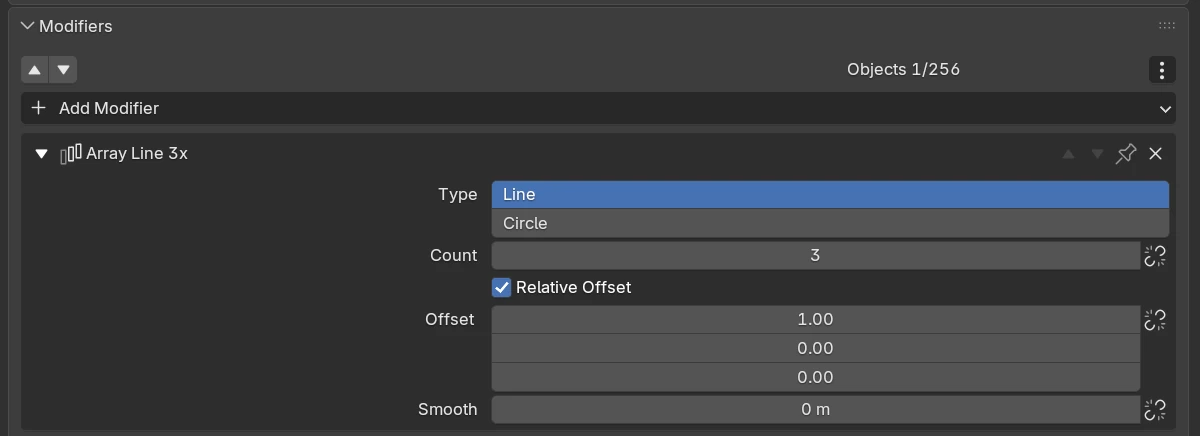
| Setting | Default | Range | What it does |
|---|---|---|---|
| Type | Line | Line / Circle | Copies along an offset, or round an axis |
| Count | 2 | 1–50 | Number of copies, the original included |
| Relative Offset | on | Measure Offset in the shape’s own size: 1 on an axis puts the copies side by side, 1.1 leaves a gap of a tenth of the shape. Off: in metres | |
| Offset | 1, 0, 0 (relative), 2, 0, 0 m (off) | The step from one copy to the next, along the shape’s own axes, so it turns and scales with the object. The relative and the metre offset are two separate values: switching Relative Offset shows the other one | |
| Smooth | 0 m | 0 and up (soft 0.5) | Rounds the joins between neighbouring copies. 0 leaves sharp joins |
A Smooth modifier on the stack also rounds the joins between copies, with its own radius.
Circle
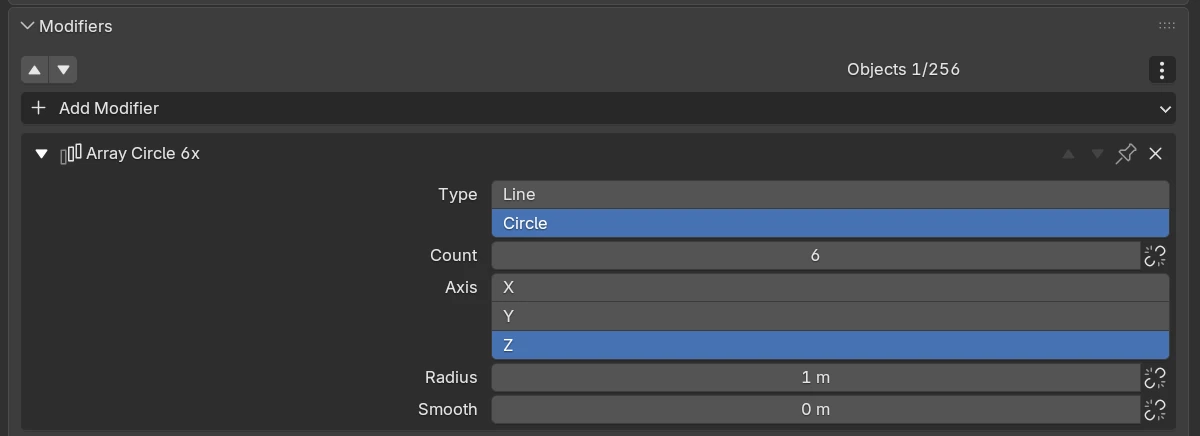
| Setting | Default | Range | What it does |
|---|---|---|---|
| Type | Line | Line / Circle | Circle repeats round an axis through the origin |
| Count | 2 | 1–50 | Number of copies round the ring |
| Axis | Z | X / Y / Z | The shape’s own axis the ring turns round |
| Radius | 1 m | 0–100 (soft 10) | The ring’s radius, in world units: scaling the object does not change it |
| Smooth | 0 m | 0 and up (soft 0.5) | Rounds the joins between neighbouring copies |
Gizmo
Every Array of the active, selected shape draws its handles while the Block tool is in Edit (Tab). With several Arrays on one shape, their type buttons sit side by side below the centre; click an Array’s row in the Tape tree to show only that Array’s handles.
| Handle | Looks like | Drag or click | Keys while dragging |
|---|---|---|---|
| Offset (Line) | Blue dot on the first copy | Drag to move the copy; the offset follows | X / Y / Z lock to that axis of the shape (again to unlock), Ctrl snap 0.25 of the shape’s size (0.1 units with Relative Offset off), Ctrl + Shift finer, Shift precision |
| Count (Line) | Green dot in a dashed marker, one spacing past the last copy | Drag along the row: each spacing adds or removes a copy. A one-copy line shows only this dot | Shift precision |
| Smooth | Small orange dot between the first two copies | Drag away from the row to raise Smooth | Ctrl snap 0.1, Shift precision |
| Radius (Circle) | Blue dot on the first copy | Drag out or in to set the Radius | Ctrl snap 0.1, Shift precision |
| Count (Circle) | Green dot on the second copy. With a Count of 1, or a Radius of 0, it floats a little off the ring | Drag round the ring: toward the first copy for more copies | Shift precision |
| Axis dots (Circle) | Three dots on stems round the centre; the current axis in its colour, the others grey | Click one to turn the ring about that axis | |
| Type button | Three small dots below the centre: in a row for Line, on a ring for Circle | Click to switch between Line and Circle | |
| Guides | Grey marks on every copy and along the track or ring | Display only |
The count, radius and smooth drags show their value beside the cursor. The handles mark the array before the modifiers below it: a Bend below the Array bends the row away from the dots, and a Mirror below it adds copies the handles do not mark.
Switch the handles with Array in the tool header’s gizmo drop-down, or Render Properties ▸ Gizmos ▸ Modifiers ▸ Array.
Pie menu
The pie’s East wedge has an Array row: the Line / Circle button, - count +, then X, Y, Z for a line (an r marks a relative offset) or the axis and R for a circle, and the smooth. Drag X, Y or Z and the first copy follows the cursor along that axis. R works the same way along the radius. Ctrl snaps to 0.1, Shift is precision.
Limits and known issues
Warning
The value label of an offset drag is garbled: the three numbers break apart and the axis lock note is missing. The viewport header shows the right text.
See also
- Mirror: reflection instead of repetition
- Twist & Bend: curved and helical rows