
View Markdown
Trapezoid
A box with a smaller top. Taper sets how much smaller, from a plain box (0) to a pyramid (1). The side edges and the rims round separately, as on an Oblong.
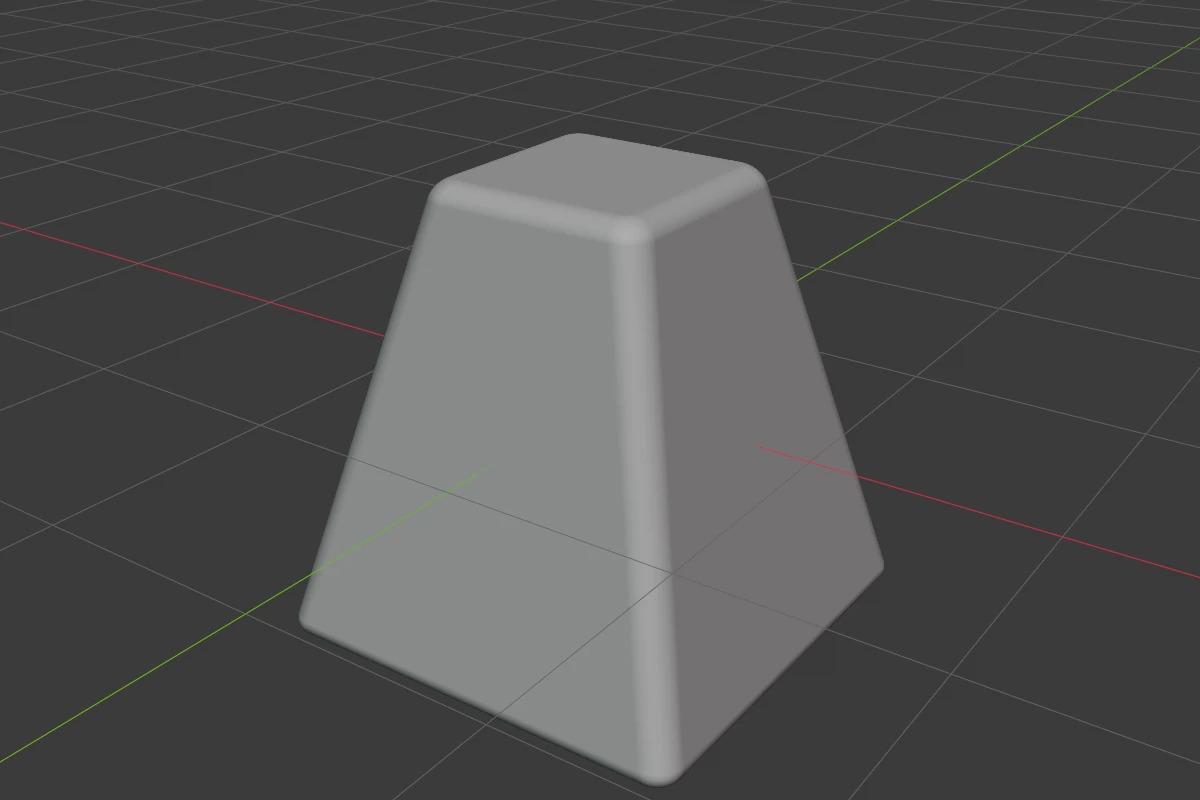
Settings
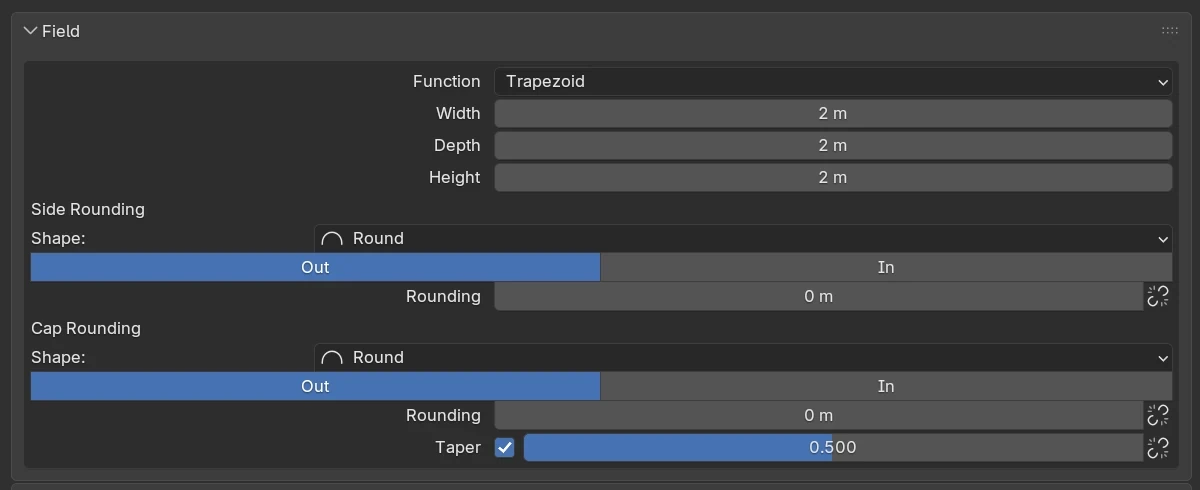
| Setting | Default | Range | What it does |
|---|---|---|---|
| Width | 2 m | > 0 | Size of the base along the object’s X axis |
| Depth | 2 m | > 0 | Size of the base along Y |
| Height | 2 m | > 0 | Size along Z |
| Side Rounding ▸ Shape, Out / In, Steps, Rounding, Smooth | Round, Out, 0 | as on Oblong | Rounds the four side edges |
| Cap Rounding ▸ Shape, Out / In, Steps, Rounding, Smooth | Round, Out, 0 | as on Oblong | Rounds the top and bottom rims |
| Taper | ticked, 0.5 | 0 – 1 | How much smaller the top is: 0 a box, 1 a pyramid. Unticking the box turns the Trapezoid into a Box |
The rows every shape has are in Properties Panels.
Handles
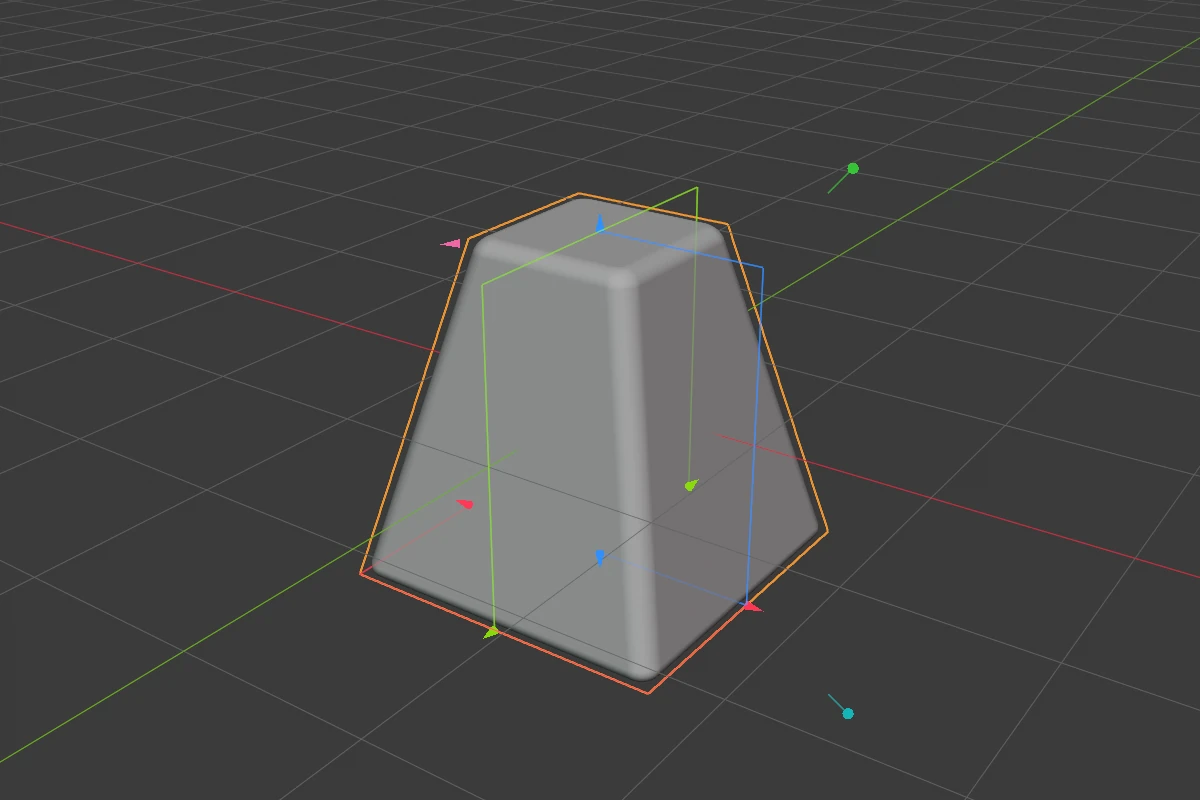
| Handle | Looks like | Drag | Keys while dragging |
|---|---|---|---|
| Size arrows | Six arrow heads on the faces, red, green and blue, joined by three thin lines | Moves that face. With Shift the opposite face stays | Ctrl snaps to 0.1 |
| Side Rounding dot | A green dot at the upper right | Away from the shape: a larger Side Rounding | 1–6, I, O, S, Ctrl, Shift as on Box |
| Cap Rounding dot | A teal dot at the lower right | Away from the shape: a larger Cap Rounding | The same keys |
| Taper head | A rose arrow head on the top rim | Towards the shape: more taper; away from it: less | Ctrl snaps to 0.1, Ctrl + Shift to 0.01, Shift is precision |
Taper
Right-click ▸ Taper (also in the Q pie’s West wedge) starts a drag: move the mouse away from the shape for more taper, towards it for less. Ctrl snaps, Shift is precision.
Rounding
In the Block tool’s Select state the green and teal adjust arcs, and B, round the side edges and the rims, as on Oblong.
Redo panel
After adding, the redo panel (F9) has:
| Setting | Default | Range | What it does |
|---|---|---|---|
| Size | 2 | > 0 | Edge length of the base |
| Cap | 0.5 | 0 – 1 | The top’s size as a share of the base: 1 a box, 0 a pyramid |
| Align | World | World · View · 3D Cursor | Rotation of the new shape |