
Emboss & Engrave
Emboss raises the surface of one shape, the host, wherever another shape, the stamp, passes through it. Engrave sinks it there instead. The step this makes has two edges, Outer and Inner, and each can be rounded.
Emboss and Engrave buttons
Emboss and Engrave in the pie (South, icons only: hover one for its name), in the right-click Modifiers menu and in the Tape tree’s join menu mark the active shape, the host, with every selected Chisel shape as a stamp. Each stamp gets its own modifier with a Strength of 0.1, and:
- stops rendering on its own and shows a violet outline;
- becomes a child of the host, if it had no parent;
- is the only shape left selected, and active: the first stamp stays selected and the other selected shapes are deselected.
The status bar reports Added emboss to N target(s) or Added engrave to N target(s). A shape that would be used twice in the host’s chain is skipped, as for a Boolean.
With a stamp or a Boolean cutter selected, ' and ; also switch its join to Emboss or Engrave (see Boolean). Add Modifier in the panel adds an empty Emboss or Engrave; you then pick its Target in the panel.
Mode
Emboss
Raises the host’s surface by Strength where the stamp passes through it.
Engrave
Sinks the host’s surface by Strength where the stamp passes through it.
Strength
How far the mark stands out of the surface (Emboss) or goes into it (Engrave). It is measured from the surface, so on a curved shape the mark follows the curve.
Color Edge
With Color Edge off, the stamp’s material colours only the raised top or the sunk floor, and the wall of the step keeps the host’s colour. With it on, the wall takes the stamp’s colour too, blended across the Outer edge.
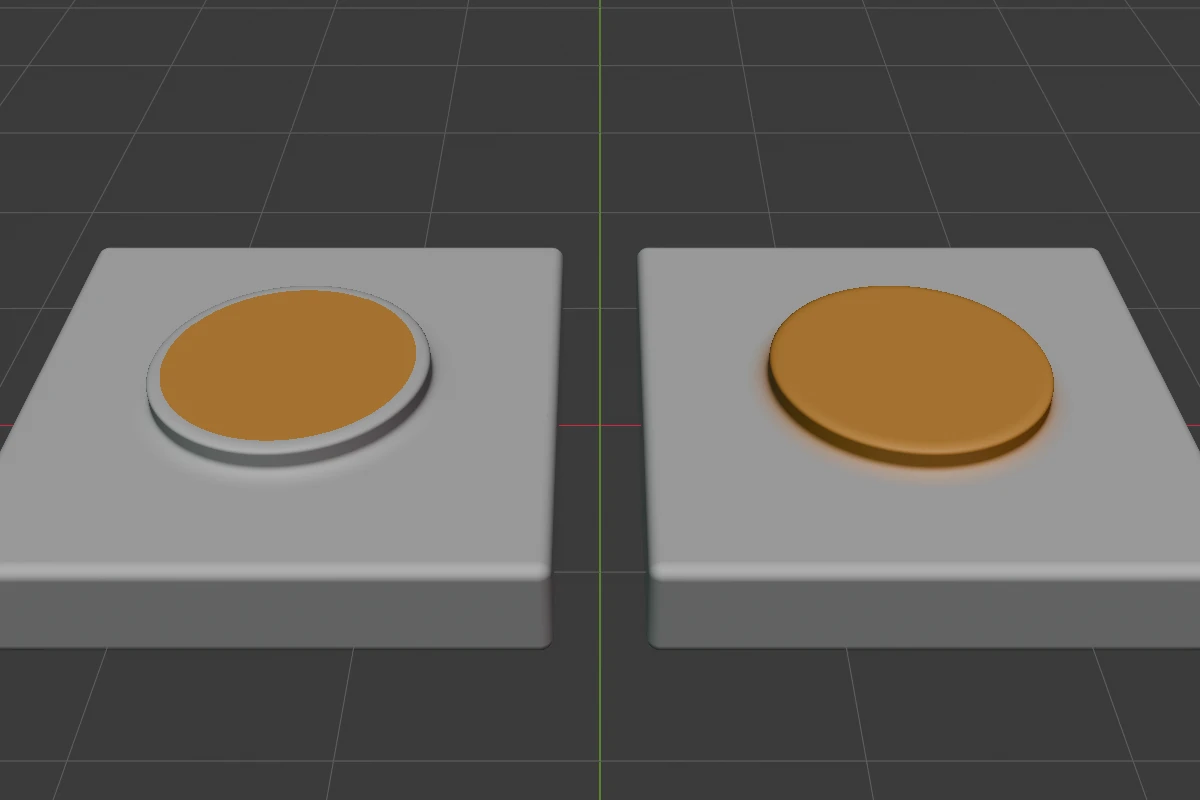
Outer and Inner
Outer rounds the edge where the step meets the surrounding surface; Inner rounds the top of a raised feature or the floor of a sunk one. Each has its own radius, Shape, Out or In, Steps and Smooth. Neither has a Blend box: both radii always apply.
Settings
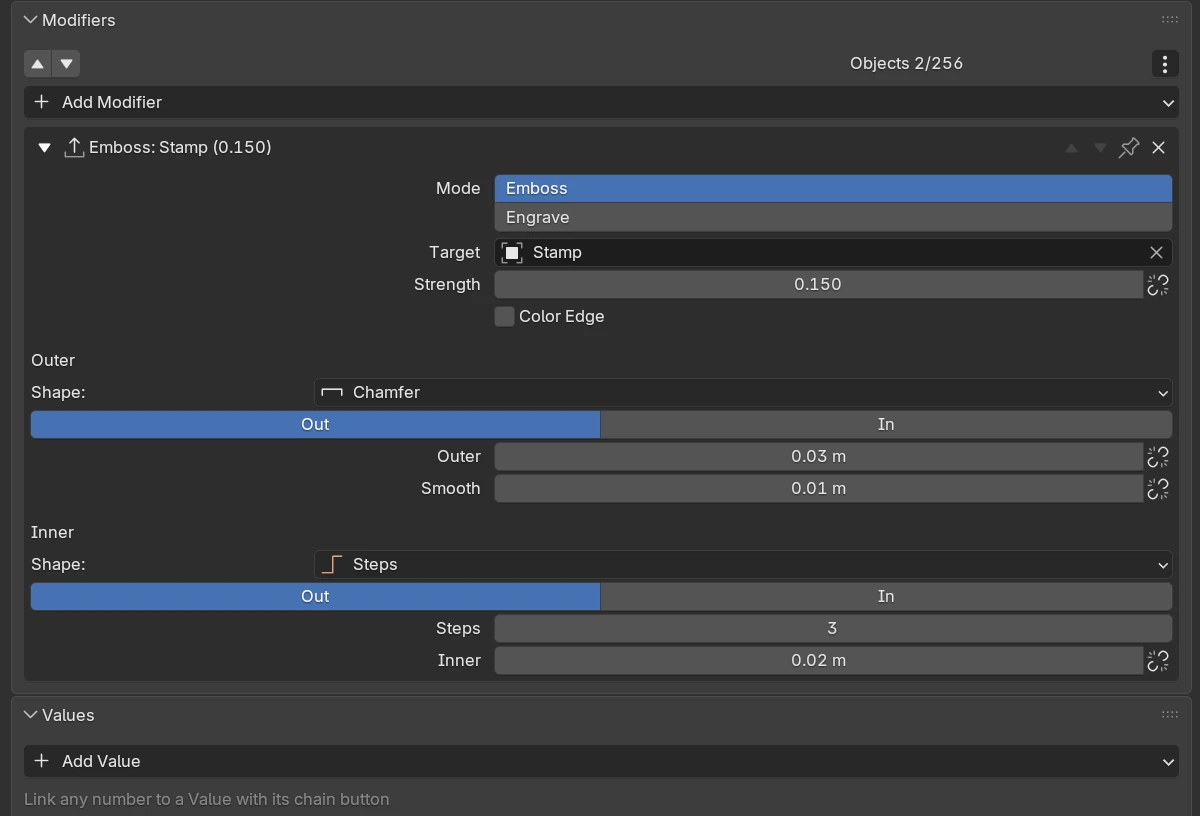
| Setting | Default | Range | What it does |
|---|---|---|---|
| Expand arrow | closed | Shows or hides the settings. | |
| Header | Emboss: or Engrave:, the stamp and the strength, e.g. Emboss: Stamp (0.150); (no target) in red when the stamp was deleted. | ||
| Move up, Move down | Move the modifier in the stack. | ||
| Pin | off | Keep the modifier at the end of the stack. | |
Remove (X) | Delete the modifier. | ||
| Mode | Emboss | Emboss, Engrave | Raise or sink the surface. |
| Target | none | any Chisel shape the chain rule allows | The stamp. A stamp picked here stops rendering too, but is not made a child of the host. |
| Strength | 0.1 | 0.001 – 10 (soft max 1) | The height of the step. |
| Color Edge | off | Colour the step with the stamp’s material too. | |
| Shape (under Outer) | Round | Round, Sharp, Soft, Tight, Chamfer, Steps | The outer edge’s Shape. |
| Out / In (under Outer) | Out | Rounds the outer edge off, or cuts the curve into it. | |
| Steps (under Outer) | 1 to 16 | Shown while the Shape is Steps. | |
| Outer | 0 m | 0 and up (soft max 2) | The outer edge’s radius. |
| Smooth | 0 m | 0 and up (soft max 0.5) | Rounds the outer curve’s two edges. Shown when the Shape has a Smooth. |
| Shape, Out / In, Steps (under Inner) | Round | as above | The inner edge’s Shape. |
| Inner | 0 m | 0 and up (soft max 2) | The inner edge’s radius. |
| Inner Smooth | 0 m | 0 and up (soft max 0.5) | Rounds the inner curve’s two edges. Shown when the Shape has a Smooth. |
Viewport handles
In the Block tool’s Select, with a stamp selected, three arcs show at the top right of the selection: yellow for an Emboss, violet and a little higher for an Engrave. From the inside out they are:
| Handle | Drag outward | Keys while dragging |
|---|---|---|
| Strength arc | A higher Strength on every Emboss (or Engrave) that uses the stamp | Shift precision, Ctrl snap |
| Inner arc | A larger Inner radius | Shift, Ctrl, 1–6 Shape, I In, O Out, S Smooth |
| Outer arc | A larger Outer radius | the same |
In the Block tool’s Edit, with a stamp selected, each join has a seam curve where the stamp meets the host, with two more handles above it: a small ring and a double arrow.
| Handle | Looks like | Drag |
|---|---|---|
| Seam curve | a yellow (Emboss) or violet (Engrave) line | Outer of this join |
| Ring | a small circle above the curve | Inner of this join |
| Arrow | a double-headed vertical arrow right of the ring | Strength of this join |
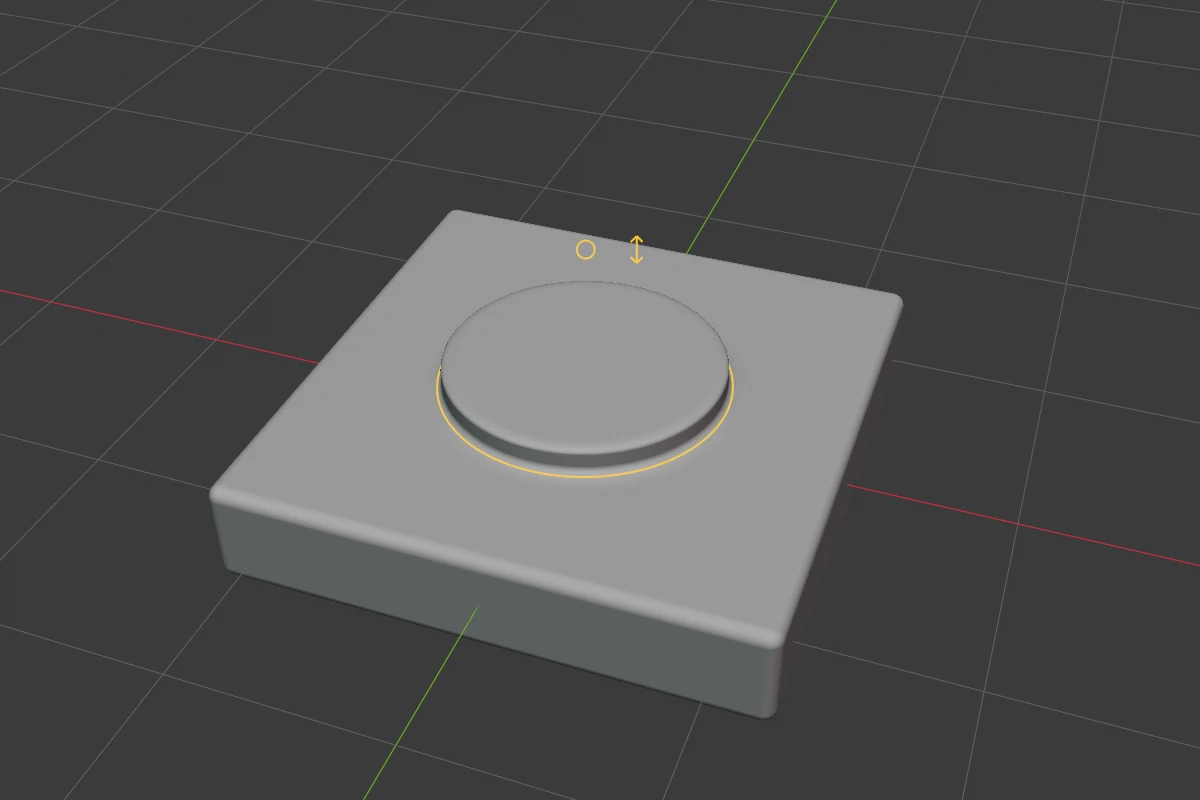
The stamp’s violet outline is display only: a click selects the shape behind it. A violet target dot at its origin shows when Dots are on. See Blend Curves for the switches.
Keys
| Key | What it does |
|---|---|
' / ; | Next / previous join for every modifier that uses the selected stamp |
Ctrl + B | Drag the Outer radius of every Boolean, Carve, Emboss and Engrave that uses the selected shape. Keys: see Blending |
In the menus
- Pie
Q, South: Emboss and Engrave are the first two buttons of the second row. - Pie, East, with the host active: two rows per modifier: the inner Shape icons with Out and In, Steps, Inner, its Smooth and Strength; the outer Shape icons, Out and In, Steps, Outer, its Smooth and the stamp’s name.
- Pie, South-West, with a stamp selected: the outer Shape icons and Outer, the inner Shape icons and Inner (each with Out and In, Steps and Smooth), then Emboss or Engrave, which drags the strength.
- Right-click, with a stamp selected: Outer Profiles ▸, Outer, Inner Profiles ▸, Inner (each with Smooth), then Emboss or Engrave.
- Tape tree: a stamp is listed under the host with ▲ (Emboss) or ▼ (Engrave).
Tips
Text stamps
A Text shape’s letters are extruded from the text’s plane in one direction, along its local Z axis. Place that plane below the host’s surface so the letters pass through it.
Limits and known issues
Mesh stamps
With a Mesh shape as the stamp, keep Strength and the radii within its Field Margin, or raise the margin and press Rebake SDF.
See also
- Boolean, Carve: the other joins
- Rounding Shapes
- Clean Mods: removes a modifier whose stamp was deleted