
Core Concepts
Short definitions of the terms this manual uses, each linked to the page that covers it.
Tools
Block tool
Chisel’s tool for building with shapes in the 3D View: adding, selecting, drawing, cutting and editing shapes. It shares one tool bar button with the Sketch tool; Alt + Q swaps the two, and from another tool returns to the one used last. See Block Tool.
Select and Edit
The Block tool’s two states, chosen in its drop-down or with Tab. Select works on whole shapes: selecting, adding, drawing, cutting, and the adjust arcs. Edit works on the points of the selected shapes and shows the handles of shapes and modifiers. Both are states of the tool: Blender itself stays in its Object Mode. See Edit Mode.
Left-button modes
What a left drag does while the Block tool is in Select: Select, Create (draw a new shape), Block (draw a base, then pull its height) or Bisect (draw a cutting line). See Block Tool.
Sketch tool
Chisel’s tool for drawing 2D outlines on a plane and turning them into shapes. Its modes are Draw, Edit and Blend. See Sketch.
Sketches
Sketch
One drawing on one plane: lines, arcs, circles and the dimensions and relations that hold them. A scene starts with Sketch 1 on the world XY plane. See Sketch.
Sketch plane
The plane a sketch lies on. New Plane and Create Sketch on Face add more. See Sketch Planes.
Sketch solid
A shape made from a sketch with Extrude or Revolve. Its Function reads Sketch. See Sketch Solids.
Shapes and stacks
Shape
A Blender object that Chisel draws from a distance field instead of from its mesh. Its type and its own settings are in the Field panel. See Primitives.
Field panel
The panel at the top of the Modifier tab, above Modifiers and Values. It holds the shape’s Function and the settings that belong to that Function. It is a panel of the shape; the distance field itself is explained in Implicit Modeling. See Field Panel.
Function
The first row of the Field panel: a list of the shapes, from Box on. Choosing another entry turns the shape into that type. See Field Panel.
Profile
A row of the Field panel for a Polygon, a Rail and a Lathe that turns a section: the outline the shape is built from, such as Regular, Star or Gear for a Polygon. It is not a rounding’s curve; that is its Shape. See Field Panel.
Input
What a Text or a Mesh shape reads: for a Text its text, for a Mesh a mesh, or a Chisel shape. See Text and Mesh.
Modifier
One step that changes a shape: a join, a cut, a mirror, an array, a bend and so on. Chisel’s modifiers live in the Modifiers panel, not in Blender’s modifier stack. See Modifiers.
Stack (the tape)
A shape’s modifiers in the order they apply, from the top down. The Tape tree shows every stack of the scene. Order matters: a cut placed before a join leaves the joined shape whole, a cut placed after it cuts it too.
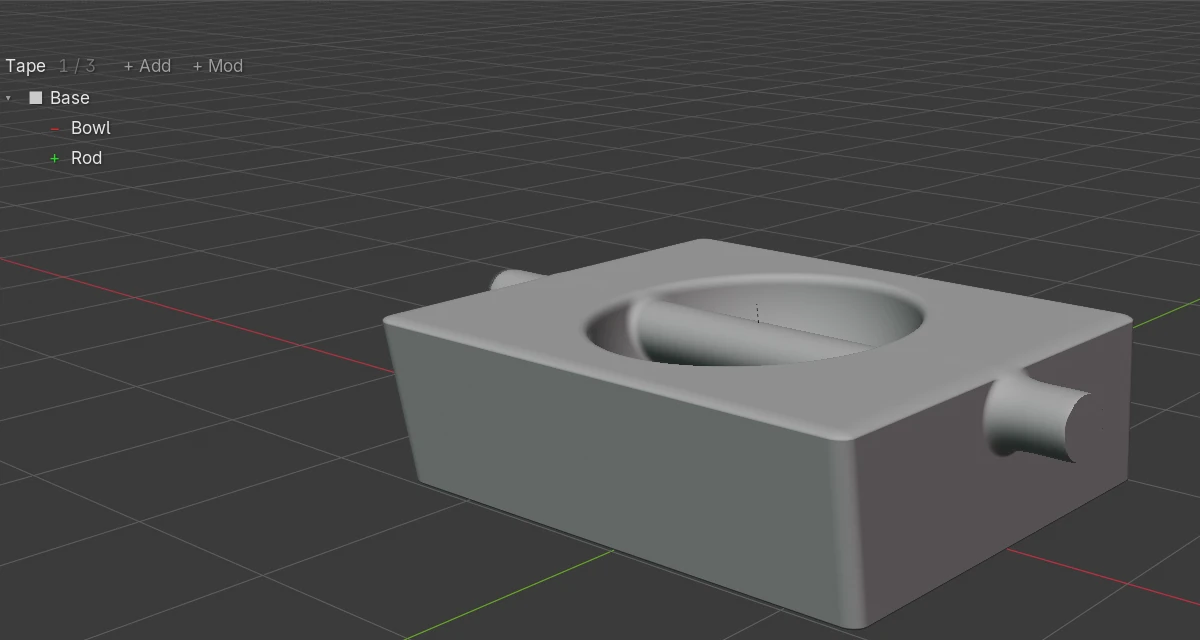
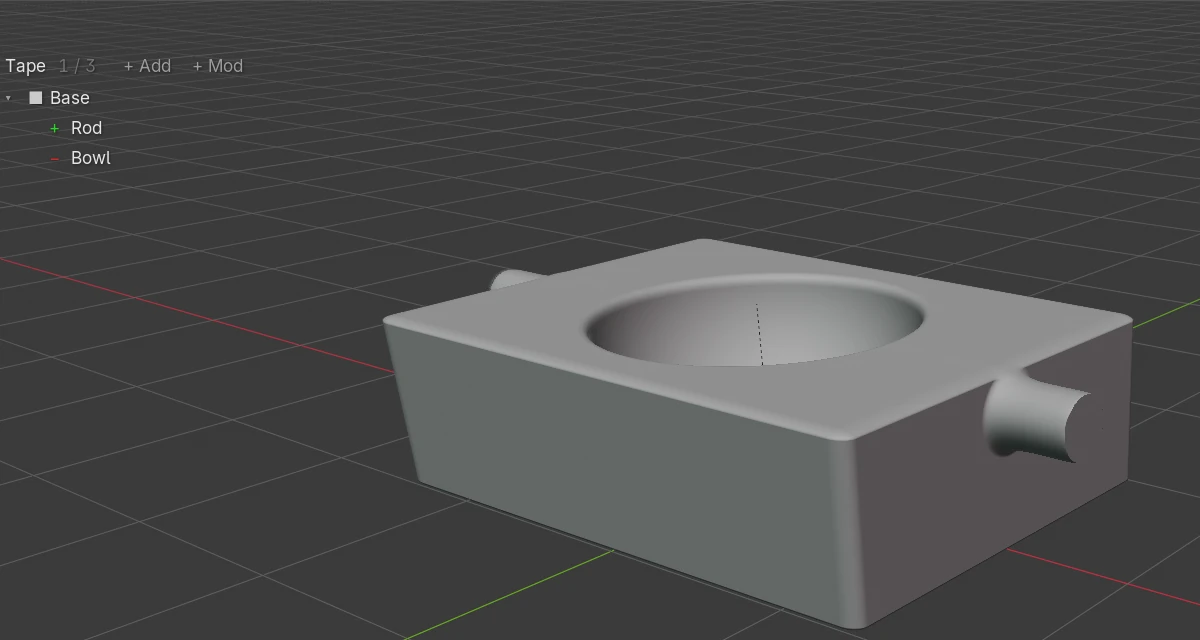
Value
A named number that belongs to the scene: a Number, Count, Distance, Angle or Vector, listed in the Values panel. A number linked to it with the chain button follows it, across shapes. See Values.
Host
The shape whose stack holds a modifier. In the Tape tree, the host is the row the modifier sits under.
Target
The shape a modifier’s Target field names. A Boolean’s target is the cutter, an Emboss or Engrave target the stamp, a Carve’s target the carve target. The host is never called the target.
Cutter
A Boolean’s target. A new cutter stops rendering on its own (Render off) and shows a coloured outline instead: red for Difference and Slice, green for Union, blue for Intersect. Click the shape where its outline is to select it.
Join
A modifier that combines the host with a target. There are seven kinds: Union, Difference, Intersect, Slice, Emboss, Engrave and Carve. See Joins.
Point
A spot that defines part of a shape or a modifier: an Ngon’s corner, a path shape’s point, a Sweep’s path, a Bisect fence’s corner, a Lattice cage’s control. You edit points in Edit.
Rounding and blending
Rounding
The radius that rounds a shape’s own edges, set on the shape. A shape with two roundings has a Side Rounding and a Cap Rounding; a shape with one says Rounding. See Rounding.
Side Rounding and Cap Rounding
Side Rounding rounds the corners of a shape’s outline, such as the upright edges of an extruded sketch. Cap Rounding rounds where the body meets its caps. See Rounding.
Blend
The radius of the fillet where a join meets the host. Each join has its own. See Blending.
Shape (of a rounding)
The curve a rounding or a blend follows: Round, Sharp, Soft, Tight, Chamfer or Steps, each Out or In. See Rounding Shapes.
Drawing
Render (on or off)
A switch at the top of every shape’s SDF panel. On (the default), Chisel draws the shape. Off, the shape is not drawn on its own but still works as a target, for example as a cutter. A shape with Render off that no stack uses is listed under Unused in the Tape tree. See Display.
Ray-marched view and proxy mesh
In Material Preview and Rendered shading, the Chisel engine draws the shapes from their distance fields by ray marching. Blender also needs a mesh, for Solid shading, EEVEE, Cycles, snapping and selection. For a shape with modifiers, Chisel keeps a low-resolution proxy mesh of the result and updates it after each edit. See Proxy mesh.
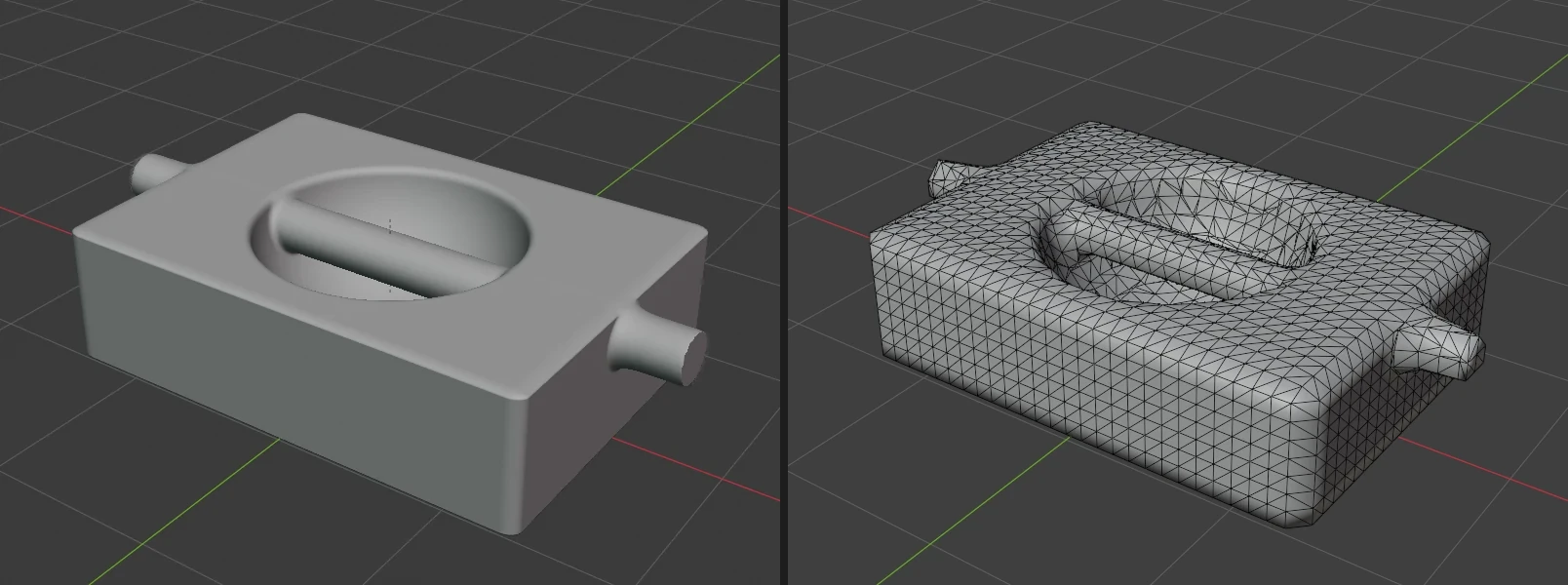
Handle
A dot, ring, arrow or arc drawn in the view on a selected shape or modifier. Drag it to change a value: a size, a rounding, a blend, a modifier’s offset or angle. Also called a gizmo. See Gizmos.
Where settings live
| What | Where |
|---|---|
| A shape’s type and its own settings | Modifier Properties ▸ Field, see Field Panel |
| A shape’s stack | Modifier Properties ▸ Modifiers, see Modifiers |
| Named numbers shared by shapes | Modifier Properties ▸ Values, see Values |
| A shape’s colour | Material Properties, see Materials |
| The engine: quality, performance, matcap, display, gizmo switches, baking | Render Properties, with the render engine set to Chisel, see Render Engine |
| The tools’ modes and settings | The tool settings row above the view and the D popup, see Block Tool and Sketch Tool |
| Which handles and overlays show | The gizmo icons and drop-down in the tool settings row, see Gizmos |
| Status, theme colours, GPU memory, debug tools | Edit ▸ Preferences ▸ Add-ons ▸ Chisel, see Preferences |
Units and detail
Every length in Chisel (sizes, rounding, blend, offsets) is a real distance in the scene, shown in the scene’s units, so a model built in millimetres works the same as one built in metres. The viewport keeps detail down to World Cell Size, scaled to each object’s size by Auto Cell Size, while an F12 render always draws the exact surface; see Quality.
See also
- Implicit Modeling: the math behind these terms
- Interface: where each part of Chisel sits in the Blender window