
Gizmo Settings
The Gizmos panel in Render Properties holds every switch for what Chisel draws over the viewport, in six groups: Tape Tree, Blend Curves, Outlines and Origins, Modifiers, Shapes and Arcs. It is closed by default and shows only while the render engine is Chisel.
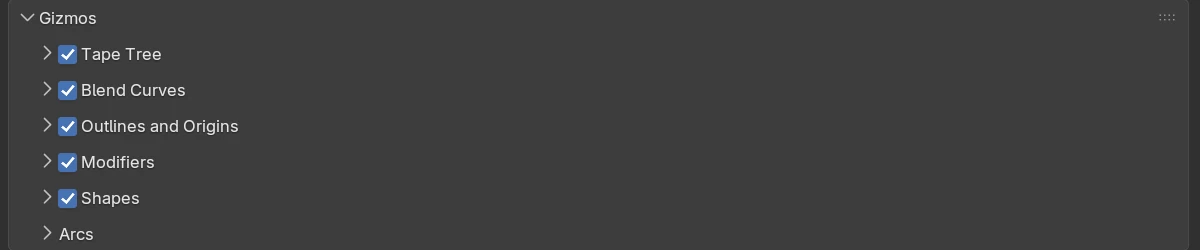
The groups match the Chisel Gizmos drop-down on the Block tool’s settings row (Tool bar switches), and a group’s header checkbox is the same switch as its tool bar icon: unticked, every family inside is hidden and its sub-panels are greyed out. The Active Object and Block Tool gates are only here. Blender’s Show Overlays in the viewport header must be on for any of it to draw.
Visibility gates
Under Gate On, every family except the Tape tree and Blend Curves has two checkboxes. A family draws only when both of its ticked gates are met:
| Active Object | Block Tool | Family draws when |
|---|---|---|
| off | off | always |
| off | on | the Block tool is active |
| on | off | Blender’s Show Gizmo ▸ Active Object is on |
| on | on | both of the above |
Arcs has both gates on by default; every other family has only Block Tool on. The handles of modifiers and shapes show only in the Block tool’s Edit state, which belongs to the Block tool: for them the Block Tool box has no effect, and only Active Object can still hide them.
Tape Tree
The header checkbox shows or hides the Tape tree, the scene’s stacks drawn as text in the top left of the viewport. It has no gates.
Blend Curves
The header checkbox shows or hides the seam curves at selected joins in Edit. It has no gates.
| Control | Default | What it does |
|---|---|---|
| Blend Curves (header checkbox) | on | Shows or hides the seam curves and the extra controls of an Emboss or Engrave seam |
| During Modal Operations | off | Keeps the curves visible while you transform or adjust values; they cannot be picked until the operation ends. Greyed out while the header is off |
Outlines and Origins
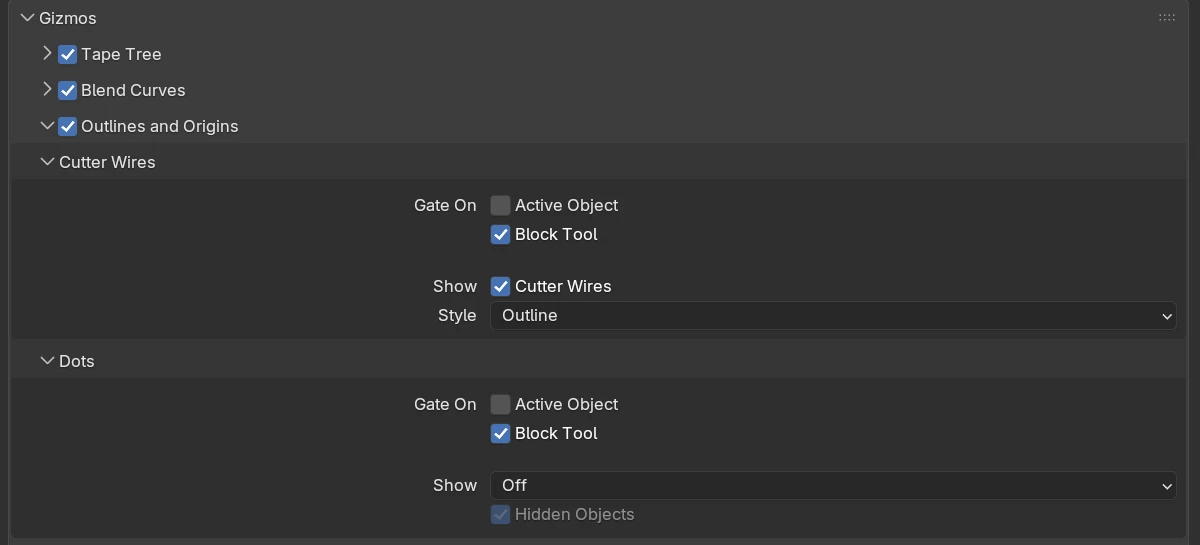
| Control | Default | What it does |
|---|---|---|
| Outlines and Origins (header checkbox) | on | Shows or hides both families below |
| Cutter Wires (sub-panel) | The cutter outlines on every visible shape that does not render | |
| Gate On: Active Object | off | See Visibility gates |
| Gate On: Block Tool | on | See Visibility gates |
| Show: Cutter Wires | on | The outlines themselves |
| Style | Outline | Outline: the silhouette as seen from the view. Wire: every edge of a simple wire, the far side included |
| Dots (sub-panel) | Target dots at each modifier target’s origin | |
| Gate On: Active Object, Block Tool | off, on | As above, for the dots |
| Show | Off | Active: the active shape’s targets, while it is also selected. Selected: every selected shape’s targets. Off: no dots |
| Hidden Objects | on | Keep a dot on targets hidden in the viewport (H, Veil, Disable in Viewports, a hidden collection, outside the local view). Greyed out while Show is Off |
Modifiers
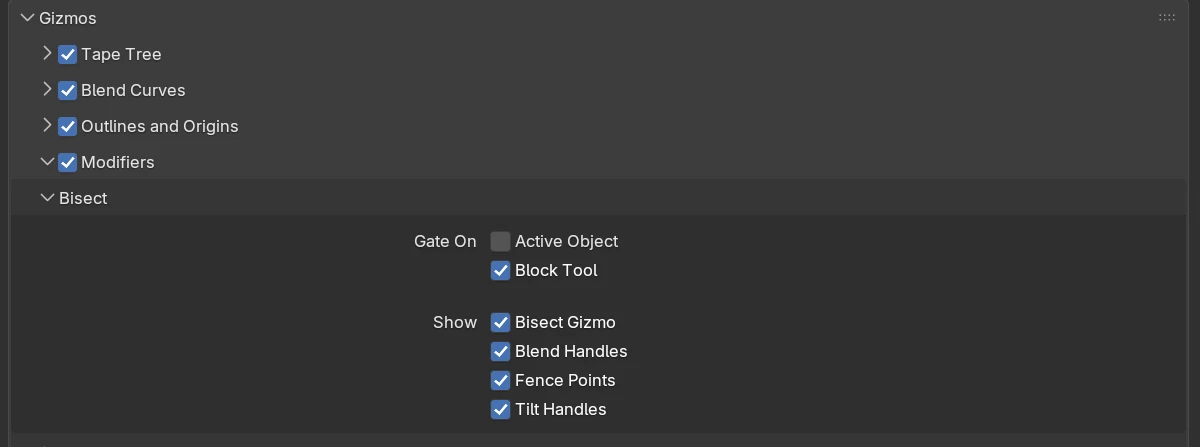
| Control | Default | What it does |
|---|---|---|
| Modifiers (header checkbox) | on | Shows or hides every modifier family below. The same switch as the wrench on the tool’s settings row in Edit |
| Bisect (sub-panel) | The Bisect handles | |
| Gate On: Active Object, Block Tool | off, on | See Visibility gates |
| Show: Bisect Gizmo | on | The arrow on every cutting plane, and the three parts below |
| Blend Handles | on | The orange dot beside each plane (the cut-edge blend) and the one off every fence corner |
| Fence Points | on | A dot on every point of a fence, and the green dots that add a point |
| Tilt Handles | on | The two white rings that tilt a single plane |
| Array (sub-panel) | Gates, then Array Gizmo: the Array handles | |
| Bend (sub-panel) | Gates, then Bend Gizmo: the Bend handles | |
| Twist (sub-panel) | Gates, then Twist Gizmo: the Twist handles | |
| Solidify (sub-panel) | Gates, then Solidify Gizmo: the thickness dot | |
| Sweep (sub-panel) | Gates, then Sweep Gizmo: the path handles | |
| Lattice (sub-panel) | Gates, then Lattice Gizmo: the cage |
Shapes
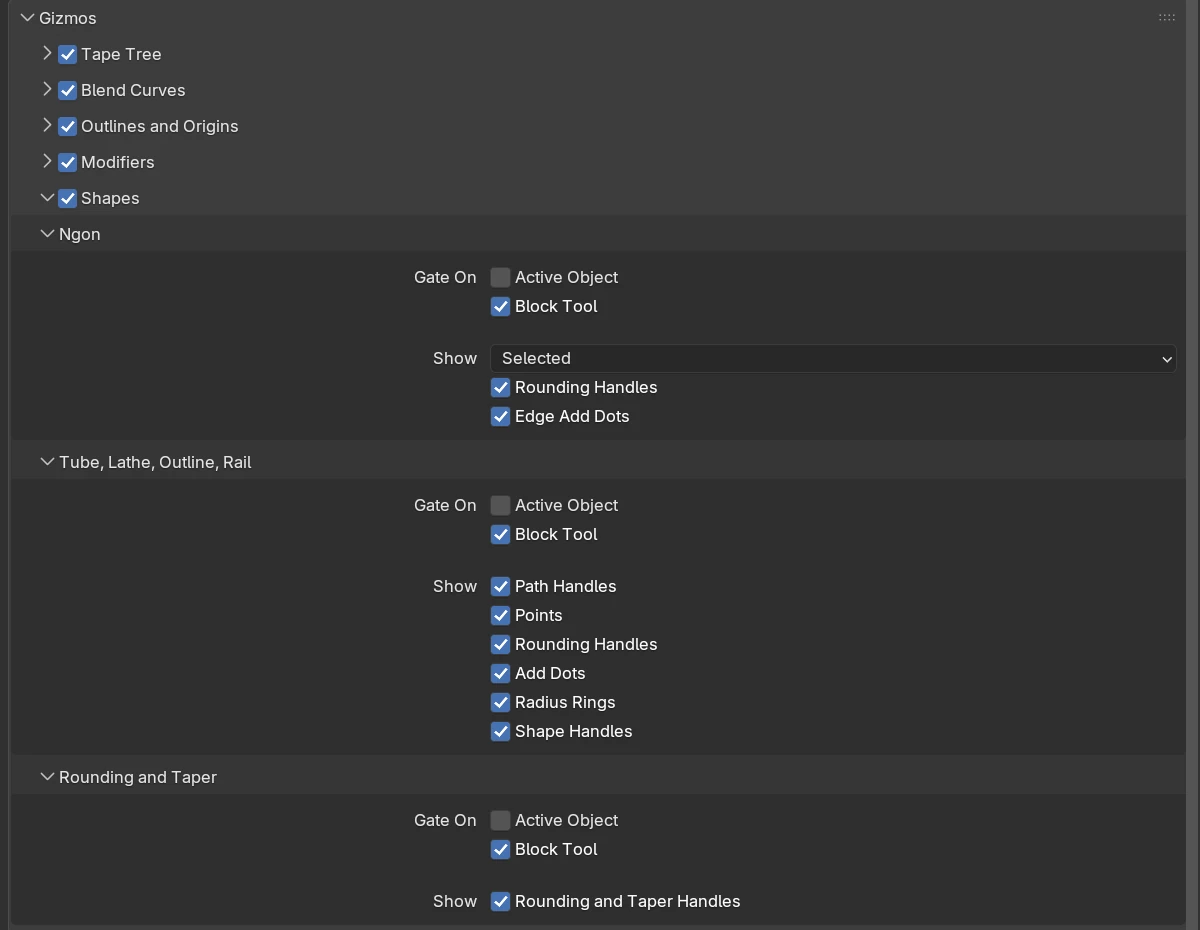
| Control | Default | What it does |
|---|---|---|
| Shapes (header checkbox) | on | Shows or hides the three families below |
| Ngon (sub-panel) | The Ngon handles | |
| Gate On: Active Object, Block Tool | off, on | See Visibility gates |
| Show | Selected | Active: the active Ngon, while it is also selected. Selected: every selected Ngon. Off: none |
| Rounding Handles | on | The orange handle beside each corner |
| Edge Add Dots | on | The green dot at an edge’s middle when the cursor comes near |
| Tube, Lathe, Outline, Rail (sub-panel) | The handles of the path shapes | |
| Gate On: Active Object, Block Tool | off, on | See Visibility gates |
| Show: Path Handles | on | The parts below |
| Points | on | A dot on every point, the selected point’s two handles and the path’s line |
| Rounding Handles | on | The orange handle beside each Corner point |
| Add Dots | on | The green dots that add a point on a span or past an open end |
| Radius Rings | on | The ring round each point of a Tube or a Rail |
| Shape Handles | on | An Outline’s Depth dot, a Lathe’s angle dial and its Solid / Hollow button |
| Rounding and Taper (sub-panel) | The Side Rounding, Cap Rounding and Taper handles of the active shape | |
| Gate On: Active Object, Block Tool | off, on | See Visibility gates |
| Show: Rounding and Taper Handles | on | The handles themselves |
Arcs
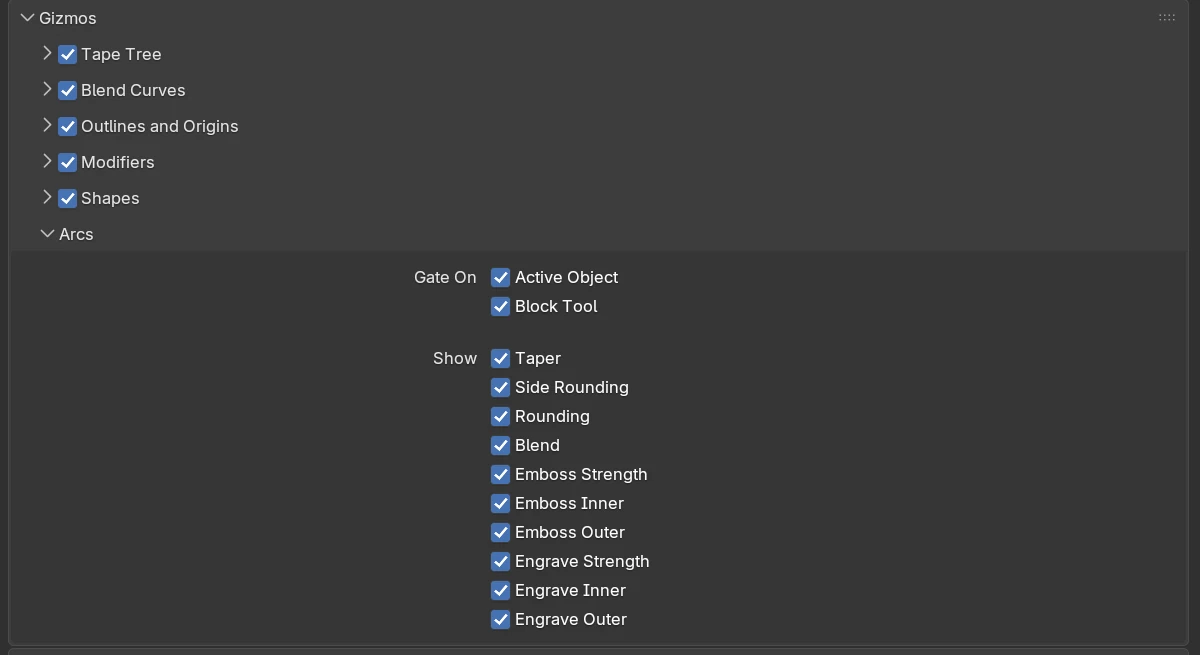
The adjust arcs. No tool bar icon covers them.
| Control | Default | What it does |
|---|---|---|
| Gate On: Active Object | on | See Visibility gates |
| Gate On: Block Tool | on | See Visibility gates |
| Taper | on | The Taper arc (Cone and Trapezoid) |
| Side Rounding | on | The Side Rounding arc (every corner of an Ngon) |
| Rounding | on | The edge rounding arc |
| Blend | on | The blend of every modifier that uses the selection, and the Blend Curves: with this off, no seam curve shows |
| Emboss Strength, Inner, Outer | on | The emboss depth arc and its two blend arcs. Each also hides its matching control on an Emboss seam |
| Engrave Strength, Inner, Outer | on | The engrave depth arc and its two blend arcs, likewise |
The Carve offset arc has no switch of its own; it follows the two gates.
See also
- Interface: Gizmos: how the handles behave, their colours, the tool bar switches