
Primitives
A primitive is the shape a Chisel object starts from: a box, a tube, a text and so on. Chisel draws it from a distance function instead of from polygons, so its surface has no facets and its rounding is a radius. Every primitive takes the same modifiers, joins and materials. The Field panel shows and changes the selected shape’s kind and settings.
All primitives
| Shape | What it is | |
|---|---|---|
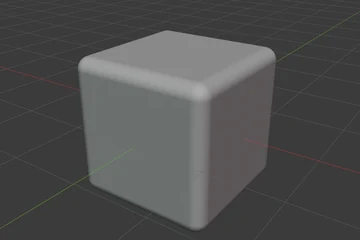 | Box | A box with one rounding for every edge |
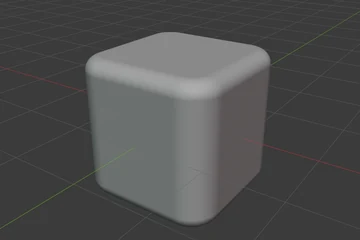 | Oblong | A box with separate rounding for the side edges and the rims |
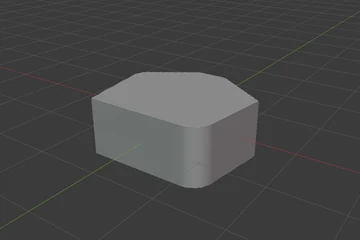 | NGon | A polygon of any shape, extruded, with rounding per corner |
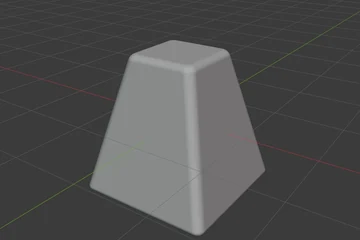 | Trapezoid | A box with a smaller top, from a box to a pyramid |
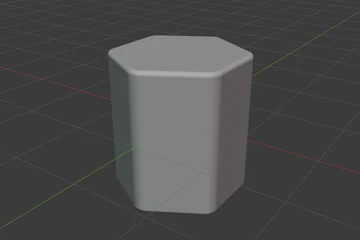 | Prism | A regular prism of 3 to 64 sides |
 | Sphere | A sphere |
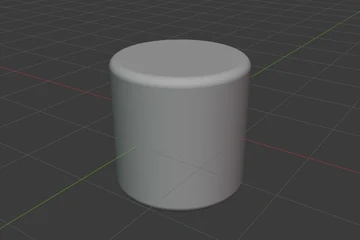 | Cylinder | A cylinder with rounded rims |
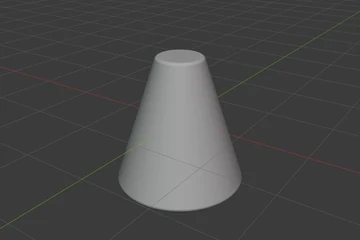 | Cone | A round taper, from a cylinder to a point |
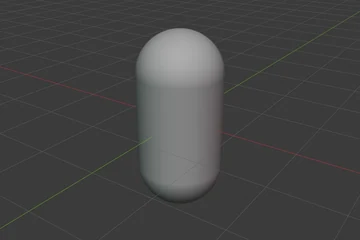 | Capsule | A cylinder with round ends |
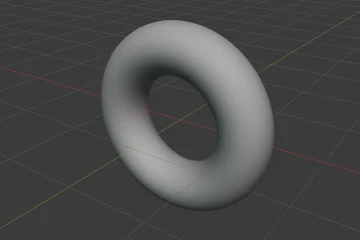 | Torus | A ring with a round section |
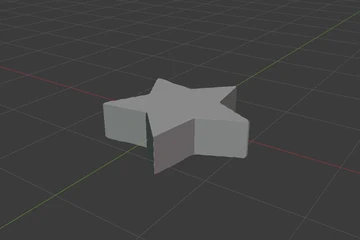 | Polygon | A star, gear, flower, ratchet, cross or drawn outline, extruded |
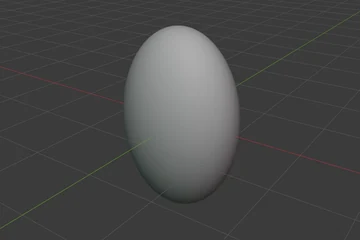 | Ellipsoid | A sphere with its own width, length and height |
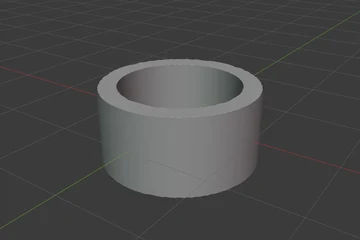 | Ring | A hollow cylinder with its own wall thickness |
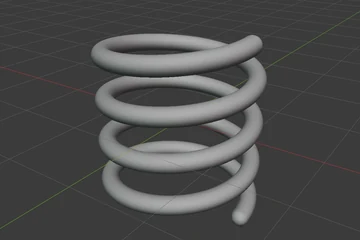 | Spring | A wire wound in a helix |
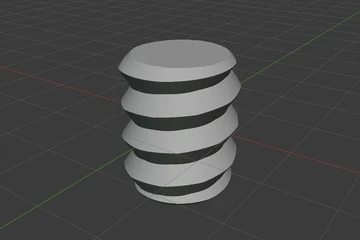 | Screw | A threaded rod |
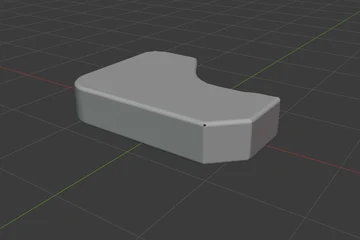 | Outline | A closed outline of points, curved or straight, extruded |
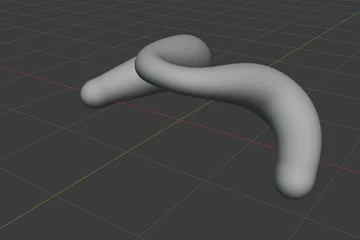 | Tube | A round tube through points, thicker or thinner at each one |
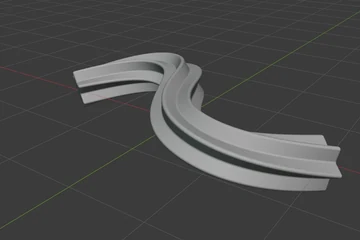 | Rail | A star, gear, rectangle or drawn section swept along points |
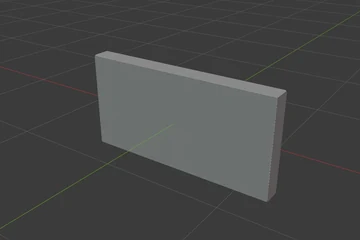 | Line | A flat wall that follows points |
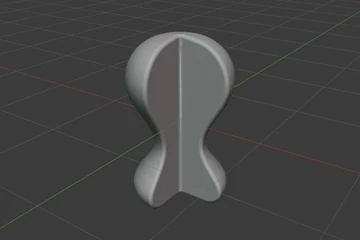 | Lathe | A profile of points, or a section, turned round an axis |
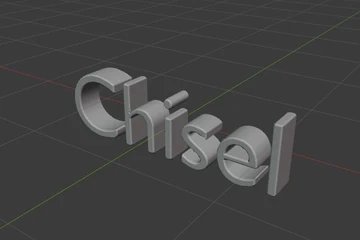 | Text | A text, extruded and rounded |
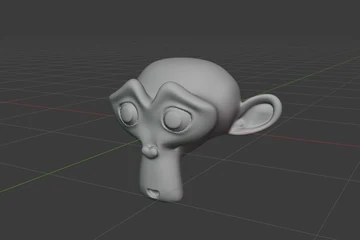 | Mesh | Any mesh, baked into a Chisel shape |
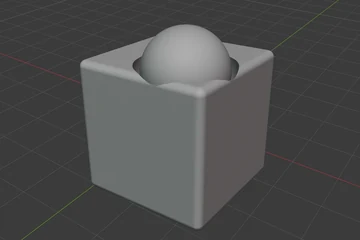 | Infill | A box filled with a repeating pattern |
The first fifteen are the standard shapes: they take their size from the object. Outline, Tube, Rail, Line and Lathe are made of points you edit in the viewport.
Adding a shape
| Where | What it adds |
|---|---|
Shift + A with the Block tool | The Add Chisel Primitive menu: Cube, Oblong, Ngon, Trapezoid, Prism, Sphere, Cylinder, Cone, Capsule, Torus, Outline, Tube, Rail, Polygon, Lathe, From Curve, Text, Ellipsoid, Ring, Line, Spring, Screw and Infill |
| Add ▸ Chisel (Blender’s Add menu, any tool) | The same list |
Q pie ▸ North-West | The shape grid, five icons to a row: Box, Oblong, Ngon, Trapezoid, Prism; Sphere, Cylinder, Cone, Capsule, Torus; Ellipsoid, Ring, Line, Spring, Screw; Outline, Tube, Rail, Polygon, Lathe; Text, Infill. A click adds; Shift-click switches the selected shapes to that shape |
| Right-click ▸ Primitives | Every shape by name. A click adds; Shift-click switches the selected shapes |
| Block tool, Create left-button mode | A drag in the viewport draws one of the ten shapes from Box to Torus on the surface under the mouse, see Block Tool |
| Block tool, Block mode | Draws an Ngon, a Cylinder or a Section (a star) outline, then pulls its height |
| From Curve | A Tube, Outline or Lathe made from a selected Blender curve |
| Object Properties ▸ SDF ▸ Convert Mesh to SDF | A Mesh shape made from a mesh object |
A shape added from a menu sits at the 3D cursor. Its redo panel (F9) has its size and Align (World, View, 3D Cursor); Infill, Ellipsoid, Ring, Line, Spring and Screw have Align only. A shape drawn in Create mode follows the tool’s Align, see Block Tool.
Changing the shape after creation
- Function in the Field panel switches the selected shape to any other shape and keeps the size; path shapes keep their points.
[/](Block tool) step every selected shape to the previous or next one, in the order Sphere, Box, Oblong, Ngon, Cylinder, Cone, Torus, Capsule, Prism, Trapezoid, Polygon, Infill.Shift-click a shape in theQpie’s grid or in right-click ▸ Primitives switches every selected shape to it. For Text, Outline, Tube, Rail and Lathe it only shows a warning: use the Add menu.
[ / ] skip Ellipsoid, Ring, Line, Spring, Screw, the path shapes, Text and Mesh. A Mesh shape comes from Convert Mesh to SDF, or from choosing Mesh in Function, which draws nothing until you pick an input.
Settings
Each shape’s page lists its own rows of the Field panel. The rows every shape has are in Properties Panels.
See also
- Field Panel
- Standard Shapes
- Path Shapes
- Edit Mode: the handles of every shape
- Sweep and Revolve: sweep or turn any shape
5 items under this folder.