
Add Menu
Shift + A adds Chisel shapes. With the Block tool active it opens Chisel’s own Add Chisel Primitive menu; with any other tool, Blender’s Add menu carries the same shapes under Chisel, and two more actions under Chisel Actions.
A new shape appears at the 3D cursor, selected and active. Its size and turn can be changed right after, in the redo panel.
Add Chisel Primitive (Block tool)
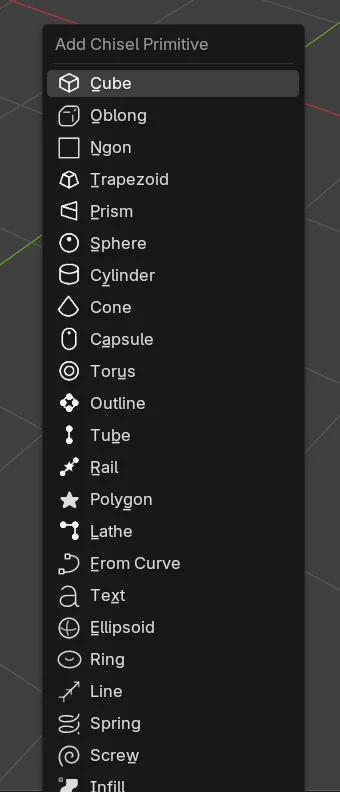
| Entry | Makes |
|---|---|
| Cube | A Box |
| Oblong | An Oblong |
| Ngon | An Ngon, a square of four points to start |
| Trapezoid | A Trapezoid |
| Prism | A Prism |
| Sphere | A Sphere |
| Cylinder | A Cylinder |
| Cone | A Cone |
| Capsule | A Capsule |
| Torus | A Torus |
| Outline | An Outline: a closed outline of points, extruded |
| Tube | A Tube through points |
| Rail | A Rail: a section swept along points |
| Polygon | A Polygon: a section drawn by its radius and extruded to a depth, a five-pointed star to start |
| Lathe | A Lathe: a profile of points turned round an axis |
| From Curve | A Tube, an Outline or a Lathe from each selected Blender curve, point for point. Greyed out until a plain Blender curve is selected. See From Curve |
| Text | A Text shape. With a plain Blender text object selected, the new Text replaces it in place and reads its text |
| Ellipsoid | An Ellipsoid |
| Ring | A Ring |
| Line | A Line |
| Spring | A Spring |
| Screw | A Screw |
| Infill | An Infill shape |
Blender’s Add menu ▸ Chisel
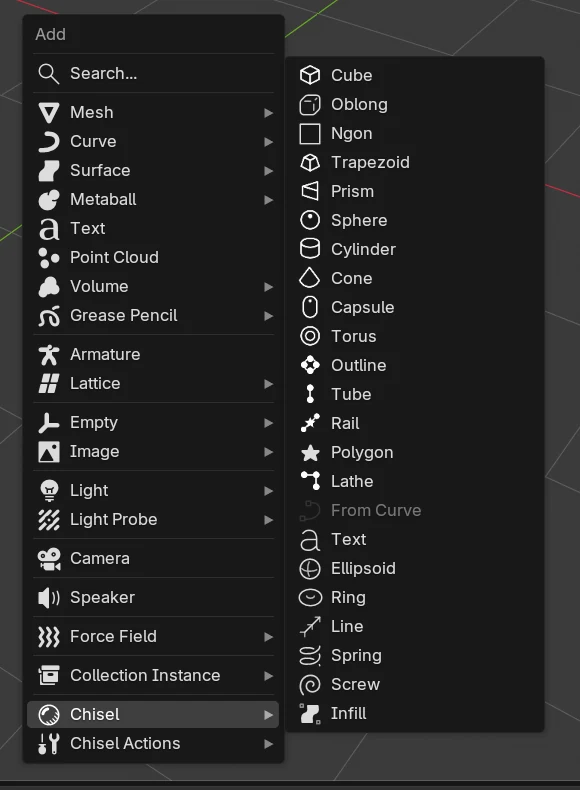
With any other tool active, Shift + A opens Blender’s Add menu. Its Chisel submenu holds the same entries as Add Chisel Primitive.
Blender’s Add menu ▸ Chisel Actions
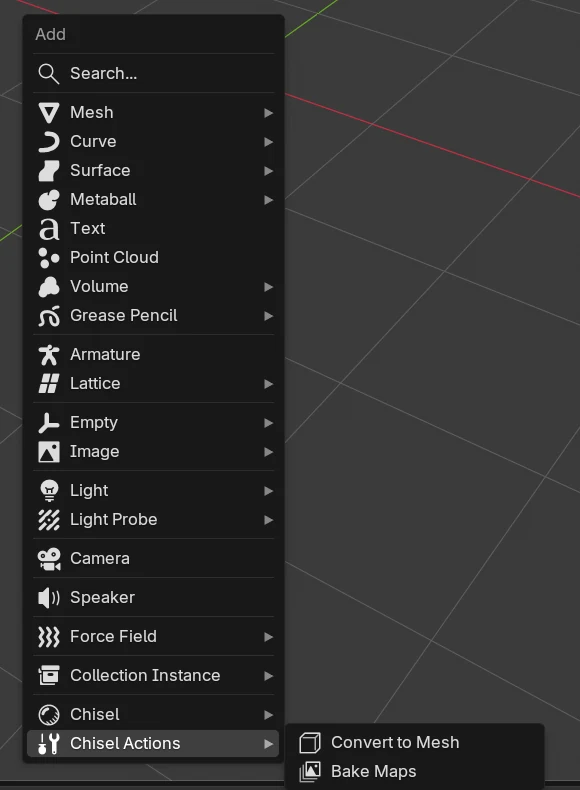
| Entry | What it does |
|---|---|
| Convert to Mesh | Turns the selected Chisel shapes into a polygon mesh, see Convert to Mesh |
| Bake Maps | Bakes texture maps of the active shape, see Baking |
The redo panel
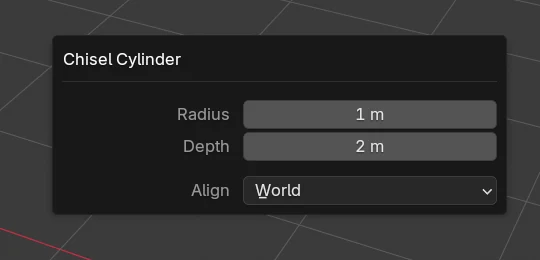
Right after an add, the redo panel (bottom left of the 3D View, or F9) holds the new shape’s starting size and its turn. Changing a value rebuilds the shape in place.
| Entry | Settings (default) |
|---|---|
| Cube | Size (2 m) |
| Oblong | Size (2 m) |
| Ngon | Size (2 m): the side of the starting square |
| Trapezoid | Size (2 m), Cap (0.5, 0 – 1): the top’s size against the base |
| Prism | Size (2 m), Sides (3, 3 – 8), Angle (60°, 5° – 175°, three sides only): the apex angle |
| Sphere | Radius (1 m) |
| Cylinder | Radius (1 m), Depth (2 m) |
| Cone | Radius 1 (1 m, the base), Radius 2 (0 m, the top), Depth (2 m) |
| Capsule | Radius (1 m), Depth (2 m, the straight part) |
| Torus | Ring Radius (0.7 m), Radius (0.3 m) |
| Outline | Depth (1 m) |
| Tube | Tube Radius (0.2 m) |
| Rail | Radius (0.2 m) |
| Polygon | Radius (1 m): the outer radius of the section, Depth (0.5 m, at least 0.002 m) |
| Lathe | Angle (360°, 0° – 360°): how far the profile turns |
| Ellipsoid, Ring, Line, Spring, Screw | Only Align: their size is set in the Field panel |
| Infill | Size (2 m) |
| Text | Text (Text): the words, Depth (0.2 m) |
Every entry also has Align, the new shape’s turn:
| Align | The new shape lines up with |
|---|---|
| World (default) | The world axes |
| View | The 3D View, facing you |
| 3D Cursor | The 3D cursor’s rotation |
Sizes have no upper limit; the minimum is 0.001 m (Radius 2 and a Capsule’s Depth can be 0).