
Offset
Offset draws a new curve at a distance from the selected faces, edges or points. The new curve is plain geometry, nothing links it to what it came from. It works in Edit only.
Where it is
- Key
O: starts an Offset you drag with the pointer. - The Offset button on the tool bar: runs at once at the remembered distance. It is greyed when nothing selected can be offset.
- The right-click row: it is named Offset Faces, Offset Curves or Offset Vertices for what is selected, and plain Offset, greyed, when nothing can be.
On the tool bar the button is followed by the Cap icon list and a Both Sides toggle. The sidebar and the D panel (under Offset:) show the button, the Cap list with its name, Both Sides and a Distance field.
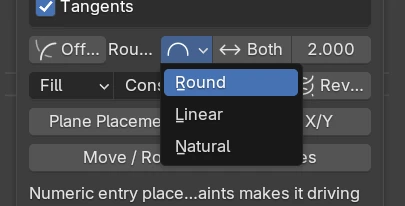
| Control | Default | What it does |
|---|---|---|
| Offset | Runs an Offset at the Distance, the Cap and Both Sides shown | |
| Cap | Round | How the new curve turns a corner and ends an open line, see below |
| Both Sides | off | Gives a closed shape a curve inside it and one outside it at once |
| Distance | 2 mm | The remembered distance (sidebar and D panel only). Soft limit 100 mm either way, three decimals |
O does nothing in Draw and Blend.
What each selection offsets
The tool uses faces first, then edges, then lone points.
| Selection | Result | Distance |
|---|---|---|
| Faces (Faces mode; a Q-chain counts as each of its faces) | A closed curve around each face’s outline, and one for each hole. The face and the result stay as they are | Positive goes out of the face (into a hole’s empty part); negative goes into the face |
| Edges, or the edges between selected points | Edges that meet end to end form one chain. A closed chain or a circle gets a closed curve outside it (positive) or inside it (negative); Both Sides gives one of each. An open chain, even one line, gets one closed curve all round it, joined across both ends | The sign does not matter for an open chain |
| Points that select whole edges | As the edges: a rectangle’s four corners offset the rectangle | As the edges |
| A point with no whole edge selected | Two new points on the curves either side of it, the distance along each. Each curve is split there. The shape does not change | Positive only |
The new curve, or the new points, are selected afterwards.
Cap
| Cap | Corners and ends |
|---|---|
| Round | An arc around each corner where the offset curves part, and a half circle around each end of an open line |
| Linear | A straight line across each corner where the offset curves part, and straight across each end of an open line |
| Natural | The offset curves carried on along their own lines and circles until they meet. An open line is carried on by the distance past each end, then closed straight across |
A Natural offset at a very sharp corner turns to a straight line after 32 distances. Cap does not apply to lone points.
Both Sides
Both Sides applies to closed chains and circles. It is ignored for open chains and for faces.
Dragging with O
With something selected, press O and move the pointer. The distance is how far the pointer travels along the normal at a handle, from where it was when you pressed O. The handle is the middle of the selection’s longest curve, with its normal pointing out of the shape.
While you drag, the source fades. A teal line runs from the handle’s start to where it stands now, with the distance in mm.
| Key | While dragging |
|---|---|
C | Cycles the Cap: Round, Linear, Natural. Not for points |
S | Turns Both Sides on or off. Curves only |
Digits, . | Types an exact distance. Backspace edits it |
- | Flips the sign of the distance |
Shift | Precision |
Ctrl, or Snap on | Steps of Step (mm), see Snapping & Guides |
click, Space, Enter | Accepts |
Esc, right mouse button, Ctrl + Z | Cancels. Tab cancels and switches mode |
The header shows what the drag does, for example “Sketch Offset Curves 2 mm · Cap Round (C) · Both Sides off (S)“. The Cap is listed for faces and curves, Both Sides for curves only. The pointer stops at the largest distance that has room and the header adds “no more room”. A typed distance with no room is refused. A distance of zero changes nothing.
After an accepted drag, the bar’s Distance, Cap and Both Sides become what you dragged; the distance only changes when it was not zero.
Redo panel
After a button Offset or an accepted drag, the redo panel has these rows. They run again on the same selection.
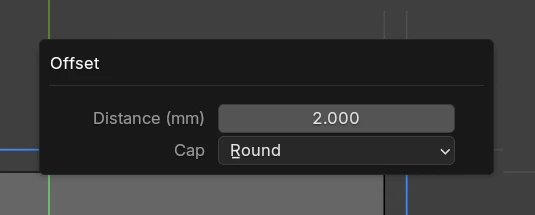
| Setting | Default | What it does |
|---|---|---|
| Distance (mm) | 2 | The distance; soft limits of 100 mm either way |
| Cap | Round | For curves and faces |
| Both Sides | off | For curves |
Messages
| Message | When |
|---|---|
| Select faces, edges or vertices of the sketch first (1, 2 or 3) | Nothing is selected |
| Nothing selected has a curve to offset along | The selection has no line, arc or circle |
| Point at the sketch plane to set a distance | The pointer is off the plane |
| A distance is a finite length | A typed number is too large |
| New vertices stand a positive distance along their curves | A negative distance for a lone point |
| the offset has no room at this distance | A typed or button distance is too large |
| only lines, arcs and circles offset | The selection holds another kind of curve |
| a smooth output’s face has no outline of lines and arcs to offset | A face of a smooth result |
| a whole Boolean chain has no one outline to offset | A Q-chain taken as one outline |
| a filled region is bounded by this curve: its vertices cannot be offset | The point belongs to a Fill |
| a curve held equal in length, or holding a midpoint, cannot be split: remove that relation first | A point offset on a constrained curve |
See also
- Selecting & Moving for how to select faces, edges and points.
- Constraints.