
Sketch Solids
Extrude and Revolve turn a sketch into a Chisel solid. The solid stays linked to the sketch: edit the sketch and the solid follows, live. It is a shape like any other, so Booleans and modifiers act on its whole field.
Extrude and Revolve
Extrude and Revolve are icons on the Sketch tool’s bar (words in the sidebar) and rows of the right-click menu. They are not in the D panel. They are greyed unless the sketch has a result with material, or faces are selected.
| Button | What it makes |
|---|---|
| Extrude | The sketch’s result pushed along the sketch plane’s normal by a Depth |
| Revolve | The sketch’s result turned one complete turn about a line along the sketch’s V direction |
The new solid is named like the sketch (“Sketch 1”), added to the active collection, selected and active, with its bounds displayed as a box. The Block tool shows the solid; the sketch itself is drawn only by the Sketch tool. A refused solid leaves nothing behind.
What the selection limits
Faces selected in the Sketch tool, drawn shapes or Q-chains, limit the solid to those faces, as long as the Sketch tool is active. Selected points or edges do not limit it, and neither does the selection of the Block tool. Several independent faces are joined by Union; a chain keeps its Boolean result. With no faces selected, the solid follows the sketch’s final output.
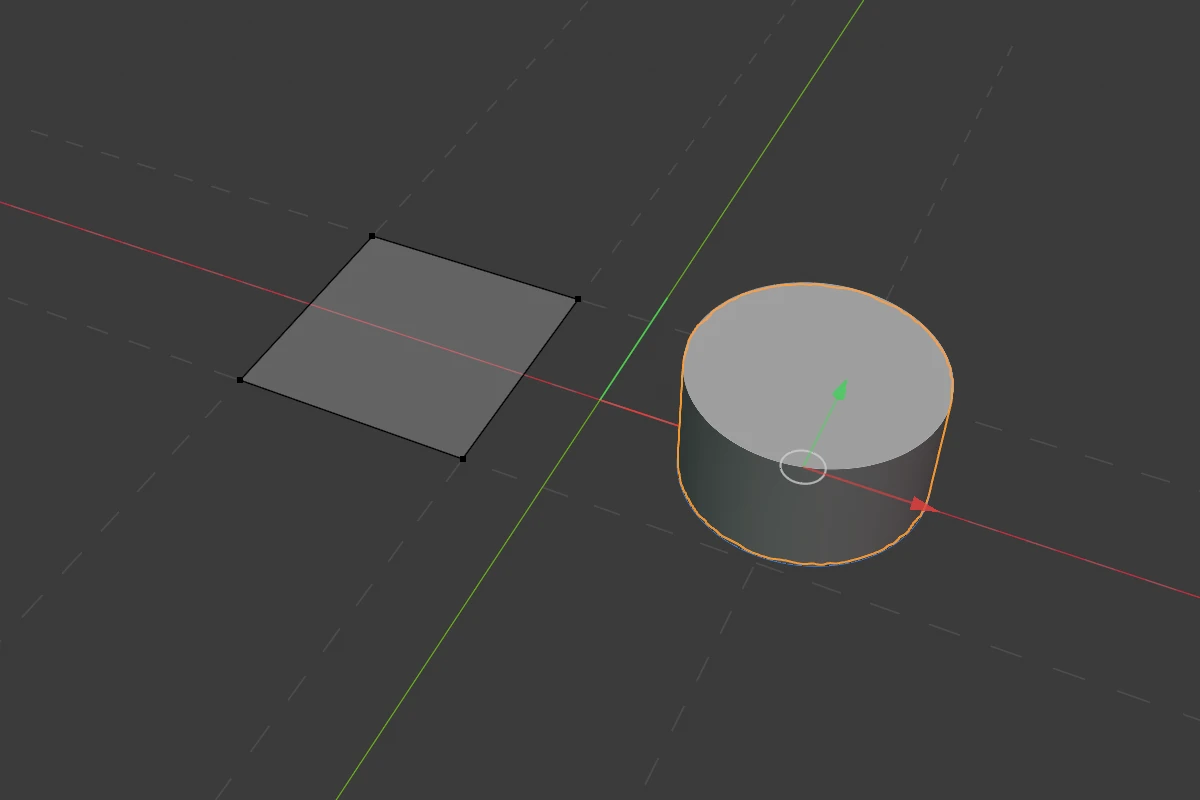
Extrude dialog
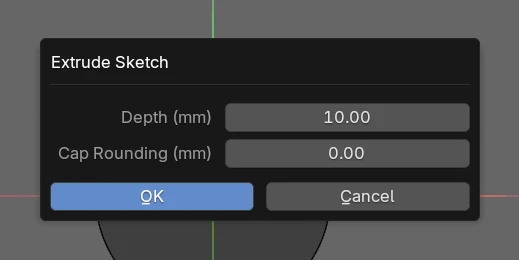
| Setting | Default | Range | What it does |
|---|---|---|---|
| Depth (mm) | A tenth of the larger span of the profile, to one significant digit, 10 at least | 0.002 and up (soft 200) | How far the solid extends along the plane’s normal |
| Cap Rounding (mm) | 0, then the last value you used | 0 to 10 (soft) | Rounds the rims where the sides meet the top and bottom, up to half the Depth |
The redo panel has the same two rows.
Revolve dialog
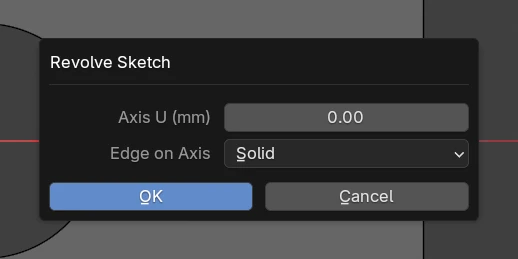
| Setting | Default | What it does |
|---|---|---|
| Axis U (mm) | 0 | Where the axis crosses U. It runs along V. Only the profile on the positive side of the axis is turned |
| Edge on Axis | Solid | Solid: the edge on the axis closes the solid, so the axis is interior. Keep Edge: the sketch’s own field, with its zero on the axis |
A revolve is always one full turn. A profile with no material on the positive side of the axis is refused: “the profile has no material on the positive side of its axis”. With Snap on, Ctrl draws an edge exactly on the axis.
If the sketch has no result, the tool says “choose a sketch with a material output”.
The Field panel of a sketch solid
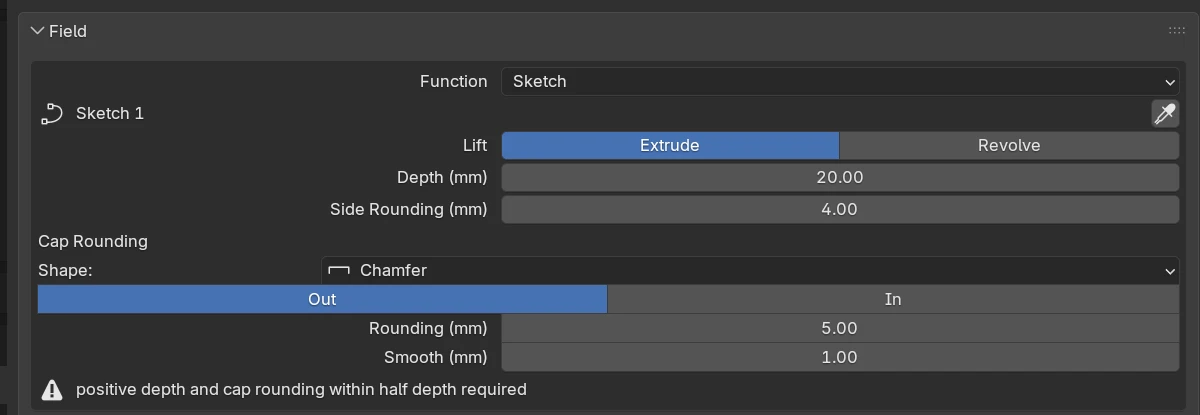
Select the solid; its Field panel (Modifier tab) shows a Function of Sketch and these rows, in order. There is no Profile, Taper or Ends row.
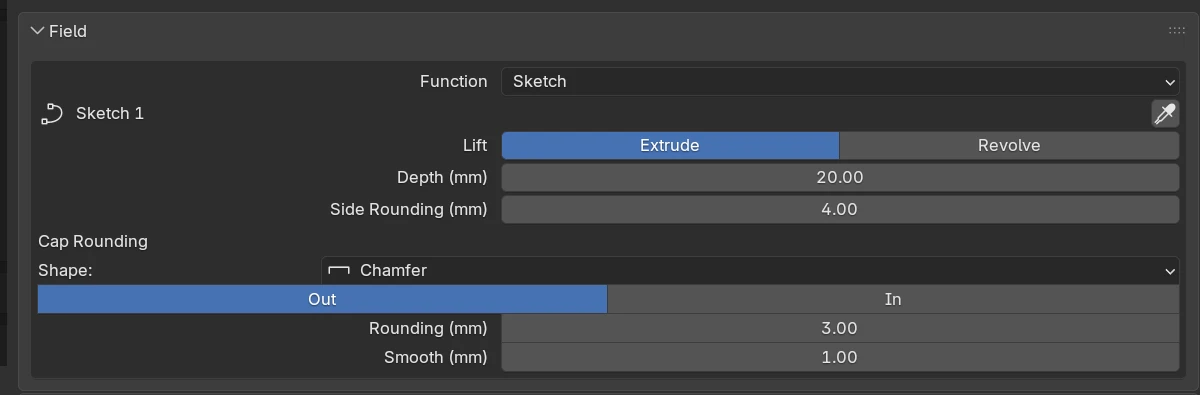
| Row | What it does |
|---|---|
| Function | Sketch: an editable sketch’s final profile, extruded or revolved |
| Sketch name and eyedropper | The sketch the solid follows, or “Choose a sketch”. The eyedropper opens Choose Sketch |
| Lift | Two buttons, Extrude (along the sketch plane’s normal) and Revolve (one complete turn about a line in the sketch plane). Switching keeps the values of both |
| Depth (mm) | Extruded. As in the dialog |
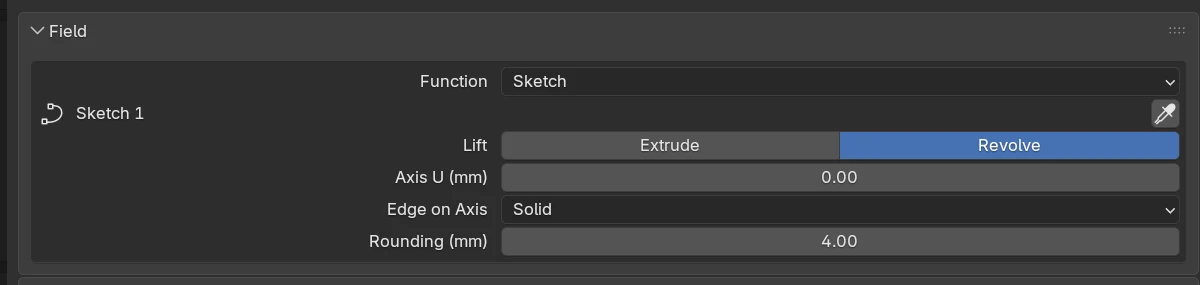
| Axis U (mm) and Edge on Axis | Revolved. As in the dialog. The panel lists Keep Edge before Solid |
| Side Rounding (mm) | Extruded; a revolve reads Rounding (mm). Default 0, 10 soft maximum |
| Cap Rounding | Extruded only. A Shape: list with Out and In buttons where the Shape has both, Rounding (mm), and Smooth (mm) when the Shape has one |
| a red note | Why the last value was refused, or that the sketch has nothing to build |
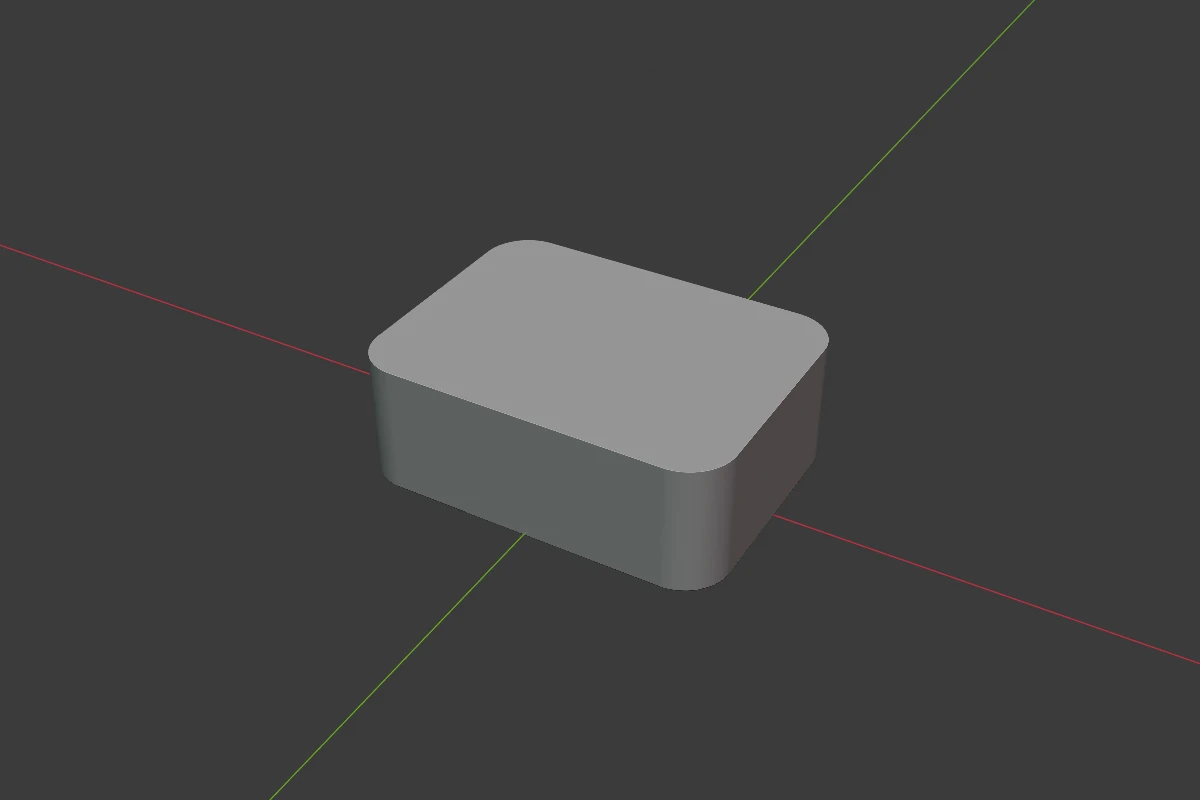
Side Rounding rounds every corner of the sketch’s outline for this solid, as an Ngon’s corners are rounded: the upright edges of an extrusion, the edges a turn makes. Each corner takes the radius where its two edges have room, and at most half of an edge it shares with another corner. A corner blended in the sketch keeps its own radius (Corner Blends), a corner on a turn’s axis stays sharp, and the sketch is not changed. A large value ends in full round ends and is never refused. A smooth sketch has no corners. Two solids of one sketch can round differently.
Cap Rounding rounds the rims where the sides meet the top and bottom, up to half the Depth. A revolve has no rims and shows only its Rounding (mm).
| Row | Default | What it does |
|---|---|---|
| Shape: | Round | The curve of the rim: Round, Sharp, Soft, Tight, Chamfer or Steps, each Out or In where the Shape has both, and a count for Steps. See Rounding Shapes |
| Rounding (mm) | 0 | The size. Up to half the Depth |
| Smooth (mm) | 0 | Only for a Chamfer, an inward Shape or Steps: rounds the seams of the rim’s curve |
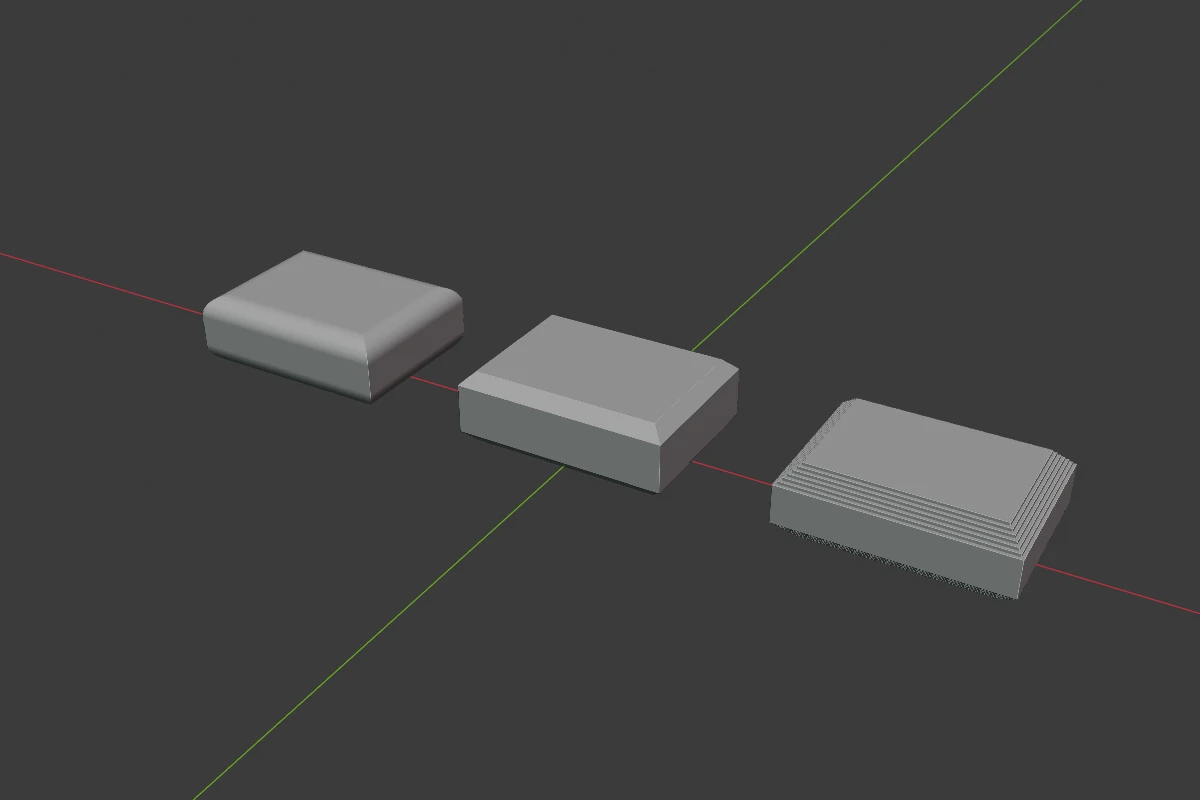
Cap Rounding is a rounding of the field, not an exact CAD fillet. Side Rounding’s arcs are exact.
A value the sketch cannot take is refused, not limited, and the red note gives the reason. Depth and Cap Rounding are checked together: a Cap Rounding above half the Depth is refused.
A revolved solid shows these rows instead of Depth:
In the Block tool’s Edit
Select the solid and press Tab in the Block tool to see its handles. The Sketch tool shows none.
Depth arrow
An extruded solid has a blue arrow head on its far cap, over the middle of its bounds, pointing along the extrusion. It is hidden when you look at it nearly end-on, and for a revolve. The plane’s side has no arrow: move the object instead.
Drag it and the far cap follows the cursor along the extrusion; the near side stays. Millimetres are the sketch’s, whatever the object’s scale.
| Key | While dragging |
|---|---|
Shift | Precision |
Ctrl | Snaps to whole millimetres. Ctrl + Shift: tenths |
release, Space, Enter | Accepts |
Esc, right mouse button | Cancels and puts the Depth back |
The Depth stops at twice the Cap Rounding, or at 0.002 mm with sharp rims. The value shows as “Depth: 12.500 mm”, followed by “(twice the Cap Rounding)” when the Cap Rounding holds it, and by “(Snap 1 mm)”, “(Snap 0.1 mm)” or “(Precision)“.
Rounding dots
A green dot at the top right of the solid’s bounds sets Side Rounding. A teal dot at the bottom right sets Cap Rounding. A revolve shows its one Rounding as the teal dot. A dot floats off its corner by its value on a line of its colour.
The drag is Chisel’s rounding drag: millimetres, Ctrl whole millimetres, Ctrl + Shift tenths, Shift precision; release accepts, Esc or the right mouse button restores. Cap Rounding stops at half the Depth.
| Key | While dragging the Cap Rounding |
|---|---|
1 to 6 | Round, Sharp, Soft, Tight, Chamfer, Steps |
S | On a Chamfer, an inward or a stepped Shape: switches to its Smooth (mm). Again to return |
Side Rounding and a revolve’s Rounding are round only, and offer no Shape keys. The header reads “Side Rounding: 2.000 mm”, “Cap Rounding [Chamfer]: 3.000 mm” or “Rounding: 2.000 mm”, plus the snap or precision note. The outline in Solid view is rebuilt when you release; the render follows the drag live.
Choose Sketch
The eyedropper in the Field panel opens Choose Sketch. It needs the active object to be a sketch solid.
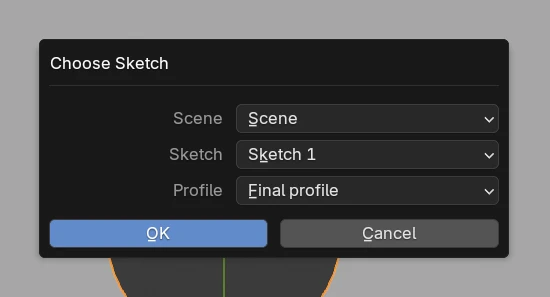
| Setting | What it does |
|---|---|
| Scene | Every scene in the file |
| Sketch | That scene’s sketches |
| Profile | Final profile, which follows the sketch’s selected final output, or one operation of the sketch by name |
A solid whose sketch was deleted, or copied ambiguously, needs Choose Sketch again. An unrelated scene is never picked for it.
Behaviour and limits
- The solid follows sketch edits live: moving a point, blending a corner, changing a Boolean. Undo, saving and loading, and scene-unit changes follow too. Hard and smooth results both work.
- A Block tool shape cutting the sketch solid acts on its whole field.
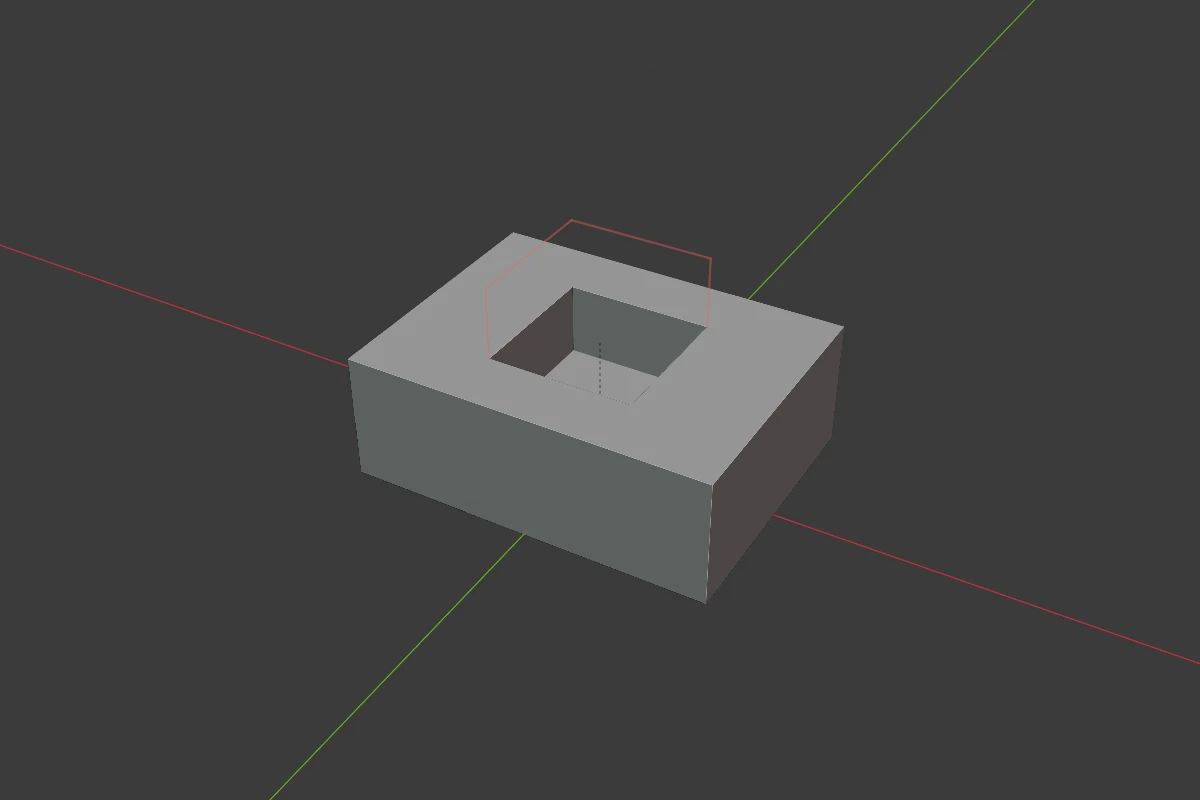
- Roundings are in the sketch’s millimetres, whatever the object’s scale.
- Hiding a sketch does not affect its solids.
- Set Origin and
Gwith Affect Only Origins move the solid’s origin and leave the solid where it is, extruded or revolved. The render, the outline, the handles and the Depth arrow stay put.
Warning
Save Chain as Asset saves the shape without its sketch. The sketch stays in the scene of the file it came from, so the asset is empty in another file. The dialog says “N shapes are made from a sketch, which stays in this file’s scene: empty in another file”.
Warning
A sketch that a solid uses cannot be deleted. The tool says Sketch “Sketch 1” is used by the solid “Sketch 1”. Delete the solid first, naming the solids (up to three, then “and others”).
Note
A sketch holds at most 2,048 points. Past that it refuses more.
See also
- Sketch Tool and Fill & Booleans.
- Corner Blends: a blend in the sketch carries into the solid.