
NGon
A polygon of any shape, extruded the same distance on both sides of the object’s local XY plane. Every corner has its own rounding and shape, concave corners included. The Add menu calls it Ngon.
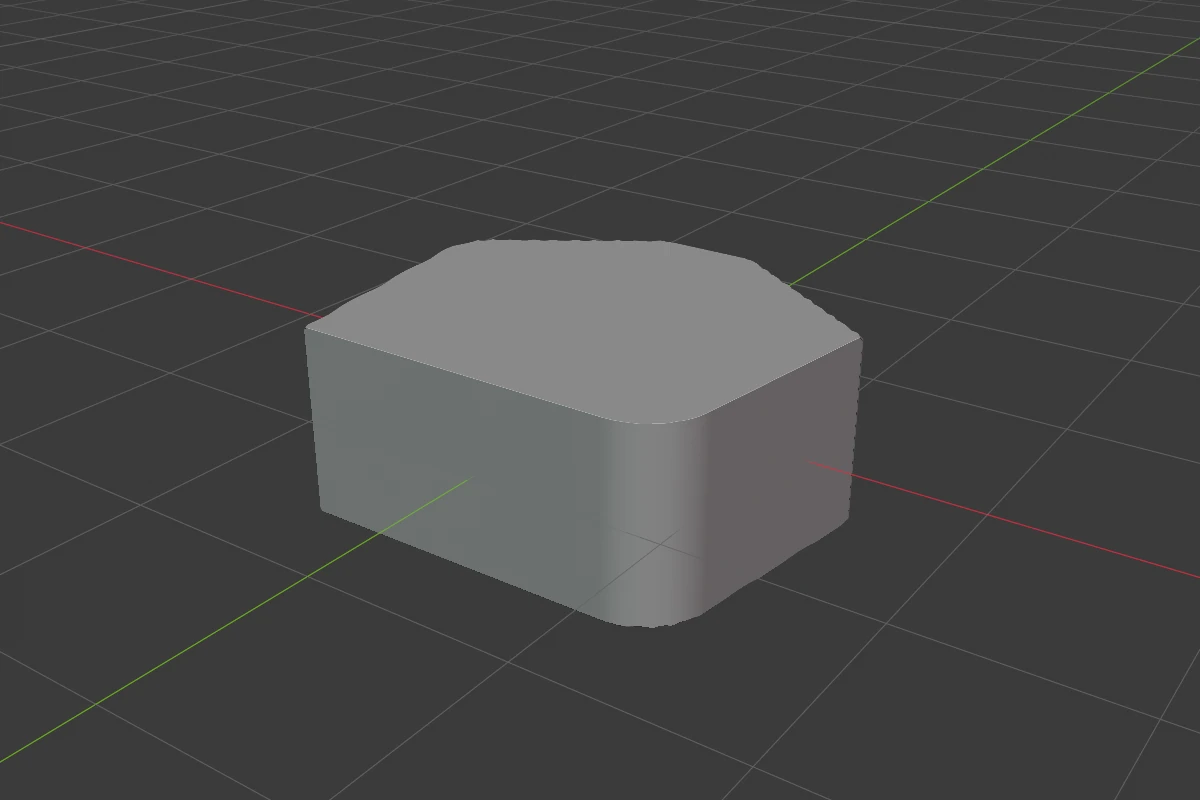
Settings
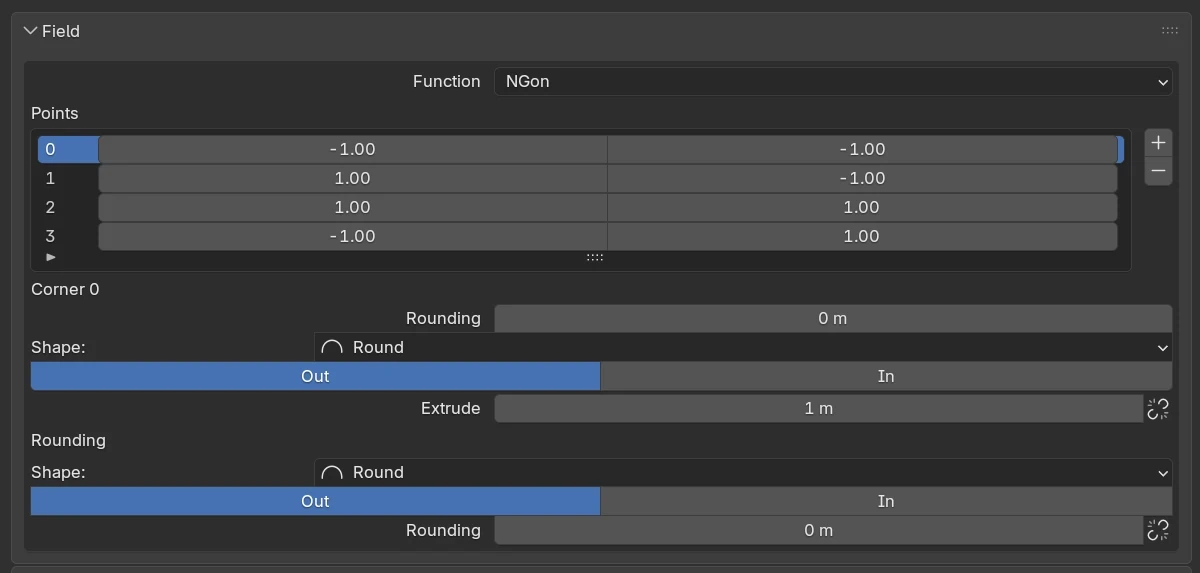
| Setting | Default | Range | What it does |
|---|---|---|---|
| Points | a square | 3 corners or more | One row per corner: its index and its X and Y on the NGon’s plane. Click a row to make that corner active |
+ / − | Add a corner after the active one; remove the active one | ||
| Corner (the active corner) ▸ Rounding | 0 | ≥ 0 (soft 2) | Rounds that corner |
| Corner ▸ Shape, Out / In, Steps | Round, Out | see Rounding Shapes | The curve of that corner’s rounding |
| Corner ▸ Smooth (Chamfer, In, Steps with In) | 0 | ≥ 0 (soft 0.5) | Softens the seams of that corner’s curve |
| Extrude | 1 m | > 0 (soft 100) | How far the polygon extends on each side of its plane: the NGon is twice this thick |
| Rounding ▸ Shape, Out / In, Steps | Round, Out | see Rounding Shapes | The curve of the top and bottom rims’ rounding |
| Rounding ▸ Rounding | 0 | ≥ 0 (soft 2) | Rounds the top and bottom rims |
| Rounding ▸ Smooth (Chamfer, In, Steps with In) | 0 | ≥ 0 (soft 0.5) | Softens the seams of the rims’ curve |
The rows every shape has are in Properties Panels. On a scaled NGon, Rebuild Mesh bakes the scale into the corners; their rounding scales by the smaller of the X and Y scale.
Corners
The corners show only in the Block tool’s Edit (Tab). Click, Shift-click or a box drag on empty space selects them; a selected corner is blue. G moves the selection, S scales it and X or Delete removes it, down to three corners; the keys are on Edit Mode.
| Handle | Looks like | Drag | Keys while dragging |
|---|---|---|---|
| Corner | A dot on each corner | Moves every selected corner on the NGon’s plane | Ctrl snaps to 0.1 (Ctrl + Shift: 0.01), Alt slides along an edge, Shift is precision |
| Rounding handle | An orange dot just outside a selected corner | Away from the corner: rounds every selected corner | 1–6 pick the Shape, I / O set In / Out, S switches between Rounding and Smooth |
| Add dot | A green dot at the middle of the edge under the mouse | Click: adds a corner there | |
| Depth arrows | Two blue arrow heads on the top and bottom faces, with a thin line round the polygon | Moves that face; the NGon grows from its plane. With Shift the opposite face stays | Ctrl snaps to 0.1 |
| Cap Rounding dot | A teal dot at the lower right | Away from the shape: a larger Rounding of the rims | 1–6, I, O, S, Ctrl, Shift |
The right-click menu in Edit sets the selected corners’ shape (Corner Shape) and removes them, see Edit Mode.
Side Rounding arc
In the Block tool’s Select state, the green arc of the adjust arcs rounds every corner of every selected NGon by the same amount. A corner’s rounding never takes more than half of either edge next to it. During the drag 1–6 set every corner’s shape and S drags the Smooth of the chamfers.
Redo panel
After adding, the redo panel (F9) has:
| Setting | Default | Range | What it does |
|---|---|---|---|
| Size | 2 | > 0 | Side of the starting square, and twice the Extrude |
| Align | World | World · View · 3D Cursor | Rotation of the new shape |
Limits
Warning
Moving the object’s origin (Set Origin, or a move with Affect Only Origins) keeps the outline in place within the NGon’s plane, but the plane follows the origin along the NGon’s depth.
See also
- Edit Mode
- Outline: the same idea with curved sides
- Polygon: regular outlines
- Block Mode: draw an NGon in the viewport