
Text
A text drawn as a Chisel shape: its letters extruded by Extrude and rounded like any other shape. The shape reads its words from a text, its Input. With a Blender text object selected, adding a Text replaces that object with a Text shape of the same name and place, and the object’s text becomes the shape’s input. Otherwise it makes a new text and a shape at the 3D cursor.
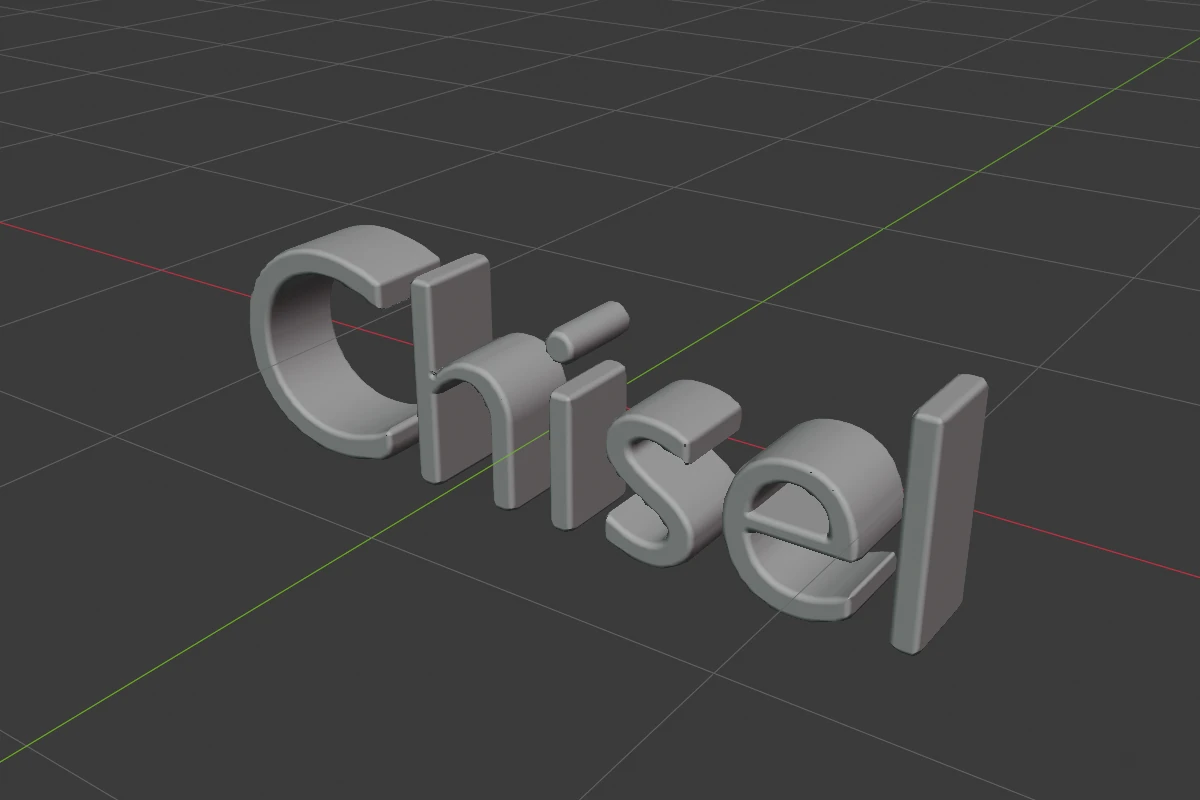
Settings
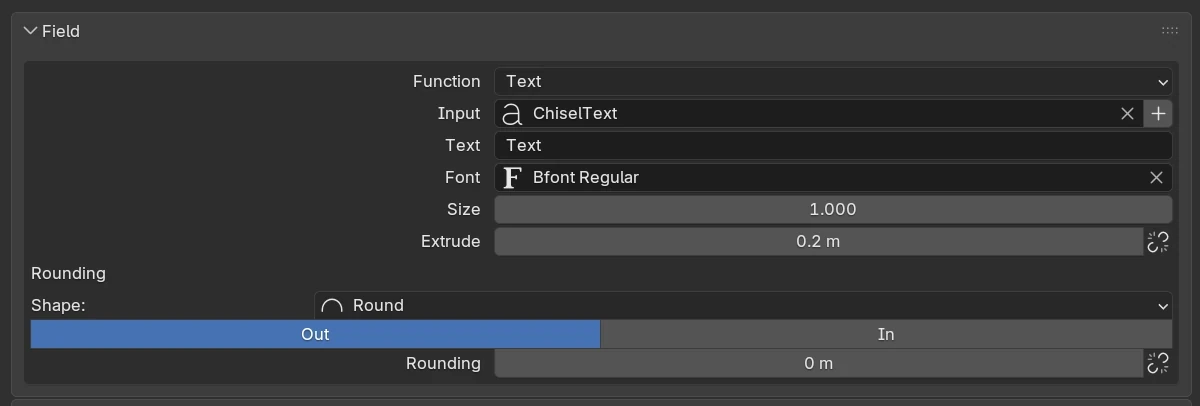
| Setting | Default | Range | What it does |
|---|---|---|---|
| Input | a new text | The text the shape reads: a picker, and + to make a new text. With no input the shape draws nothing | |
| Text | Text | The words of the input | |
| Font | Bfont Regular | The input’s font | |
| Size | 1 | The input’s size | |
| Extrude | 0.2 m | > 0 (soft 100) | How far the letters are extruded, from the text’s plane along local +Z |
| Rounding ▸ Shape, Out / In, Steps | Round, Out | see Rounding Shapes | The curve of the letters’ edge rounding |
| Rounding ▸ Rounding | 0 | ≥ 0 (soft 2) | Rounds the letters’ front and back edges. B drags it |
| Rounding ▸ Smooth (Chamfer, In, Steps with In) | 0 | ≥ 0 (soft 0.5) | Softens the seams of the curve |
The rows every shape has are in Properties Panels. A text that is too long for one shape shows a red line, “Text too long: trailing glyphs are not rendered”.
Handles
In the Block tool’s Edit a Text has one blue arrow on its top face. Dragging it sets Extrude; Shift is precision and the text’s plane stays. A Text has no points and no rounding dot.
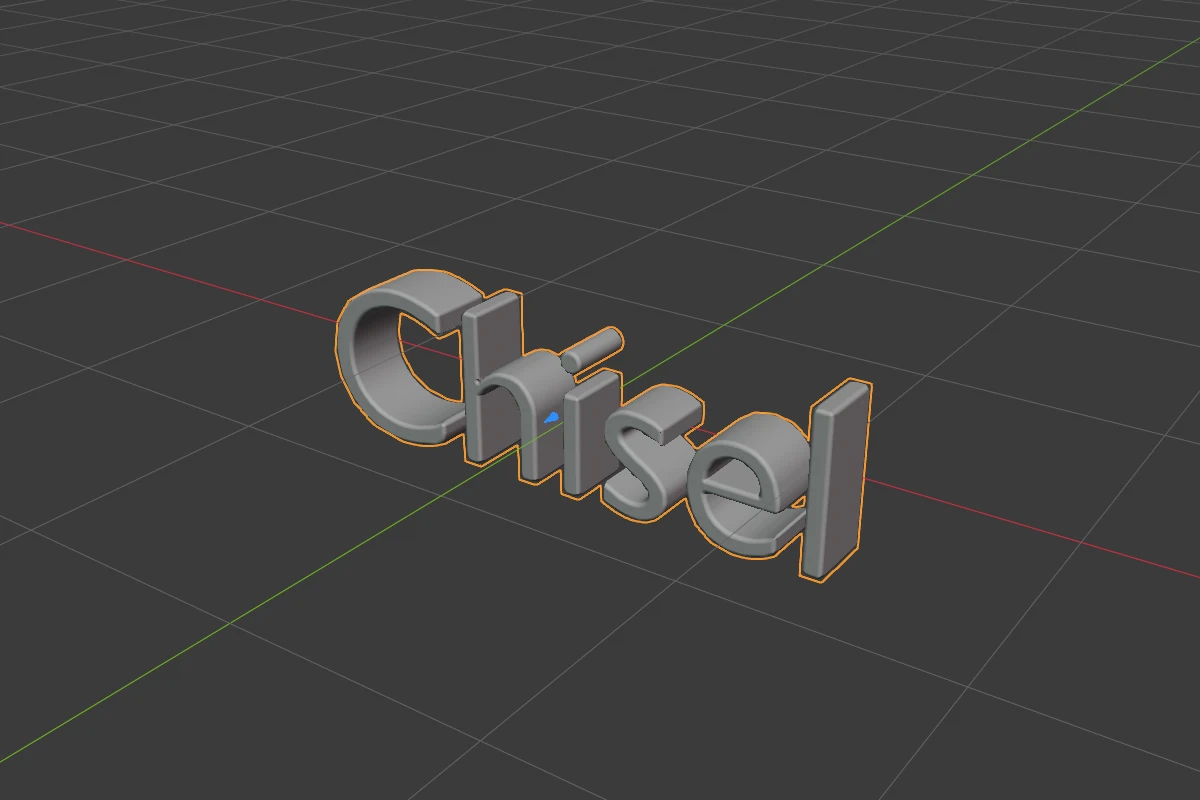
The right-click menu and the Q pie’s West wedge drag Depth, which is Extrude.
Redo panel
| Setting | Default | What it does |
|---|---|---|
| Text | Text | The words of a new text |
| Depth | 0.2 | How far the letters are extruded |
| Align | World | World, View or 3D Cursor: the rotation of the new text |
Limits
Warning
Enable Chisel on a Blender text object makes a Sphere shape, not a Text. Use Add ▸ Chisel ▸ Text with the text object selected instead.
A Text is not in the [ / ] cycle.
See also
- Outline: an extruded outline of your own points
- Field Panel