
Fill & Booleans
Every shape you draw has a Boolean that says how it joins the shapes before it. In Edit, the tool bar shows these controls for the selected shape, and Fill takes a region that the lines enclose and adds it to the result.

A shape’s Boolean
The shapes of a sketch are kept in a list in the order you drew them. The first shape that has material is the Base; every later shape combines with the result so far.
| Boolean | What the shape does |
|---|---|
| Union | Adds its area to the result |
| Difference | Cuts its area out of the result |
| Intersection | Keeps only the overlap of the result and the shape |
| Separate | Starts a new result. Earlier shapes stay in the sketch but leave the output |
The same two shapes with each Boolean:
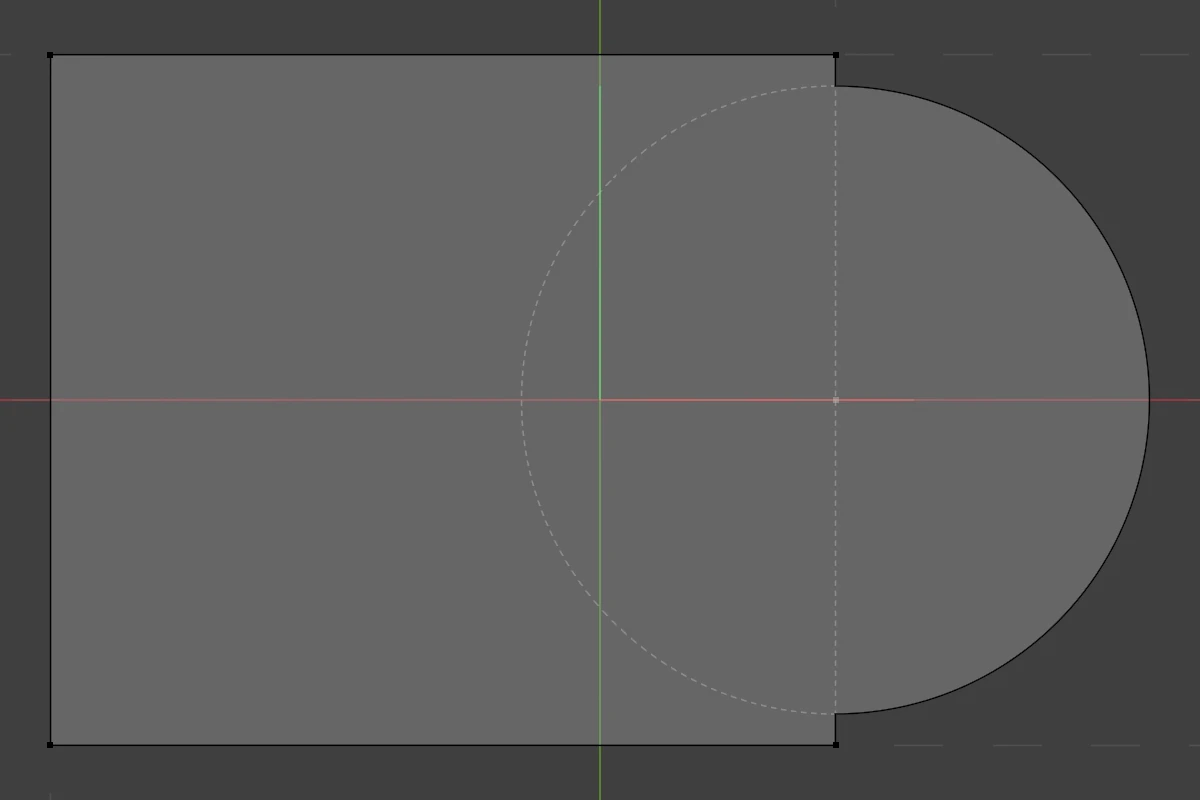
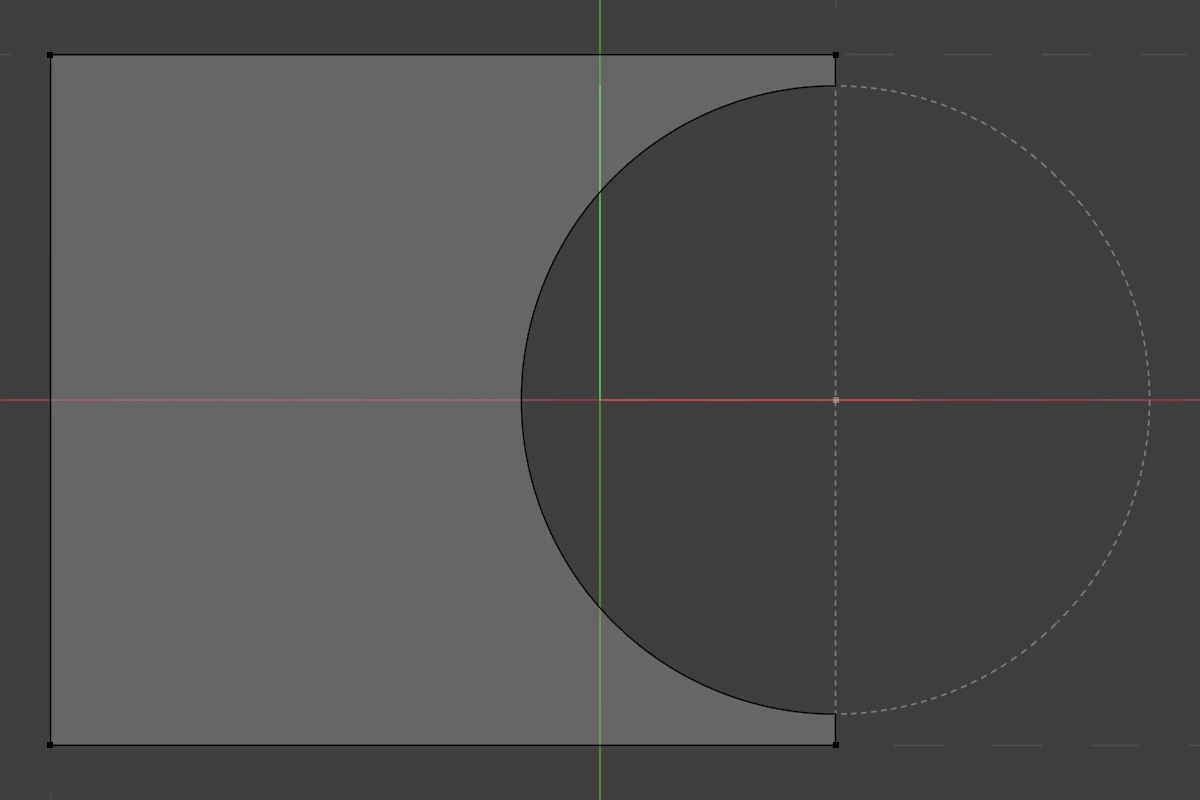
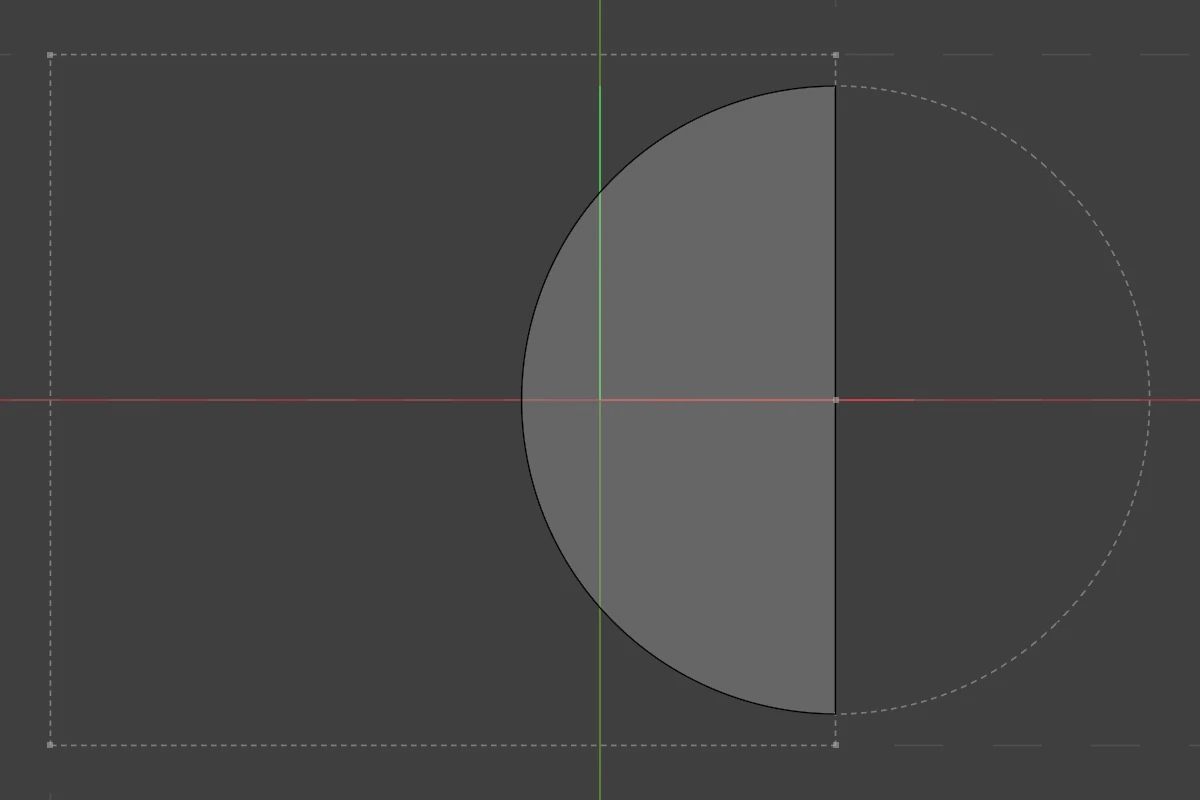
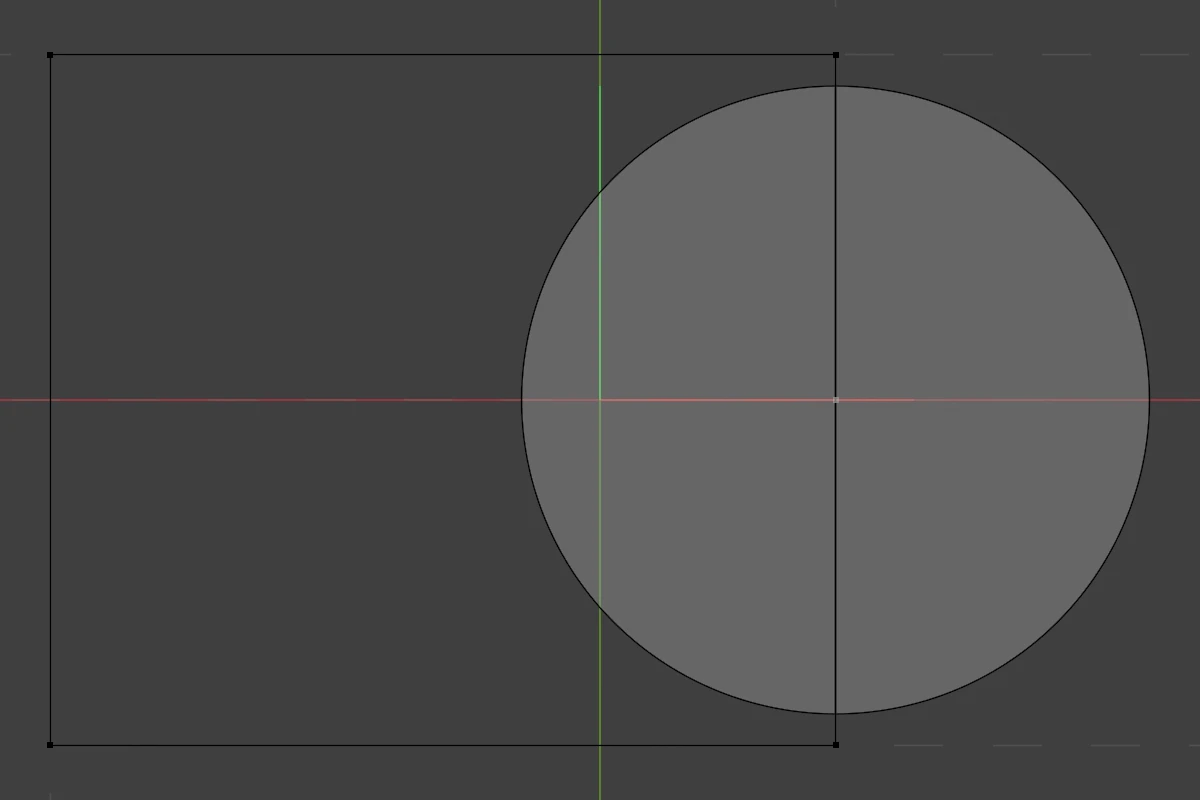
Order matters. With shapes A, B (Difference) and C (Union) the result is A minus B, plus C. Move C ahead of B and it becomes A plus C, minus B.
The new shape’s Boolean when you draw it is set in Drawing. To change it afterwards, select the shape in Edit and use the Boolean drop-down. It sets every selected shape and is one undo step.
Edit controls for a selected shape
These controls appear when the selection belongs to one or more shapes. A selected point stands for every shape that starts, ends or is centred on it: one corner of a rectangle gives the rectangle’s controls. With nothing selected only Make Face shows, greyed.
| Control | What it does |
|---|---|
| Boolean | Union, Difference, Intersection or Separate for every selected shape. The label reads Boolean when the shapes differ. A single selected shape that is the Base reads Base |
| Side | For a line or an arc: Left, Middle or Right. The label reads Side when the selection mixes them. Only shown when a selected shape is a line or an arc |
| Up, Down, Top, Bottom | Moves the shape one place earlier or later in the order, or to the start or the end. Icons on the tool bar; Move Up, Move Down, Move to Top and Move to Bottom in the right-click menu |
| Make Face | Makes a face from the selected edges, see below |
The D panel lists them under Selected Shapes: and the sidebar has them as one row with words.
A Base keeps a Boolean that applies once it is moved to a later place. Selected shapes keep their relative order when moved together. A move at the end of the order does nothing.
Side
A line or arc is drawn as a boundary. Side says which region around it counts as the shape.
| Side | What the shape is |
|---|---|
| Left | The region to the left of the line, looking from its start to its end |
| Middle | A finite boundary only, with no fill. It can join with others to close a face |
| Right | The region to the right of the line |
Left and Right follow the direction you drew the line in the sketch plane, not the camera. A line is taken as endless. An arc is taken as its span and the straight rays that leave its two ends along its tangents, never its whole circle. Both regions are cut at the edge of the sketch plane.
A side can only be set on a single line or arc, and a side that another saved operation already uses is refused.
Make Face
Make Face makes a new face from the selected edges. It counts the selected edges and the edges of selected faces; bare points do not count. It needs at least three finite lines or arcs that close one outline. The new face takes the Boolean that is set for drawing (see Drawing) and is added at the end of the order. The edges stay as they are and stay editable.
Lines and arcs that close an outline become a face by themselves when you draw the closing one, with the Boolean you draw with. Two edges that only make a lens never close a face by themselves.
| Message | When |
|---|---|
| Select at least three finite boundaries for a closed face | Fewer than three edges are selected |
| a face group needs at least three unique finite entities | The same, from the sketch |
| selected finite entities do not form one simple closed boundary | There is a gap, a crossing or a branch |
| selected sources contain competing faces | The edges close more than one face |
Fill
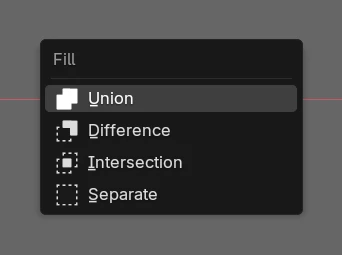
Fill adds a region to the result, or takes one from it, by clicking on it. It is on the tool bar as a drop-down, in the right-click menu as Fill, and under F at the pointer. It is only in Edit.
| Row | What it does |
|---|---|
| Union | Add the region to the output |
| Difference | Cut the region out of the output |
| Intersection | Keep only this region of the output |
| Separate | Make the region the whole output |
Pick a row with a click or its underlined letter. The pointer becomes a crosshair, and the region under it previews the result. A click, Space or Enter takes it. Esc or the right mouse button cancels. A click outside the viewport passes through; the wheel and the middle button still navigate.
A region is what the sketch’s lines enclose, with each line carried past its ends across the plane: lines run on as endless lines, and arcs run on as their tangent rays. A closed shape’s side therefore also divides what lies beyond it.
The result is a new shape at the end of the order. Its Boolean and place change like any other’s. The whole fill is one undo step and the plane is fitted to the result.
When a fill cannot be taken, the reason shows at the lower left of the viewport while you hover, and as a warning when you click; Fill stays open:
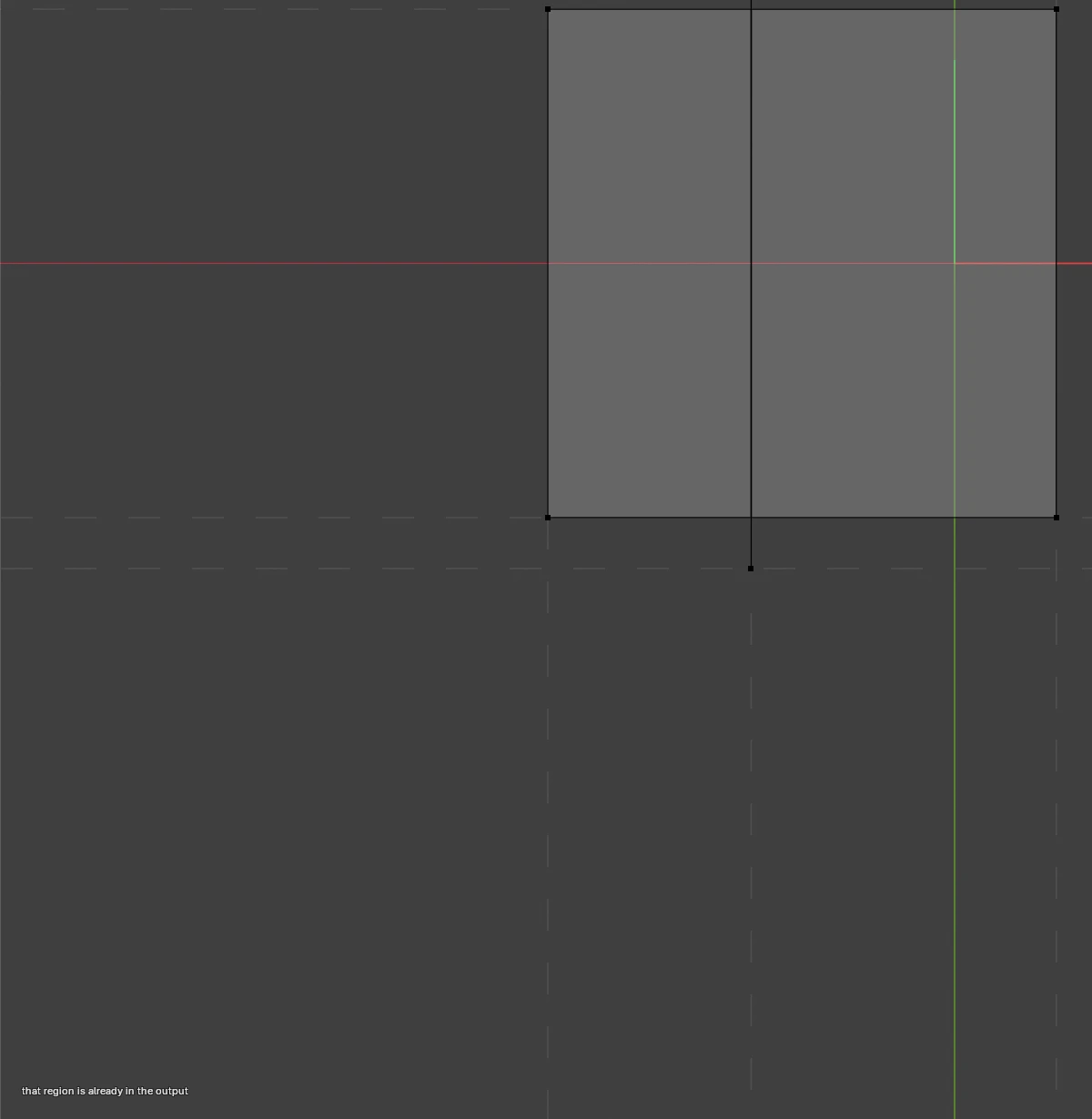
| Message | When |
|---|---|
| that region is already in the output | Union on a region that is already inside |
| choose a region inside the current target | Difference or Intersection on a region outside the output |
| no region at that point | The pointer is not over a region |
| a smooth output has no separate faces to pick | The output is smooth |
Separate is not refused for these reasons. A saved fill whose outline later breaks reports why: “a filled region’s outline now encloses more than one area”, “a filled region was cut into several areas” or “a filled region lost its outline: the curves that bounded it no longer close around it”.
Note
Fill works on the output a solid would use now. A region added by Separate earlier is not filled again on its own.
See also
- Selecting & Moving: how to select the shapes these controls act on.
- Drawing: the Boolean and Side of a new shape.
- Sketch Solids: turning the result into a solid.