
Values
A Value is a named number that lives in the scene. Any number of any shape or modifier can follow it, so changing the Value changes all of them at once. Values are listed in the Values panel, the last panel of the Modifier tab in the Properties editor, for an active Chisel shape.
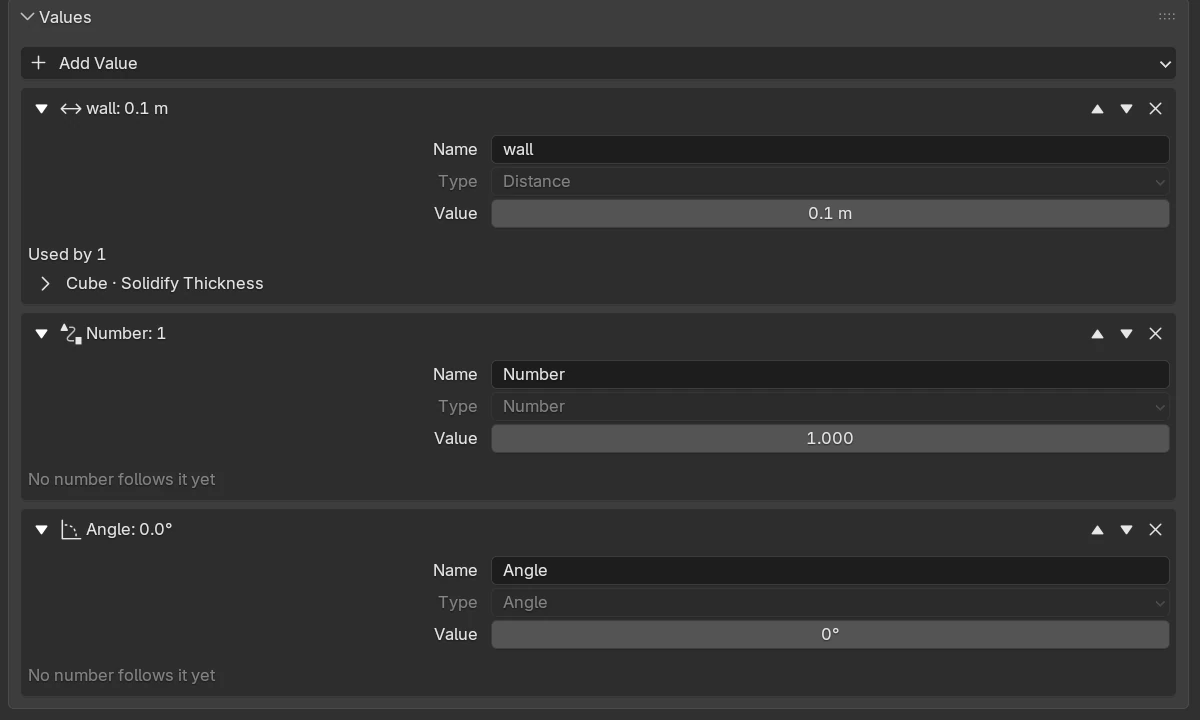
The panel
Add Value opens a menu of the five kinds of Value. A new Value is named after its kind (Number, Number.001, and so on) and starts collapsed.

| Kind | Default | What it holds |
|---|---|---|
| Number | 1.0 | A plain number: a strength, a factor |
| Distance | 0.1 m | A length, shown in the scene’s units |
| Angle | 0° | An angle |
| Vector | 0, 0, 0 | Three numbers: an offset or a direction |
| Count | 1 | A whole number: how many copies, how many sides |
While the list is empty the panel says Link any number to a Value with its chain button.
Each Value is a box. Its header shows an expand arrow, the kind’s icon and name: number (for example wall: 2 mm, Angle: 45.0°), and on the right ▲ and ▼ to move it up or down the list and × to remove it. Removing a Value does not change the numbers that followed it: they keep the number they have then. Expanded, a Value shows:
| Row | What it does |
|---|---|
| Name | The Value’s name. Renaming keeps every link. Names are not forced to be unique |
| Type | The kind, greyed out |
| Value | The number. Typing or dragging it moves every follower |
| Used by | The number of followers, then one line per follower, for example Cube · Array Count or Cube · Field Side Rounding. A second modifier of one kind reads Array 2; a part of a vector reads Offset X. Clicking a line selects that shape alone, makes it active and opens that modifier’s row. At most 12 lines show, then and N more. With no follower the line reads No number follows it yet |
A line can also read That shape was deleted or renamed, That number is gone or That shape is not in this scene.
The chain button
Every number in the Field and Modifiers panels has a chain button beside it: open when the number is free, closed and pressed in when it follows a Value. Clicking it opens Link to Value.
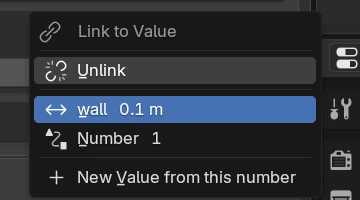
| Entry | What it does |
|---|---|
| Unlink | Only when the number follows a Value. The number keeps what it has now |
| One line per Value that fits | name and its number, with the kind’s icon; the one followed is pressed in. Clicking one links the number to it. A Vector Value offers name.X, name.Y and name.Z to a single number |
| No Value fits this number yet | Shown when nothing fits |
| New Value from this number | Makes a Value that starts at the number, so nothing moves, and links to it. A vector field makes a Vector, a whole-number field a Count, and any other number the kind its unit says. The Value is named after the number’s label |
What fits what:
- A length takes a Distance or a Number; an angle takes an Angle or a Number.
- A whole-number field takes a Count, or a Number rounded to the nearest whole number, halves up.
- A single number takes one component of a Vector.
- A whole vector field takes only a whole Vector.
- Switches and menus cannot follow a Value.
What linking does
A linked number shows the Value’s own field in its place, under the Value’s name, with the chain pressed in. Typing or dragging there edits the Value, and every follower moves in one undo step.
- Handles and pie rows: dragging a handle or a pie row that sets a linked number moves its Value, so every other follower moves with it. With several shapes dragged at once, the first number that moves wins. Pie rows and the Tape tree options show the Value’s field without a chain button.
- Missing Value: if the Value is gone, the field reads (Value missing) in red and the number keeps its number. A link to a Value that no longer fits the number is greyed out.

- Animation: a Value’s field takes Blender keyframes and drivers like any number. Playback, scrubbing and every frame of an animation render write the followers.
- Duplicates follow the same Values as the original.
- Append and paste: a link carries its Value’s name. It follows the Value of that name in this scene; if there is none, it reads (Value missing) and keeps its number.
- Old files: Values made on single shapes by the first builds of Chisel 6 are moved into the scene’s list when the file opens, with their links, keyframes and drivers.
A click on the chain of a number that cannot follow a Value reports That number cannot follow a Value; a Value that is gone reports That Value is gone, and one that does not fit, That Value does not fit this number.
Which numbers can follow a Value
| Where | Numbers |
|---|---|
| Field panel | Its numbers |
| Boolean, Carve and Bisect | The blend’s Outer and Smooth; Material Blend |
| Solidify | Thickness |
| Infill | Cell Size and its X / Y / Z, Wall (approx.), Offset (approx.), Rotation, Phase, Shell Thickness |
| Mirror | Blend |
| Bisect | A Custom plane’s Location and Normal |
| Array | Count, Offset, Radius, Smooth |
| Emboss and Engrave | Strength, Outer, Inner and their Smooths |
| Carve | Offset |
| Twist & Bend | Twist Strength; Bend Strength, Direction, Center, Lower, Upper |
| Taper | Amount |
| Revolve | Offset |
| Smooth | Radius, Smooth |