
Performance
The Performance panel affects the viewport only. It sets how the cell size follows each object’s size, and how much quality the viewport gives up while you orbit or drag. F12 always renders at full quality.
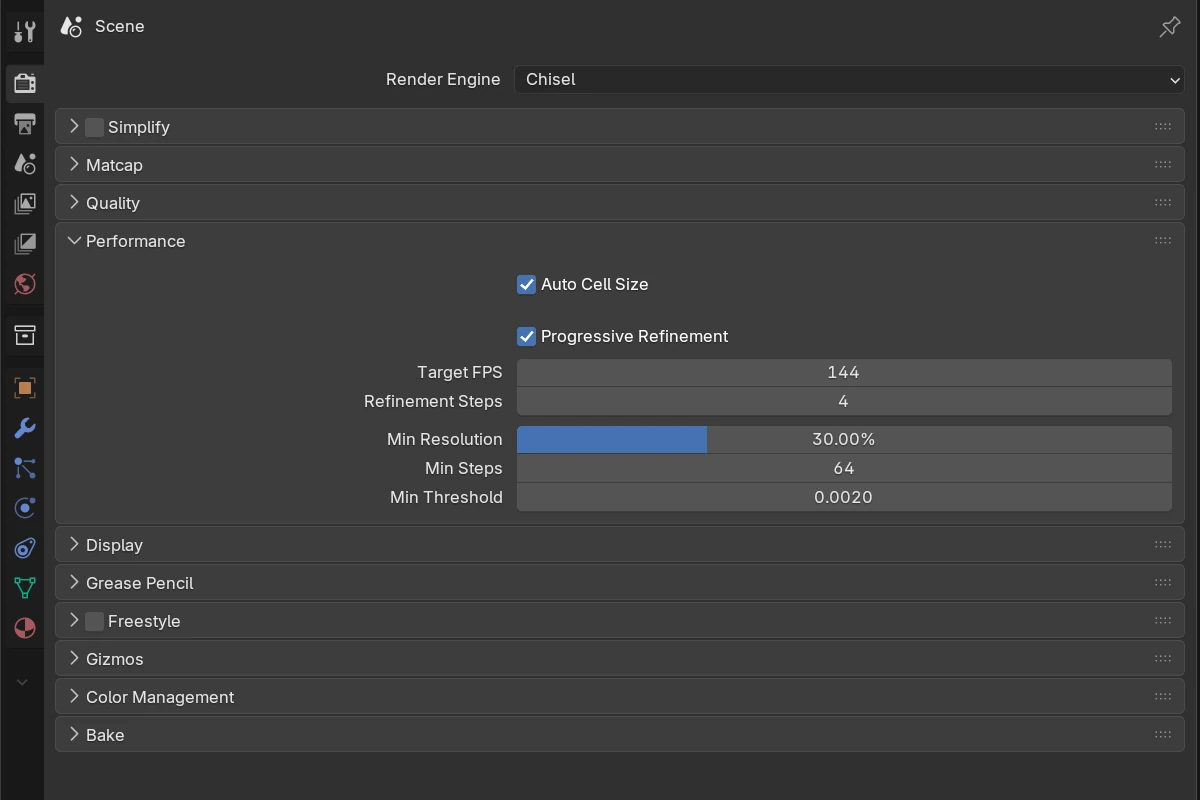
Settings
| Setting | Default | Range | What it does |
|---|---|---|---|
| Auto Cell Size | on | Scale World Cell Size for each object by the object’s size, so a large object gets about the same detail and cost as a small one. Off = one cell size for the whole scene. | |
| Progressive Refinement | on | While you orbit, pan or drag, draw a coarser picture that is faster to draw; once you stop, draw the view once at Resolution. Off = every frame is drawn at Resolution. | |
| Target FPS | 144 | 5 – 200 | The frame rate the moving picture tries to keep. When frames take too long the picture gets coarser, and when there is time to spare it gets finer again. |
| Refinement Steps | 4 | 1 – 12 | The number of steps from the coarsest picture to the one at Resolution. 1 = always Resolution. |
| Min Resolution | 30% | 1 – 100% | The resolution of the coarsest picture. |
| Min Steps | 64 | 4 – 128 | The Max Steps of the coarsest picture. |
| Min Threshold | 0.0020 | 0.0001 – 0.05 | The Hit Threshold of the coarsest picture. Set it equal to Hit Threshold if silhouettes shift while the picture refines. |
The settings under Progressive Refinement are greyed out while it is off. With it on, the text in the top-left corner of the viewport shows the step being drawn, for example Chisel: 2/4. The last step, Chisel: 4/4, is the settled picture at Resolution. With Progressive Refinement off the text does not show.
Auto Cell Size
World Cell Size is a length, so without Auto Cell Size an object eight times larger needs about 64 times as many cells at the same setting. With it on, World Cell Size is the cell for an object one Blender unit across, and each object’s cell grows or shrinks with its size. The size is taken from the surface area of the object’s bounding box, so a long, thin part such as a rail keeps the detail its thickness needs.
Editing
- When you drag part of a model, only the changed part of the shape, and of the view, is updated.
- During a drag, the fine detail around booleans is updated when you release the mouse.
- Moving a whole object does not recompute its shape. Undo, redo, or typing back a value you had before reuses the earlier result.
Smooth orbits on heavy scenes
Lower Min Resolution if orbiting is not smooth. A view that has stopped is drawn at Resolution.
Limits
256 shapes per object
An object and all the shapes its modifiers use can hold up to 256 shapes. The Modifiers panel shows the count as Objects N/256 and turns it red at 80%. Shapes past the limit are not drawn. A second line, Modifiers N/4096, appears greyed once a chain passes half of that limit and turns red at 80%.
- Releasing a drag on a very heavy scene can pause for a moment.
- The first time a new kind of shape or modifier is used in a session, the view does not freeze: it says Chisel: compiling shaders… and draws the model when the shaders are ready.