
Right-Click Menu
With the Block tool active and a Chisel shape active, the right mouse button opens Chisel’s menu in place of Blender’s; on any other object it does nothing. Over a Tape tree name it opens that row’s blend and rounding instead. The menu’s top rows change with the selection.
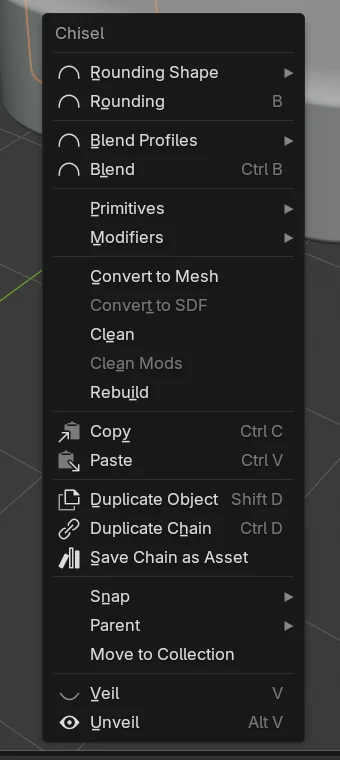
In Edit
In the tool’s Edit state the menu starts with the selected points. A submenu shows only when it applies to the selection:
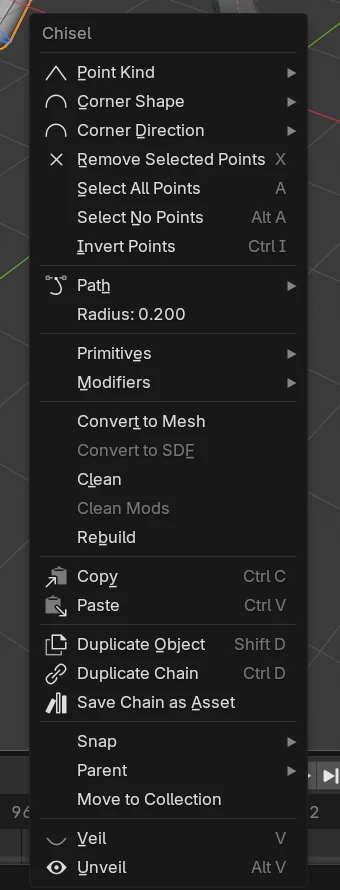
| Entry | What it does |
|---|---|
| Point Kind ▸ | Smooth, Corner or Free for the selected path points; the entry shows the kind they have now |
| Corner Shape ▸ | The rounding’s Shape (Round, Sharp, Soft, Tight, Chamfer, Steps), then Out or In and a Steps count, for the selected Corner points of a path and corners of an Ngon |
| Corner Direction ▸ | Out (round outward) or In (cut inward) for the same points |
| Remove Selected Points | Removes the selected points (X). Greyed out while no selected point can go |
| Select All Points | Selects every point (A) |
| Select No Points | Clears the point selection (Alt + A) |
| Invert Points | Inverts it (Ctrl + I) |
Shape choices
Submenus for the active shape’s own choices, each showing the current choice’s icon. A pick changes every selected shape that has that choice.
| Entry | Shows for | Choices |
|---|---|---|
| Profile ▸ | Rail, Polygon, and a Lathe that turns a section | The section: Star, Polygon, Gear, Flower, Ratchet, Custom, Rectangle, Points, Cross, see Rail |
| Path ▸ | Tube, Rail | Open or Cyclic |
| Body ▸ | Lathe | Solid or Hollow (the Field panel calls the same choice Form) |
Shape row
The active shape’s defining value, with its current value; a click starts its drag. Shapes not listed have none.
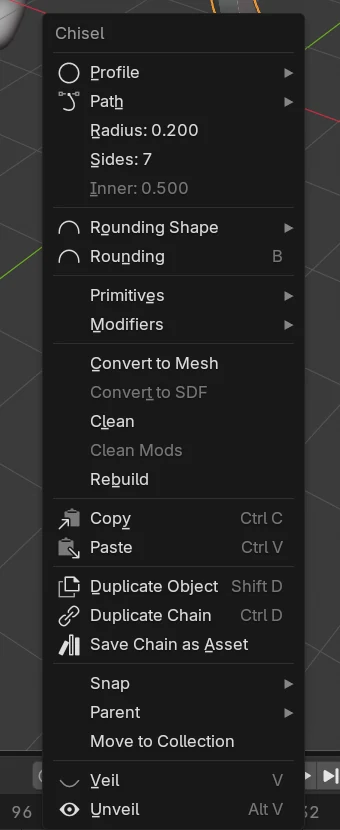
| Shape | Entries |
|---|---|
| Cone, Trapezoid | Taper with its value (a new Cone reads Taper: 1.00) |
| Prism | 3, 5, 6, 8: the number of sides. With three sides also the apex angle and an arrow that opens Set Prism Shape |
| Torus | Radius: 0.300 |
| Outline, Text | Depth: 1.000 |
| Tube | Radius: 0.200 |
| Rail | Radius, Sides, Inner (greyed out on a Polygon section); a Rectangle section shows Width and Height in place of Radius |
| Polygon | Radius, Depth, then the section’s Sides and Inner |
| Lathe | Angle: 360.0°; a turned Rectangle also shows Width and Height. None for a Lathe of a ring-type section |
Ellipsoid, Ring, Line, Spring and Screw have no row: their values are in the Field panel.
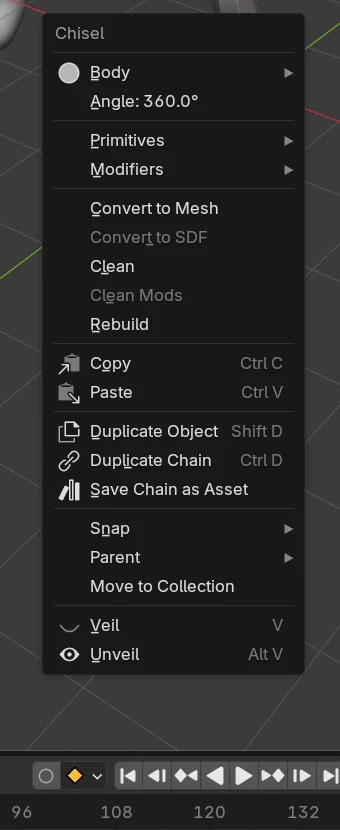
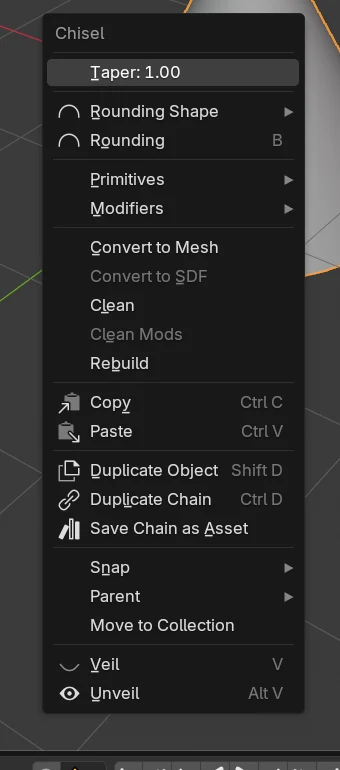
Profile rows
A profile submenu and a drag for each value the selection has. Each drag edits every matching selected shape; Smooth follows it where the Shape has one (Chamfer, every In shape).
| Rows | Shows for | Sets |
|---|---|---|
| Side Rounding Shape ▸, Side Rounding, Smooth | Oblong, Prism, Trapezoid, Polygon, and a Lathe that turns a section | The upright edges |
| Rounding Shape ▸ or Cap Rounding Shape ▸, then Rounding or Cap Rounding, Smooth | Shapes that round their ends | The edges of the caps. A Lathe shows Cap Rounding alone (no Shape submenu), and only while its turn is under 360° |
| Blend Profiles ▸, Blend, Smooth | A shape used by a Boolean or a Carve | The blend of every modifier that uses the selection |
| Offset | A shape used by a Carve | The carve offset |
| Outer Profiles ▸, Outer, Smooth; Inner Profiles ▸, Inner, Smooth | A shape used by an Emboss or Engrave | The outer and inner edges |
| Emboss or Engrave | The same | The strength |
The Shape submenus list Round, Sharp, Soft, Tight, Chamfer and Steps, the current one pressed in, then Out and In and, on Steps, a count. The blend submenus keep the words Blend Profiles, Outer Profiles and Inner Profiles. The drags’ keys are in Keymap ▸ During a drag.
Fixed rows
| Entry | What it does |
|---|---|
| Primitives ▸ | Adds or swaps shapes, see Primitives |
| Modifiers ▸ | Adds or changes modifiers, see Modifiers |
| Convert to Mesh | Opens Convert to Mesh |
| Convert to SDF | Turns the selected plain meshes into Chisel Mesh shapes, see Convert to SDF. Greyed out unless a plain mesh is selected |
| Clean | Removes the modifiers that use other shapes and makes the shape solid, see Clean |
| Clean Mods | Removes every modifier whose target is gone, see Clean Mods |
| Rebuild | Rebuilds the shape’s mesh, see Rebuild Mesh |
| Copy, Paste | Blender’s copy and paste of objects |
| Duplicate Object | Blender’s duplicate: the selected objects alone |
| Duplicate Chain | Chisel’s duplicate (Ctrl + D): the shape with its children and its targets, as one group. The copy joins every other stack that used the original. Mirror and Bisect planes are copied only when selected too |
| Save Chain as Asset | Saves the model as one asset, see Save Chain as Asset |
| Snap ▸, Parent ▸, Move to Collection | Blender’s own |
| Veil | Hides every shape with Render off, except the selection, see Veil & Unveil |
| Unveil | Shows the hidden shapes with Render off that the selection uses or parents |
Primitives
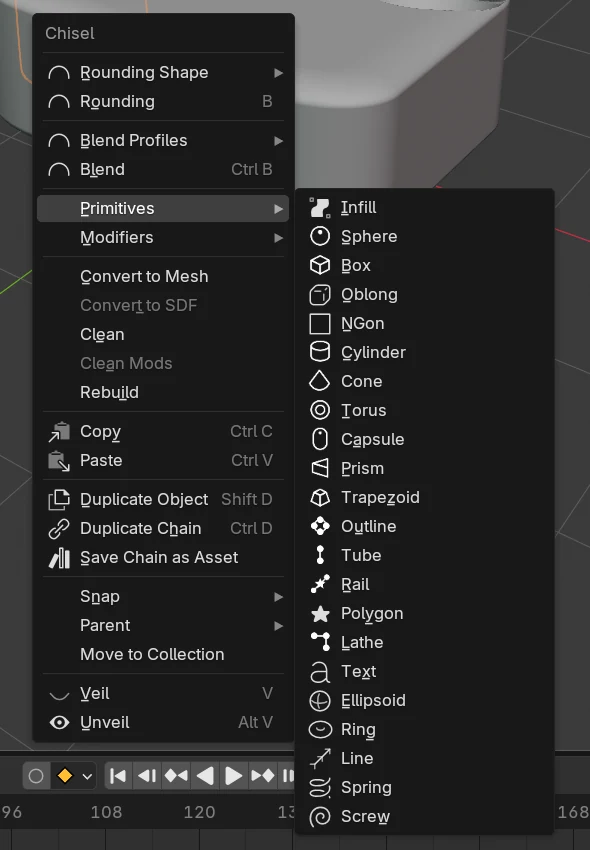
| Click | What it does |
|---|---|
| Click | Adds the shape at the 3D cursor |
Shift + click | Changes every selected Chisel shape to that type. Path shapes and Text keep their type: the message says the shape “is added, not swapped” |
The list: Infill, Sphere, Box, Oblong, NGon, Cylinder, Cone, Torus, Capsule, Prism, Trapezoid, Outline, Tube, Rail, Polygon, Lathe, Text, Ellipsoid, Ring, Line, Spring, Screw.
Modifiers
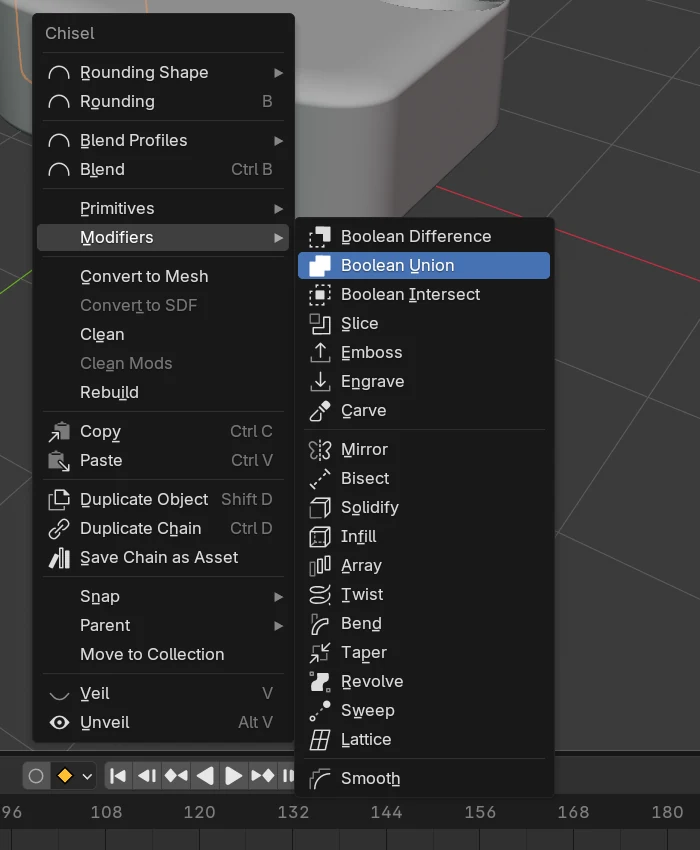
| Entry | What it does |
|---|---|
| Boolean Difference, Boolean Union, Boolean Intersect | Joins the other selected shapes into the active one as a Boolean |
| Slice | A Difference on the active shape and a cut-off copy with an Intersect |
| Emboss, Engrave | An Emboss or Engrave with the other selected shapes as targets |
| Carve | A Carve with the other selected shapes as targets |
| Mirror, Bisect, Solidify, Infill, Array, Twist, Bend, Taper, Revolve, Sweep, Lattice | Added to every selected shape |
| Smooth | Added to every selected shape, pinned at the bottom of each stack |
A click adds; Shift + click changes every join that uses the selection. With exactly one selected shape that a join already uses, that join’s entry is pressed in and the two swap: a click changes, Shift + click adds.