
Block Tool
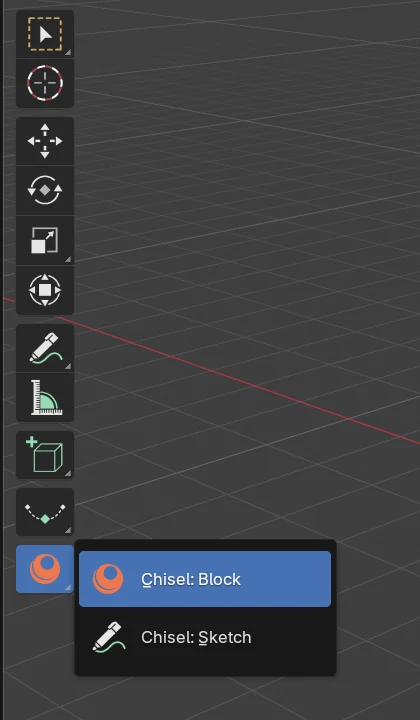
The Block tool is one of Chisel’s two tools in the 3D View. It shares one button at the end of the tool bar with the Sketch tool; the button shows whichever of the two you used last. Most of Chisel’s keys (the pie, the right-click menu, D, Tab) work only while the Block tool is active. Its keys are listed in Keymap.
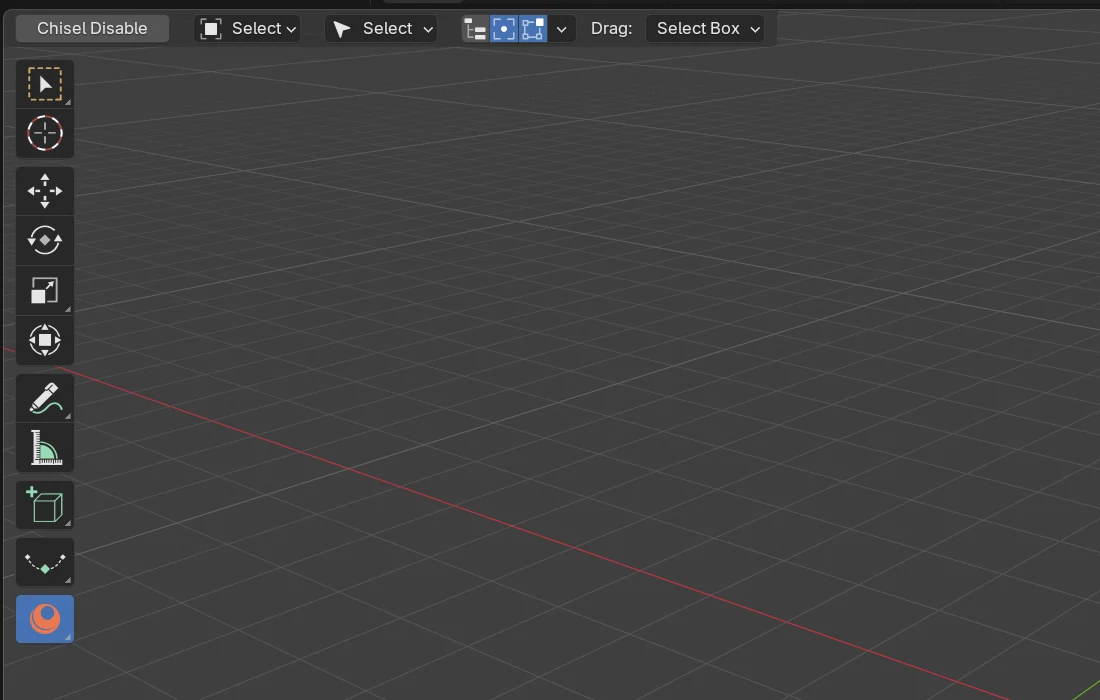
Switching between Block and Sketch
Alt + Q swaps the two tools: from the Block tool it activates the Sketch tool, and from the Sketch tool the Block tool. From any other tool it returns to the one of the two you used last (the Block tool the first time).
Select and Edit
The tool has two states, chosen with the drop-down at the left of the tool settings row:
| State | The left mouse button | Shows |
|---|---|---|
| Select | Does what the left-button mode says | The adjust arcs, the cutter wires and the dots on modifier targets. No point handles and no modifier handles |
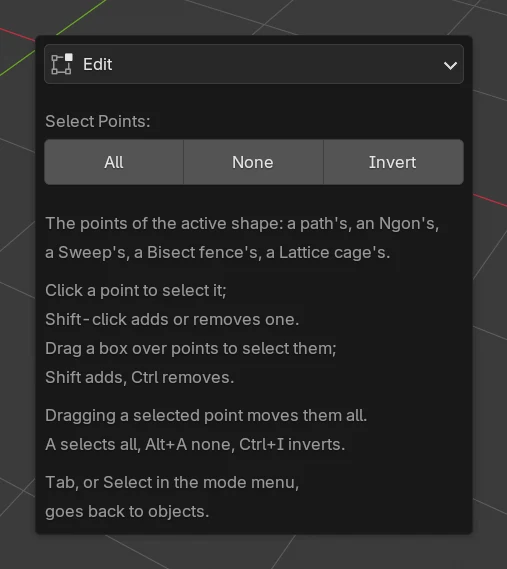
| Edit | Selects and moves points | The points of the selected shapes: an Ngon’s, a path’s, a Sweep’s, a Bisect fence’s, a Lattice cage’s, plus the shape’s own handles and the modifiers’ handles. See Edit Mode |
The drop-down in the tool settings row, the one in the D popup, and Tab switch between them. Tab does so on a Chisel shape or with nothing active; on any other object it stays Blender’s Edit Mode. Each switch is an undo step. Blender itself stays in Object Mode.
The four left-button modes (Select, Create, Block, Bisect) belong to the Select state. Where the manual says “the Select mode”, it means the left-button mode of that name, not the state.
The tool settings row

| Control | What it does |
|---|---|
| Chisel Disable | Sets the scene’s render engine to EEVEE and every 3D View to Solid. When Chisel is not the engine, a red Chisel Enable takes its place: it sets the engine to Chisel and every 3D View to Material Preview |
| Select / Edit drop-down | The tool’s state |
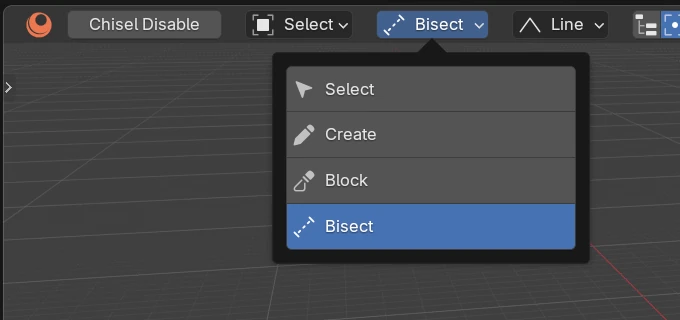
| Mode | What a left drag does in the Select state: Select, Create, Block or Bisect, see Modes. Not shown in Edit |
| the mode’s settings | Create, Block and Bisect add their settings here, see below |
| All, None, Invert, the wrench | Edit only, see Edit |
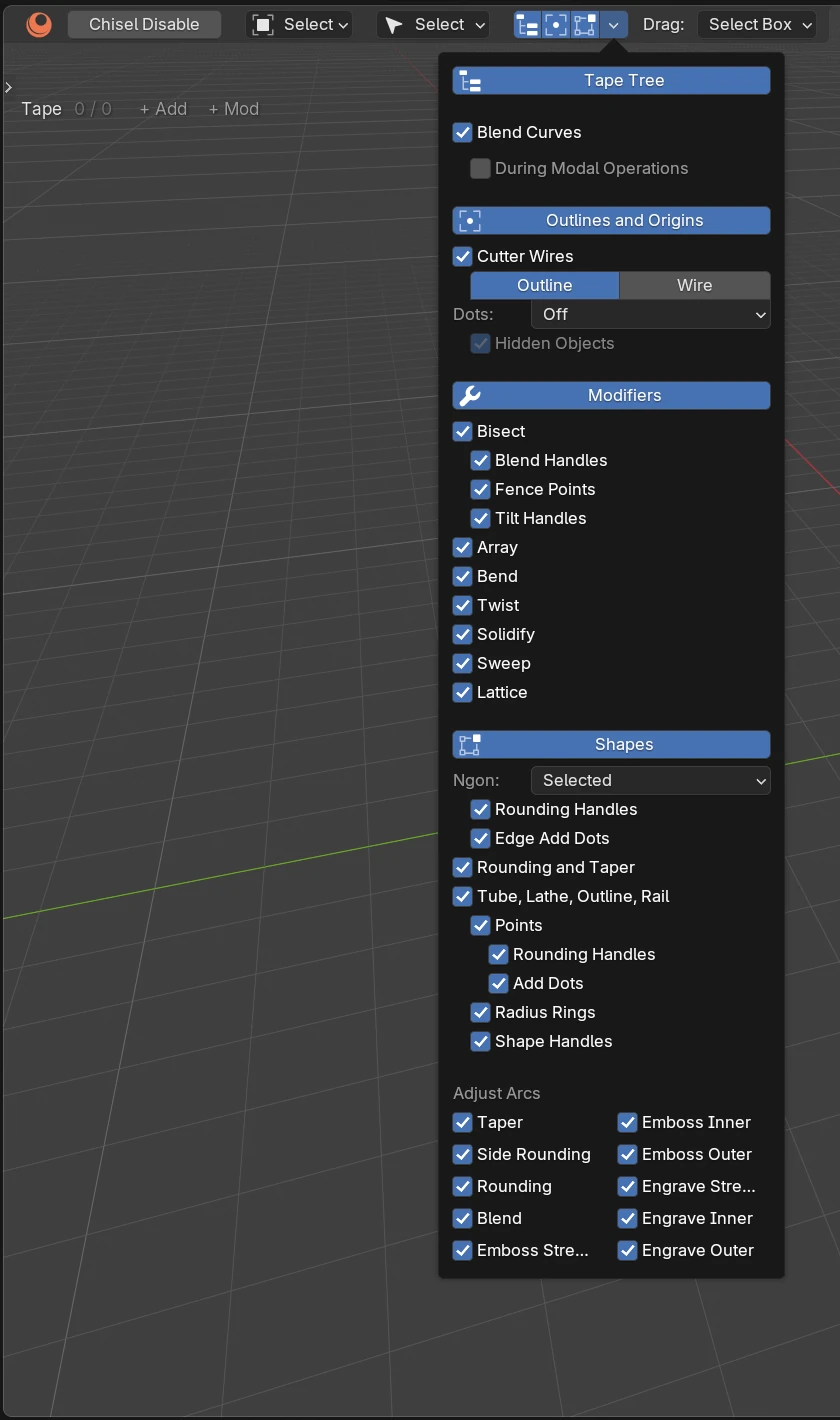
| Gizmo icons | Show or hide the Tape tree, the outlines and origins, and the shape handles, see Gizmo icons |
| Gizmo drop-down | Every gizmo switch, one by one, see Gizmo icons |
| Drag | Blender’s select tool for a left drag in the Select mode: Tweak, Select Box, Select Circle or Select Lasso. In the other modes it reads Active Tool, so a drag draws |
Modes
| Mode | A left drag |
|---|---|
| Select (default) | Selects, with the Blender select tool picked in Drag |
| Create | Draws a new shape where you drag, sized by the drag |
| Block | Draws a base on a surface and pulls it to a height, see Block Mode |
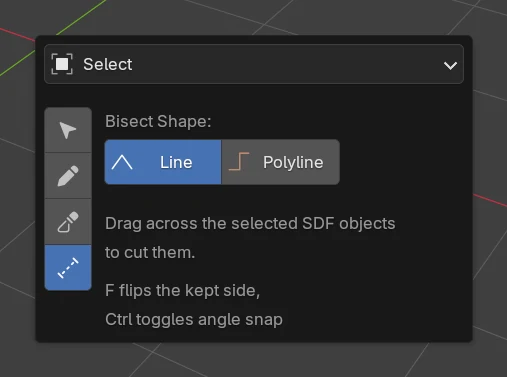
| Bisect | Draws a cutting line across the selected Chisel shapes |
A left click without a drag selects in every mode.
Create mode

Release, Space or Enter keeps the shape; RMB or Esc cancels. A drag under 4 pixels makes a near-zero shape, so a stray click does not drop a full-size one.
Shape
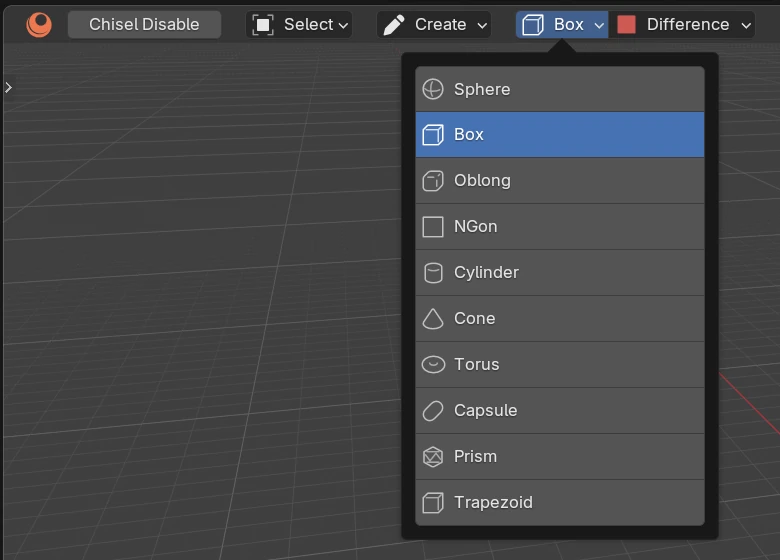
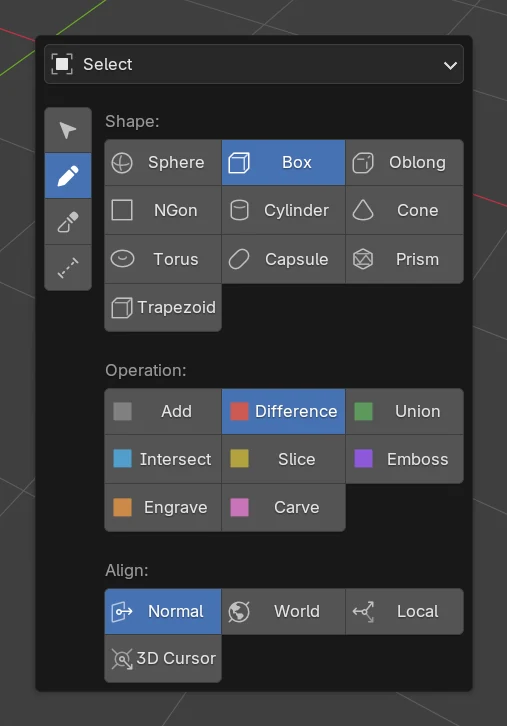
Sphere, Box (default), Oblong, NGon, Cylinder, Cone, Torus, Capsule, Prism, Trapezoid: the shape a drag draws. Each is described under Shapes.
Operation
The same setting serves Create and Block mode.
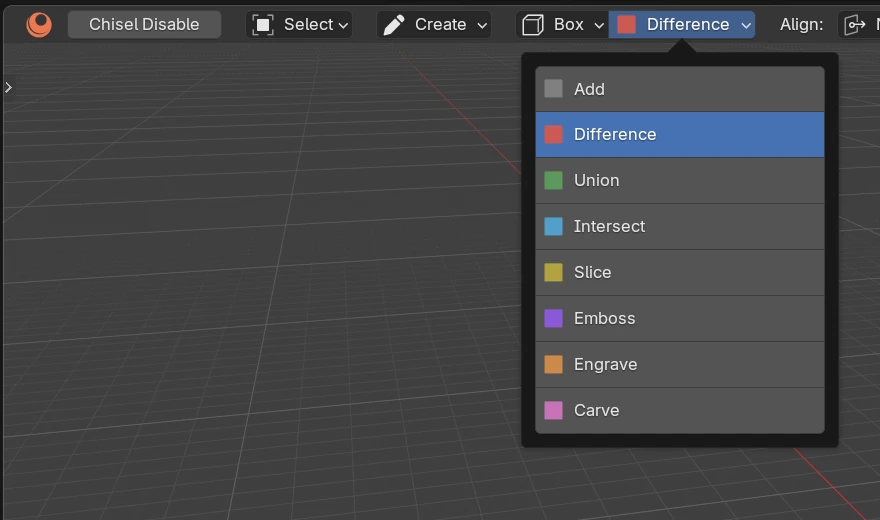
| Operation | What the new shape does to the selected Chisel shapes |
|---|---|
| Add | Nothing: it stands on its own |
| Difference (default) | Cuts them, see Boolean |
| Union | Joins them |
| Intersect | Keeps only the overlap |
| Slice | Cuts them and keeps the cut-off part as a separate copy |
| Emboss | Raises their surface where it overlaps, see Emboss & Engrave |
| Engrave | Recesses their surface where it overlaps |
| Carve | Cuts them with its solid grown by an offset, and keeps rendering, see Carve |
Every operation except Add needs at least one selected Chisel shape.
Align
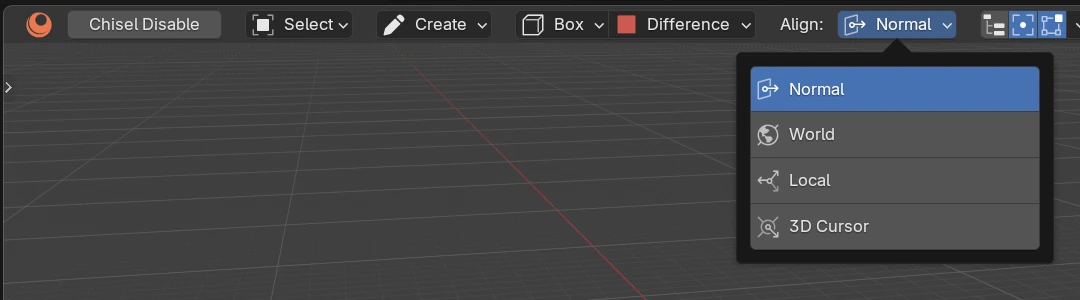
| Align | The new shape’s Z axis |
|---|---|
| Normal (default) | Along the surface normal under the cursor |
| World | The world axes |
| Local | The axes of the object under the cursor |
| 3D Cursor | The 3D cursor’s rotation |
Block mode

Shape, Operation and Align are described in Block Mode.
Bisect mode

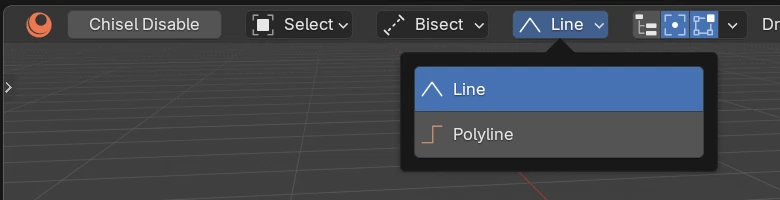
| Bisect Shape | The cut |
|---|---|
| Line (default) | One drag: one cutting plane |
| Polyline | A drag for the first segment, then a click for each corner; Space or Enter keeps it, Backspace removes the last corner. The cut is a fence of joined planes |
While drawing, F flips which side is kept and Ctrl toggles angle snap. Each selected shape gets its own Bisect modifier.
Edit

| Control | What it does |
|---|---|
| All | Selects every point of the selected shapes (A) |
| None | Deselects every point (Alt + A) |
| Invert | Inverts the point selection (Ctrl + I) |
| Wrench (Modifier Gizmos) | Shows or hides the modifiers’ handles: Bisect, Array, Bend, Twist, Solidify, Sweep and Lattice. On by default |
The three buttons are greyed out while no selected shape has points. The Mode list is hidden in Edit.
Gizmo icons
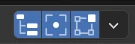
| Icon | Shows or hides |
|---|---|
| Tape Tree | The Tape tree |
| Outlines and Origins | The cutter outlines and the dots on modifier targets |
| Shape Gizmos | The shapes’ own handles: an Ngon’s dots, the path handles of a Tube, Lathe, Outline or Rail, and a shape’s Side Rounding, Cap Rounding and Taper handles |
| Drop-down | Chisel Gizmos: every family and the adjust arcs, one by one |
All three are on by default. A shape’s handles and the modifiers’ handles show only in the Edit state; in Edit the wrench sits before the three icons.

The drop-down opens Chisel Gizmos. Its switches are described in Gizmos.
The D popup
D opens the tool’s settings at the cursor. The Select / Edit drop-down runs across the top; in the Select state, a rail of the four modes runs down the left, and the body holds the picked mode’s settings, the same as in the tool settings row.
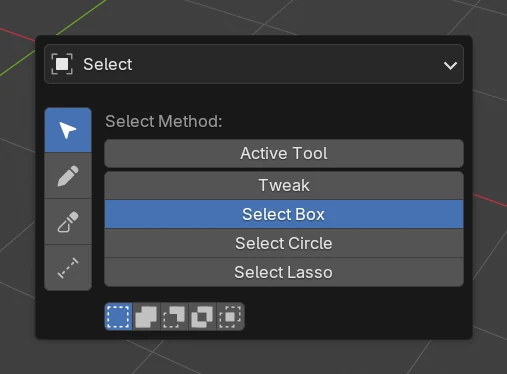
What the popup adds to the row:
| Body | Adds |
|---|---|
| Select | Select Method (Active Tool, Tweak, Select Box, Select Circle, Select Lasso) and the buttons for how a box, circle or lasso changes the selection: set, extend, subtract, invert, intersect |
| Create | Shape, Operation and Align as grids of buttons |
| Block | Shape, Operation and Align as grids, and Properties, a fold (closed by default) with the plane options of Block Mode |
| Bisect | Bisect Shape and a reminder of the drawing keys |
| Edit | All, None, Invert and a reminder of the point keys |
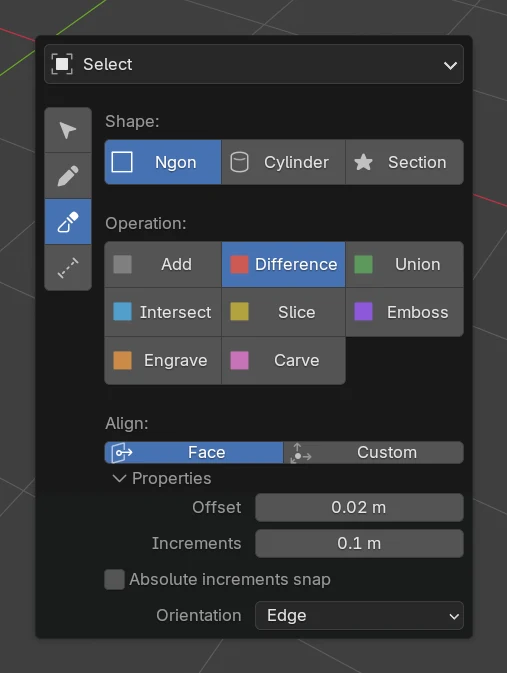
Everything changed in one opening of the popup is one undo step.