
Gizmos
The Gizmos panel in Render Properties holds the per-scene toggles for everything Chisel draws on top of your viewport: the arc-and-dot widgets that adjust rounding and blend radii, the modifier-target dots, the Ngon point editor, the Sweep path, the Lattice cage, and the Bisect plane handles.
For how the gizmos behave during interaction (drags, hotkeys, colour coding), see Interface: Gizmos. This page covers only the visibility settings, grouped into four sub-panels: Arcs, Dots, Ngon (which also carries the Sweep and Lattice switches), and Bisect.
Visibility gates
Every family has the same pair of toggles under Gate On at the top of its sub-panel. Both gates AND on their on sides:
- Active Object: tie the family to Blender’s own Show Gizmo → Active Object viewport flag. Off means that flag is ignored.
- Chisel Tool: only draw the family while the Chisel tool is the active workspace tool. Off means any tool works.
| Active Object | Chisel Tool | Family draws when |
|---|---|---|
| off | off | always |
| off | on | the Chisel tool is active |
| on | off | Show Gizmo → Active Object is on |
| on | on | both of the above |
Defaults: Arcs has Active Object on and Chisel Tool on; every other family has Active Object off and Chisel Tool on.
The dot families (Ngon, Sweep, Lattice, Bisect) also need the object to be both active and selected. Deselect it and they go away.
Arcs
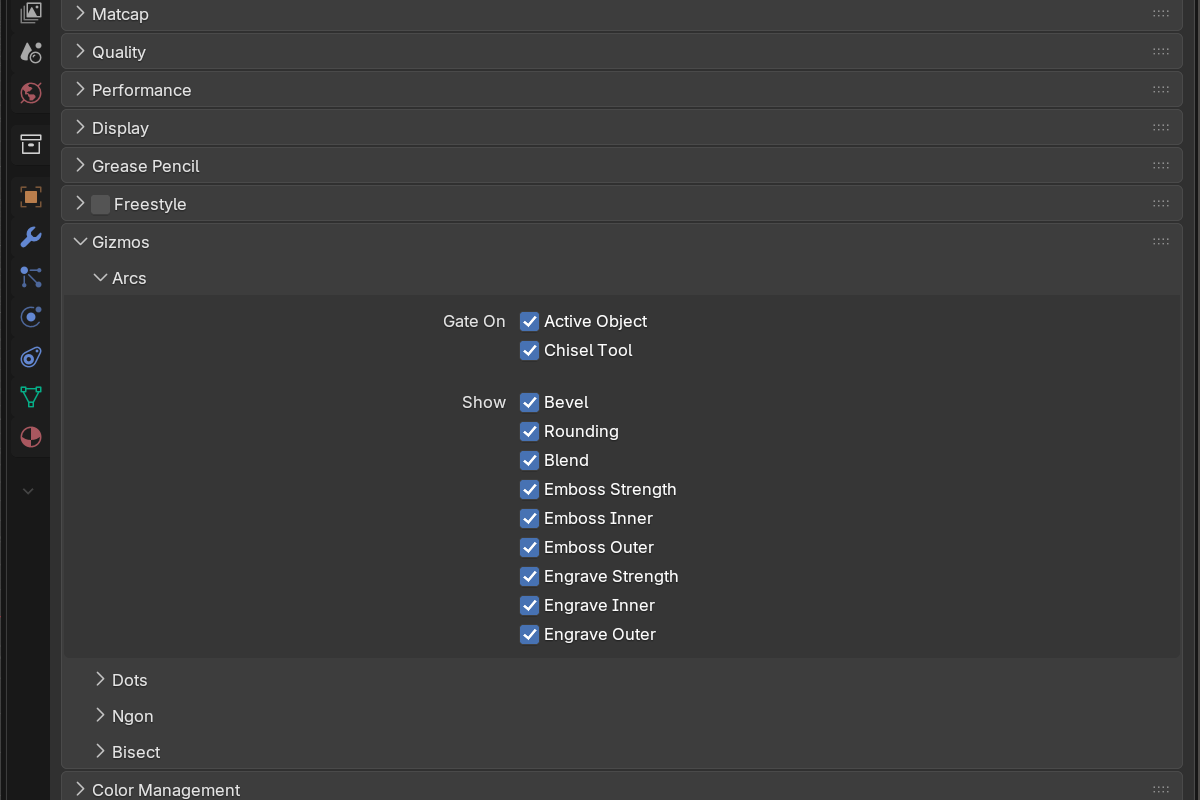
The arc cluster is the ring of draggable fillet handles. Below the two gates is a per-arc enable list, so you can hide the handles you never touch on a given kind of object:
- Bevel: vertical / corner-edge bevel arc
- Rounding: cap and edge rounding arc
- Blend: boolean, carve, mirror, array, and bisect seam blend
- Emboss Strength / Emboss Inner / Emboss Outer
- Engrave Strength / Engrave Inner / Engrave Outer
All are on by default. The Carve offset arc has no switch of its own; it follows the two gates.
Dots
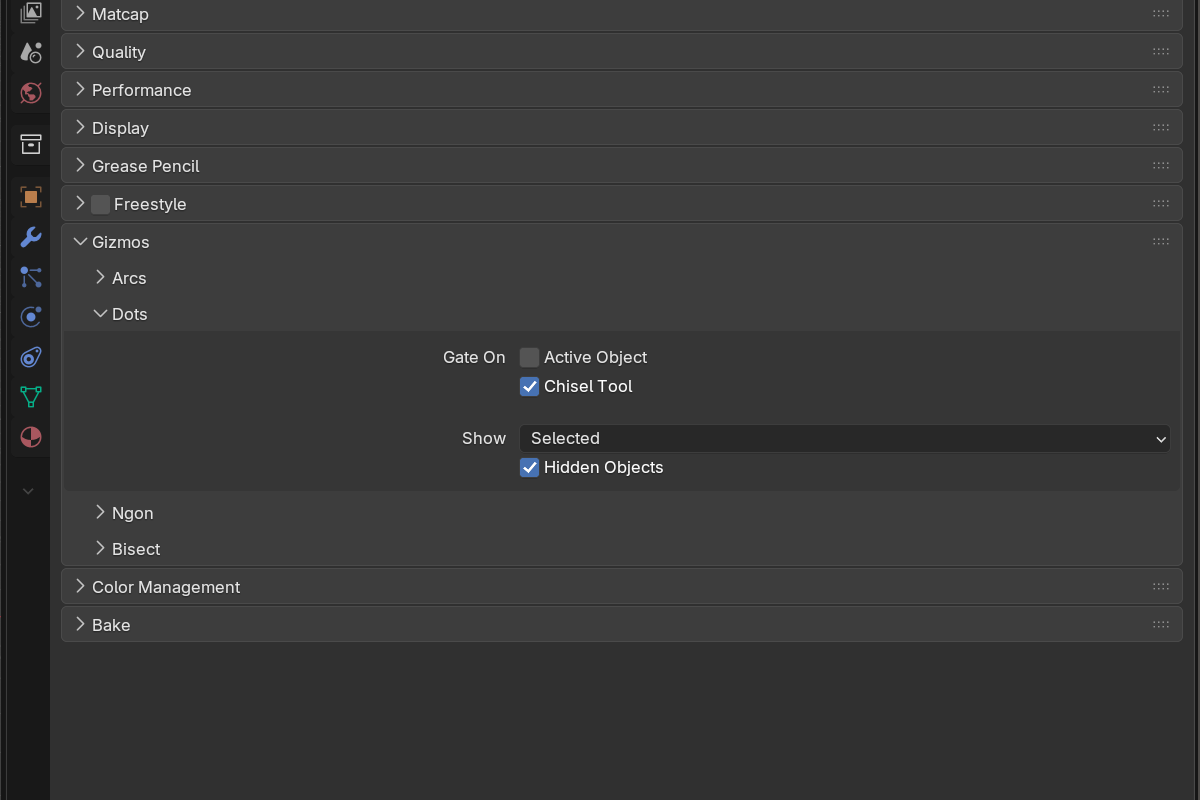
Modifier dots are filled circles at each modifier target’s origin, coloured by modifier type. Click one to make that target the sole active selection, the fastest way to grab a cutter buried inside the shape it cuts.
- Show: which objects get dots:
- Active: the active object’s targets, while it is also selected
- Selected (default): every selected object’s targets
- Off: no dots
- Hidden Objects: default on: every target keeps its dot whether it is hidden or not, so a veiled cutter stays one click away. Off, targets hidden in the viewport (with
Hor Veil, Disable in Viewports, a hidden collection, or outside the local view) draw no dot.
Ngon
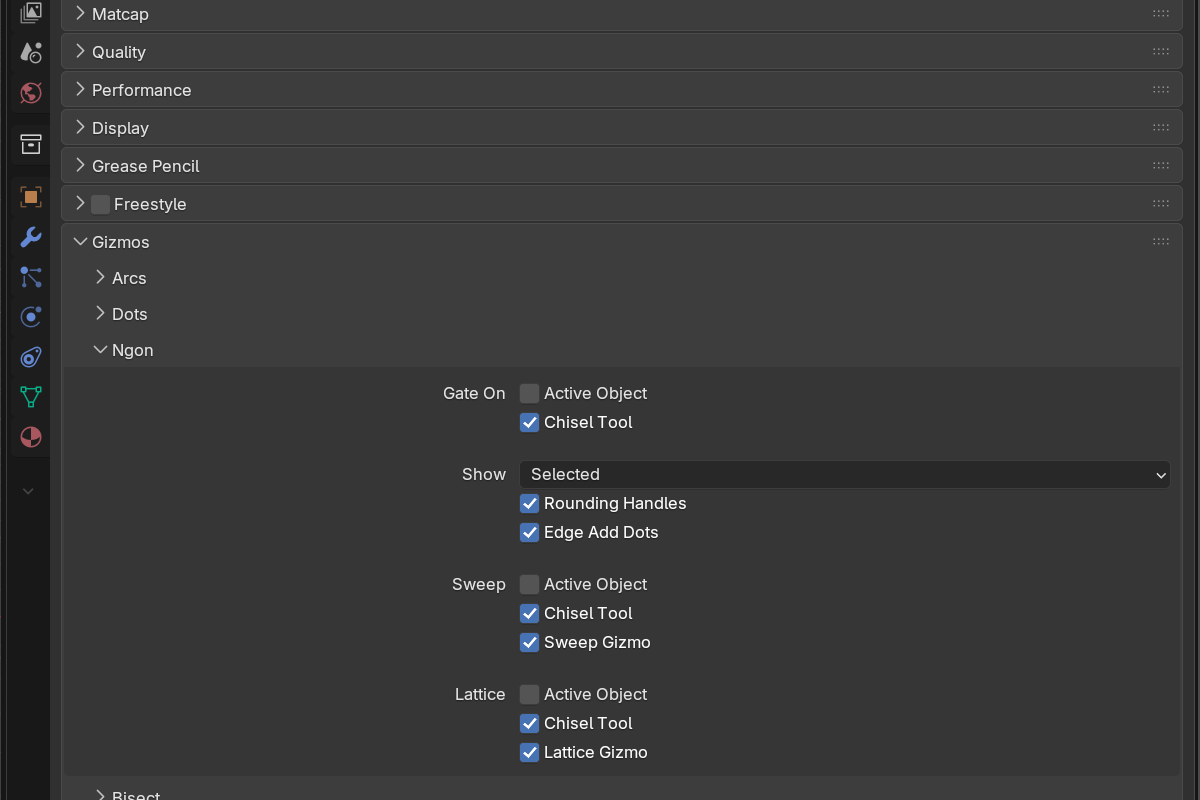
Controls the Ngon editing gizmo, and hosts the switches for the Sweep and Lattice gizmos below it.
- Show: which Ngons get the editing gizmo:
- Active: the active Ngon, while it is also selected
- Selected (default): every selected Ngon at once; a dot on a non-active Ngon edits that shape and makes it active
- Off: the whole family hidden
- Rounding Handles: the orange corner-rounding handle (and its connector line) next to each vertex
- Edge Add Dots: the green insert-vertex dot that appears at an edge midpoint when the cursor comes near it
Turn off Rounding Handles and Edge Add Dots if you only want to drag points, and the outline stays much cleaner on a dense polygon.
Under the Sweep heading: its own Active Object and Chisel Tool gates plus Sweep Gizmo, the master switch for the Sweep path dots, rounding handles and insert dots. Under Lattice: the same two gates plus Lattice Gizmo, for the Lattice cage dots and wireframe.
Bisect
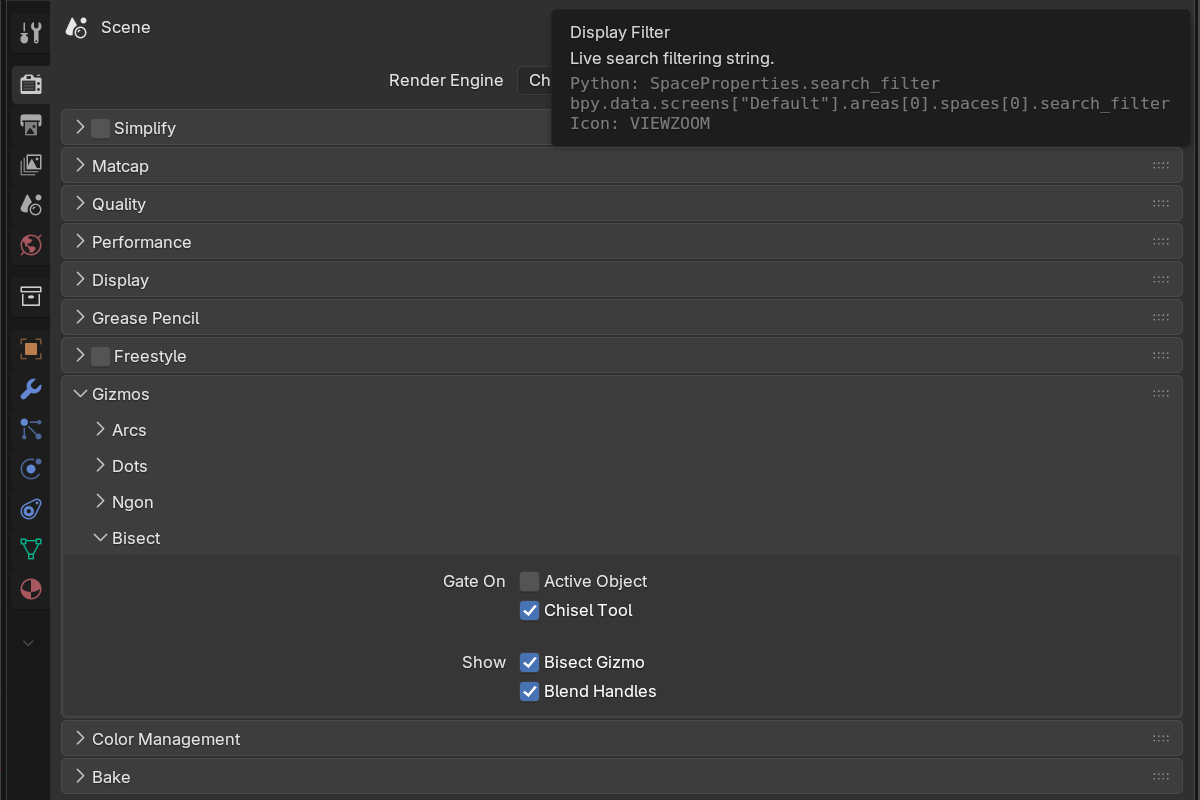
Controls the Bisect plane handles.
- Bisect Gizmo: master toggle: the blue move arrow on every cutting plane, plus the blend handles below
- Blend Handles: the orange ring around each Bisect’s first arrow (the cut-edge blend) and the orange dot on every polyline corner (that corner’s own blend). Turn off to keep just the arrows.
See also
- Interface: Gizmos: gizmo behavior, color coding, modal interaction
- Rounding and Blending: full modal hotkeys
- Preferences: gizmo theme colors and arc geometry