
Material Panel
The Chisel Material panel lives in Material Properties (red sphere icon) when the active object is a Chisel SDF and the render engine is set to Chisel.
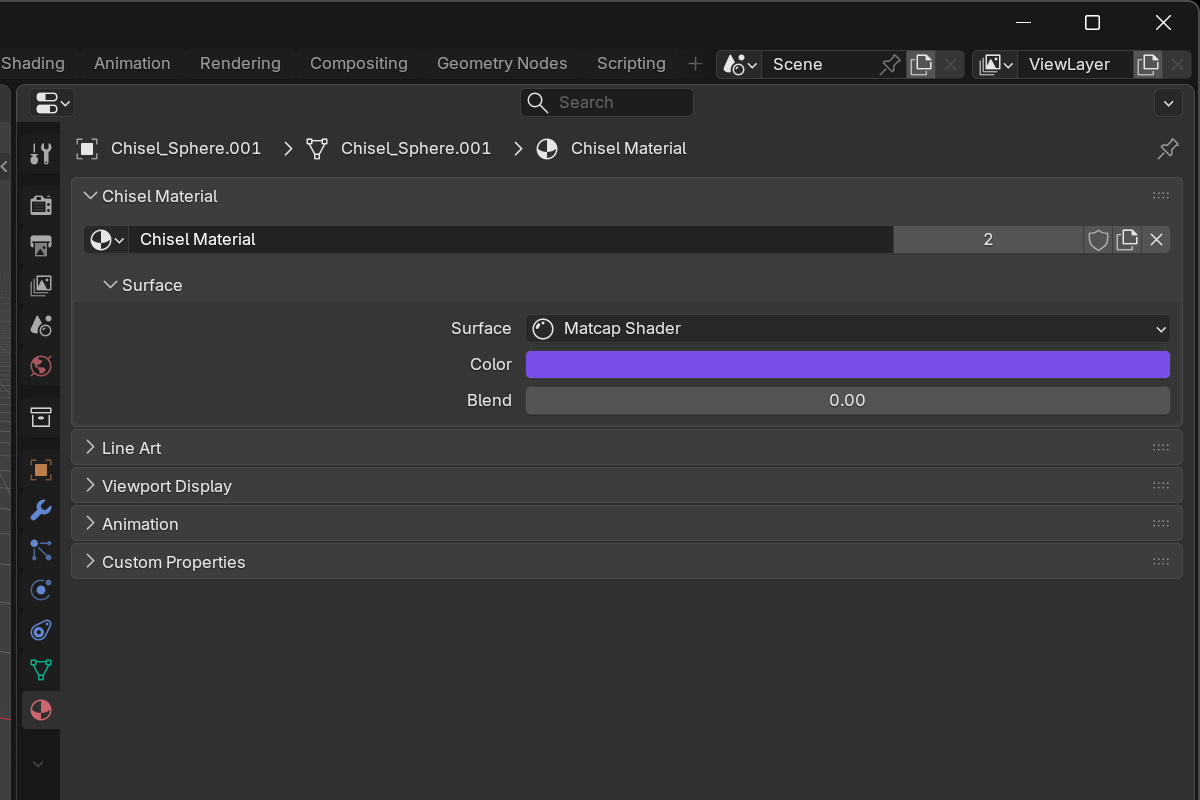
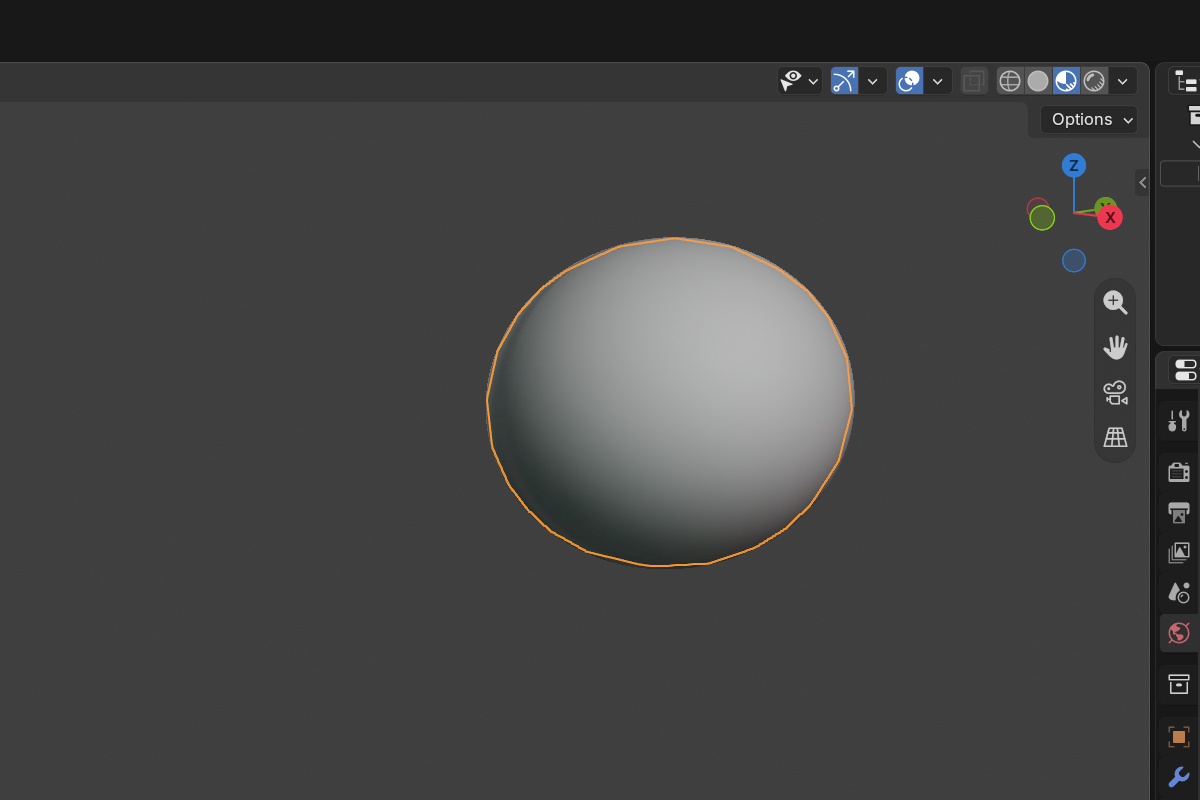
With no per-object color set, everything shades with the scene matcap:
Material
The picker at the top is the object’s Chisel material. Click New Chisel Material to create one with a default node tree (a Matcap Shader feeding the Material Output), or pick an existing material from the list.
The material is owned by the object rather than by its mesh data, which Chisel swaps behind the scenes for proxy geometry, so proxy re-bakes, undo and redo all keep it. Files from earlier versions adopt their old slot material automatically on load.
When the slot disagrees
If you assign a different material in Blender’s own material slot (from the Material tab’s slot list, a script, or a linked asset) the panel points out the divergence:
Object slot holds: Brass Chisel renders the material above, not this.
Click Use “Brass” Instead to make the slot material the Chisel material. Adoption is never automatic.
Color (no node tree)
When the material has no node tree yet (a fresh slot, or an imported non-Chisel material that you’ve just promoted), the panel shows a single control:
- Color: RGB value (default
0.8, 0.8, 0.8). Multiplied into the matcap so each object can carry its own tint without disturbing scene-wide shading.
For most modeling work this is all you need. Drag the swatch, pick a color, move on.
If you later want richer behavior (mix shaders, masks, blended colors across booleans), click Create Node Tree and the panel switches to the editor hint described below.
Surface
Once a node tree exists, a Surface sub-panel shows the shader behind the Material Output and its inputs inline. Pick Matcap Shader for one colour tinting the scene matcap, or Mix Shader to blend two shaders by an SDF field, and edit their inputs without leaving the panel:
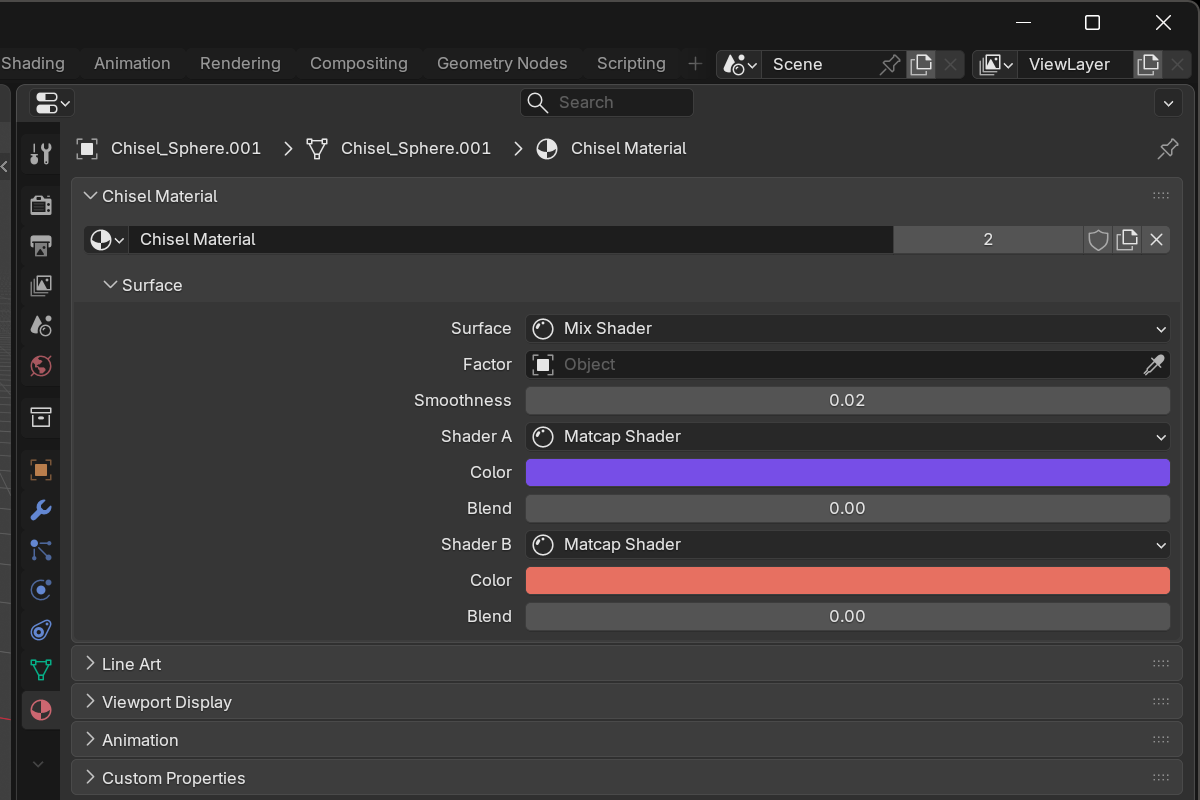
A Mix Shader takes a Factor object whose field decides which side shows, a Smoothness for the width of the transition, and a Shader A and Shader B that can themselves be Matcap Shaders with their own colour. Nested shaders open below; anything deeper says Edit in Node Editor.
For the full graph, open a Node Editor area and switch its tree type to Chisel Material in the header. See Node Editor for the available nodes and how they connect.
Live render preview
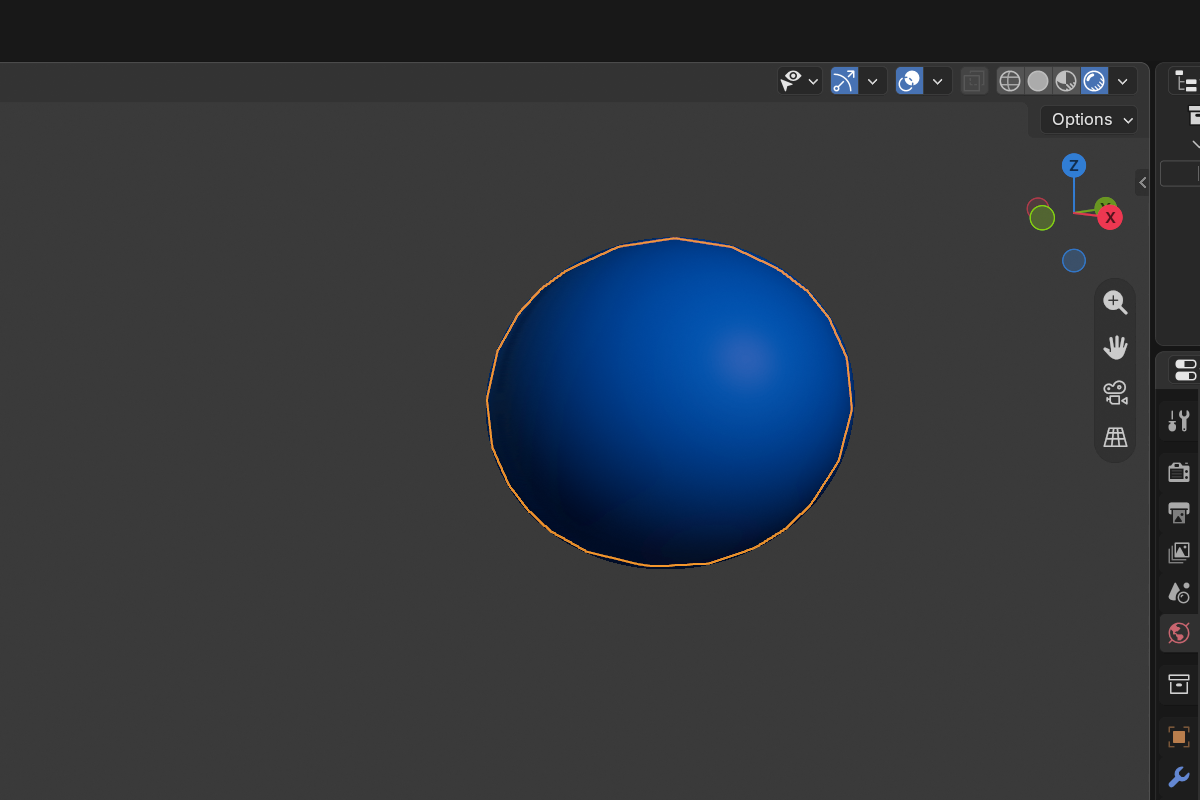
Material edits update live in the viewport while the Chisel engine is active. There’s no separate preview render. Use viewport shading at Material Preview level to see the matcap shading; Solid mode falls back to the proxy mesh and won’t show your color choices accurately.
See also
- Node Editor: the Chisel Shader Editor reference
- Render Engine: Matcap: scene matcap that the per-object color multiplies into
- Modifiers: Boolean: Material Blend width across boolean seams. A Carve has none: its pocket always keeps the base material