
Matcap
Chisel uses Blender’s matcap library for shading. Pick a matcap from the dropdown. It’s the same list as Blender’s solid-mode matcaps, plus a few SDF-friendly defaults.
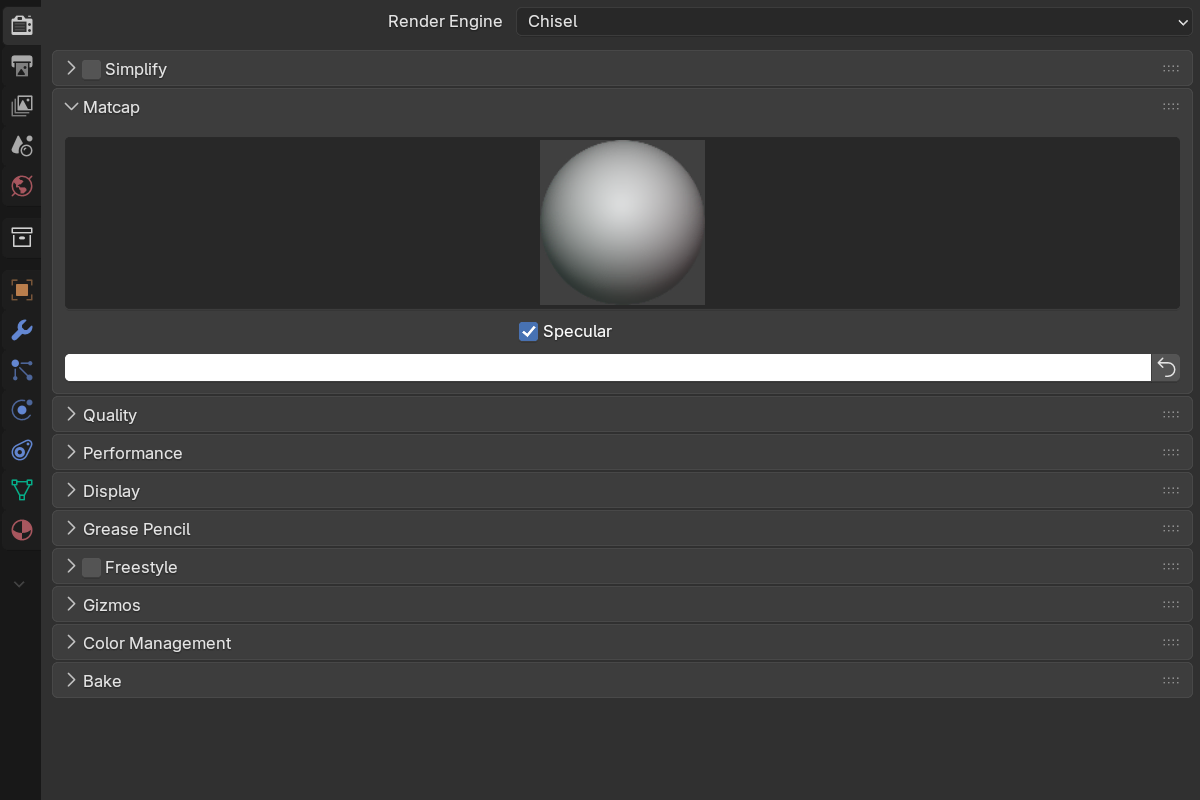
Parameters
- Matcap: choose from the available matcaps (populated dynamically from Blender’s
studio_lightsAPI). - Use Specular: when on, applies the matcap’s specular layer if it’s a multi-layer studio light. Some matcaps ship a separate spec layer that captures highlight detail; toggle this to enable or disable that layer.
- Matcap Color: RGB tint multiplied over the matcap diffuse. White (
1, 1, 1) leaves the matcap untouched. Use a cool tint for chrome, warm for brass, etc. The Reset button next to it returns the tint to white.
Blender includes a varied set out of the box. You can also drop additional .exr matcaps into Blender’s datafiles/studiolights/matcap folder to extend the library.
The choice is saved by the matcap’s name, not its position in the list, so a file keeps its matcap when opened on another machine, another Blender version, or after you add or remove custom matcaps. A matcap the file names but this machine lacks falls back to the first in the list.
Per-object color
Each Chisel object also has its own Color in Material Properties. That’s what gets multiplied with the matcap to give per-object tint. The scene-wide Matcap Color applies on top of all of them.
See also
- Display: outline and mesh-object draw modes
- Interface: Object Panel: per-object color