
Convert to Mesh
Convert one or more Chisel objects into standard Blender meshes for export, sculpting, or use in any other engine.
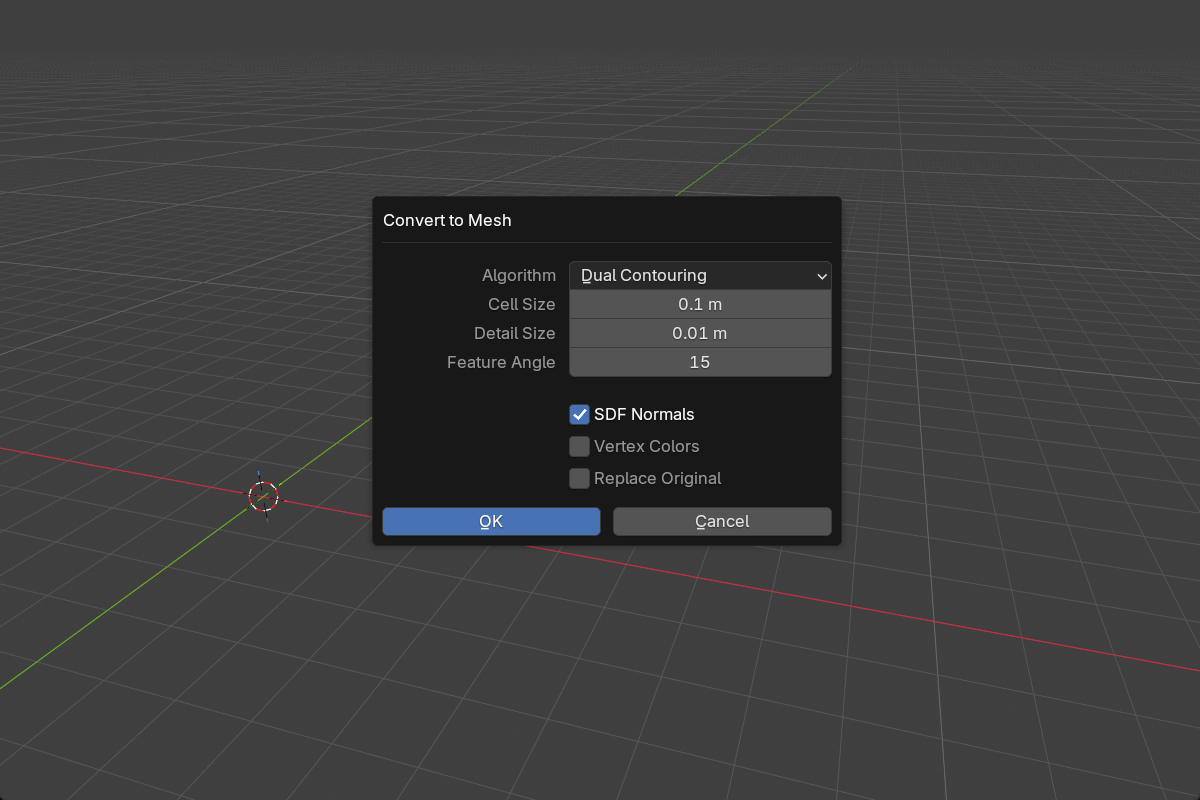
Workflow
- Select one or more Chisel objects.
- Click To Mesh in the Object Properties panel, open the pie menu (
Q) and pick To Mesh, or right-click and choose Convert to Mesh. - The settings dialog shows a live grid overlay previewing the cell size.
- Choose the algorithm and adjust settings, then confirm.
- The SDF is sampled and a polygon mesh is generated.
Converted meshes go into a Remesh collection. With Replace Original on, the SDF object is converted in place instead.
Launching Convert to Mesh from the right-click menu now opens this options dialog, instead of running with the last-used defaults.
Common parameters
- Cell Size:
0.001–1.0Blender units (default0.1). Grid cell size. Smaller = more detail, slower conversion. Resolution is computed from cell size and the object’s bounding box, and capped at256cells per axis for Dual Contouring (1024for Marching Cubes). A cell size that would go past the cap is clamped with a note in the console instead of exhausting memory. - SDF Normals: default on. Use the SDF gradient as custom split normals on the converted mesh, so its shading matches the ray-marched preview.
- Vertex Colors: default off. Bake SDF material colors into a vertex color attribute on the converted mesh.
- Replace Original: default off. Replace the SDF object in place, or create a new mesh alongside it. Works on curve shapes too, and keeps the converted mesh safe when a proxy mesh was in use.
Algorithms
Dual Contouring (default)
Quad-dominant meshes with sharp-edge preservation via QEF solving. Best for hard-surface modeling.
- Detail Size:
0.0001–0.1, default0.01. Cell size near features. When smaller than Cell Size, enables adaptive octree refinement. - Feature Angle:
5°–90°, default15°. Normal deviation that triggers refinement (lower angle = more refined detail).
Marching Cubes
Classic triangle-mesh algorithm. Uniform grid, no adaptive refinement, capped at 1024 cells per axis.
Best for smooth, organic surfaces where sharp edges aren’t needed.
Fidelity
Conversion runs about twice as fast as in 4.0 on a quarter less memory, and the generated mesh is identical. It matches the rendered surface closely:
- Chamfered booleans no longer cut flat faces through the result.
- Chamfer-smooth blends are no longer clipped flat at the mesh boundary. The meshing domain expands to cover the full blend, so what you see in the viewport is what you get in the mesh.
- Converted normals match the rendered surface. Normal sampling stays inside tight chamfer fillets, and sharp edges and boolean seams fall back to geometric normals instead of shading as dark spots.
The other direction
Convert to SDF does the inverse: it bakes a regular mesh object into a signed-distance grid so it composes with booleans, blends, and modifiers like a native primitive. Both operators live side by side on the RMB menu.
See also
- Convert to SDF: bringing polygons into the field
- Primitives: Mesh: the shape that conversion produces
- Apply Modifiers: convert and clean up the source shapes in one step
- Rebuild Mesh: proxy mesh refresh (separate from full conversion)
- Render Engine: Baking: texture bakes without converting