
Mesh Primitive
The Mesh primitive turns any Blender mesh object into an SDF shape. Chisel bakes the mesh into a signed-distance grid once, and from then on it behaves like every other primitive: it takes booleans, blends, mirrors, arrays, twists, and materials, and it renders in the ray-marched viewport alongside native shapes.
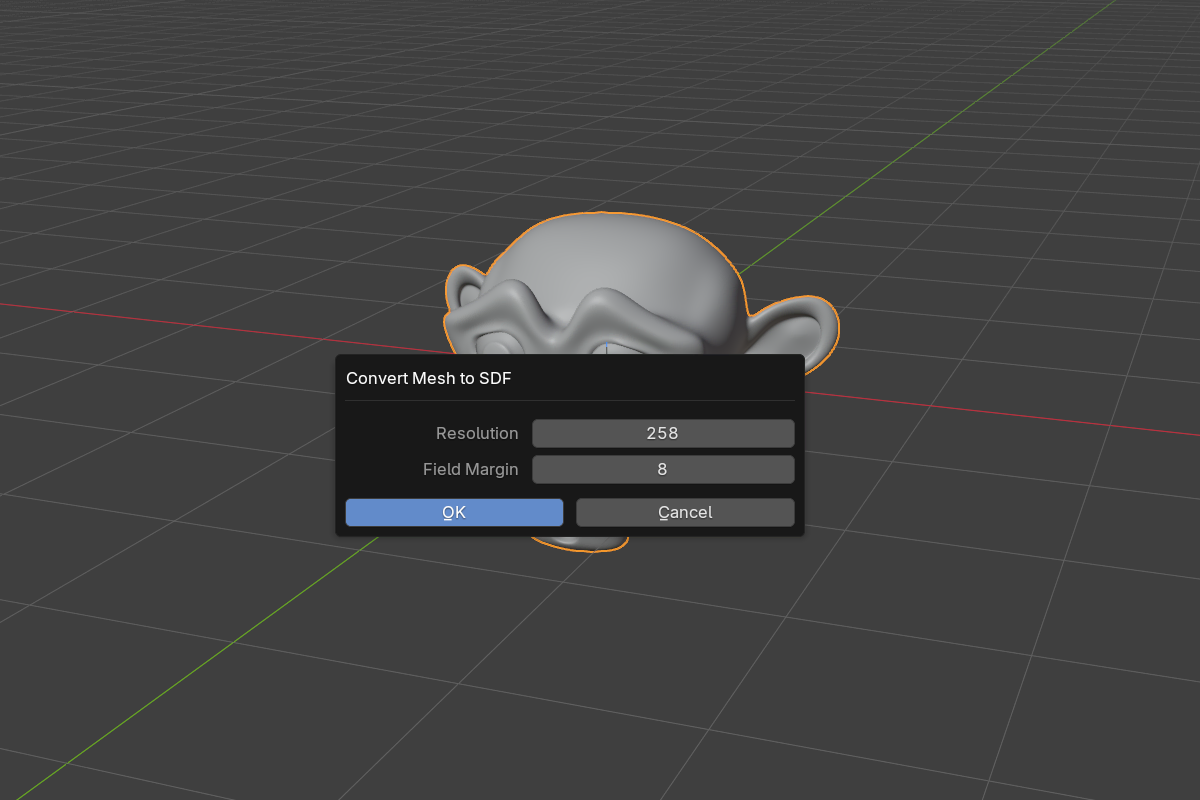
This is the inverse of Convert to Mesh: instead of leaving the field for polygons, you bring polygons into the field. The step-by-step walkthrough is on Convert to SDF; this page covers the shape it produces.
Converting a mesh
- Select one or more regular mesh objects (not already Chisel objects).
- Run Convert Mesh to SDF from either:
- Object Properties → SDF → Convert Mesh to SDF (the button shown under the Chisel toggle while the object is not yet a Chisel object), or
RMB → Convert to SDFwith the Chisel tool active.
- Set the bake options in the dialog, then confirm.
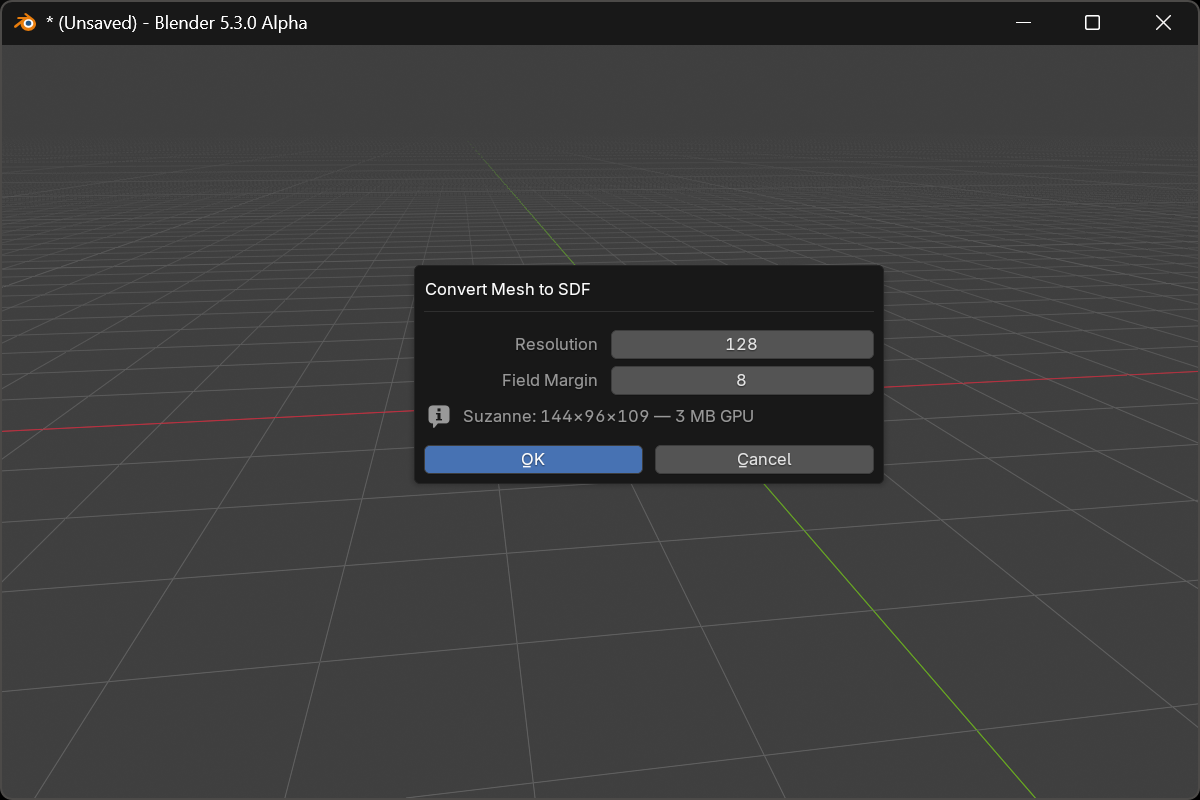
The dialog prices each selected object live as you move the Resolution slider (grid size and GPU memory per object) and marks in red any grid that would not fit this GPU or the SDF Store Budget, naming the largest resolution that does. Nothing bakes while any object is refused.
The bake runs on a background worker: the status bar shows Chisel: baking SDF <n>% with a per-object counter, and Esc cancels mid-bake. The original mesh datablock stays as the object’s data. It is the display proxy, so the object keeps its wireframe, bounds, and selection silhouette.
Bake options
- Resolution:
8–1024, default128. Grid cells along the mesh’s longest axis. This is the single biggest quality/cost lever: above roughly256the grid starts costing gigabytes of VRAM and the bake takes minutes. - Field Margin:
6–64voxels, default8. The exact-field shell baked around the mesh surface. Emboss strengths and blend widths have to fit inside this shell, so raise it if a wide blend or a deep emboss against the mesh looks clipped.
Both values are stored on the object as Bake Resolution and Field Margin, and can be edited afterwards in Object Properties → SDF, next to the Rebake SDF button.
Rebaking
Editing the source mesh does not automatically re-bake the grid. The field is a snapshot, and the panel shows a red SDF is stale — mesh edited banner until you refresh it. Press Rebake SDF in the SDF panel: the bake re-runs with the object’s current Bake Resolution and Field Margin, on the same background worker, and the banner clears. Rebake checks the grid against GPU memory the same way Convert does, and the exact-field shell around the mesh is kept when the mesh changes.
When a grid does not fit
A grid the GPU cannot hold (a file from a bigger card, a budget that shrank, a grid that is still baking) is drawn as a box of its bounds rather than failing the scene. The viewport header counts these placeholders, and the object panel shows a Shown as placeholder box with the reason and a Rebake to fit (Resolution N) button that lowers Bake Resolution to the largest value this GPU can hold and rebakes. A healthy shape whose stored resolution has since become too large shows an over budget hint under the slider instead. Nothing is rewritten until you press the button, and the file changes only if you save.
Composing with native primitives
Once converted, a mesh prim is just another shape in the chain:

- Boolean it against native primitives with smooth blends; the fillet crosses the mesh/primitive seam like any other
- Emboss or engrave a mesh stamp into a Chisel surface
- Mirror and array it (arrayed mesh chains reuse a single baked copy for their proxy)
- Give it a Chisel material and it shades with the rest of the scene
Normals and winding
The bake reads the evaluated mesh, so the object’s Blender modifier stack is applied first. Two things affect the result:
- Shading: a smooth-shaded source bakes with smooth normals; a flat-shaded source bakes faceted. The operator reports which path it took per object.
- Winding: the sign of the field comes from face orientation. If a mesh has mixed orientation, Chisel reports a winding confidence warning and the inside/outside test may be wrong in places. Run
Mesh → Normals → Recalculate Outsideon the source and re-convert. - Degenerate triangles: zero-area faces are skipped cleanly; they no longer poison the grid around them.
Storage and file loading
Baked grids are cached by content hash and, by default, stored compressed inside the .blend so reopening a file loads them in milliseconds instead of re-baking. This is budgeted per grid (256 MB by default); see Mesh-SDF storage for the Store SDF Bakes in File toggle and its size budget. On the GPU the grids live at half precision, half the memory of 4.0, and the session cache that holds them in system memory is bounded so grids no longer pile up.
Grids that exceed the budget (or were never stored) re-bake on a background thread when the file opens: the prim appears as soon as its bake lands, and the viewport stays responsive in the meantime.
Type cycling
A mesh prim is not cycle-reachable: [ / ] and the Type submenu never turn a native primitive into a Mesh, or a Mesh into a native primitive. Conversion is always explicit.
See also
- Convert to Mesh: the opposite direction, SDF out to polygons
- Standard Shapes: the ten native primitives
- Display → Mesh-SDF storage: persistence budget
- Apply Modifiers: a whole chain baked into one mesh shape
- Modifiers: Boolean: composing the mesh prim with other shapes
- Modifiers: Carve: keep the carve offset inside Field Margin