
Carve
Carve is a difference boolean that cuts with a grown copy of another shape. The target’s field, expanded by the Offset, carves the surface, so the target sits in a pocket slightly larger than itself.
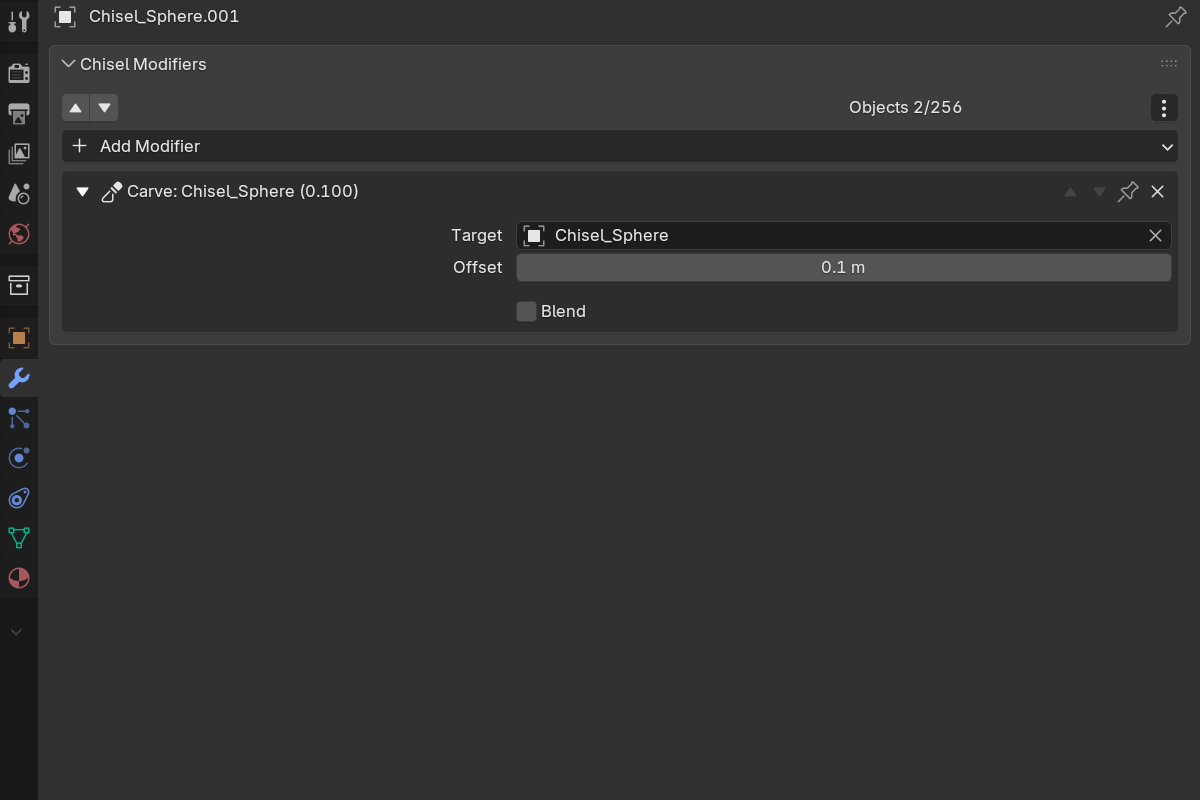
Unlike a boolean cutter, a carve target is a live object: it keeps rendering, sitting in the pocket it cut.
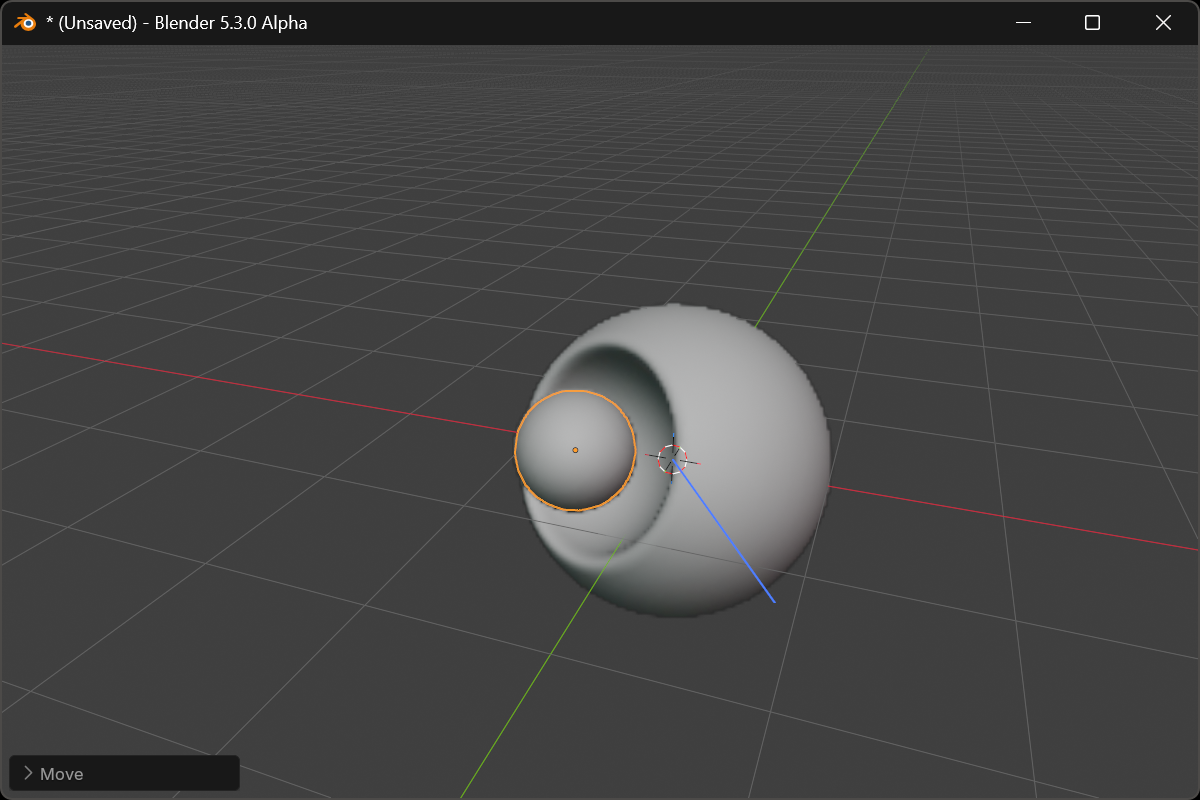
Adding a carve
- Pie menu (
Q) or right-click → Modifiers: the Carve button, next to Emboss and Engrave. Select the target shapes, make the host active, click. Like the other boolean buttons it is dual-function: click adds,Shift+ click swaps every modifier targeting the selection to Carve, and the button lights up when the selected shape is already a carve target. - Modifier panel: Add Modifier → Carve adds an empty Carve to the active object; pick the Target in the panel afterwards.
- Active tool: set the tool’s Operation to Carve and draw a shape. It is wired as a carve onto every selected shape, and unlike a boolean cutter it keeps rendering. See Active Tool.
The operation cycle keys ; and ' now step through Difference → Union → Intersect → Emboss → Engrave → Carve.
Parameters
- Target: the shape whose grown field does the cutting. A native object search box; type or pick by name.
- Offset: how far the target’s field is expanded before it carves (default
0.1, soft max2.0).0is a plain difference. The offset never goes negative: a carve only ever grows the target. - Blend: enable a fillet along the carve edge, with Outer (radius), Profile and Smooth exactly as on a Boolean.
There is no Material Blend. The pocket always keeps the base object’s material, the way a bisect cut does. The target’s colour never reaches the face it carves.
Adjusting the offset
Four ways to drag the offset live:
- the third ring-arc at the bottom-right gizmo cluster, outside rounding and blend, in azure, see Gizmos
- the Offset button in the pie’s South-West wedge, when a selected shape is a carve target
- Offset in the right-click menu
- the Carve row in the pie’s East wedge, when the host is active
Shift for precision, Ctrl to snap, Space / Enter to confirm, RMB / Esc to put the value back. The blend is adjusted like any other boolean blend: Ctrl + B, the blend arc, or the Blend entries in the pie and right-click menu.
Notes
- The target keeps rendering in its own material and is parented to the host so the two move together.
- Apply All never deletes a carve target. Clean detaches it like any operand; Clean Mods removes a Carve whose target was deleted.
- With a Mesh primitive as target, keep Offset plus the blend radius within its Field Margin; raise the margin and press Rebake SDF for a wider carve.
See also
- Boolean: the plain difference Carve grows from
- Emboss & Engrave: displacing with a shape instead of cutting
- Rounding & Blending: the blend profiles
- Interface: Gizmos: the carve ring-arc